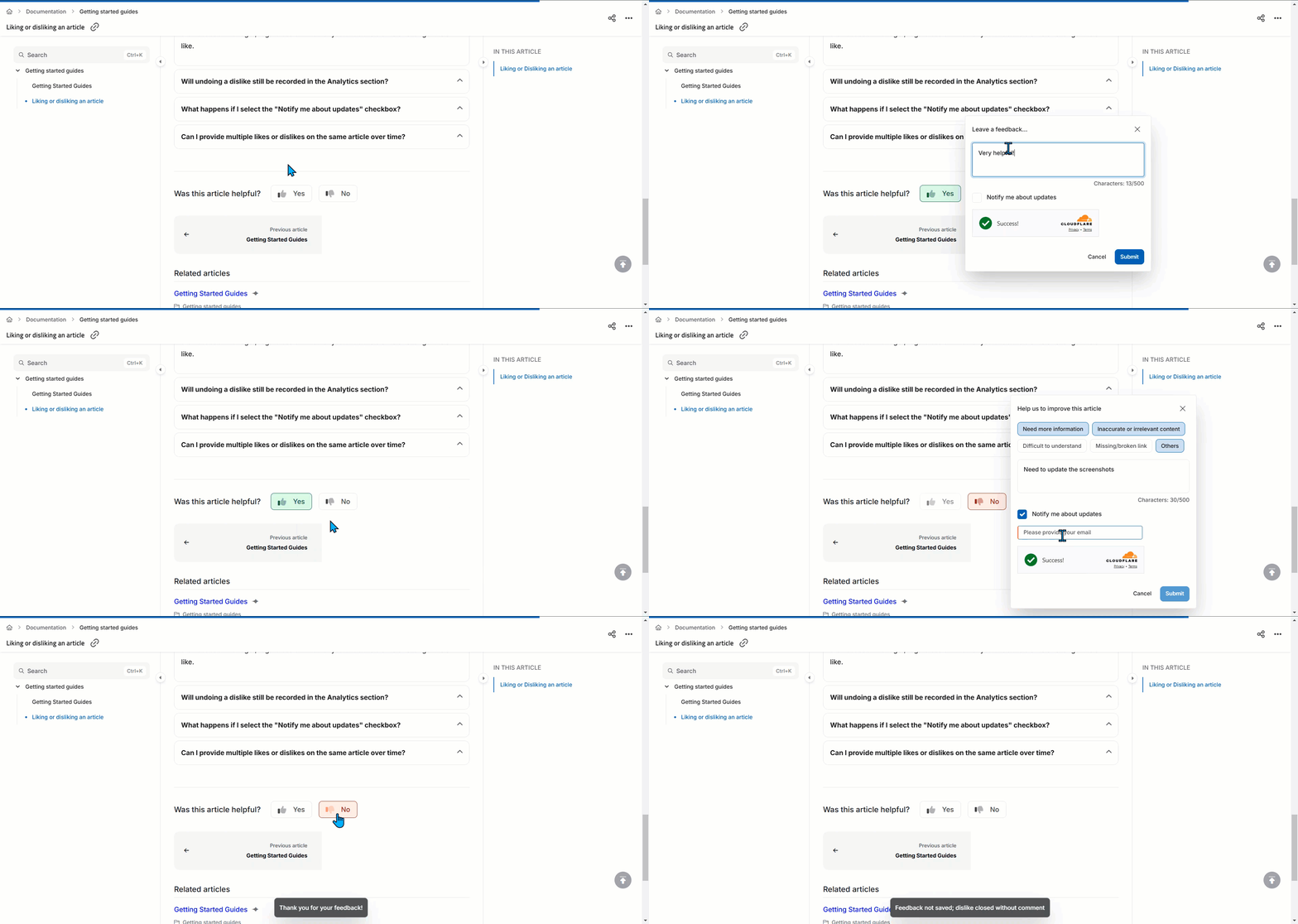
 ### Undo a like or dislike
Click the **like** () or **dislike** () icon again to undo the action.
The article's feedback now reflects the reader's latest action.
---
## Limits and limitations
| Limit | Value | Notes |
|---|---|---|
| Undo window | 30 days | Undo is unavailable if the reader clears their browser cache, since this deletes the saved data needed to reverse the action. |
| Feedback per reader | One active like or dislike per article | Readers can switch between like and dislike, but can't submit multiple of the same type. Existing comments carry over to the new feedback type. |
Readers can also like or dislike articles from the Knowledge base widget.
---
## Best practices
- Review dislike feedback regularly in the Feedback manager to catch specific, actionable gaps like missing screenshots or unclear steps.
- Encourage readers to use **Notify me about updates** when they leave feedback, so they see when their input leads to a content fix.
- Treat repeated dislikes on the same article as a signal to prioritize that content for revision over newer, unflagged articles.
---
## FAQ
### Undo a like or dislike
Click the **like** () or **dislike** () icon again to undo the action.
The article's feedback now reflects the reader's latest action.
---
## Limits and limitations
| Limit | Value | Notes |
|---|---|---|
| Undo window | 30 days | Undo is unavailable if the reader clears their browser cache, since this deletes the saved data needed to reverse the action. |
| Feedback per reader | One active like or dislike per article | Readers can switch between like and dislike, but can't submit multiple of the same type. Existing comments carry over to the new feedback type. |
Readers can also like or dislike articles from the Knowledge base widget.
---
## Best practices
- Review dislike feedback regularly in the Feedback manager to catch specific, actionable gaps like missing screenshots or unclear steps.
- Encourage readers to use **Notify me about updates** when they leave feedback, so they see when their input leads to a content fix.
- Treat repeated dislikes on the same article as a signal to prioritize that content for revision over newer, unflagged articles.
---
## FAQ
What happens to my feedback if I undo a dislike after submitting it?
If the feedback is still open in the Feedback manager, it's deleted. If it's already assigned to a team member or in another state, it's marked as Removed to indicate it's no longer active.
Will undoing a dislike still be recorded in Analytics?
No. Once a dislike is undone, the action is canceled and isn't recorded in the Analytics section, so only active interactions are captured.
What happens if I select "Notify me about updates"?
The team handling feedback can respond to it in the Knowledge base portal, and you'll be notified of any replies related to your feedback.
Can I provide multiple likes or dislikes on the same article over time?
No, you can't submit multiple likes or dislikes on the same article. You can switch your feedback by clicking the opposite button, and any existing comments carry over to the new feedback type.