---
title: "Videos"
slug: "adding-videos-in-articles"
description: "Learn to add videos to Document360 articles. Enhance tutorials and guides with easy video insertion methods using URLs, embed codes, and files."
tags: ["Videos", "Articles"]
updated: 2026-11-16T09:26:07Z
published: 2026-11-16T09:26:07Z
canonical: "docs.document360.com/adding-videos-in-articles"
---
> ## Documentation Index
> Fetch the complete documentation index at: https://docs.document360.com/llms.txt
> Use this file to discover all available pages before exploring further.
# Videos
Add a video to an article or category page when a walkthrough is easier to follow than text. You can embed a video from a hosting platform such as YouTube, Wistia, or Vimeo, or insert one from Drive. The steps depend on your editor: the Advanced WYSIWYG editor or the Markdown editor.
---
## Insert a video in the Advanced WYSIWYG editor
1. Open the article in the Advanced WYSIWYG editor.
2. Use the slash command `/video` and select **Video**. The **Insert video** panel appears.
3. Choose how to add the video:
- To embed a video from YouTube, Wistia, or Vimeo, select **Embed URL** and paste the platform's embed URL in **Enter embed URL**.
- To use a self-hosted video file, such as an `.mp4`, select **Embed URL** and paste the file URL in **Enter video URL**.
- To paste an embed code snippet from the hosting platform, select **Embed code**. Keep only the `<iframe>` tag. For more information, see [Vimeo embed code doesn't work](/docs/adding-videos-in-articles#vimeo-embed-code-doesnt-work).
- To use a video already stored in Drive, select **Drive** and choose the video.
4. Select **Insert**.
The video appears in the editor. If you used a self-hosted video URL, resize the video to set its height and width.

---
## Add a caption to a video
Add a caption to tell readers what a video shows or which step it supports. The caption appears below the video. You can add captions in the Advanced WYSIWYG editor. The Markdown editor doesn't support video captions.
1. Select the video in the article.
The floating menu appears.
2. Select **Caption**.
A caption field appears below the video.
3. Enter the caption.
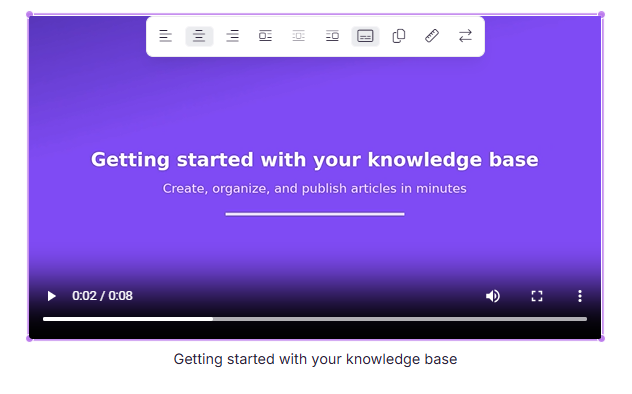
To remove the caption, select the video and select **Caption** again. This deletes the caption text.
You add a caption after you insert the video. The **Insert video** panel doesn't have a caption field.
A caption works with the other alignment options. When you change the alignment of a captioned video, the caption moves with it.
NOTE
You can't use a caption and **Inline block** together. When a video has a caption, **Inline block** is unavailable, and when a video uses **Inline block**, **Caption** is unavailable. To switch, turn off the one you're using first.
---
## Insert a video in the Markdown editor
In the Markdown editor, you can paste a video URL or select a video already stored in Drive.
### Insert a video by URL
1. Open the article in the Markdown editor.
2. Select the **Insert video** () icon in the toolbar. The **Insert video** panel appears.
3. Paste the video URL (YouTube, Wistia, or Vimeo) in the first text field.
4. Enter alt text for the video in the **Alt Text** field.
5. Select **OK**.

### Insert a video from Drive
1. Open the article in the Markdown editor.
2. Select the **Insert file** () icon in the toolbar.
3. Select the video from Drive and select **Insert**.
4. Update the pixel height and width as needed.
---
## Best practices
- In the Advanced WYSIWYG editor, use **Enter embed URL** for hosted videos (YouTube, Wistia, Vimeo) instead of pasting an embed snippet with wrapper tags. Only the `<iframe>` tag is supported.
- In the Advanced WYSIWYG editor, test any pasted embed code before you publish, to confirm that slash commands, image editing, and other content blocks still work in the article.
- Use link analytics to check for broken video links across your articles.
- Add descriptive alt text to every video, for accessibility and search.
- Add a short caption when a video needs context, such as what it demonstrates or which step it supports.
---
## Troubleshooting
### Vimeo embed code doesn't work
In the Advanced WYSIWYG editor, if you paste a Vimeo embed code and the video doesn't appear, or slash commands (`/`), image editing options, or content blocks stop working in the article, the embed code may contain unsupported tags. Vimeo embed codes often include `<div>` and `<script>` tags or styling wrappers. Document360 supports only the `<iframe>` tag for embedding videos.
To fix the embed code:
1. Remove everything except the `<iframe>` tag.
2. In the iframe's `style` attribute, change `position:absolute` to `position:relative` and remove `top:0;left:0;` so the video displays correctly.
**Before (unsupported code):**
```
```
**After (supported code):**
```
```
---
## FAQ
**Why is Inline block unavailable for my video?**
The video has a caption. A caption can't be used with **Inline block**. Turn off **Caption** to use **Inline block**, or choose another alignment option.
**Can I find broken video links in my articles?**
Yes. Link analytics checks your project's links, including media files, videos, and images. For more information, see [Link status](/help/docs/links-status).
**Can I filter articles that contain embedded videos?**
No. There's no built-in filter for articles with embedded videos. To find them, check the articles manually.