---
title: "Tabs"
slug: "tabs"
description: "Organize complex content with tabs in the Advanced WYSIWYG editor, enhancing navigation and clarity for readers across various platforms and audiences."
updated: 2026-11-23T08:45:35Z
published: 2026-11-23T08:45:35Z
canonical: "docs.document360.com/tabs"
---
> ## Documentation Index
> Fetch the complete documentation index at: https://docs.document360.com/llms.txt
> Use this file to discover all available pages before exploring further.
# Tabs
Use tabs to organize related content into separate panels within a single article, so readers can go straight to the part they need instead of scrolling through everything. Tabs are available in the unified Editor and the Advanced WYSIWYG editor.
NOTE
The unified **Editor** is rolled out in phases and is currently available in projects created after November 23, 2026. Projects created earlier continue to use the Advanced WYSIWYG editor and the Markdown editor. We're working to make it available to all projects soon.
NOTE
Not sure which editor you are using? Open any article in edit mode and check the label in the article header. It shows Unified **Editor**, **Advanced WYSIWYG**, or **Markdown**.
---
## When would you use tabs
- Use tabs to present the same process across multiple platforms or operating systems, such as installation steps for Windows, macOS, and Linux side by side
- Use tabs to show the same API call or code snippet in multiple languages without stacking multiple code blocks
- Use tabs to separate content by audience type, such as Admin and End User instructions within the same article
- Use tabs to organize distinct configuration options or settings that share the same context but apply to different scenarios
- Use tabs to reduce page length on content-heavy articles where each section is self-contained, and readers are unlikely to need all sections at once
---
## Creating tabs
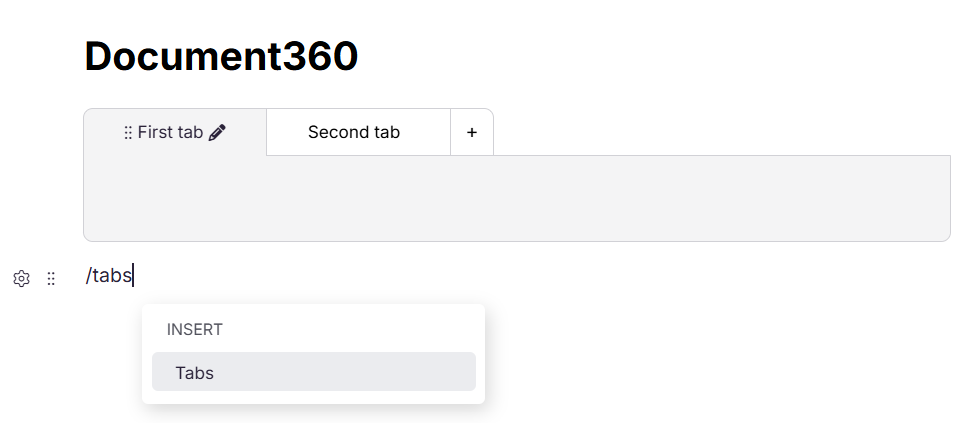
**In either editor:** Type the slash command `/tabs` and press **Enter**. A default tab structure with two tabs will appear in your article. In the unified Editor, the tabs are named **First tab** and **Second tab**, with a **+** (add tab) button next to them.
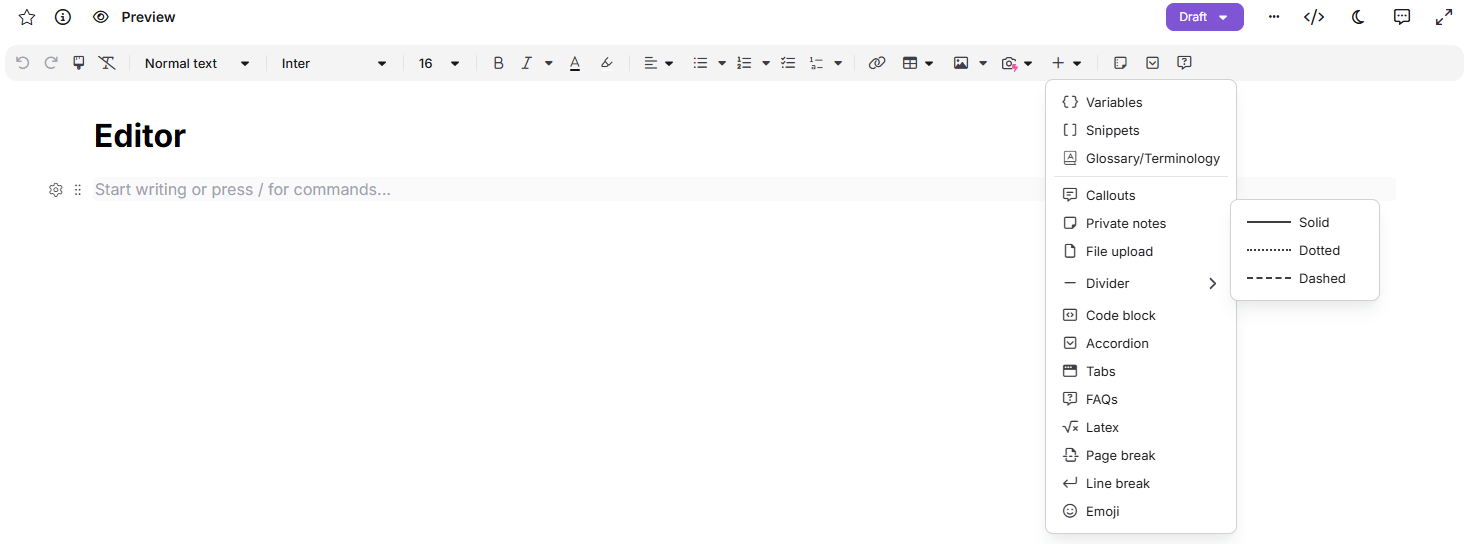
**In the unified Editor:** You can also insert tabs from the toolbar above the content: select the **Insert** (**+**) icon, then select **Tabs**.
You can also type `/` in the article body and select **Tabs** on the **Insert** tab. On an empty line, select **More** on the quick insert bar to open the same menu.
### Adding additional tabs
Hover over the tab bar and click the **+** button, then enter a name for the new tab. Repeat as needed to create multiple tabs. In the unified Editor, select **+** next to the last tab, then select the tab and type its content.
NOTE
- The tabs feature requires a minimum of two tabs to function.
- A maximum of 10 tabs can be created within a single tab structure.
### Supported elements inside tabs
You can add the following elements to your tab content:
- **Eddy AI Writer**: Generate AI-powered content directly in your tabs.
- **Text formatting**: Use headings (H2, H3, H4), bullet lists, numbered lists, and checklists.
- **Images and videos**: Insert, resize, and manage images or videos.
- **Tables**: Add and customize rows and columns.
- **Hyperlinks**: Insert and format links.
- **Callouts and private notes**: Add callouts, or private notes that only your team sees.
- **Code blocks and inline code**: Display code snippets or inline code for technical references.
- **Variables and snippets**: Reuse content across tabs using snippets and variables.
- **Glossary terms**: Add terms with definitions visible when hovering or clicking.
- **Other enhancements**: Use emojis, dividers, accordions, and LaTeX equations.
---
## Editing tabs
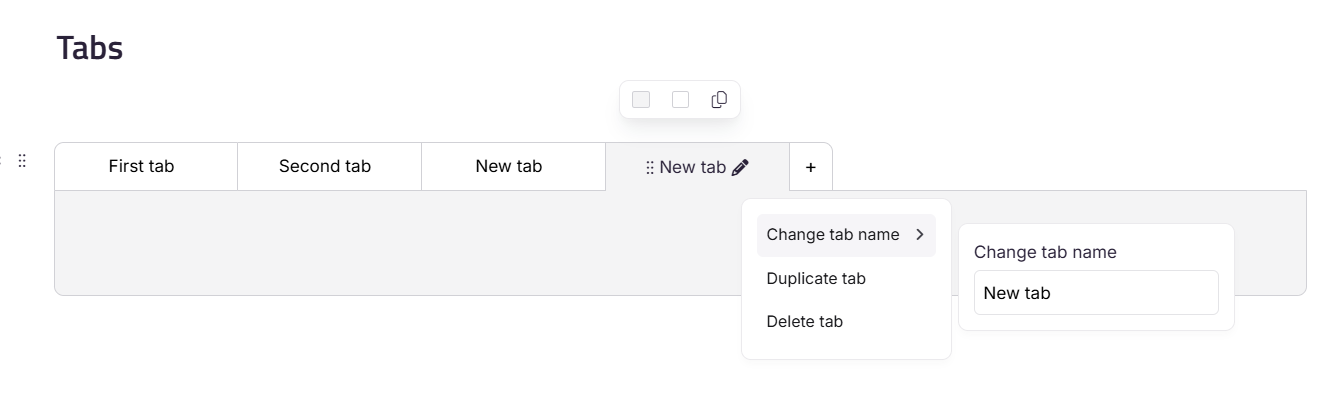
Click the **Edit** icon next to the tab name, and you can perform the following actions. In the unified Editor, select the pencil next to the tab name.
### Changing tab names
Hover over **Change tab name**, then enter the new name (up to 50 characters). The updated name will automatically reflect in the tab. In the unified Editor, enter the new name in the **Change tab name** field.
### Duplicating tabs
Click **Duplicate tab** from the menu (**Duplicate** in the unified Editor). A new tab will appear next to the original with the same title, content, and color.
### Deleting tabs
Click **Delete tab** from the menu (**Delete** in the unified Editor). Deleted tabs can be restored using **Undo** (`Ctrl + Z`).
NOTE
If your content block contains only two tabs, you cannot delete either tab.
---
## Customizing tabs
### Changing tab background and border color
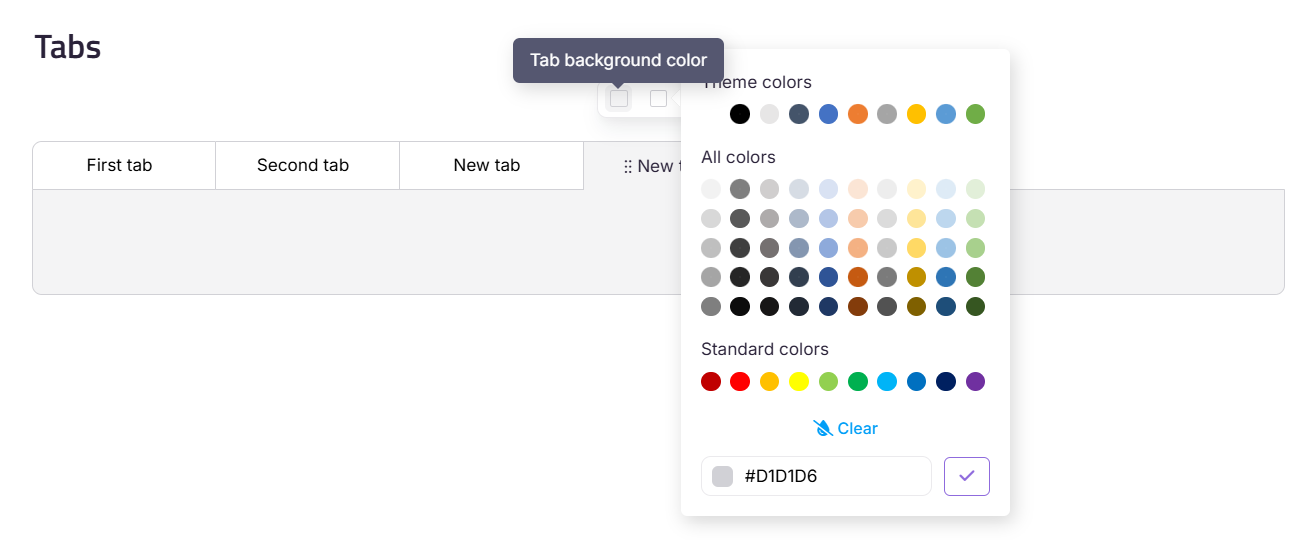
**In the unified Editor:** Click the tabs block to open its bubble menu, which has **Background colour**, **Border colour**, and **Copy**. Select **Background colour** or **Border colour** and choose a color.
**In the Advanced WYSIWYG editor:** Select the tab content block, then click **Tab background color** or **Tab border color** from the customization options. Use the color picker to select a color using preset colors, HEX values, or RGB values. Click **Clear** in the color picker to remove any applied color.
NOTE
The selected background or border color applies to the entire tab content block. It is not possible to apply different colors to individual tabs.
### Copying a tabs block
In the unified Editor, click the tabs block and select **Copy** in its bubble menu.
### Moving tabs
- Hover over the **six-dot drag icon** to the left of the tab name, click and hold it, drag the tab to the desired position, then release to drop it.
- If your list of tabs extends beyond the visible area, drag the tab toward the dark grey area near the right or left arrow to scroll and access hidden sections.
- Drag until a **blue line** appears in the center of the target tab's position, then drop. The list will automatically realign.
NOTE
For better control, drag tabs slowly and make small adjustments to avoid accidental replacements.
---
## Tabs in Markdown view (unified Editor)
In the unified Editor's Markdown view, a `tabs` marker wraps one HTML `<details>` element per tab. The `<summary>` holds the tab name, and the tab content goes after it. Keep the blank lines.
```
[d360]: # "tabs"
Windows
Run the installer.
macOS
Open the disk image.
[d360]: # "/tabs"
```
To open a tab other than the first when the page loads, add `default` to the tabs marker. It counts from 0, so `[d360]: # 'tabs default="1"'` opens the second tab.
When you insert tabs in Markdown view, the unified Editor adds a starter with two tabs. To add a tab, copy a whole `<details>` … `</details>` block, including the blank lines around it, and change its text. Don't delete the `tabs` marker lines; they hold the tab structure, and removing them can cause an error when you switch back to Block view.
---
## Viewing tabs in the Knowledge base site
- You can switch between tabs without refreshing the page.
- Tab colors, titles, and layouts appear the same across the knowledge base site, widgets, and extensions.
- Tabs work on mobile devices.
- When exporting an article with tabs as a PDF, tab contents appear sequentially with each tab's title displayed as a heading.
---
## Use cases and examples
- **Platform-specific instructions**: Show installation steps for Windows, Mac, and Linux side by side so readers only read the tab relevant to them.
- **Role-based content**: Separate instructions for Admins, Editors, and Viewers within the same article instead of creating three separate articles.
- **Code in multiple languages**: Show the same API call in Python, JavaScript, and cURL so developers can pick their preferred language.
- **Before and after comparisons**: Show the state of a configuration before and after a change so readers can compare the two.
---
## Best practices
- Keep tab names short and descriptive. Readers should immediately understand what each tab contains without opening it. Tab names support up to 50 characters, but shorter is better.
- Use tabs only when content is parallel and mutually exclusive. Readers should only need one tab at a time. If readers need to read all tabs in sequence, a single scrolling article is more appropriate.
- Avoid using more than five tabs in a single block where possible. Too many tabs can make navigation confusing, especially on mobile.
- Use consistent content structure across tabs. If one tab has an intro, steps, and a note, apply the same structure to all tabs so readers know what to expect.
- Do not rely on tabs for content that needs to be discoverable via search. Headings inside tabs are not included in the article's table of contents and may have limited search visibility.
---
## FAQ
**Can I create tabs within another tab?**
No, nested tabs are not supported. You cannot create tabs inside other tabs.
**Can I include tab headings in the table of contents?**
No, headings within tabs will not be included in the table of contents on the knowledge base site.
**Can I add page breaks inside a tab?**
No, the page break option is inactive within tabs to preserve the layout and structure of the content.
**Can I use tabs inside other editor components?**
No, tabs cannot be created inside certain editor controls like tables, accordions, or callouts.
**Can I make a different tab open first?**
In the unified Editor, yes. In Markdown view, add `default` to the tabs marker, counting from 0. For example, `[d360]: # 'tabs default="1"'` opens the second tab when the page loads.
Application Programming Interface - A set of defined rules and protocols that allows one software application to communicate with and request functionality from another. APIs are the backbone of modern integrations. When Document360 connects to Slack, Intercom, or Google Analytics, it does so through their APIs. Document360 also provides its own REST API, enabling teams to programmatically manage articles, categories, and reader accounts from external systems.