Die Eddy-KI Feedback manager ist ein Werkzeug in Document360 , das Ihnen hilft zu verstehen, wie effektiv Eddy AI Nutzerfragen in Ihrer Wissensdatenbank beantwortet. Es liefert Einblicke in erfolgreiche und erfolglose Suchinteraktionen, sodass Sie die Findbarkeit von Inhalten und die Nutzerzufriedenheit verbessern können. Der Feedback-Manager hat zwei Tabs: Beantwortete Anfragen, die Feedback zu Suchanfragen sammeln, bei denen Eddy geantwortet hat, und Unbeantwortete Anfragen, die Feedback erfasst, wenn Nutzer keine Ergebnisse erhalten. Das regelmäßige Überprüfen dieses Feedbacks ermöglicht es Ihnen, Ihre Inhalte zu verfeinern, Dokumentationslücken zu schließen und sicherzustellen, dass die Leser immer das finden, was sie brauchen.
Wann sollte man den Eddy AI Feedback-Manager verwenden
Verwenden Sie den Eddy AI Feedback Manager, wenn Sie:
- Nach einer Produktveröffentlichung oder einem Inhaltsupdate: Überprüfen Sie, ob die Leser neue Inhalte finden oder auf Sackgassen stoßen.
- Wenn die Suchzufriedenheit niedrig erscheint: Verstehen Sie, warum Leser Antworten nicht mögen und welche Artikel verbessert werden müssen.
- Während eines Content Audits: Entdecken Sie Themen, die in Ihrer Wissensdatenbank regelmäßig fehlen, und priorisieren Sie, was als Nächstes geschrieben werden soll.
Wie man auf den Eddy AI Feedback-Manager zugreift
Um auf die Eddy AI Feedback-Manager in Document360:
- Navigiere zu Feedback manager () in der linken Navigationsleiste in der Knowledge base portal.
- Klicken Sie Eddy AI.
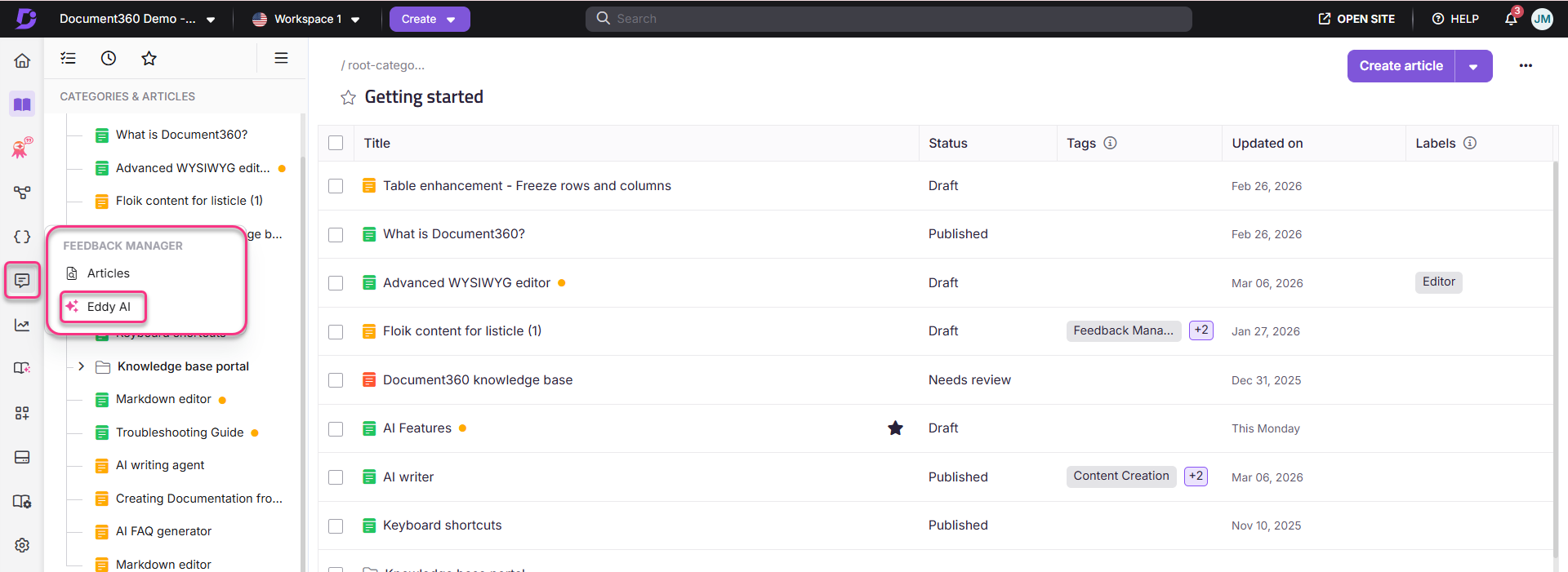
Der Feedback-Manager öffnet mit zwei Tabs: Beantwortete Anfragen und Unbeantwortete Anfragen.
Überblick über die beiden Tabs
Der Eddy AI Feedback-Manager ist in zwei Tabs organisiert, die jeweils einen eigenen Zweck erfüllen.
| Tab | Was es einfängt | Was du damit machen kannst |
|---|---|---|
| Beantwortete Anfragen | Feedback (Vorlieben und Abneigungen) von Lesern zu den Antworten von Eddy AI | Bewerten Sie die Antwortqualität, weisen Sie Aufgaben an Teammitglieder zu, verfolgen Sie den Lösungsstatus |
| Unbeantwortete Fragen | Rückmeldungen von Lesern, die keine Ergebnisse für ihre Suche erhalten haben | Identifiziere Inhaltslücken, füge fehlende Themen hinzu, verbessere die Keyword-Abdeckung |
Die Gesamtzahl der beantworteten Anfragen spiegelt die Gesamtzahl der Feedback-Items in den Statussen Open, Planned und In Progress wider.
Für detaillierte Informationen zur Überprüfung und Umsetzung von Feedback in jedem Tab siehe Beantwortete Anfragen und unbeantwortete Anfragen.
Best Practices
- Überprüfe das Feedback zu einem wöchentlichen Rhythmus. Für neu veröffentlichte Artikel oder große Produktveröffentlichungen sollten Sie in den ersten Tagen täglich das Feedback überprüfen.
- Nachdem Sie Inhaltsupdates als Reaktion auf Feedback vorgenommen haben, markieren Sie die relevanten Punkte als abgeschlossen , damit die Feedbackliste umsetzbar bleibt.
FAQ
Wie oft sollte ich das Feedback zu Eddy AI überprüfen?
Wöchentliche Überprüfungen werden empfohlen. Für neu veröffentlichte Artikel oder größere Veröffentlichungen sollten Sie in den ersten Tagen nach der Veröffentlichung häufiger das Feedback überwachen.
Kann ich Feedback nutzen, um die Suchergebnisse zu verbessern?
Ja. Nutzen Sie das Feedback, um relevante Schlüsselwörter hinzuzufügen, veraltete Inhalte zu aktualisieren und neue Artikel zu erstellen, um die Entdeckungsbarkeit von Inhalten zu verbessern und unbeantwortete Anfragen zu reduzieren.
Ist es möglich, den UI-Text im Feedback-Formular für die Eddy-AI-Suche auf der Knowledge Base-Seite zu lokalisieren oder anzupassen?
Ja. Sie können den im Feedback-Formular angezeigten UI-Text mit der Funktion Lokalisierungsvariablen lokalisieren oder anpassen. So kannst du den Standardtext in andere Sprachen übersetzen. Um diesen Text zu aktualisieren:
- Navigiere zu {{variable. Einstellungen}} () > {{variable. Wissensdatenbankportal}} in der linken Navigationsleiste im Wissensdatenbankportal.
- Im linken Navigationsbereich navigiere zu {{variable. Lokalisierung n Arbeitsbereiche}}.
- Im Reiter Lokalisierungsvariablen erweitern Sie das Eddy AI Akkordeon. Du kannst Elemente wie Gefällt mir, Gefällt mir nicht und Hinterlasse einen Kommentar aktualisieren.
:::(Info) ( HINWEIS) Standardmäßig lokalisiert das System Variablen auf die jeweilige Sprache. :::
- Klicken Sie auf Speichern.
Gibt es ein Zeichenlimit für das Feedback der Leser?
Ja. Leser können bis zu 1000 Zeichen Feedback geben, unabhängig davon, ob es positiv oder negativ ist. Das Limit umfasst Leerzeichen, und Formatierungsoptionen wie Fett, Kursiv oder Stichpunkte werden nicht unterstützt. Ein Zeichenzähler wird unter dem Eingabefeld angezeigt, um die verbleibenden Zeichen anzuzeigen.
Warum kann ich bei der Massenauswahl keine geschlossenen Feedback-Elemente auswählen?
Geschlossene Feedback-Elemente können nicht über die Bulk-Auswahl im Feedback-Manager ausgewählt werden. Die Massenauswahl gilt nur für aktive (nicht geschlossene) Rückmeldungsitems. Um geschlossene Rückmeldungen zu exportieren, verwenden Sie die Option Filter , zum Beispiel indem Sie einen Datumsbereichs- oder Statusfilter anwenden, und exportieren Sie dann die Ergebnisse.