Die Verwaltung von Artikel-Feedback in Document360 bedeutet, von Lesern eingereichte Likes, Dislikes und Kommentare zu Ihren Artikeln in der Wissensdatenbank zu überprüfen und diese Feedbackpunkte dann als Team zuzuweisen, zu aktualisieren und zu lösen. Der Feedback-Manager gibt Ihnen Werkzeuge zur Verfügung, um Feedback zu triagieren, den Fortschritt der Lösungen mit Statuslabels zu verfolgen, intern in Diskussionen zu kommunizieren und die Leser zu benachrichtigen, wenn ihre Anliegen angesprochen wurden.
Auf Feedback des Artikels reagieren
-
Navigieren Sie in der linken Navigationsleiste des Knowledge Base zum Feedback-Manager () ().
-
Klicken Sie auf Artikel und wählen Sie dann den Reiter Feedback .
-
Wählen Sie einen Feedback-Punkt aus der Liste aus, um ihn im Detail-Panel zu öffnen.
-
Lesen Sie den Kommentar des Lesers. Der Artikel, der das Feedback erhalten hat, wird oben zur Referenz angezeigt.
-
Falls nötig, wählen Sie ein Teammitglied aus dem Dropdown-Menü "Zugewiesener" aus, um das Feedback zu vergeben.
-
Gib deine Antwort im Feld Diskussionen & Geschichte ein und wähle dann, wie du sie speicherst:
- Klicken Sie auf Notiz hinzufügen , um sie als interne Notiz zu speichern, die nur Ihr Team sehen kann.
- Klicken Sie auf Notiz hinzufügen und den Leser benachrichtigen , um sie zu speichern und auch per E-Mail an den Leser zu senden. Diese Option ist nur verfügbar, wenn der Leser "Benachrichtigung über Neuigkeiten" ausgewählt und seine E-Mail-Adresse beim Einsenden des Feedbacks angegeben hat.
Beide Maßnahmen tragen nur zur Diskussion bei. Es ändert nichts am Status des Feedbacks, sodass du mit deinem Team oder dem Leser hin und her sprechen kannst, bevor du entscheidest, wie du es löst.
-
Wenn Sie bereit sind, das Feedback zu lösen, wählen Sie einen Status aus dem Status-Dropdown-Menü:
| Status | Beschreibung |
|---|---|
| Offen | Standardstatus. Das Feedback wurde noch nicht beantwortet. |
| Geplant | Das Feedback wurde geprüft und für zukünftige Maßnahmen geplant. |
| In Arbeit | Ein Teammitglied arbeitet aktiv daran, das Feedback zu adressieren. |
| Vollständig | Das Feedback wurde beantwortet. Sie können bei Bedarf weiterhin Kommentare hinzufügen. |
| Geschlossen | Das Feedback wird gelöst und gesperrt. Weitere Änderungen können nicht vorgenommen werden. |
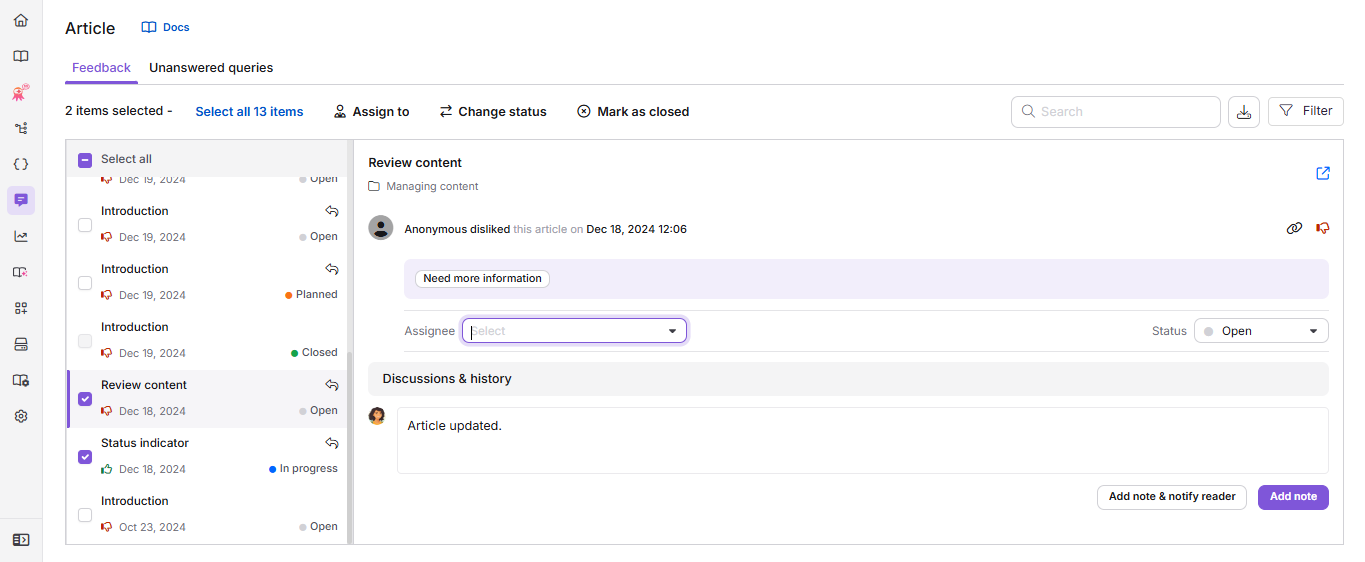
Die Auswahl von Geschlossen öffnet ein Bestätigungs-Popup, da das Schließen eines Feedback-Elements nicht rückgängig gemacht werden kann. Weitere Informationen zu "Schließen" und informieren Sie die Leser unten.
Schließen Sie Rückmeldungen und informieren Sie die Leser
Wenn Sie den Status eines einzelnen Feedback-Elements auf "Geschlossen" setzen, erscheint ein Bestätigungs-Popup. Das editierbare Kommentarfeld in diesem Popup ist vorab mit allen bereits hinzugefügten Notizen zu diesem Feedback-Element gefüllt. Falls Sie noch keine hinzugefügt haben, können Sie hier eine Abschlussnotiz eingeben, bevor Sie fortfahren.
- Klicken Sie auf Feedback schließen , um den Artikel zu schließen, ohne den Leser zu benachrichtigen.
- Klicken Sie auf Schließen und benachrichtigen Sie den Leser , um den Artikel zu schließen, und senden Sie Ihren Kommentar per E-Mail an den Leser. Wenn Sie das Kommentarfeld leer lassen, wird der Leser weiterhin darüber informiert, dass sein Feedback geschlossen wurde, aber die Benachrichtigung enthält keinen Antworttext.
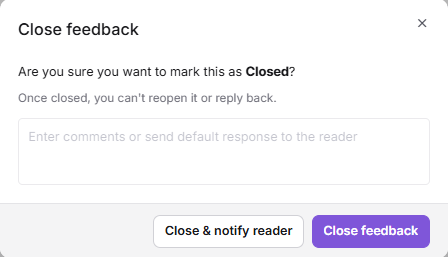
Sobald ein Feedback-Item geschlossen ist, sperren sich die Felder Assignee und Status , und du kannst ihn nicht wieder öffnen, darauf antworten oder den Status ändern.
Feedback zuweisen und Status ändern
Um den Zugewiesenen oder Status mehrerer Feedback-Elemente gleichzeitig zu aktualisieren:
- Wähle die Kontrollkästchen neben den Feedback-Elementen, die du aktualisieren möchtest. Nur Feedback mit dem Status Open, In Progress, Planned und Completed kann ausgewählt werden.
- In der Symbolleiste über der Liste klicken Sie auf () Zuweisen zu, () Status ändern oder () Als geschlossen markieren, je nachdem, was Sie tun möchten.
Wenn man auf Zuweisen oder Status ändern klickt , öffnet das Feedback-Popup "Verwalten ":
- Um das Feedback zuzuweisen, klicken Sie auf das Dropdown-Menü "Zugewiesener" und wählen Sie das gewünschte Teammitglied aus. Verwenden Sie das Suchfeld, um einen Benutzer nach Namen zu finden.
- Um den Status zu aktualisieren, klicken Sie auf das Status-Dropdown-Menü und wählen Sie den gewünschten Status aus: Offen, Geplant, In Arbeit oder Abgeschlossen.
- Klicken Sie auf Aktualisieren.
Wenn Sie auf "Als geschlossen markieren " klicken, öffnet sich ein Bestätigungsfenster für die ausgewählten Artikel mit Optionen basierend auf der Feedback-Auswahl. Klicken Sie auf "Alle Rückmeldungen schließen ", um sie zu schließen, ohne die Leser zu benachrichtigen, oder "Schließen und den Leser benachrichtigen , damit Sie Ihren Kommentar auch an jeden Leser senden."
Artikel-Feedback von der Übersichtsseite verwalten
Die Aufgaben-Karte auf der Übersichtsseite zeigt Artikel-Feedbackpunkte an, die Ihnen vom Feedback-Manager zugewiesen wurden.
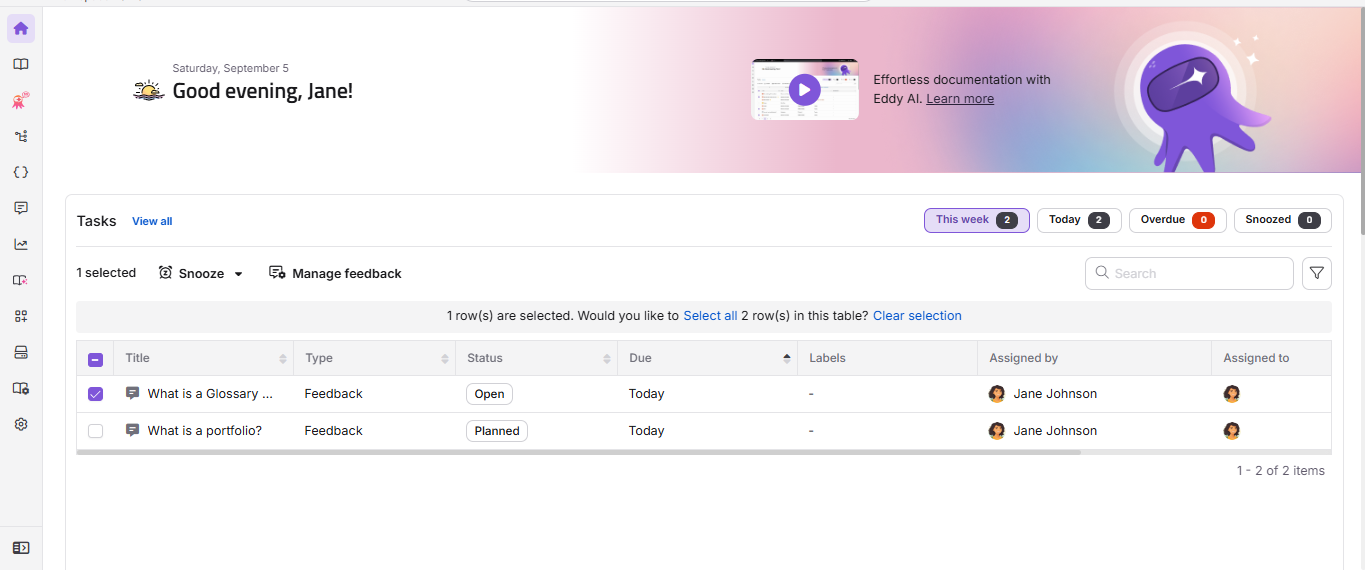
Jede Feedback-Aufgabe auf der Aufgaben-Karte zeigt den Artikeltitel, den Aufgabentyp, den Status, das Abgabedatum und den Zugeordneten an. Sie können die folgenden schnellen Schritte ausführen, indem Sie mit der Maus über eine Aufgabe fahren oder ihr Kontrollkästchen aktivieren:
- Schlummern (): Die Aufgabe vorübergehend verschieben. Wähle morgen (9 Uhr), nächste Woche (Montag, 9 Uhr) oder ein benutzerdefiniertes Datum und eine Uhrzeit.
- Feedback verwalten (): Das Feedback einem Benutzer zuweisen, den Status auf Offen, Plan, In Arbeit oder Abgeschlossen setzen.
- Informationen (): Fahre mit der Maus über einen Feedback-Punkt und klicke auf dieses Symbol, um Details wie Mitwirkende, Artikelstatus, URL und Beschreibung anzuzeigen.
Wenn Sie auf eine Feedback-Aufgabe auf der Aufgaben-Karte klicken, gelangen Sie direkt zum entsprechenden Element im Reiter Feedback im Feedback-Manager.
Artikel-Feedback exportieren
- Navigiere zum Reiter Feedback im Artikel-Feedback-Manager.
- Nutzen Sie die Filteroptionen, um die Liste bei Bedarf einzugrenzen.
- Klicken Sie auf CSV exportieren ().
- Warte ein paar Sekunden. Neben der Feedback-Liste erscheint ein Download-Symbol .
- Klicken Sie auf das Download-Symbol , um die Datei in Ihrem lokalen Speicher zu speichern.
Es können jeweils nur die letzten 90 Tage der Rückmeldungsdaten exportiert werden.
Best Practices
- Bewerten Sie Feedback, das als Dislike gekennzeichnet ist, insbesondere solche, die ungenaue Informationen oder unklare Anweisungen angeben, da dies die dringendsten Qualitätsprobleme darstellen.
- Bevor Sie das Feedback als abgeschlossen markieren, überprüfen Sie, ob der Artikel aktualisiert wurde und die Sorge des Lesers vollständig beseitigt ist.
- Nutzen Sie das Feld Diskussionen & Geschichte , um zu dokumentieren, welche Maßnahmen ergriffen wurden, damit der vollständige Kontext für alle Teammitglieder sichtbar ist.
- Für Feedback, bei dem der Leser um eine Benachrichtigung gebeten hat, verwenden Sie Notierung hinzufügen und den Leser benachrichtigen , damit er direkt eine Rückmeldung hört. Verwenden Sie Notiz hinzufügen für rein interne Updates, die den Leser nicht erreichen müssen
- Überprüfe täglich das Feedback, das dir von der Aufgaben-Karte auf der Übersichtsseite zugewiesen wurde, um sicherzustellen, dass nichts durchrutscht.
- Nutzen Sie die Optionen für Zuweisen und Status ändern, um nach einem Content Sprint effizient abgeschlossenes Feedback abzuschließen.
FAQ
Was ist der Unterschied zwischen "Vollständig" und "Geschlossen" im Feedback-Manager?
Vollständig bedeutet, dass das Feedback vollständig bearbeitet wurde, kann aber weiterhin wieder auf Offen verschoben werden, falls das Problem erneut auftaucht. Geschlossen bedeutet, dass alle Aktionen abgeschlossen sind und das Feedback dauerhaft gesperrt ist. Wenn ein Leser beispielsweise meldet, dass ein gelöstes Problem nicht vollständig behoben ist, kann das Team einen Vollständigen Punkt wieder öffnen, indem es ihn wieder auf Offen setzt. Sobald ein Element geschlossen ist, sind keine weiteren Änderungen mehr möglich.
Wie sollte ich das Feedback von Artikeln effektiv managen und darauf reagieren?
Beginnen Sie damit, Feedback zu stark frequentierten oder kürzlich aktualisierten Artikeln zu priorisieren, insbesondere zu Artikeln, die als Nicht gefallen sind. Gehen Sie zuerst auf kritische Probleme ein, wie ungenaue Informationen oder unklare Anweisungen. Sobald Updates vorgenommen wurden, überprüfen Sie, ob das Problem behoben ist, bevor Sie das Feedback als abgeschlossen markieren. Für Feedback, das eine Antwortanfrage enthält, verwenden Sie im Bereich Diskussionen & Geschichte den Schalter "Notiz hinzufügen und den Leser benachrichtigen ", um dem Leser eine Antwort zu senden.
Wie geht man am besten mit unklarem Feedback um und stellt sicher, dass nichts übersehen wird?
Überprüfen Sie das Feedback regelmäßig, idealerweise wöchentlich, um die umsetzbaren Punkte im Blick zu behalten. Für vages oder unklares Feedback nutzen Sie den verfügbaren Kontext, um die Absicht zu interpretieren. Vermeiden Sie es, mehrdeutige Punkte automatisch zu lösen. Für neue Artikel oder aktuelle Updates beobachten Sie das Feedback in den ersten Tagen genauer, um unmittelbare Bedenken zu erkennen. Verfolgen Sie ungelöste Punkte mit den Statuspunkten "Geplant " oder "In Bearbeitung ", damit sie für Ihr Team sichtbar bleiben.
Warum habe ich eine E-Mail-Benachrichtigung erhalten, aber das Feedback im Feedback-Manager nicht gefunden?
Wenn ein Leser sein Feedback zurückzieht (zum Beispiel indem er ein Gefällt oder Gefällt rückgängig macht), bevor Ihr Team es aufgenommen hat, wird das Feedback automatisch aus dem Feedback-Manager entfernt. E-Mail-Benachrichtigungen werden gesendet, wenn das Feedback erstmals eingereicht wurde, aber der Feedback-Eintrag kann nicht mehr verfügbar sein, wenn der Leser ihn später zurückgezogen hat. Wenn das Feedback bereits aufgenommen wurde (zugewiesen, mit einer Statusänderung oder einer Notiz hinzugefügt), wird es durch einen Rückzug nicht entfernt. Stattdessen protokolliert Document360 den Rückzug im Feld Diskussionen & Geschichte mit einem Zeitstempel, und wenn es ein Rückgängigmachen war, wird der Punkt automatisch geschlossen
Kann ich Feedback-Daten aus dem Feedback-Manager exportieren?
Ja. Sie können Feedback-Daten maximal 90 Tage lang aus dem Feedback-Manager exportieren. Klicken Sie in der Feedback-Tab-Symbolleiste auf CSV exportieren () und laden Sie die Datei herunter, wenn sie bereit ist.
Warum kann ich bei der Massenauswahl keine geschlossenen Feedback-Elemente auswählen?
Geschlossene Rückkopplungselemente können nicht mit der Massenauswahloption im Feedback-Manager ausgewählt werden. Die Massenauswahl gilt nur für aktive (nicht geschlossene) Rückkopplungseinträge. Um geschlossene Rückmeldungen zu exportieren, verwenden Sie die Option Filter: Zum Beispiel wenden Sie einen Datumsbereichs- oder Statusfilter an und exportieren Sie dann die Ergebnisse.