Der Tab " Unbeantwortete Anfragen" im Artikel-Feedback-Manager erfasst das Feedback von Lesern, die nach etwas in Ihrer Wissensdatenbank gesucht und keine Ergebnisse erhalten haben. Jeder Eintrag zeigt eine Lücke zwischen dem, was Ihre Leser erwarten zu finden, und dem, was Ihr aktueller Inhalt abdeckt. Das Management dieser Einträge hilft Ihnen, Inhaltslücken zu schließen, die Keyword-Abdeckung zu verbessern und Ihre Wissensbasis besser auffindbar zu machen.
Zugriff auf den Reiter "Unbeantwortete Anfragen"
- Navigieren Sie in der linken Navigationsleiste des Knowledge Base zum Feedback-Manager () ().
- Klicken Sie auf Artikel.
- Wählen Sie den Reiter "Unbeantwortete Anfragen ".
.png)
Antworten auf unbeantwortetes Anfragefeedback
- Überprüfen Sie die angezeigte Suchanfrage für ein Feedback-Element, um zu verstehen, wonach der Leser gesucht hat, was er aber nicht finden konnte.
- Lesen Sie alle weiteren Kommentare des Lesers für mehr Kontext.
- Wählen Sie ein Teammitglied aus dem Dropdown-Menü "Zugewiesener" aus, um das Feedback der relevantesten Person zuzuweisen.
- Ergreifen Sie die notwendigen Schritte, um die Lücke zu schließen. Häufige Maßnahmen umfassen:
- Einen neuen Artikel zu dem Thema zu erstellen, nach dem der Leser gesucht hat.
- Einen bestehenden Artikel aktualisieren, um fehlende Informationen oder Schlüsselwörter aufzunehmen.
- Relevante Suchbegriffe zu Artikeln hinzuzufügen, damit sie für ähnliche Anfragen in Zukunft auftauchen.
- Gib deine Notizen oder Aktualisierungen im Feld Diskussionen & Geschichte ein und klicke dann auf Notiz hinzufügen , um sie intern zu halten, oder auf Notiz hinzufügen und den Leser benachrichtigen , um sie ebenfalls per E-Mail an den Leser zu senden. Beide Maßnahmen fügen einfach zur Diskussion hinzu, ohne den Status des Feedbacks zu ändern.
- Wenn Sie bereit sind, das Feedback zu lösen, aktualisieren Sie den Status , um den aktuellen Fortschritt widerzuspiegeln.
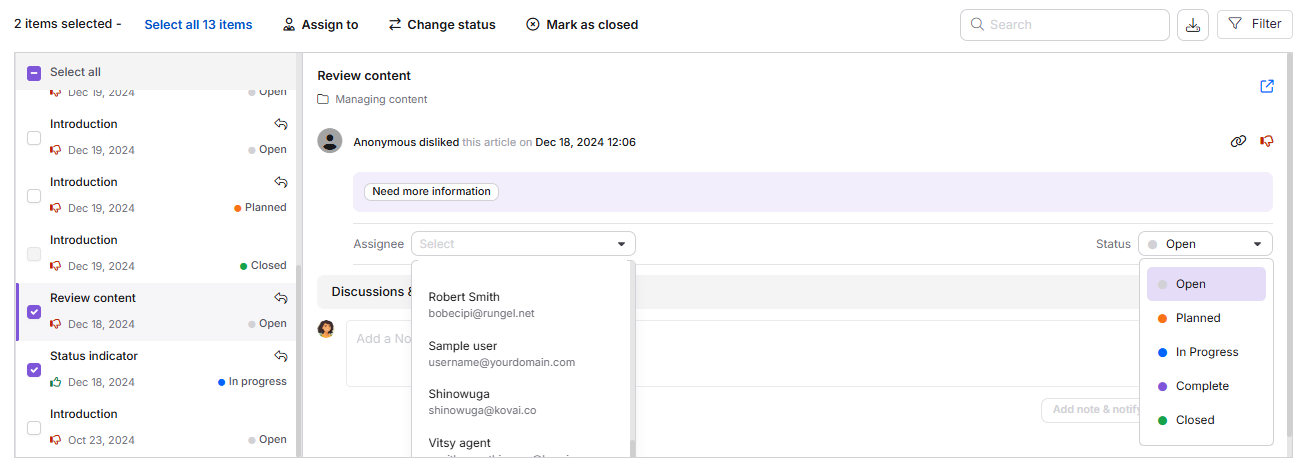
Rückkopplungsstatusreferenz
| Status | Beschreibung |
|---|---|
| Offen | Standardstatus. Das Feedback wurde noch nicht beantwortet. |
| Geplant | Das Feedback wurde geprüft und für zukünftige Maßnahmen geplant. |
| In Arbeit | Ein Teammitglied arbeitet aktiv daran, die Lücke zu schließen. |
| Vollständig | Die Lücke wurde geschlossen. Du kannst bei Bedarf weiterhin Kommentare hinzufügen. |
| Geschlossen | Alle Aktionen sind abgeschlossen. Weitere Änderungen können nicht vorgenommen werden. |
Wenn Sie auf Geschlossen klicken, wird ein Bestätigungs-Popup geöffnet, da das Schließen eines Feedback-Elements nicht rückgängig gemacht werden kann. Klicken Sie auf Feedback schließen , um es zu schließen, oder schließen Sie und benachrichtigen Sie den Leser , damit er Ihren Kommentar ebenfalls per E-Mail an den Leser schicken kann.
Feedback zuweisen und Status ändern
Um mehrere unbeantwortete Anfragen gleichzeitig zu aktualisieren:
- Markiere die Kontrollkästchen neben den Artikeln, die du aktualisieren möchtest. Es können nur Artikel mit dem Status "Offen" ausgewählt werden.
- In der Symbolleiste über der Liste klicken Sie auf () Zuweisen zu, () Status ändern oder () Als geschlossen markieren, je nachdem, was Sie tun möchten.
Wenn man auf Zuweisen oder Status ändern klickt , öffnet das Feedback-Popup "Verwalten ":
- Um die Elemente zuzuweisen, klicken Sie auf das Dropdown-Menü Zugewiesener und wählen Sie das gewünschte Teammitglied aus. Verwenden Sie das Suchfeld, um einen Benutzer nach Namen zu finden.
- Um den Status zu aktualisieren, klicken Sie auf das Status-Dropdown-Menü und wählen Sie den gewünschten Status aus: Offen, Geplant, In Arbeit oder Abgeschlossen.
- Klicken Sie auf Speichern.
Wenn Sie auf "Als geschlossen markieren " () klicken, öffnet sich ein Bestätigungs-Popup für die ausgewählten Artikel. Klicken Sie auf "Alles Feedback schließen ", um sie zu schließen, ohne die Leser zu benachrichtigen, oder auf "Schließen und benachrichtigen , dass der Leser Ihren Kommentar auch an jeden Leser weitersendet".
Nur Rückmeldungen mit offenem Status können für Zuweisungen oder Statusänderungen ausgewählt werden.
Umgang mit unbeantwortetem Anfragefeedback von der Übersichtsseite
Die Aufgaben-Karte auf der Übersichtsseite zeigt außerdem unbeantwortete Anfrage-Feedback-Items an, die Ihnen vom Feedback-Manager zugewiesen wurden.
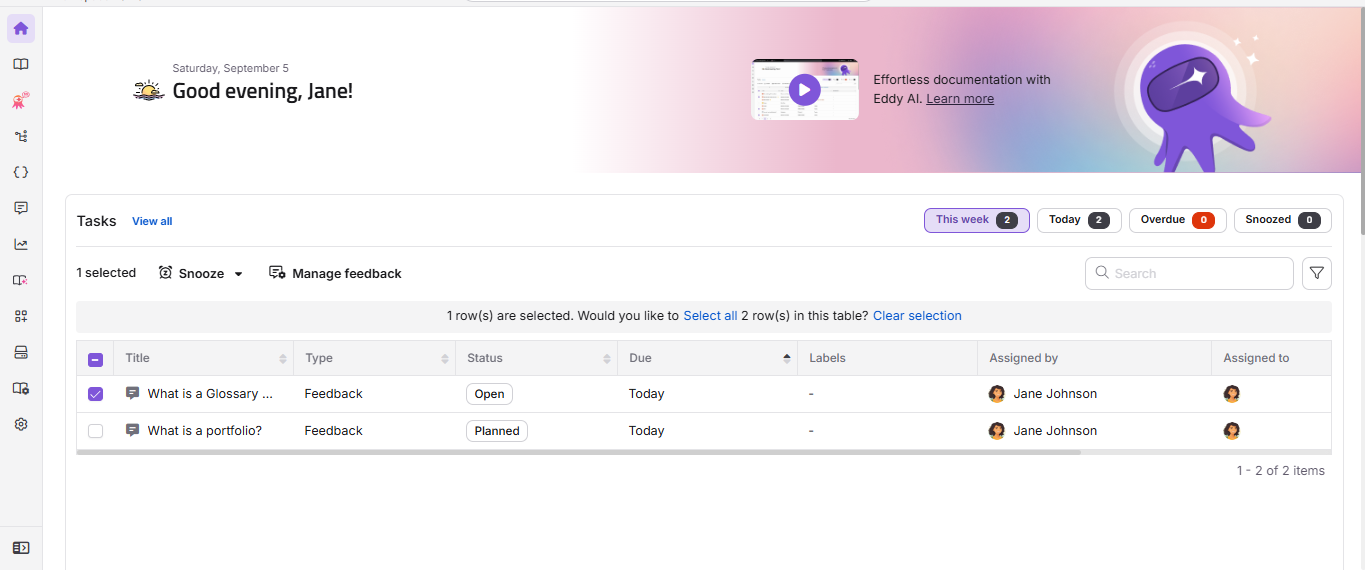
Jede Feedback-Aufgabe zeigt den Feedback-Titel, den Aufgabentyp, den Status, das Fälligkeitsdatum und den Zuweisungsempfänger an. Sie können die folgenden schnellen Aktionen ausführen, indem Sie mit der Maus über eine Aufgabe fahren oder deren Kontrollkästchen aktivieren:
- Schlummern (): Die Aufgabe vorübergehend verschieben. Wähle morgen (9 Uhr), nächste Woche (Montag, 9 Uhr) oder ein benutzerdefiniertes Datum und eine Uhrzeit.
- Feedback verwalten (): Das Feedback einem Benutzer zuweisen, den Status auf Offen, Geplant, Laufend oder Abgeschlossen setzen oder als geschlossen markieren, um es zu schließen.
Wenn Sie auf eine Feedback-Aufgabe auf der Aufgaben-Karte klicken, gelangen Sie direkt zum entsprechenden Punkt im Reiter "Unbeantwortete Anfragen" im Feedback-Manager.
Filtern und exportieren Sie unbeantwortetes Anfragefeedback
Verwenden Sie die Option Filter , um die Liste einzugrenzen, indem er:
- Anwendung: Beides, Knowledge Base oder Knowledgebase Assistant.
- Zugewiesen an: Filtern Sie nach dem Namen eines bestimmten Mitwirkenden.
- Feedback-Typ: Wähle alle, Dislike oder Like.
- Status: Wählen Sie alle aus: Offen, Geplant, In Bearbeitung, Abgeschlossen oder Geschlossen.
- Datumsbereich: Alle, 7 Tage, 30 Tage, 3 Monate, 1 Jahr oder ein benutzerdefinierter Zeitraum.
Um die Daten zu exportieren, klicken Sie auf CSV exportieren (). Bis zu 90 Tage Feedback-Daten können gleichzeitig exportiert werden.
Best Practices
- Überprüfen Sie mindestens wöchentlich den Tab "Unbeantwortete Anfragen", um wiederkehrende Suchbegriffe zu erkennen, die auf fehlende Inhalte hinweisen.
- Gruppieren Sie ähnliche unbeantwortete Fragen, bevor Sie neue Inhalte erstellen: Wenn mehrere Leser nach demselben Begriff suchen, löst ein einziger gut geschriebener Artikel wahrscheinlich alle Fragen.
- Beim Hinzufügen von Schlüsselwörtern zu bestehenden Artikeln sollten Sie sich auf die genaue Formulierung konzentrieren, die die Leser in ihren Anfragen verwenden, da dies die Suchrelevanz direkt verbessert.
- Nachdem Sie Inhalte erstellt oder aktualisiert haben, um eine Anfrage zu adressieren, markieren Sie das Feedback als Abgeschlossen und notieren Sie den Artikeltitel oder die URL im Feld Diskussionen & Geschichte zur Rückverfolgbarkeit.
- Koordinieren Sie mit dem Content-Team, indem Sie das Feld "Assignee" nutzen, um Anfragen an den Fachexperten weiterzuleiten, der am besten geeignet ist, die Lücke zu schließen.
FAQ
Was verfolgt der Tab "Unbeantwortete Anfragen"?
Der Reiter "Unbeantwortete Anfragen" erfasst das Feedback der Leser, wenn ihre Suche keine Ergebnisse lieferte. Jeder Eintrag zeigt die vom Leser eingegebene Suchanfrage, alle Kommentare und deren E-Mail-Adresse (sofern angegeben). Diese Daten helfen Ihnen, Inhaltslücken zu identifizieren und die Suchrelevanz in Ihrer Wissensdatenbank zu verbessern.
Welche Maßnahmen sollte ich unternehmen, wenn ich eine wiederkehrende, unbeantwortete Anfrage sehe?
Wenn dieselbe oder eine ähnliche Anfrage mehrfach erscheint, erwägen Sie, einen neuen Artikel zu diesem Thema zu erstellen, einen bestehenden Artikel zu aktualisieren, um diese Informationen zu enthalten, oder den Suchbegriff als Schlüsselwort zu einem relevanten Artikel hinzuzufügen. Nach der Aktion aktualisieren Sie den Feedback-Status auf Abgeschlossen und notieren Sie, was im Feld Diskussionen & Geschichte getan wurde.
Was ist der Unterschied zwischen "Vollständig" und "Geschlossen" bei unbeantwortetem Anfragefeedback?
Vollständig bedeutet, dass die Inhaltslücke behoben wurde, aber der Artikel kann bei Bedarf wieder auf Offen zurückgesetzt werden. Geschlossen bedeutet, dass alle zugehörigen Aktionen erledigt sind und keine weiteren Änderungen vorgenommen werden können. Verwenden Sie Vollständig , wenn Sie die Option zum Wiederöffnen des Elements behalten möchten, und verwenden Sie Geschlossen, wenn Sie sicher sind, dass keine weitere Aktion erforderlich ist. Da das Schließen nicht rückgängig gemacht werden kann, zeigt Document360 ein Bestätigungsfenster an, bevor sich der Status auf Geschlossen ändert.
Kann ich unbeantwortete Anfrage-Feedbackdaten exportieren?
Ja. Klicken Sie im Tab "Unbeantwortete Anfragen" auf CSV exportieren () zum Exportieren der Daten. Maximal 90 Tage an Daten können gleichzeitig exportiert werden.
Wie oft sollte ich den Reiter "Unbeantwortete Anfragen" überprüfen?
Wöchentliche Reviews werden für die meisten Teams empfohlen. Für neu veröffentlichte Inhaltsbereiche oder nach einer großen Produktveröffentlichung sollten Sie in den ersten Tagen häufiger den Tab überprüfen, um unmittelbare Inhaltslücken zu erkennen, bevor sie sich ansammeln.