This article covers issues you might run into as a Reviewer in Document360, such as missing inline comment options. Each section explains why the issue happens and how to fix it.
CSV header errors during import
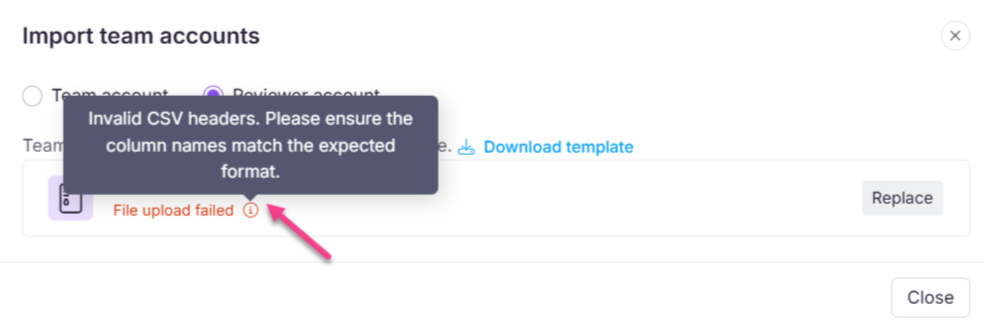
Error: Invalid CSV headers. Please ensure the column names match the expected format.
This error occurs when the uploaded CSV file does not have the required column headers or if the headers are misspelled, missing, or incorrectly formatted.
Steps to resolve:
- Open the CSV file using a spreadsheet editor (e.g., Excel).
- Check the first row and ensure it contains the correct column headers, namely Email, FirstName, and LastName.
- Remove any extra spaces, special characters, or typos in the header names.
- Save the file in CSV format after making corrections.
- On the error screen, click the Replace button and upload the corrected file.
- Try the import again.
Wenn das Problem nach dem Ausführen dieser Schritte weiterhin besteht, wenden Sie sich an das Document360-Support-Team, um weitere Unterstützung zu erhalten: Wenden Sie sich an den Document360-Support
FAQ
Why can't a Reviewer add inline comments?
Inline comments are only available after the Reviewer clicks the Start Review button at the top right of the editor. If this step is skipped, the option to add comments will not appear.