SP-initiated SSO fails with a Responder error
If IdP-initiated SSO works but SP-initiated SSO fails, it is likely because the Document360 signing certificate is not configured or trusted in ADFS. In SP-initiated SSO, Document360 sends a signed AuthnRequest that the IdP must validate. If the signing certificate is missing, the IdP returns a Responder error.
To resolve this:
Open the Properties of the Document360 relying party trust in ADFS.
Navigate to the Signature tab.
Upload the Document360 signing certificate.
You can obtain the Document360 signing certificate from the SAML metadata URL.
Invalid Signature error in SAML authentication
Error: The SSO login fails with an Invalid Signature error. This may appear in your Identity Provider’s (IdP) SAML trace or error log rather than on the Document360 login page directly.
This error occurs when the SAML assertion from Document360 cannot be validated by your IdP, usually because the SP metadata your IdP is using is outdated. Document360’s SP metadata URL auto-renews - no changes are required on the Document360 side. If your IdP still holds a cached or manually imported copy of an earlier version of the metadata, the certificate embedded in that version will no longer match the current Document360 signing certificate, causing the signature validation to fail.
Steps to resolve:
Obtain the current SP metadata URL from Document360.
Navigate to Settings > Users & Permissions > Enterprise SSO.
Hover over the affected SAML configuration and click the Edit icon.
On the Configure SP step, copy the metadata URL for your project.
Share the metadata URL with the person or team that manages your Identity Provider.
In your IdP admin console, open the Document360 application and update the SAML configuration by importing the metadata from the URL. This replaces any previously imported or manually entered SP metadata with the current version.
Save the IdP configuration and test the SSO login again.
Note: If you are locked out of Document360 and cannot retrieve the metadata URL yourself, contact Document360 Support. The support team can share the metadata URL for your project so your IT team can update the IdP without requiring portal access.
If the issue persists after updating the metadata, see Managing SSO certificates and SSO login issues for further troubleshooting.
If you encounter error during Salesforce SAML setup, refer to the following common errors and their solutions:
“No Assertion found” or “AuthnFailed” error when using Salesforce as the Identity Provider (IdP)
Error: “No Assertion found” or “AuthnFailed”
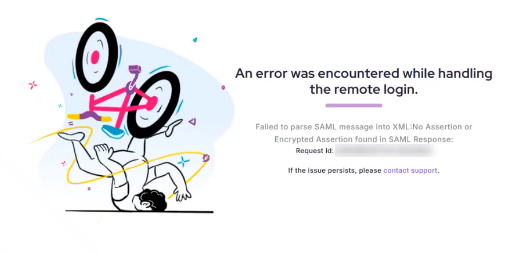
If you encounter a “No Assertion found” or “AuthnFailed” error while testing SAML SSO with Salesforce, this typically occurs because Salesforce is not sending the required SAML Assertion to Document360.
In most cases, this is due to the Connected App not being assigned to any user profile or permission set.
Steps to resolve
To resolve this error,
In Salesforce, open the Connected App configured for Document360.
Select Manage Profiles or Manage Permission Sets.
Assign the appropriate profile(s) or permission set(s) to grant users access to the app.
Save your changes and retry the SSO login.
Once the Connected App is associated with a profile, Salesforce will include the SAML Assertion in its response, and the SSO login will proceed successfully.
Invalid SAML Response
Users encounter the following error when attempting an IdP-initiated login through Microsoft Entra ID:
Error : “Invalid SAML Response: Missing SAMLResponse parameter”
Steps to resolve
This behavior can occur when Microsoft Entra ID does not select the expected Assertion Consumer Service (ACS) binding (HTTP-POST) from the Service Provider (SP) metadata. When multiple bindings are present, Entra ID may choose an incorrect binding, which can affect the IdP-initiated SSO flow.
In the Microsoft Entra ID application configuration, remove the Sign-on URL if it has been configured.
The Sign-on URL is not required for IdP-initiated SSO.
In some cases, it can interfere with the SAML authentication flow.
Save the configuration and test the IdP-initiated login again, preferably through the My Apps portal.
If the issue persists:
Remove the existing Service Provider (SAML/SSO) configuration from Microsoft Entra ID.
Reconfigure the application using the latest Document360 Service Provider metadata.
Obtain the latest metadata by either:
Downloading it from the SSO configuration page in Document360, or
Using the metadata URL provided for the project.
Upload the metadata file to Microsoft Entra ID and complete the SAML configuration again.
After re-importing the latest Service Provider metadata, Microsoft Entra ID will correctly identify the appropriate ACS endpoint and HTTP-POST binding, allowing IdP-initiated SSO to complete successfully.