“Invalid scope” error while connecting Document360 MCP to ChatGPT using a custom connector
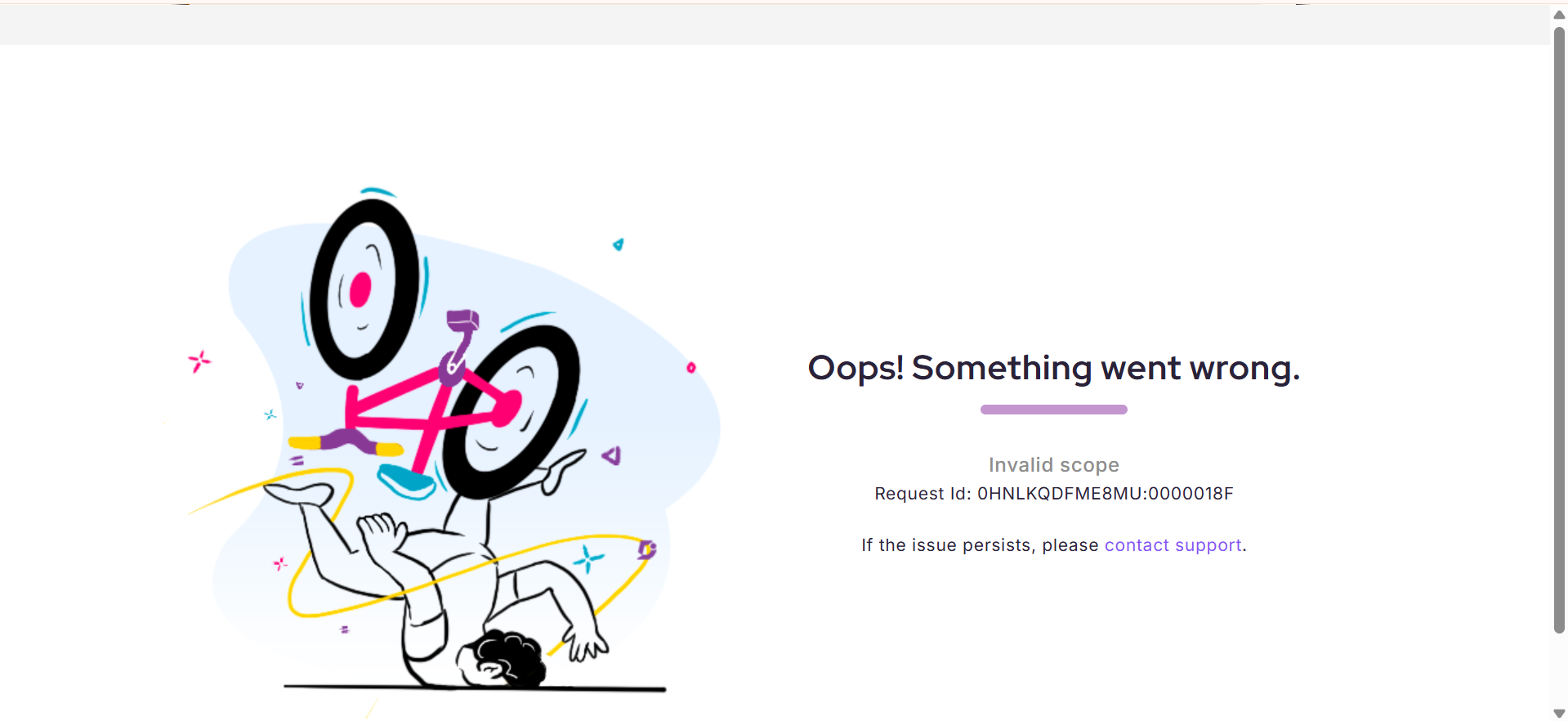
Ensure that the OIDC enabled option is unchecked under Advanced settings while creating the custom connector app in ChatGPT. Leaving this option enabled can result in an “Invalid scope” authorization error during the connection flow.
The following example shows the authorization error that can occur when OIDC remains enabled:
ChatGPT returns an empty response when retrieving or editing an article through MCP
This can happen when the connection between ChatGPT and Document360 is not fully set up, or when the signed-in user does not have the correct content access. Check the following, in order:
- Confirm that MCP is enabled in your Document360 project. Go to Settings > AI Settings > MCP and check that MCP is turned on.
- Confirm that the Document360 plugin connector is active in ChatGPT. Go to Settings > Plugins in ChatGPT and check that Document360 is listed and connected.
- Reconnect the plugin. Go to Settings > Plugins > Document360, select Reconnect, choose the project, select the I understand and trust this URL checkbox, and click Continue.
- Check the Content Access setting for the user attempting the request. Go to Settings > Usuarios y permisos > Content access in Document360, and confirm that the user's Content Access is set to All, not None. If Content Access is set to None, the user cannot read, create, or update articles through the MCP integration.
- Test the connection by starting a new chat, adding the Document360 plugin, and asking ChatGPT to fetch or search an article.
If the issue persists after checking all of the above, contact Document360 support.
MCP connection fails in VS Code after a Visual Studio Code update
If you have configured Document360 MCP in Visual Studio Code using the GitHub Copilot extension and the connection stops working after a VS Code update, the issue may be caused by a change in the connection type that newer versions of VS Code require for remote MCP servers.
You may see the following error:
Could not install Mcp. This MCP server only offers connection types this version of Copilot doesn’t support.
Cause
Newer versions of VS Code require MCP server configurations to declare a connection type of streamable-http instead of the older http value. If your existing MCP configuration was set up using the http type, it will stop working after updating VS Code.
Fix
-
Locate your VS Code MCP server configuration. Depending on how the connection was set up, this is typically stored in one of the following locations:
- A workspace-level file at
.vscode/mcp.jsonin your project folder. - Your VS Code user settings (
settings.json).
- A workspace-level file at
-
In the Document360 MCP server entry, update the
typevalue fromhttptostreamable-http. -
Save the file and reload VS Code. The Document360 MCP connection should be restored.
If you are unsure which MCP server URL to use, refer to the MCP server URLs section in the Connect MCP using custom connectors article for the correct URL for your region.
If the issue persists after making this change, verify that MCP is still enabled in your Document360 project under Settings > AI Settings > MCP, and that the server URL in your configuration is correct. If the problem continues, contact Document360 support.