Readers can run into problems when you import them into your project, or later when they sign in or open content on the knowledge base site. Most of these problems come from CSV formatting errors, SSO setup, or content access settings at the reader, reader group, category, or article level. Find the error message or symptom below and follow the steps to fix it.
Reader import issues
Error: File upload failed
The upload fails when the CSV file doesn't match the Document360 template or contains values the import can't accept. Correct the file and upload it again.
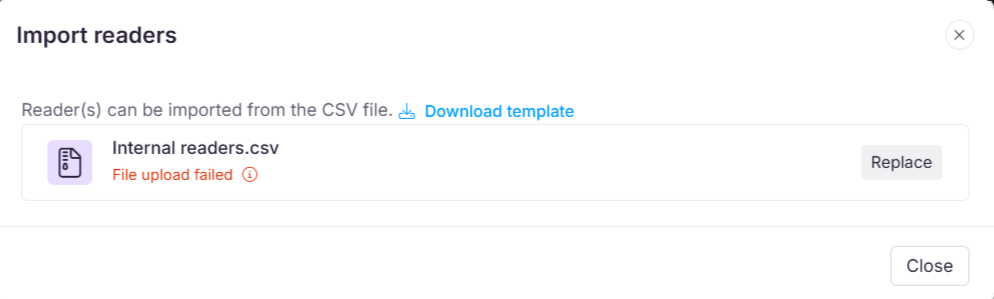
Steps to resolve
- Use the CSV template: Download the template from the Import reader panel and enter your data in the Email, FirstName, and LastName columns. Don't rename, reorder, or add columns.
- Check the row count: Make sure the file contains 500 readers or fewer. To add more, split them across several files.
- Remove special characters from name fields: Use only letters (A–Z, a–z) in the FirstName and LastName columns. Don't use numbers or special characters.
- Save and upload again: Save the corrected CSV file and upload it again in the Import reader panel.
The Validation summary lists the Valid emails and Invalid emails in your file.
Duplicate email addresses don't cause the upload to fail. They appear under Invalid emails in the Validation summary and are skipped. The valid rows are still imported.
Reader is unable to access a published article or category
A reader can sign in to the knowledge base site but can't open a specific article or category. This happens when the reader's own content access doesn't include that content, or when the security settings for the article or category deny access to the reader or their reader group.
Steps to resolve
-
Check the reader's content access:
- Navigate to Configuración () > Usuarios y permisos in the left navigation bar in the Knowledge base portal.
- In the left navigation pane, navigate to Lectores y grupos > Lectores.
- Hover over the reader and select the Edit () icon.
- Select Manage content access and confirm the access level includes the article or category.
If the reader's content access is set to None, the reader can't access any content, even if their reader group has access. A reader's individual content access always overrides their group's access.
-
Check the article's security settings:
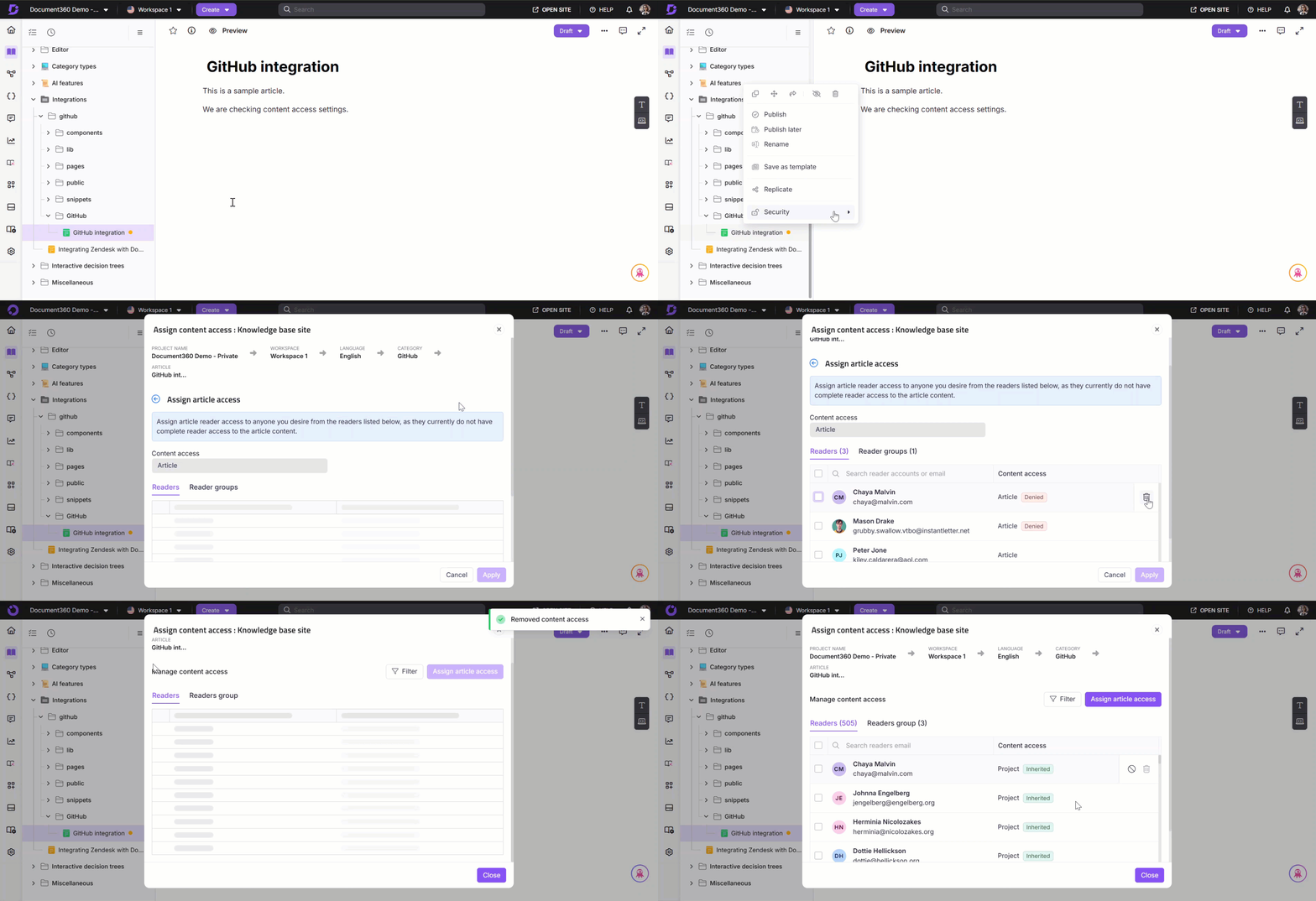
- Navigate to the article.
- Select the More () icon next to the Edit or Publish button.
- Select Security > Knowledge base site.
- On the Readers tab, confirm the reader is listed. A reader who was denied access no longer appears in this list. To restore access, select Assign article access and add the reader again.
-
Check reader group access:
- In the same panel, select the Reader groups tab.
- Confirm the reader's group is listed and has access to the article.
For a category, open the same settings from the More () icon next to the category in the category tree.
To confirm the fix, ask the reader to sign out, sign back in, and open the article again.
Si el problema persiste después de seguir estos pasos, póngase en contacto con el equipo de soporte de Document360 para obtener más ayuda: Póngase en contacto con el equipo de soporte de Document360
Resolving access restriction issues
Error: Sorry! You are not authorized to access.
This error appears when an explicit access setting at the article level overrides the access the reader would otherwise inherit from the parent category. Remove the explicit setting so the reader inherits access again.
Steps to resolve
- Locate the article in the category tree.
- Select the More () icon next to the article name.
- Select Security > Knowledge base site.
- Select Assign article access.
- Select the Remove () icon next to the reader to remove their explicit access.
- Return to the Readers tab and confirm the reader now shows the Inherited tag.
The reader can now access the article through inherited access.
Unable to access the associated projects
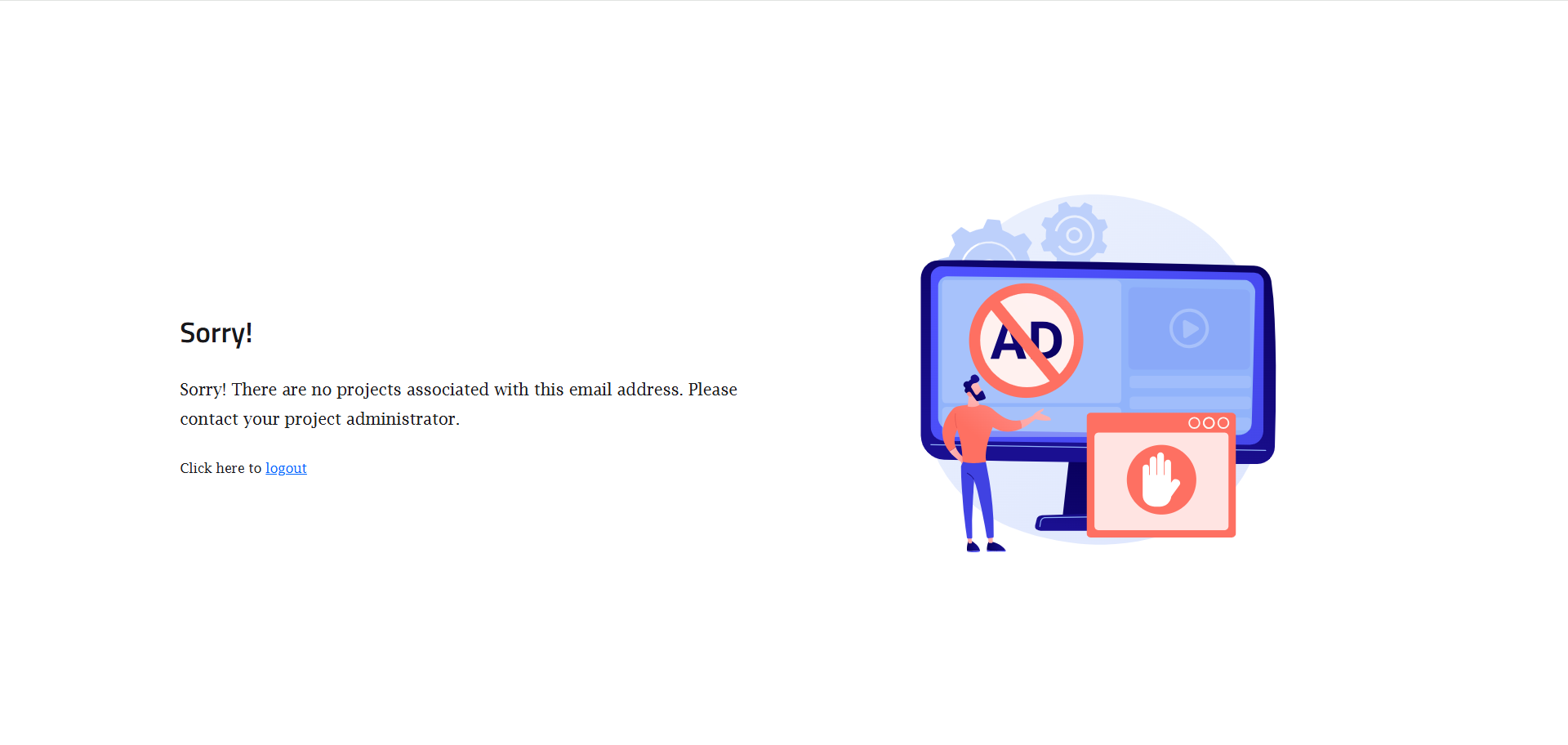
Error: Sorry! There are no projects associated with this email address. Please contact your project administrator.
This error appears when a reader who signs in through SSO wasn't set up as an SSO reader, or when the reader has no content access in the project.
Steps to resolve
-
Convert the reader to an SSO reader
Do this if the reader signs in through SSO.
- Navigate to Configuración () > Usuarios y permisos in the left navigation bar in the Knowledge base portal.
- In the left navigation pane, navigate to Lectores y grupos > Lectores.
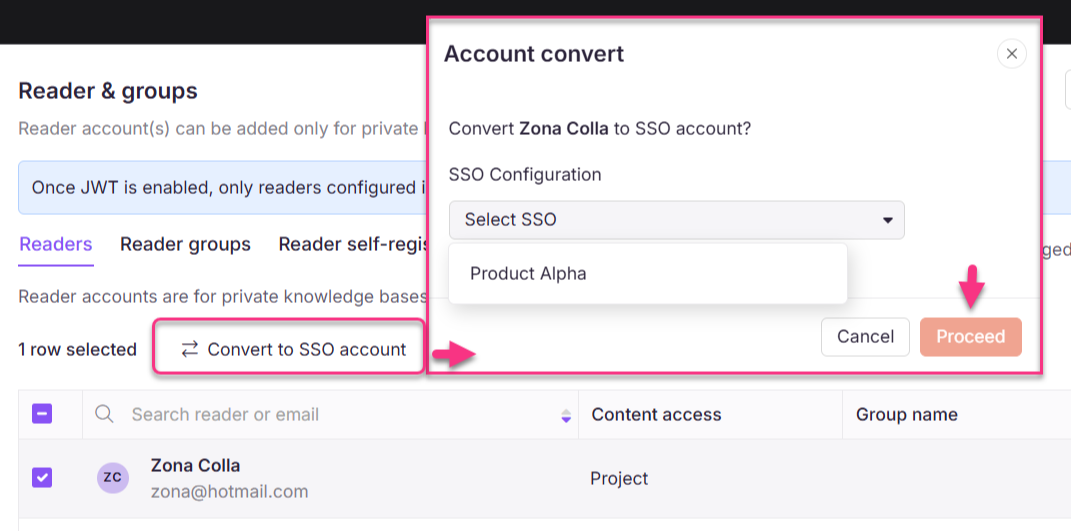
- Select the reader and select Convert to SSO account.
- Select the SSO configuration and select Proceed.
-
Assign content access
- Hover over the reader and select the Edit () icon.
- Select Manage content access and choose the content the reader needs.
- Select Update.
To confirm the fix, ask the reader to sign in again. The project now appears for their email address.
FAQ
Why are some readers missing after the import?
Rows with invalid or duplicate email addresses are skipped during import. Check Invalid emails in the Validation summary, fix those rows, and import them again.
Can I give imported readers different content access levels?
Not in a single import. One content access level, SSO configuration, and reader group apply to all readers in the file. Split readers into separate imports, or edit individual readers after the import.
The reader's group has access to the category, but the reader still can't see it. Why?
The reader's individual content access overrides their group's access. If the reader's individual access is set to None, change it so the group's access can apply.
How do I restore access for a reader I denied?
Denied readers are removed from the access list. Open Security > Knowledge base site for the article, select Assign article access, and add the reader again.