The Billing section in the Knowledge base portal is where you manage the commercial side of your Document360 project. From a single place, you can review your current plan and renewal date, keep your credit or debit card and billing address up to date, add a backup card so renewals do not fail, and view or download every invoice issued for your subscription. You must have the Owner portal role, or be assigned View and Update permissions for Billing & Invoice, to open the Billing section.
This article does not cover plan inclusions, pricing, or subscription costs. For questions about your plan, quotes, upgrades, or charges on an invoice, contact the support team or your dedicated customer success manager (CSM).
When to use the Billing section
Use the Billing section whenever you need to confirm, correct, or retrieve commercial details for your project:
- Confirm your renewal date — check the billing cycle and next renewal date before a budgeting or procurement review.
- Replace an expiring card — update card details before a renewal attempt fails and puts your project at risk.
- Add a backup payment method — save a secondary card so a renewal still succeeds if the primary card expires or has insufficient funds.
- Retrieve invoices for finance — download invoice PDFs for reimbursement, accounting, or audit purposes.
- Route invoices to the right people — add your finance or accounts payable team as invoice email recipients so they receive billing emails directly.
Before you begin
Ensure the following before you open the Billing section:
- You have the Owner portal role, or you are assigned View and Update permissions for Billing & Invoice.
- You have the card details and billing address ready if you intend to add or update a payment method.
If the Billing option does not appear in the left navigation pane, your account does not have the required role or permission. Ask the project Owner to grant Billing & Invoice access.
How to access the Billing section
- Navigate to Configurações () > Portal da base de conhecimento in the left navigation bar in the Knowledge base portal.
- In the left navigation pane, select Faturamento.
The Billing section opens with three tabs.
| Tab | What you can do here |
|---|---|
| My plan | View your current plan, billing cycle, and renewal date. |
| Payment information | Add, edit, or update credit/debit card details and the billing address. You can save a primary card and a secondary backup card. |
| Invoice history | View, download, and manage all past invoices. Add or remove invoice email recipients. |
How to view your plan details
The My plan tab is a read-only summary of your current subscription.
- Navigate to Configurações () > Portal da base de conhecimento in the left navigation bar in the Knowledge base portal.
- In the left navigation pane, navigate to Faturamento.
- Click the My plan tab.
Review your current plan, billing cycle, and renewal date.
To change your plan or discuss any other change to your subscription, contact the support team or your CSM.
How to change the payment information
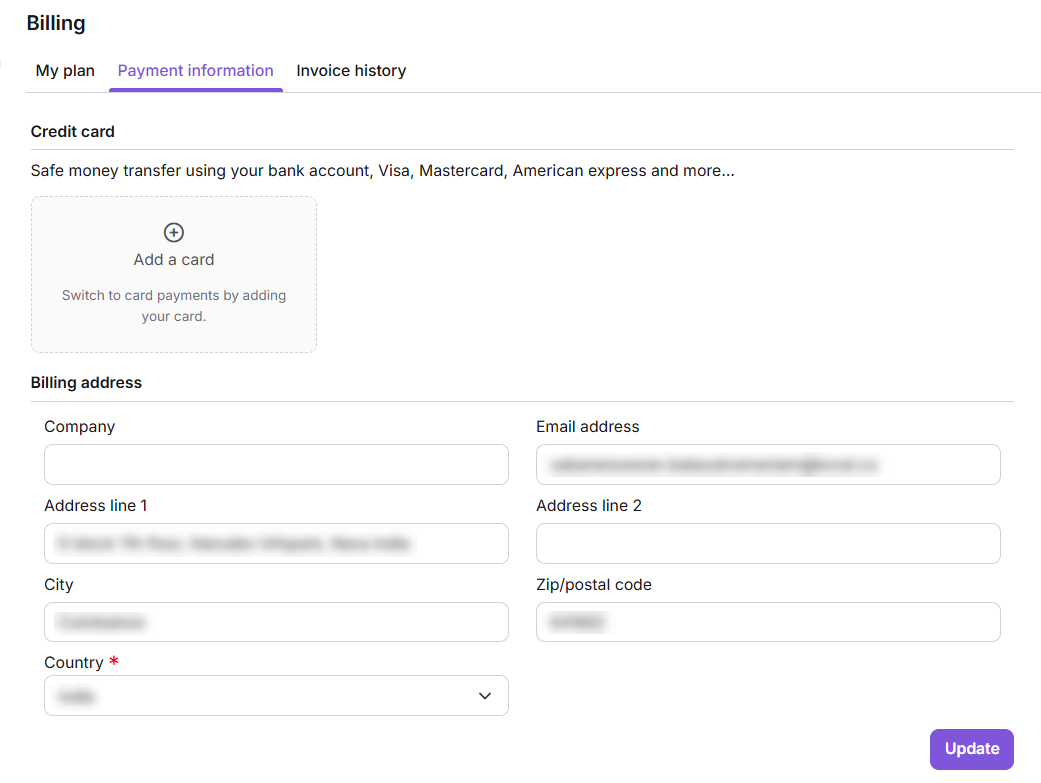
Use the Payment information tab to keep your card and billing address current.
-
Navigate to Configurações () > Portal da base de conhecimento in the left navigation bar in the Knowledge base portal.
-
In the left navigation pane, navigate to Faturamento.
-
Click the Payment information tab.
-
Below the Credit card tile, change the payment details and the billing address.
Here, you can view the primary card.
-
Click Add another card to add a second card for billing.
The primary card is used for billing purposes. If the primary card runs out of funds or expires, the second card will be used for renewal.
How to set a secondary card as the primary card
-
Navigate to Configurações () > Portal da base de conhecimento in the left navigation bar in the Knowledge base portal.
-
In the left navigation pane, navigate to Faturamento.
-
Click the Payment information tab.
-
Hover over your secondary card.
-
Select the Set as primary radio button.
A confirmation dialog appears.
-
Click Make Primary to switch your secondary card to the primary card.
How to delete a secondary card
- Navigate to Configurações () > Portal da base de conhecimento in the left navigation bar in the Knowledge base portal.
- In the left navigation pane, navigate to Faturamento.
- Click the Payment information tab.
- Hover over your secondary card.
- Click the Delete icon.
- Click Delete in the confirmation dialog to confirm.
You cannot delete the primary card. You can only edit it. If you want to remove the card currently set as primary, first set another card as primary, and then delete the card you no longer need.
How to view and download invoices
You can view and download past invoices for your project subscription from the Invoice history tab in the Billing section.
-
Navigate to Configurações () > Portal da base de conhecimento in the left navigation bar in the Knowledge base portal.
-
In the left navigation pane, navigate to Faturamento.
-
Click the Invoice history tab.
-
Review the invoices related to your project subscription.
- Each invoice entry includes the Invoice ID, status, date, and amount.
- Click Download next to an invoice to save a PDF copy.
How to add invoice recipients
By default, the project Owner receives invoice confirmation emails. Add your finance or accounts payable contacts as recipients so they receive the same emails.
- Navigate to Configurações () > Portal da base de conhecimento in the left navigation bar in the Knowledge base portal.
- In the left navigation pane, navigate to Faturamento.
- Switch to the Invoice history tab.
- Expand the Invoice recipients accordion.
- Enter the desired email addresses.
- Click Update to save the changes.
To remove a recipient, delete the email address from the Invoice recipients section and click Update.
How to cancel your subscription
To cancel your Document360 subscription, contact the support team or reach out to your dedicated customer success manager. Cancellation cannot be completed from the Billing section.
Before canceling, complete the following steps to preserve your data:
- Download all invoices from the Invoice history tab.
- Export your content.
- Notify your team members.
Once your project is canceled or marked for deletion, the associated content and invoices may no longer be retrievable. Download your invoices and export your content before you request cancellation.
Considerations
| Item | Behavior |
|---|---|
| Access | Only users with the Owner portal role, or with View and Update permissions for Billing & Invoice, can open the Billing section. |
| Saved cards | You can save one primary card and one secondary backup card. |
| Primary card deletion | The primary card cannot be deleted. It can only be edited, or replaced by setting another card as primary. |
| Invoice deletion | Invoices cannot be deleted. They are retained for record-keeping and can only be viewed or downloaded. |
| Plan changes and cancellation | Plan changes and subscription cancellation are not self-service. Contact the support team or your CSM. |
| Trial expiry | After a trial expires, the project is put on hold and marked for deletion unless you request an upgrade. |
Best practices
- Keep a secondary card on file. A backup card prevents a failed renewal if the primary card expires or has insufficient funds.
- Review card expiry before each renewal. Check the renewal date on the My plan tab and confirm the primary card is valid well ahead of it.
- Add your finance team as invoice recipients. This avoids the Owner having to forward every invoice manually.
- Download invoices periodically. Keep a local or shared-drive copy for accounting and audit purposes rather than relying on the portal alone.
- Limit Billing access deliberately. Grant Billing & Invoice permissions only to the people who need them, and review the list when team members change roles.
- Contact your CSM early for plan changes. Raise upgrades, user additions, or renewals with the support team or your CSM before the renewal date so there is no gap in service.
FAQ
What happens after my Document360 trial expires?
Once your trial expires, you can upgrade to a desired plan. If you do not upgrade, your Document360 project is put on hold and marked for deletion. You may continue to receive email notifications during this period. To unsubscribe from these emails, contact support.