This section provides a solution to an issue you may encounter when using Eddy AI to display search results in Document360.
Eddy AI displays incorrect dates in search results
Error: Eddy AI may display inaccurate dates when showing search results.
Steps to resolve:
To troubleshoot inaccurate date calculations in Eddy AI search results, follow these steps:
- Perform a keyword search. Check if Eddy AI returns the expected results when using non-date-based keywords.
- If results are correct for general searches but differ for date-based keywords, note that Eddy AI is optimized for text-based responses and may not process date-specific queries as expected.
- If search results remain irrelevant, contact support@document360.com with the following details:
- Reader access to your projects.
- A recording of the search queries you used and the results that did not populate as expected.
NOTE
- Eddy AI is a language model, not a computational engine. It generates responses based on text patterns rather than analytical reasoning or numerical computations.
- It cannot calculate or interpret time-based scenarios unless explicitly defined in the input.
Empty cells in tables are auto-filled in Eddy AI responses
When a response is structured using a table and includes empty cells, Eddy AI attempts to dynamically populate those cells based on the context of the user’s query. If no relevant information is found, it fills the cell with the placeholder text "Information not available."
How Eddy AI handles empty cells:
- It checks the context of the user’s question.
- It tries to insert relevant content into any empty cells.
- If nothing appropriate is found, the cell is filled with "Information not available."
To maintain accuracy and clarity:
- Avoid leaving table cells empty when drafting or editing content.
- Ensure all cells contain meaningful information to prevent unintended or generic fillers in the final response.
Unsupported format error when adding a sitemap
Error message: Unsupported format
This error occurs when the sitemap contains nested sitemaps using the <sitemapindex> tag, exceeds 1 MB in file size, or is not in a supported format.
To resolve:
- Use only a direct sitemap URL — nested sitemaps with
<sitemapindex>are not supported. - Ensure the sitemap file is under 1 MB.
- Verify the sitemap is in XML format.
Forbidden error when adding a webpage
Error message: Forbidden
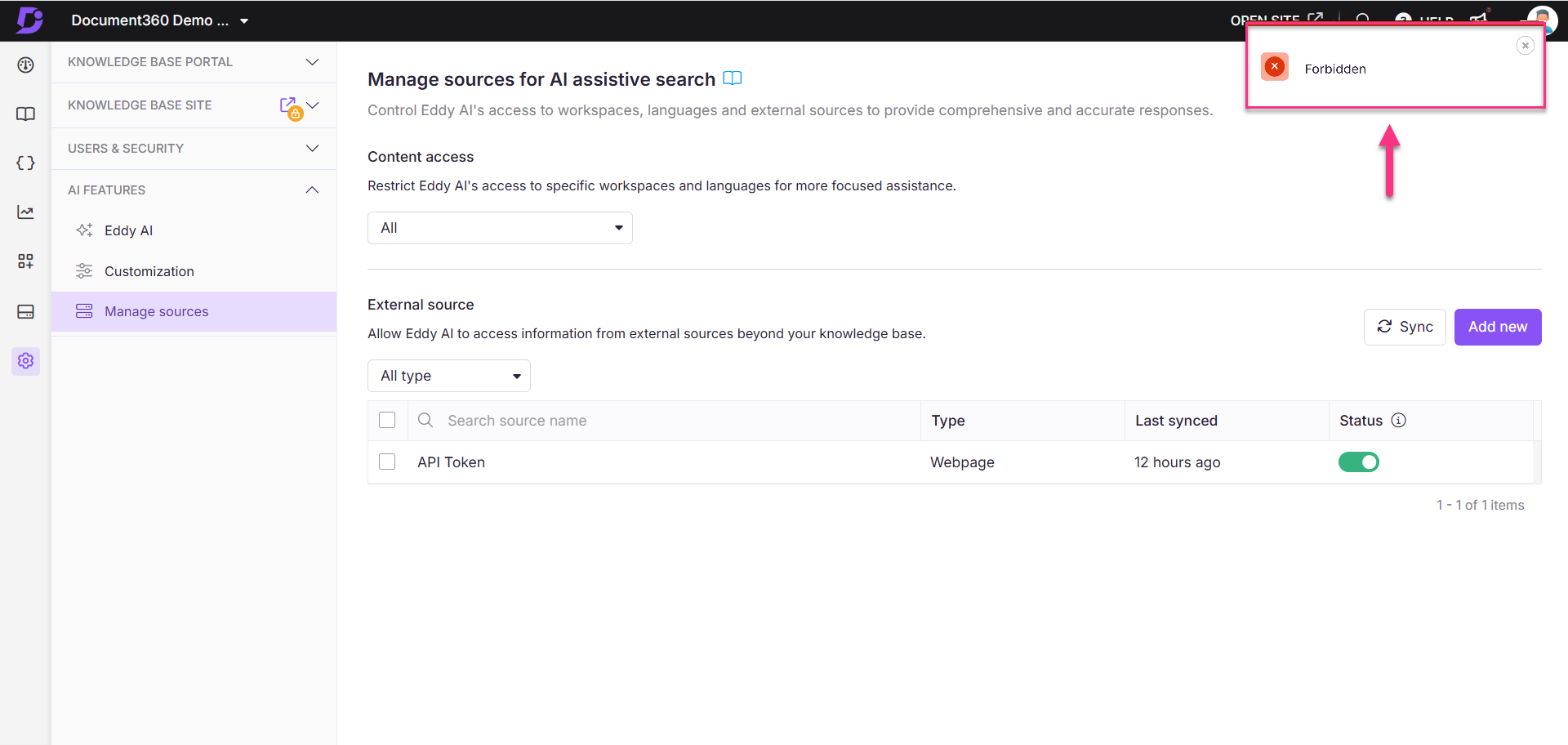
This error occurs when the webpage has bot detection or other crawl-blocking mechanisms that prevent Eddy AI from accessing the content.
To resolve:
- Check whether the source URL has bot detection enabled. If so, contact the website administrator to allow crawler access.
- Use a different source URL that does not restrict crawling.
HTML5 format error when adding a webpage
Error message: Only HTML5 documents with <article> or <main> tags
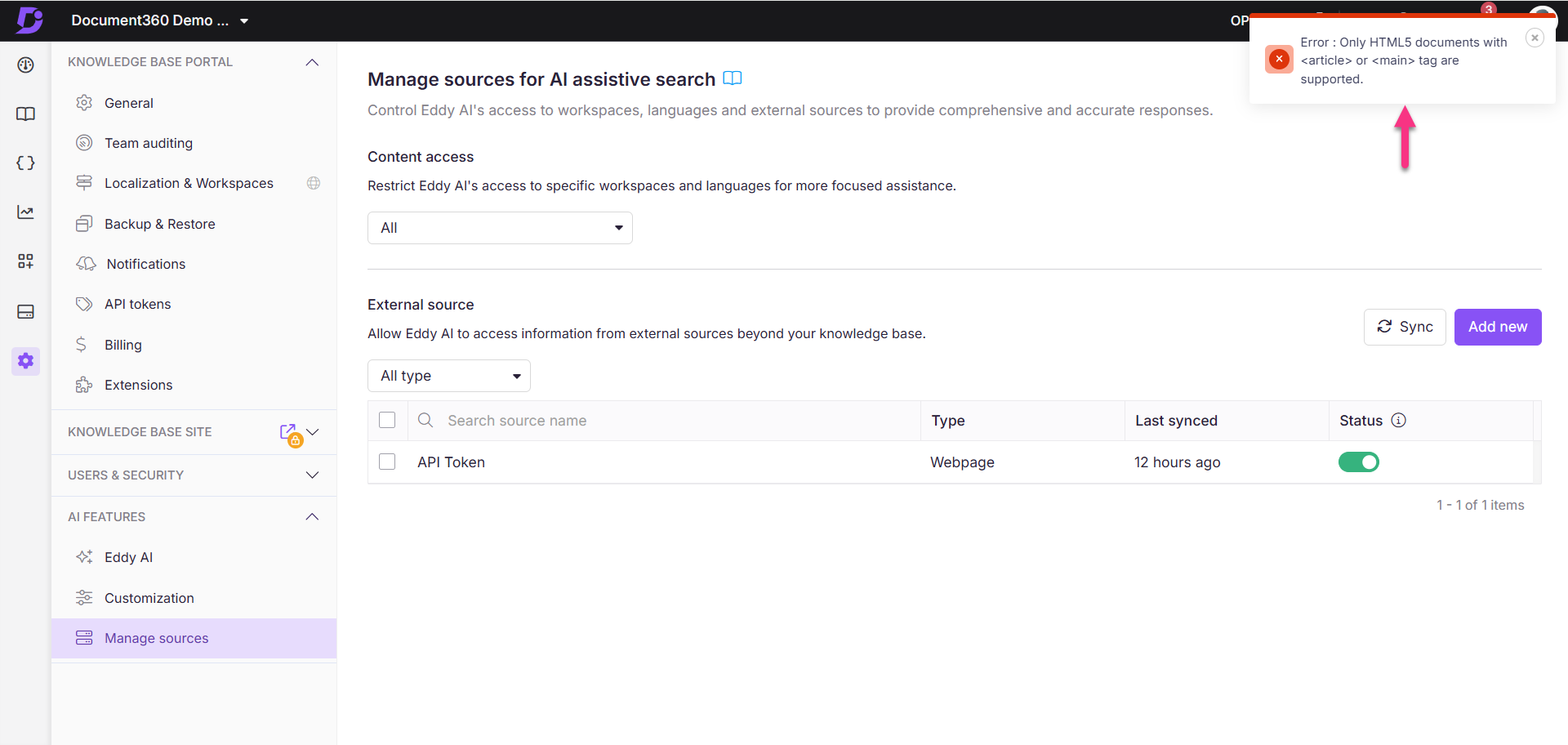
This error occurs when the webpage is not in HTML5 format or does not contain the required <article> or <main> tags.
To resolve:
- Verify the HTML5 doctype — the page should declare
<!DOCTYPE html>at the top. - Check for required tags — view the page source (
Ctrl+U/Cmd+U) and confirm the page contains<article>or<main>tags. - Update the page — if either requirement is not met, update the webpage to conform before adding it as a source.
Unsupported language error when adding a webpage
Error message: Error due to unsupported language
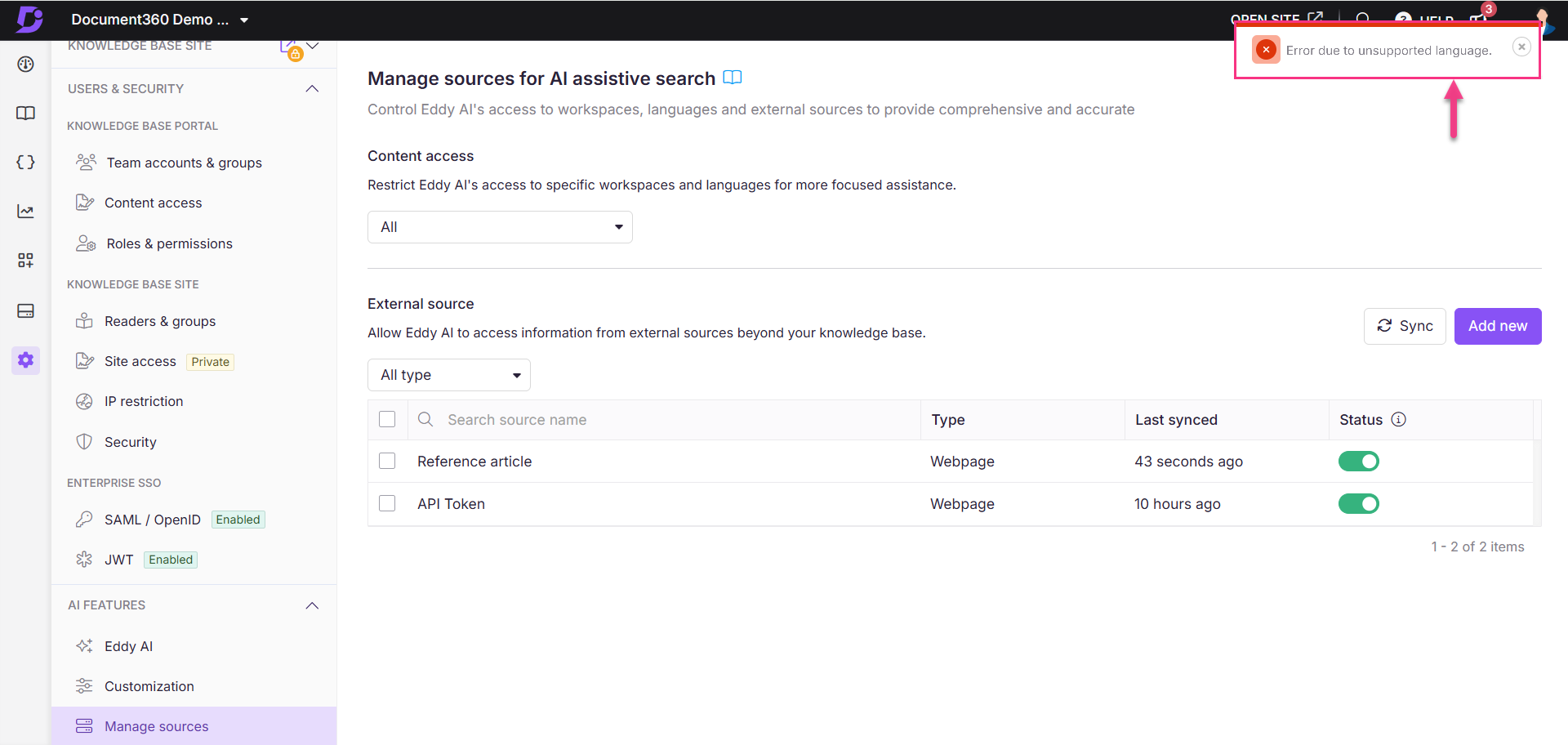
This error occurs when Eddy AI does not support the language of the webpage, or when the language is supported but has not been added to your project's localization settings.
To resolve:
- Check whether the webpage's language is supported by Eddy AI — see Multilingual support for Eddy AI Search Suite.
- If the language is supported, ensure it is added to your project. For example, if you are adding
https://abc.document360.com/fr/document:- In the Knowledge Base portal, select Settings in the left navigation bar.
- In the left navigation pane, go to Knowledge base portal > Workspace & localization.
- Confirm that French (
fr) is available in the selected workspace.
- If the issue persists, contact Document360 support.
Eddy AI synthesizes incorrect or misleading answers from multiple articles
Error: When multiple articles share a common keyword (for example, "GDPR"), Eddy AI may retrieve loosely related content from several articles and synthesize a response that is inaccurate or misleading for the actual question asked.
Steps to resolve:
- Open the Eddy AI Feedback manager in the Knowledge base portal and locate the query that produced the incorrect response.
- Review the citations in the response to identify which articles Eddy retrieved and whether each one is genuinely relevant to the question.
- If an article mentions the keyword only incidentally, revise or contextualize that mention so the article does not surface for unrelated queries.
- If no single article directly answers the question, create one. The more precisely an article covers a specific question, the more reliably Eddy AI retrieves and cites it.
- To narrow what Eddy AI searches, use the Content access control on the Manage sources page (Configurações () > AI settings) to restrict retrieval to specific workspaces, languages, and categories.
- After making content changes, wait approximately 15 minutes for the index to update, then ask the same question again on the knowledge base site to verify the response.
Eddy AI is constrained to your knowledge base content and responds with "I do not know" when it cannot find a reliable source. If incorrect synthesis persists after content changes, contact support@document360.com with the query, the response received, and the cited article URLs.
Citation or reference missing for part of an Eddy AI response
Error: A response generated by Eddy AI, whether through AI assistive search, the Eddy AI chatbot, or federated search, includes some content that does not have a numbered citation attached to it, even though a citation is expected.
This is expected behavior. Eddy AI generates each response by drawing on your knowledge base content, external sources, and previous conversation context. A citation is added only when Eddy AI can confidently map a specific part of the response back to a single published source. If Eddy AI used a piece of content but cannot reliably confirm which published article or source it came from, it intentionally omits the citation for that part of the response rather than showing a broken or incorrect link. This ensures that any citation a reader sees can be trusted to open the correct source.
To troubleshoot missing citations, follow these steps:
- Confirm the source article or external source is published and active. Eddy AI does not index draft articles, and a deactivated external source will not be cited.
- Confirm the source is included in Eddy AI's content access settings. Go to Settings, then AI settings, then Manage sources, and check that the relevant workspace, language, or category is not excluded under Content access.
- If the source is a recently published article, allow approximately 15 minutes for Eddy AI's index to update before checking again.
- If the source is a recently added or updated external source, such as a webpage or sitemap, allow up to 24 hours for the automatic sync, or trigger a manual sync from the Manage sources page. Manual sync is available up to four times per day.
- If the source meets all of the above and the citation is still missing, the response likely draws on the source only loosely or indirectly, and Eddy AI could not confidently confirm the match. Review the query and response in the Eddy AI Feedback manager, and consider revising the source content to more directly and unambiguously address the question, so Eddy AI can cite it reliably.
A response missing a citation for part of its text does not mean the content is inaccurate. It means Eddy AI could not confidently confirm a single source for that part.