Folder file limit reached
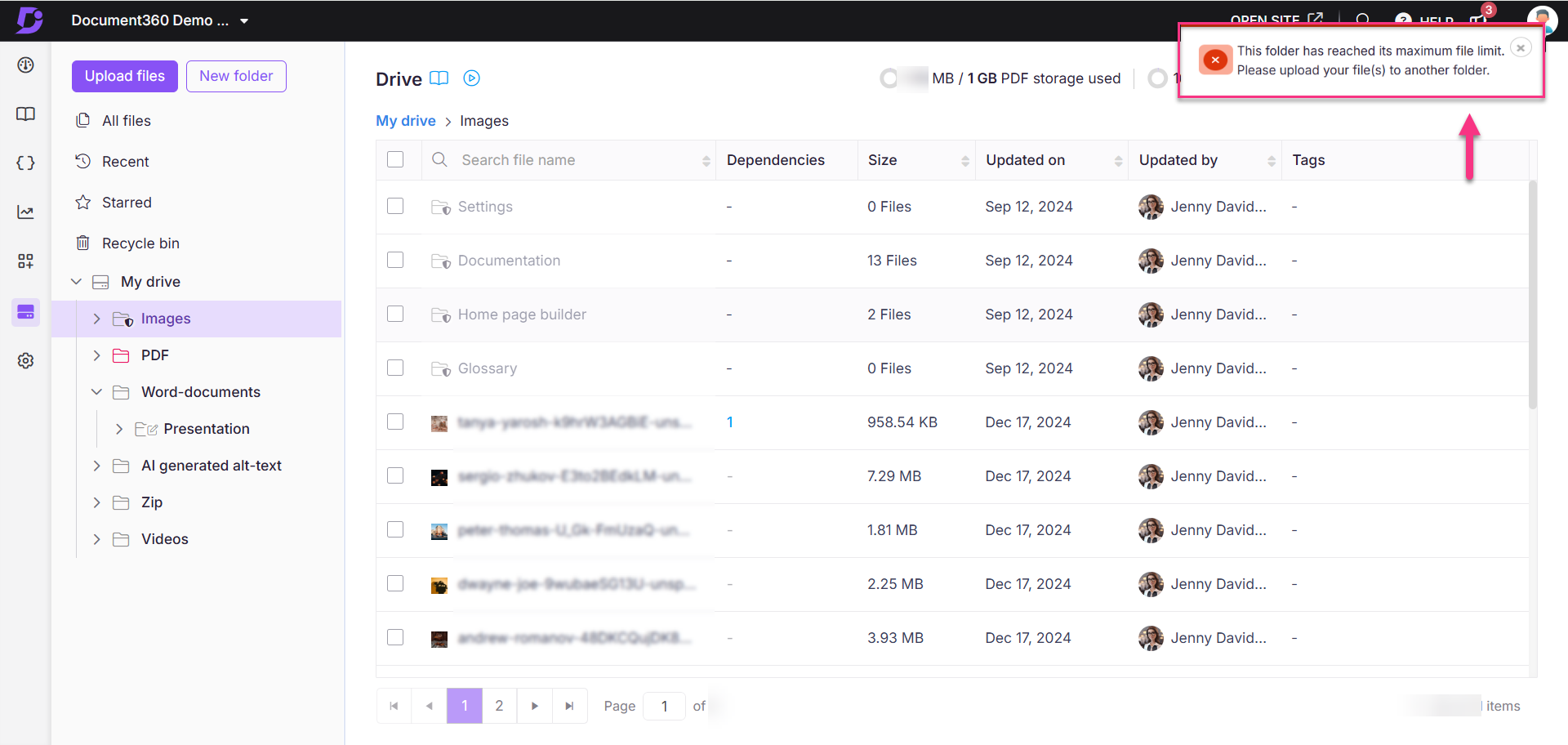
Error: This folder has reached its maximum file limit. Please upload your file(s) to another folder.
This error occurs when a folder exceeds the 5,000-file limit in Document360 Drive. This includes:
Files are uploaded directly into a folder.
Images are copied and pasted into the article editor and automatically saved in the default folder by the Set default folder.
Images from imported Docx files are stored in the default folder on the drive.
Steps to resolve:
Upload new files to a different folder or change the default folder on the drive.
Remove unused files from the current folder to free up space.
If the issue persists, clear the browser cache and try again.
Resolving "File type not allowed" or "Invalid file type" errors when uploading files
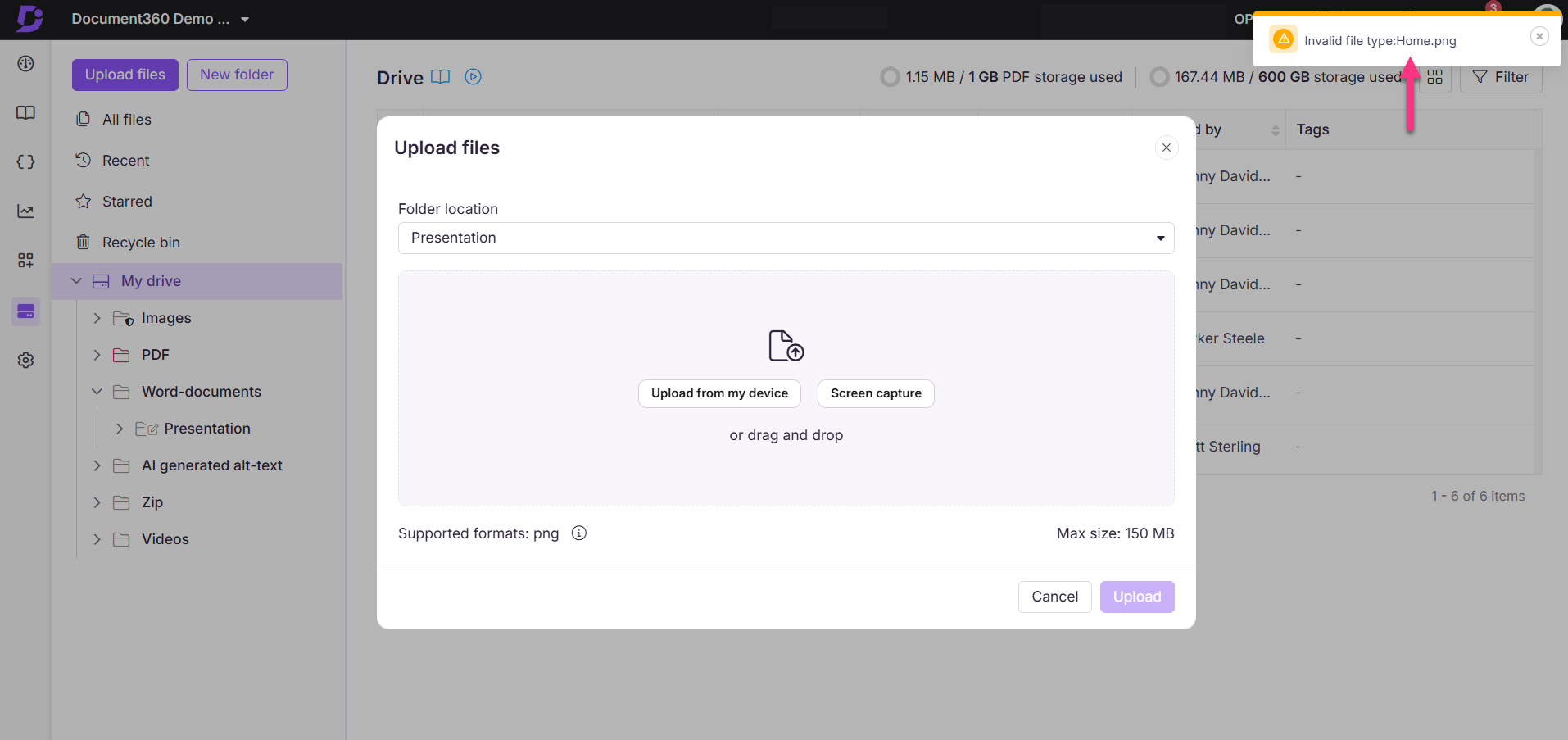
Error: 'File type not allowed' or 'Invalid file type'
The "File type not allowed" and "Invalid file type" errors occur when uploading a file that is restricted by the system's file type settings. This can happen if specific file formats are blocked or if special characters are present in the file name.
Steps to resolve:
To check and adjust the allowed file formats, follow these steps:
Navigate to () in the left navigation bar in the Knowledge base portal.
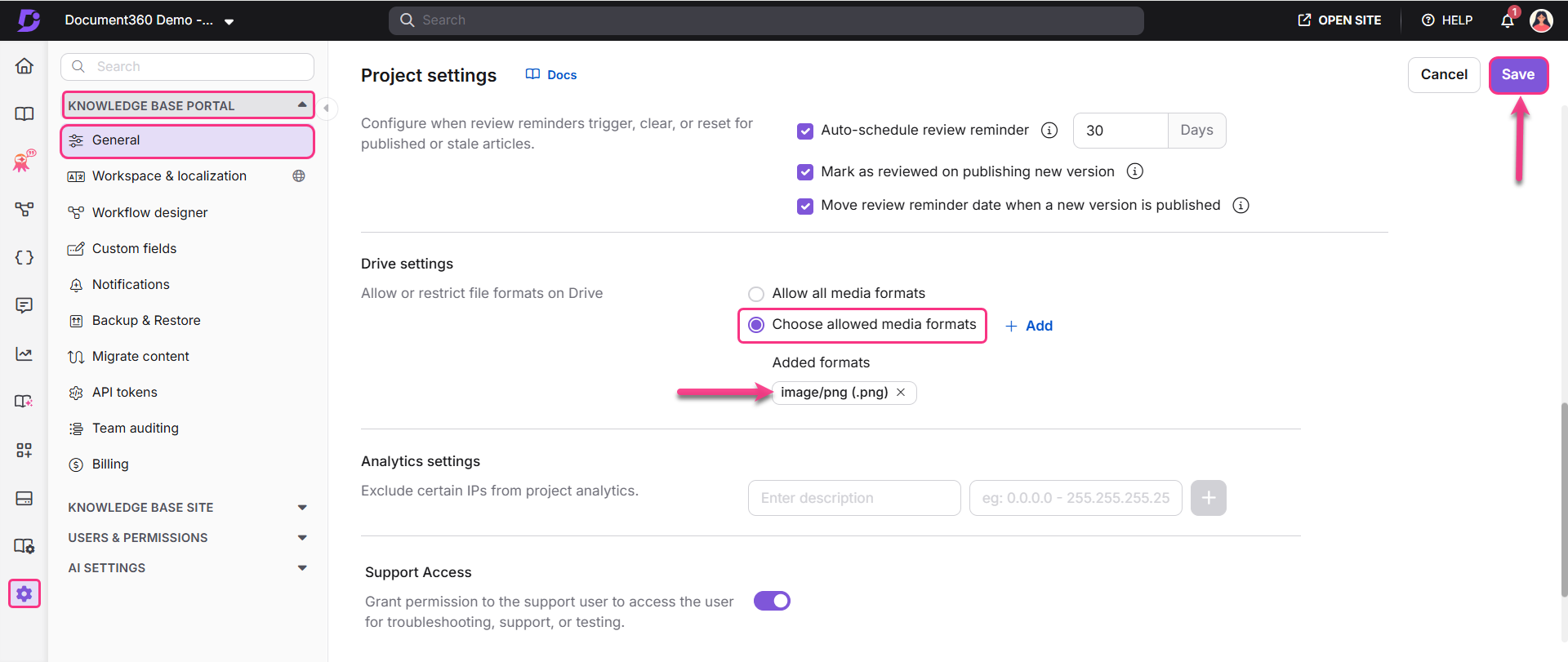
In the left navigation pane, navigate to Knowledge base portal > General > Drive settings.
By default, the Allow all media formats is selected.
If this option is enabled, try re-uploading your files or images.
If specific file formats are selected to restrict, you must remove these restrictions to upload your desired files.
Once done, click Save.
NOTE
Ensure that file names in uploaded files do not include the characters +, %, #, or =."
Resolving file replacement error
Error: You can’t replace files with a different file type.
This error occurs when you try to replace a file with another file of a different type, which is not allowed. For instance, if you are trying to replace a jpg file with a pdf file, you might encounter this error.
Steps to resolve:
Verify file types:
Navigate to Drive () in the left navigation bar in the Knowledge base portal.
Click the More () icon to view the file details and click Replace.
Ensure the selected and destination files are of the same type.
Clear your browser cache:
After confirming the file types, clear your browser cache and try again.
Use the steps below based on your browser:
Google Chrome: Click on Menu () > Settings > Privacy and security > Clear browsing data.
Mozilla Firefox: Click on Menu () > Settings > Privacy & Security > Clear Data.
Microsoft Edge: Click on Menu () > Settings > Privacy, search, and services > Choose what to clear.
Safari (Mac): Go to Safari > Preferences > Privacy > Manage Website Data > Remove All.
Safari (iPhone/iPad): Settings > Safari > Clear History and Website Data.
Opera: Menu > Settings > Advanced > Privacy & Security > Clear browsing data.
NOTE
It may take some time for the updated settings to take effect.
Test in different environments:
Open the file replacement workflow in an incognito panel.
Try the process in different browsers to confirm the issue is resolved.
Wenn das Problem nach dem Ausführen dieser Schritte weiterhin besteht, wenden Sie sich an das Document360-Support-Team, um weitere Unterstützung zu erhalten: Wenden Sie sich an den Document360-Support
Provide the following details:
Screenshots of the error message.
Details of the affected files.
A HAR file for further analysis.