Puedes cambiar el color de señal en modo oscuro. Sigue la siguiente solución para cambiar el color de señal en modo oscuro.
Solución
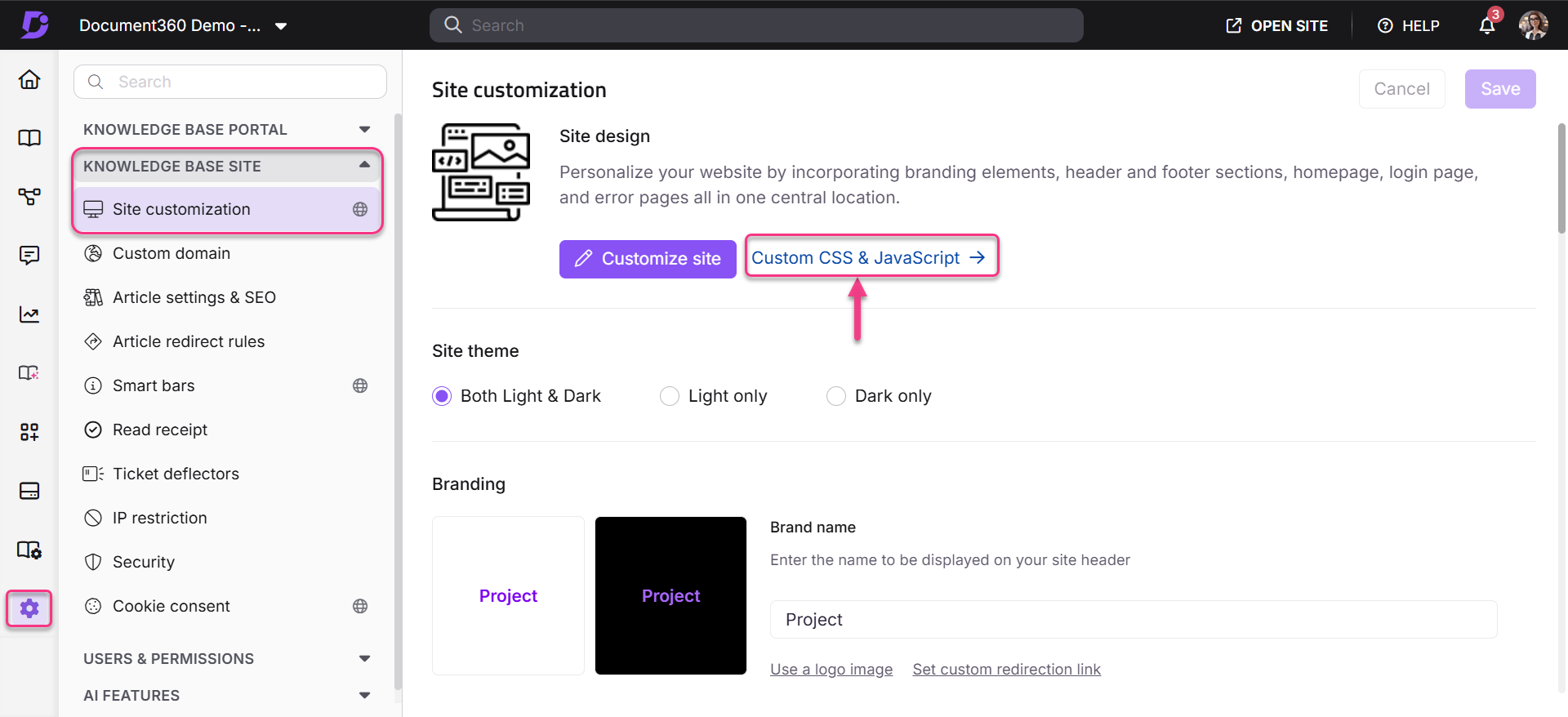
Vaya a Configuración () > sitio de la base de conocimientos > Personalizar sitio > CSS y JavaScript personalizados en el portal de la base de conocimientos.
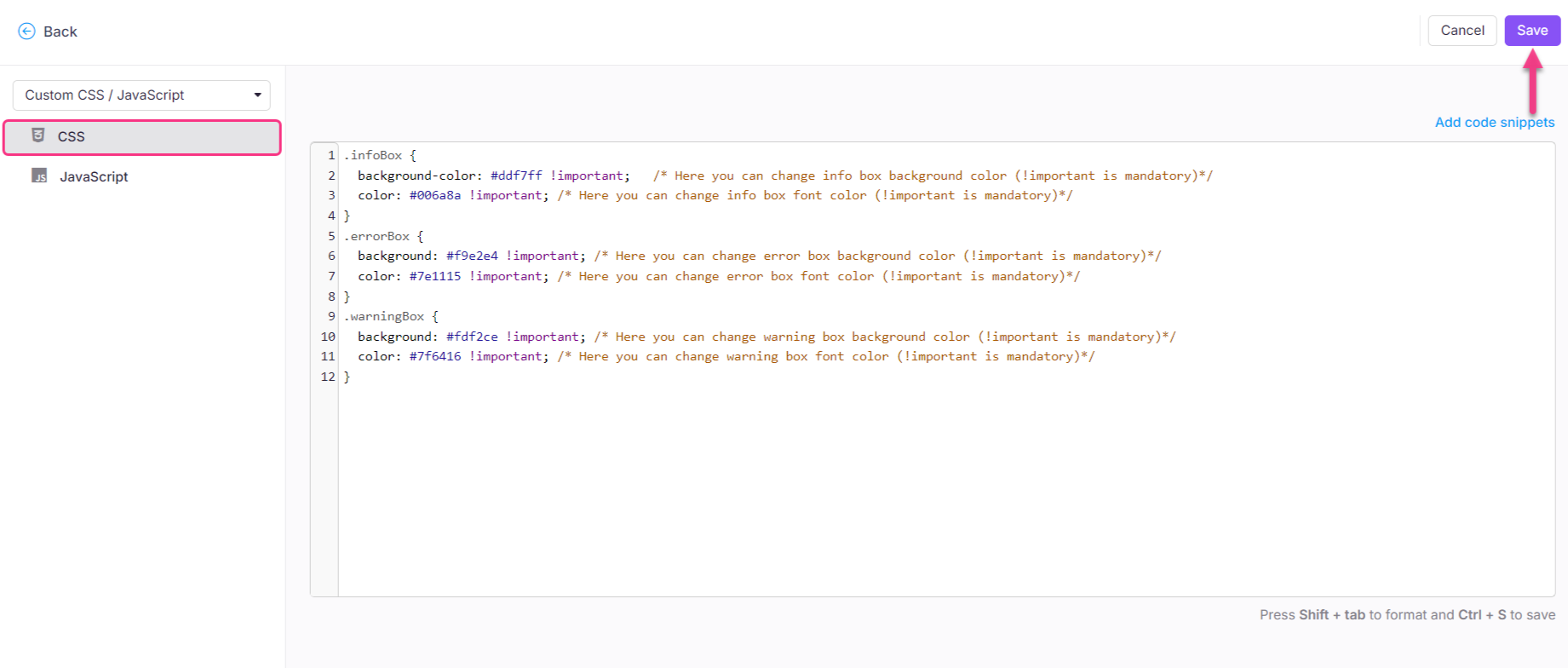
Desde el panel de navegación izquierdo, haz clic en la pestaña CSS y pega el siguiente fragmento de CSS:
html[data-bs-theme=dark] .infoBox {
  background-color: #ddf7ff !important;   /* Here you can change info box background color (!important is mandatory)*/
  color: #006a8a !important; /* Here you can change info box font color (!important is mandatory)*/
  border-left: 4px solid #006a8a !important; /* Here you can change info box border color (!important is mandatory)*/
}
html[data-bs-theme=dark] .errorBox {
  background: #f9e2e4 !important; /* Here you can change error box background color (!important is mandatory)*/
  color: #7e1115 !important; /* Here you can change error box font color (!important is mandatory)*/
  border-left: 4px solid #7e1115 !important; /* Here you can change info box border color (!important is mandatory)*/
}
html[data-bs-theme=dark] .warningBox {
  background: #fdf2ce !important; /* Here you can change warning box background color (!important is mandatory)*/
  color: #7f6416 !important; /* Here you can change warning box font color (!important is mandatory)*/
  border-left: 4px solid #7f6416 !important; /* Here you can change info box border color (!important is mandatory)*/
}
Actualiza el color deseado para las señales.
NOTA
color > color del texto
color de fondo > color de la caja de callout
Haz clic en Guardar.