Tu perfil en Document360 te da un único lugar para gestionar tu información personal, ver los roles asignados y comprobar los permisos concedidos dentro de un proyecto. Puedes acceder a las opciones del perfil desde la barra superior de navegación del portal de la Base de Conocimientos en cualquier momento, sin salir de tu vista actual.
Cuándo usar el perfil y la configuración de acceso
Utiliza tu perfil y la configuración de acceso cuando necesites:
- Verifica tu rol y permisos antes de empezar a trabajar en un proyecto: utiliza Ver acceso y permisos para confirmar que tienes el acceso al contenido que necesitas antes de que una acción bloqueada interrumpa tu flujo de trabajo.
- Comprueba qué espacios de trabajo, idiomas y categorías están disponibles bajo tu rol actual de contenido.
- Actualiza tus datos de autor — como tu nombre de usuario, foto de perfil o biografía — antes de publicar contenido donde tu página de autor sea visible para los lectores.
Antes de que empieces
- La opción de Ver acceso y permisos solo está disponible cuando estás dentro de un proyecto. No es visible desde el panel de control del proyecto.
- Los usuarios de SSO no pueden editar su dirección de correo electrónico desde el panel de perfil.
Cómo acceder a las opciones de tu perfil
Haz clic en tu foto de perfil en la barra de navegación superior para abrir un menú desplegable. El icono muestra tu imagen de perfil, o tus iniciales si no se ha subido ninguna imagen.
La foto de perfil muestra tus iniciales hasta que subes una imagen de perfil.
El desplegable ofrece las siguientes opciones:
| Opción | Qué hace |
|---|---|
| Mi perfil | Consulta y edita tu información personal, datos del autor y el lenguaje del portal. |
| Ver acceso y permisos | Comprueba los permisos que te han asignado bajo tu portal actual y los roles de contenido. |
| Cambiar la contraseña | Actualiza la contraseña de tu cuenta. |
| Cerrar sesión | Cierra sesión de tu cuenta de Document360. |
Cómo actualizar tu perfil
-
Haz clic en tu foto de perfil en la barra de navegación superior.
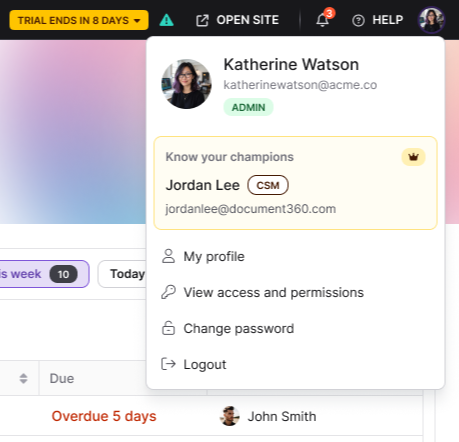
El desplegable muestra una casilla Conoce a tus campeones con el nombre y la dirección de correo electrónico de tu contacto designado en Document360, junto con una insignia para la etapa actual de interacción de tu cuenta (por ejemplo, Ventas, Incorporación o CSM).
-
Haz clic en Mi perfil desde el desplegable. Se abre el panel Mi perfil .
-
Haz clic en Editar para hacer cambios. Puedes actualizar los siguientes campos:
| Campo | Descripción |
|---|---|
| Imagen de perfil | Sube o elimina tu foto de perfil. |
| Nombre y apellido | Actualiza tu nombre de visualización. |
| ID de correo electrónico | Edita tu dirección de correo electrónico. No es editable para usuarios de SSO. |
| Dominio | Establece una URL personalizada para tu página de perfil de autor. Solo acepta caracteres alfanuméricos, puntos y guiones. |
| Biografía | Añade o actualiza una breve biografía. Mostrada en tu página de autor. |
| Idioma | Cambia el idioma de la interfaz del portal de la Base de Conocimientos para tu cuenta. Las opciones disponibles son inglés, español y portugués (Brasil). Esta configuración solo se aplica a tu vista y no cambia el contenido del artículo. |
| Ver contribuciones | Haz clic en el enlace Haz clic aquí para ir a la página de Resumen, donde puedes ver tus contribuciones de artículos en la tarjeta de Analítica . |
- Haz clic en Actualizar para guardar tus cambios.
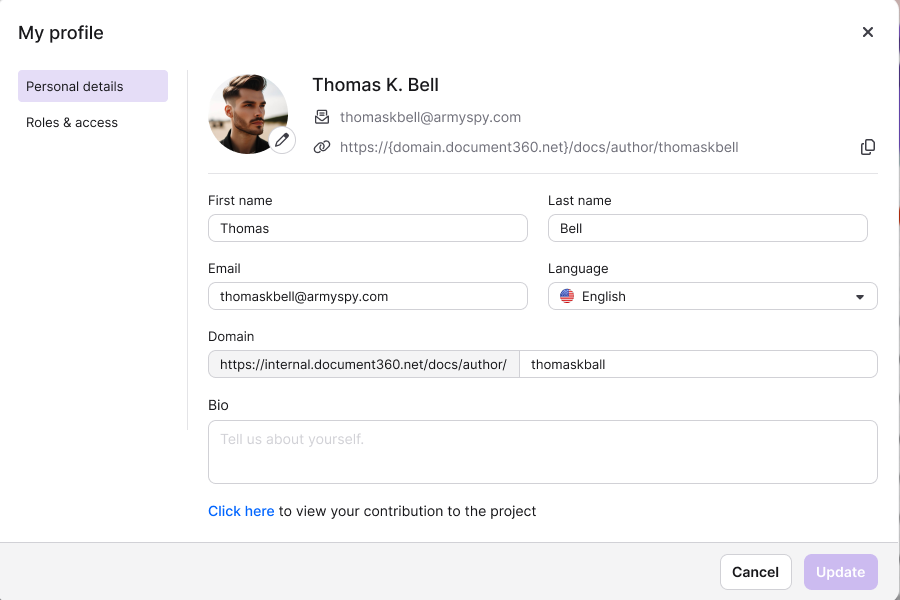
El botón Actualizar está deshabilitado si no se han realizado cambios o si la URL de la página del autor contiene caracteres no soportados.
Roles y acceso
Más allá de los campos editables, el panel también muestra Roles y acceso:
- Rol de portal — Tu rol asignado, como Propietario, Administrador o Colaborador.
- Acceso a contenido — Los espacios de trabajo, idiomas y categorías a los que puedes acceder según tu rol de contenido.
Cómo ver tu acceso y permisos
-
Haz clic en tu foto de perfil en la barra de navegación superior.
-
Haz clic en Ver acceso y permisos desde el desplegable. Se abre el panel de permisos de acceso a Visualizar .
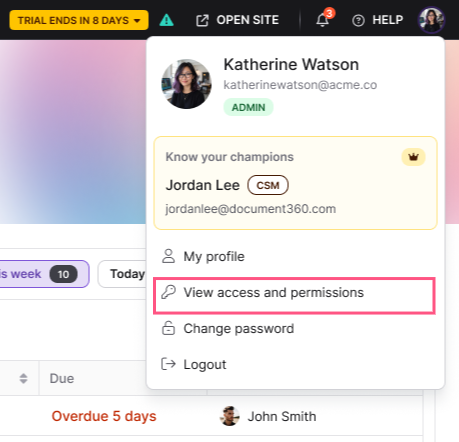
El panel enumera todas las funciones del proyecto y muestra si tienes acceso a Ver o Actualizar bajo tu rol de portal y de contenido.
.png)
Para cambiar tus permisos, un propietario o administrador debe actualizar tu rol desde Configuración > Usuarios y permisos > Usuarios y grupos. Consulta Editar usuario para las instrucciones.
La opción de Ver acceso y permisos solo está disponible cuando estás dentro de un proyecto<.
Mejores prácticas
- Revisa tus permisos antes de empezar un nuevo proyecto. Utiliza el acceso a Ver y los permisos para confirmar que tienes el acceso al contenido que necesitas; esto evita acciones bloqueadas en medio del flujo de trabajo.
- Revisa la configuración del idioma del portal al incorporar a compañeros de equipo. Los usuarios nuevos pueden preferir otro idioma del portal; recuérdales que esto se establece por cuenta en Mi perfil.
Preguntas frecuentes
¿Puedo cambiar mi propio rol en el portal o permisos de contenido?
No. Solo los usuarios con un rol de Propietario o Administrador pueden cambiar permisos. Puedes ver tus permisos actuales usando Ver acceso y permisos, pero no puedes editarlos tú mismo.
¿Por qué el botón de Actualizar está desactivado al editar mi perfil?
El botón Actualizar está inactivo cuando no se han realizado cambios o cuando la URL de la página del autor contiene caracteres distintos a caracteres alfanuméricos, puntos o guiones.
¿Pueden los usuarios de SSO editar su dirección de correo electrónico?
No. Las direcciones de correo electrónico no pueden ser editadas para las cuentas autenticadas por SSO. Contacta con tu propietario o administrador si tu correo necesita actualizarse.
¿Cambiar el idioma del portal afecta al contenido que ven mis lectores?
No. La configuración del idioma del portal solo cambia el lenguaje de la interfaz para tu vista en el portal de la base de conocimiento. No afecta al contenido del artículo publicado.
¿Dónde puedo ver a qué artículos he contribuido?
En el panel Mi perfil , selecciona el enlace Haz clic aquí bajo la sección de contribuciones. Esto abre tu historial de contribuciones en el módulo de Analítica.