Use the in-editor find and replace tool to search for and replace text in the article you have open. It works in the unified Editor, the Advanced WYSIWYG editor, and the Markdown editor. Unlike the global find and replace tool, it changes only the open article.
REMARQUE
L’éditeur unifié est déployé par étapes et est actuellement disponible dans les projets créés à partir du 23 novembre 2026. Les projets créés précédemment continuent d’utiliser l’éditeur WYSIWYG avancé et l’éditeur Markdown. Nous travaillons à le rendre disponible pour tous les projets prochainement.
Why use the in-editor tool
- You want to fix a typo or update a term that repeats several times within the same article.
- You need to make a change scoped to one article only, without affecting other articles, variables, snippets, or glossary terms.
- You are already working in the editor and want a faster way to locate and update text than scrolling manually.
Open find and replace in your editor
Unified Editor: Click in the content, then:
- Press Ctrl + F (⌘ + F on Mac) to open Find.
- Press Ctrl + H to open Find with the Replace with field.
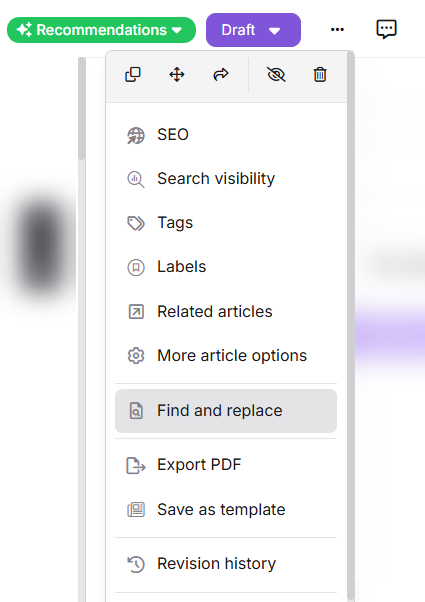
You can also select More actions () in the article header, then select Find and replace.
Advanced WYSIWYG editor: Select the More () icon in the article header, then select Find and replace ().
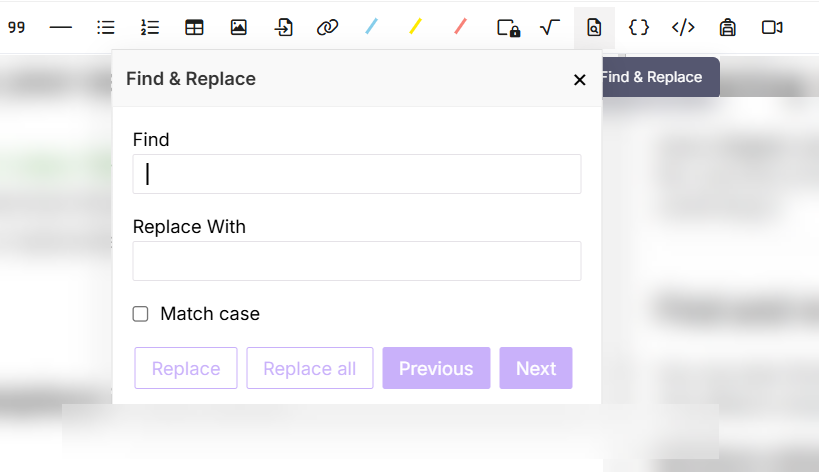
Markdown editor: Select the Find and replace () icon in the article header, or press Ctrl + F.
Find and replace text
Once the tool is open:
-
Enter the word or phrase in Find. Every match in the article is highlighted. In the unified Editor, the tool also shows the match count, for example 1 of 3.
-
To match only text with the exact same capitalization, turn on the case option for your editor:
- Unified Editor: Match case under Options
- Advanced WYSIWYG editor: Case sensitive
- Markdown editor: Match case
-
Turn on Whole word to skip matches inside longer words. In the unified Editor, it is under Options.
-
Use the previous and next arrows to move between matches.
-
Enter the new text in the replace field, then select:
- Replace to update only the current match.
- Replace all to update every match in the article at once.
In the unified Editor, the replace field is Replace with. If you opened the tool with Ctrl + F, press Ctrl + H to show it.
In the unified Editor, select Close find and replace (×) when you are done.
Best practices
- Use the in-editor tool for changes limited to a single article. It is faster and scopes the change to that article only.
- For changes across multiple articles, variables, snippets, or glossary terms, use the global find and replace tool in Content tools > Find & replace.
FAQ
Is find and replace in the editor case sensitive?
Not by default. Searching for "api" finds API, Api, and api. To match only text with the exact same capitalization, turn on Match case in the unified Editor or the Markdown editor, or Case sensitive in the Advanced WYSIWYG editor. Global find and replace in Content tools doesn't have this option.
Does find and replace search the whole project?
No. The in-editor tool searches only the article you have open, in every editor. To change text across multiple articles, variables, snippets, or glossary terms, use the global find and replace tool instead.