Zendesk is a customer support platform that helps teams manage questions, complaints, and other service requests. Integrating Document360 with Zendesk gives your support agents direct access to your knowledge base from within the Zendesk console. Agents can search and share articles, create new knowledge base content, and get AI-powered article suggestions and drafted replies using Eddy AI, all without leaving Zendesk.
Before you begin
- You need a Document360 project with admin access.
- You need API token access in both Document360 and Zendesk.
- API token access in both Document360 and Zendesk is required for federated search configuration.
Set up the Zendesk integration
Setting up the integration involves three stages:
- Install the Document360 app on Zendesk
- Configure Document360 with Zendesk
- Configure Zendesk federated search in Document360
To enable AI features after setup, see Enable AI functionalities for the Zendesk extension.
Install the Document360 app on Zendesk
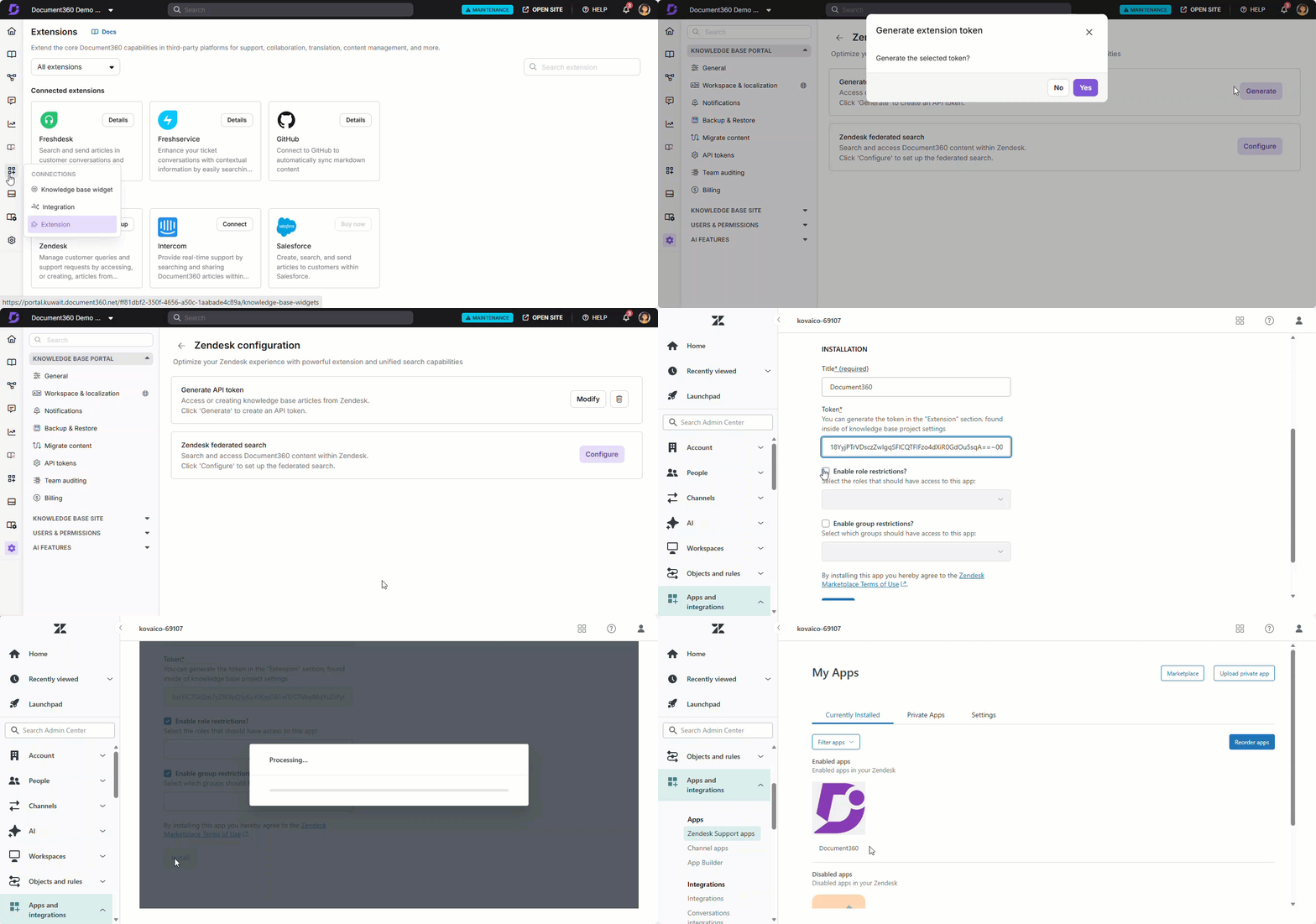
- Log in to your Zendesk Support console.
- Go to the Zendesk Marketplace and click Apps.
- In the Marketplace, search for Document360 in the Filter apps field.
- Click Document360.
- Click the How to install tab to review the instructions and complete any pre-installation tasks.
- Click Install at the top right.
- If you have multiple Zendesk accounts, select the intended account and click Install.
- Enter the Title, Token, and restriction details in the respective fields.
- Click Install.
Configure Document360 with Zendesk
To complete the connection, generate an API token in Document360 and paste it into the Zendesk app.
Step 1: Generate the API token in Document360
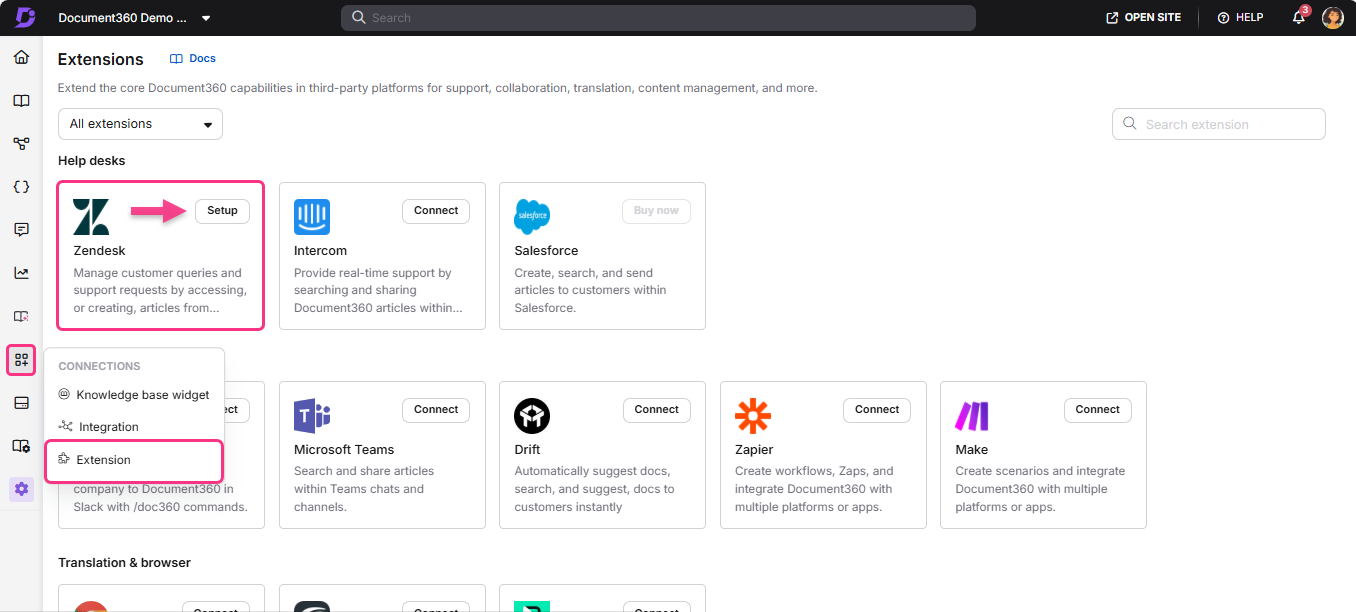
- In the Document360 portal, navigate to Connections () > Extensions () in the left navigation bar.
- In the Help desks section, click Zendesk.
- Click Setup.
- In the Generate API token setting, click Generate. The Generate extension token dialog appears.
To regenerate the token at any time, click Refresh token instead of Generate.
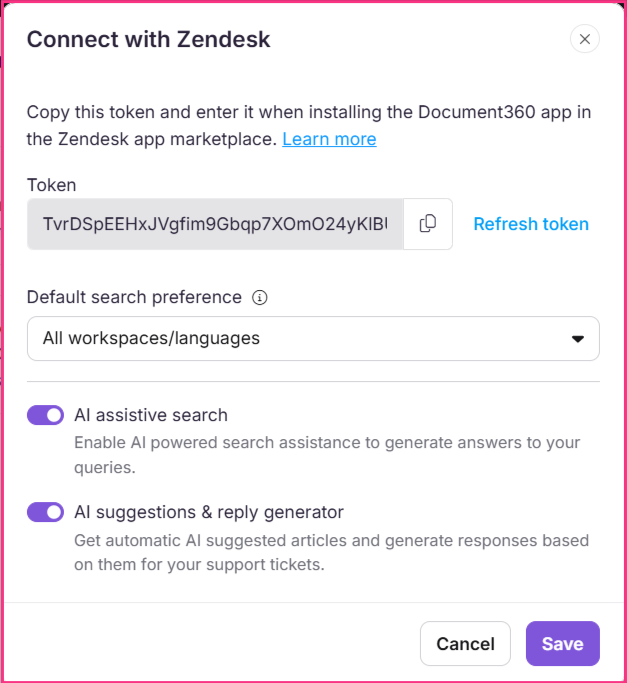
- Click Yes. The Connect with Zendesk dialog appears with your token displayed.
- Click the Copy icon to copy the token.
- Click Close.
Step 2: Enter the token in Zendesk
- Go to the Zendesk platform and fill in the Title field.
- In the Token field, paste the API token copied from Document360.
- Add your preferred restriction settings. By default, this option is turned off.
- Click Install.
Configure Zendesk federated search in Document360
Federated search lets your Document360 articles appear as an external source in Zendesk search results.
- In the Document360 portal, navigate to Connections () > Extensions () in the left navigation bar.
- In the Helpdesk section, click Zendesk.
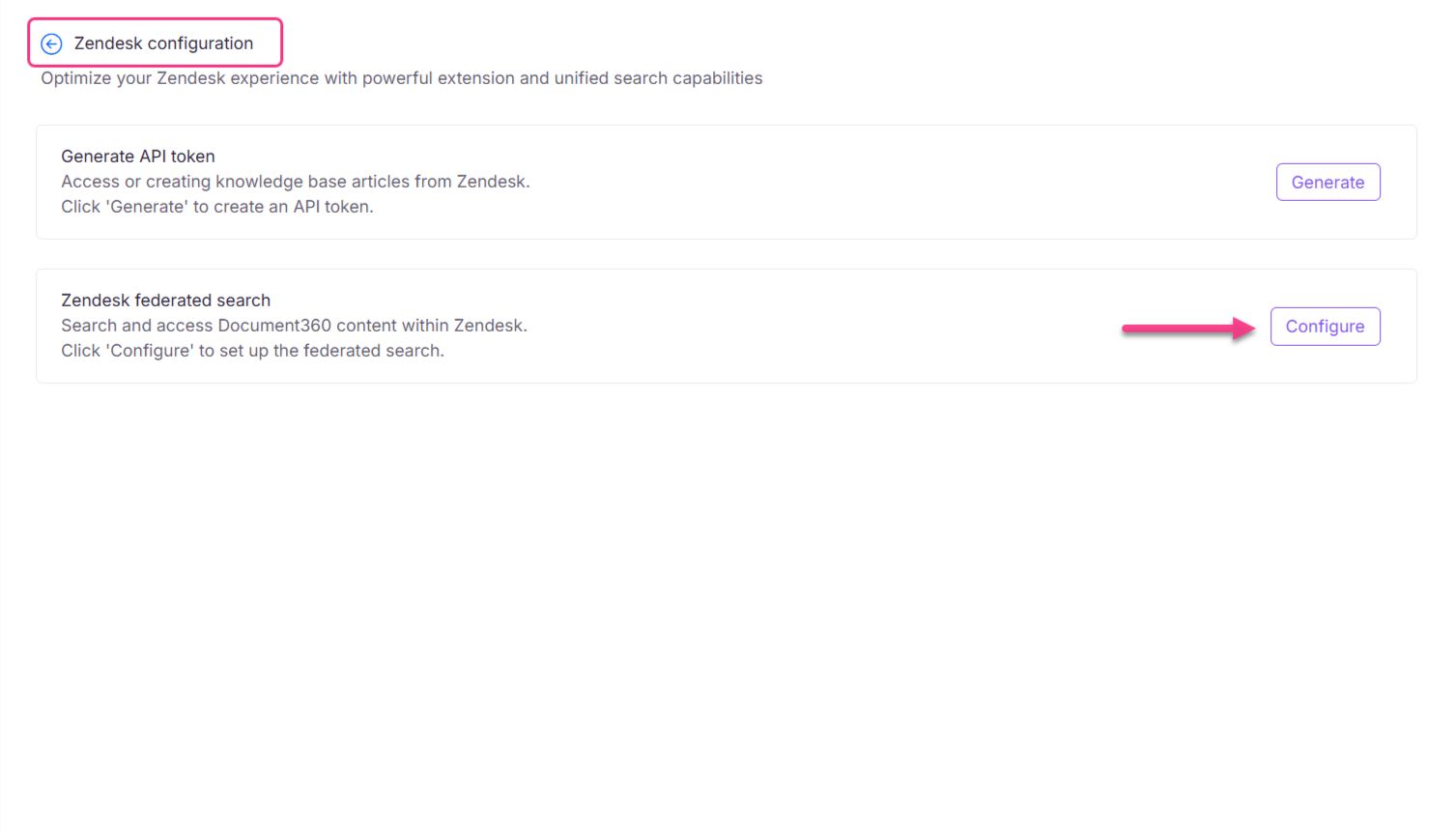
- Click Setup to open the Zendesk configuration page.
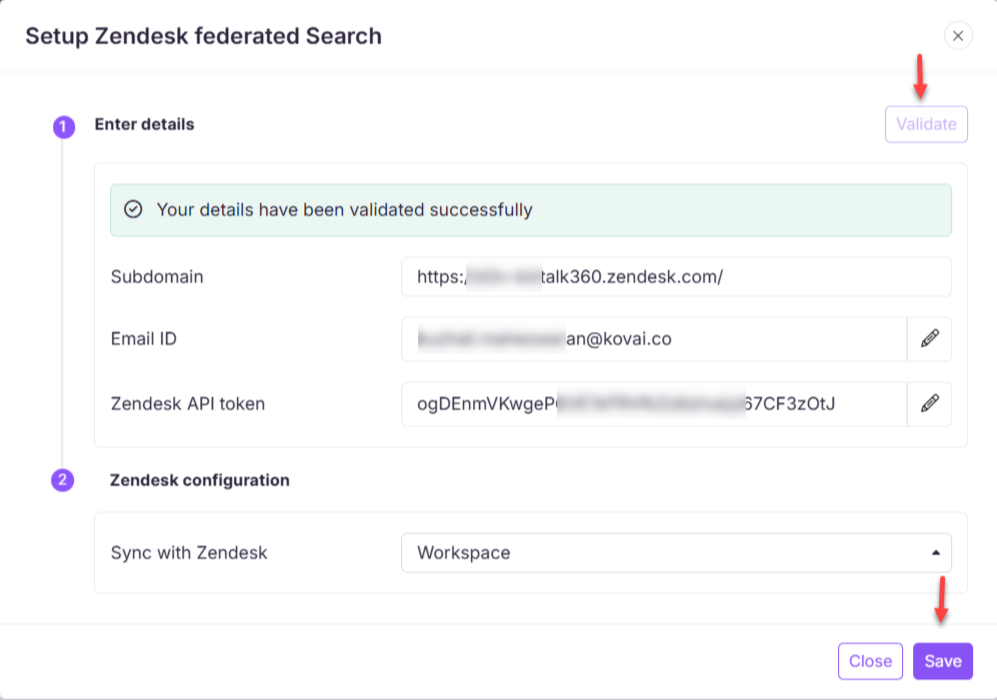
- Click Configure in the Zendesk federated search setting. The Setup Zendesk federated search dialog appears.
-
Enter the following details:
-
Subdomain: Copy the subdomain from your Zendesk URL. For example, for the URL
https://kovaico3776.zendesk.com/admin/apps-integrations/apis/zendesk-api/settings/tokens/, the subdomain ishttps://kovaico3776.zendesk.com. -
Email ID: To find your admin email address, go to the Zendesk overview page, click Settings , and select Go to Admin center. In the left navigation bar, go to Channels > Email. Your admin email address is listed in the Support addresses section.
-
Zendesk API token: From the Zendesk overview page, click Settings and select Go to Admin center. In the left navigation bar, go to Apps and integrations > Zendesk API. Click Add API token and copy the generated token.
-
-
Click Validate to confirm the details you entered.
-
In the Sync with Zendesk dropdown, select the workspace and language from your Document360 project.
-
Click Save.
Language codes must match between the Zendesk ticketing platform and Document360 to ensure content syncs correctly.
Your Document360 articles are now searchable as an external source within Zendesk.
Enable AI functionalities for the Zendesk extension
Enabling AI assistive search lets agents get AI-powered responses from your knowledge base and automatic article suggestions for support tickets without leaving Zendesk.
- In the Document360 portal, navigate to Connections () > Extensions () in the left navigation bar.
- In the Helpdesk section, click Zendesk.
- Click Setup to open the Zendesk configuration page.
- Click Modify in the Generate API token setting. The Connect with Zendesk dialog appears.
- Enter your Zendesk token in the token field.
- In the Default search preference field, select how Eddy AI fetches search results in the Zendesk Document360 app:
- Default workspace/language: Eddy AI fetches results from the default workspace and language only.
- All workspaces/languages: Eddy AI fetches results from all workspaces and languages in the knowledge base.
- Enable the AI assistive search toggle to allow AI-powered search in the Zendesk extension.
To enable AI assistive search for the Zendesk extension, you must first enable assistive search for KB widgets and extensions in your Knowledge base settings. If that setting is not enabled, the AI assistive search toggle will remain turned off.
- Enable the AI suggestions and reply generator toggle to get automatic AI-suggested articles and generate responses based on them for your support tickets.
- Click Save.
FAQ
Can I push multiple articles from Zendesk to Document360 at the same time?
No. Articles are pushed one at a time individually.
Can I configure federated search for multiple workspaces?
Yes. In the Sync with Zendesk dropdown, you can select the workspace and language you want to sync. If you need to change the workspace or language later, return to the Zendesk configuration page in Document360 and update the selection.
What happens if the language codes do not match between Zendesk and Document360?
If the language codes do not match, content will not sync correctly in the federated search setup. Make sure the language codes are identical in both platforms before saving the configuration.
Are articles created from Zendesk published immediately?
No. Articles created from Zendesk are saved as drafts. An admin, owner, or editor must review and publish them from the Document360 portal before they appear on your knowledge base site.
Why are Draft reply and View suggested articles slow to update?
When using Zendesk's Messaging API, messages may be processed in batches during periods of high activity, which can cause a short delay. This only affects the Messaging API. Tickets from forms, live chat, or other channels are not delayed.