O Document360 permite restringir o widget da Base de Conhecimento a domínios específicos. Uma vez que um domínio é adicionado à lista de segurança de widgets, ele só carregará nesses domínios especificados — qualquer tentativa de incorporá-lo em um domínio não listado será bloqueada.
Se nenhum domínio for adicionado à lista, o widget da base de conhecimento pode ser incorporado em qualquer aplicação SaaS ou site público sem restrições.
Quando configurar a restrição de domínio
- Imediatamente após instalar o widget em qualquer local de produção público.
- Quando você tem múltiplos ambientes e precisa que o widget seja restrito a domínios específicos por ambiente.
- Quando você quer evitar incorporações não autorizadas — a chave API do widget fica visível em texto simples no código JavaScript e não pode ser criptografada. Restrição a domínios confiáveis é a única forma de garantir que a chave não seja usada incorretamente em sites não autorizados.
Restringa o widget da base de conhecimento a um domínio específico
- Navegue até Conexões () > widget da base de conhecimento na barra de navegação à esquerda.
- Passe o mouse sobre o widget desejado e clique no ícone Editar ().
- Na aba Configurações Avançadas , expanda o acordeão de segurança Widget . Você pode encontrar a lista de domínios adicionados anteriormente (se houver).
- Insira o domínio onde você quer que o widget seja autorizado a carregar.
- Clique em Adicionar, depois clique em Salvar para aplicar.
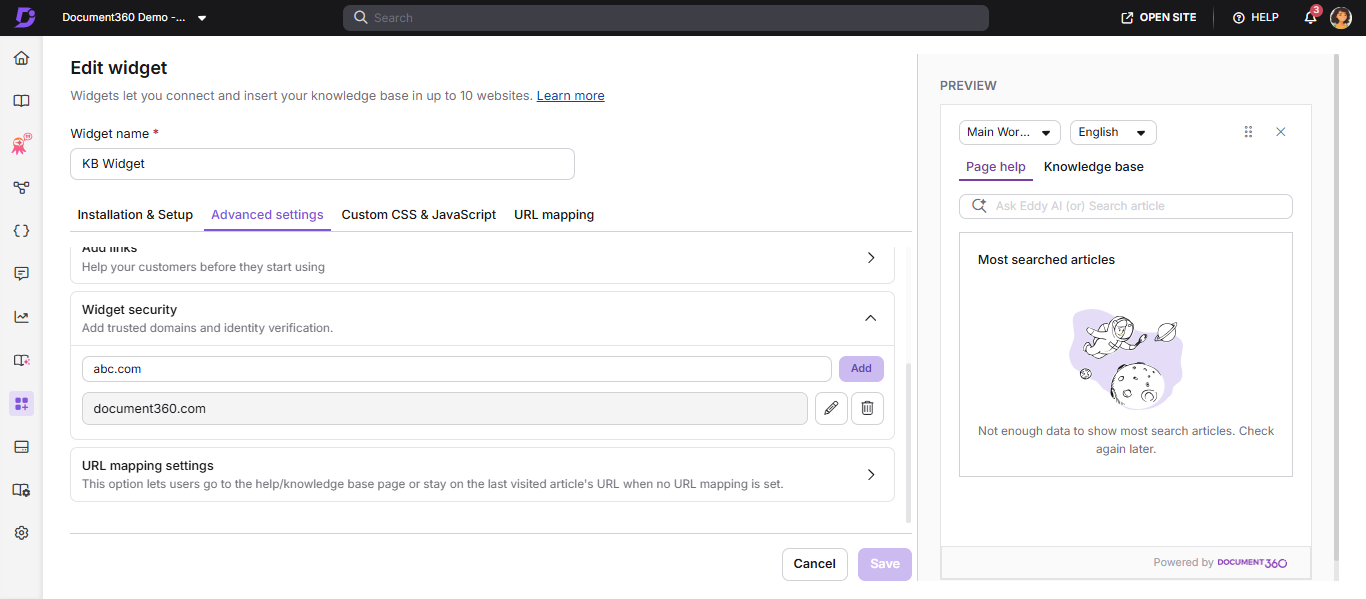
Regras de formato de domínio
- Insira apenas o que vier depois
www.do seu URL. Exemplo:document360.com - A notação coringa não é suportada. Você não pode usar
*.domain.compara permitir todos os subdomínios ao mesmo tempo. - Caminhos de URL não são suportados. Entradas como
domain.com/path/pagenão são válidas. - Adicionar o domínio pai é suficiente. Se você adicionar
group.docuware.cloud, todos os subdomínios sob ele (por exemplo,team1.group.docuware.cloud) são automaticamente permitidos. - Uma lista vazia significa irrestrita — o widget pode carregar em qualquer domínio ou subdomínio.
Melhores práticas
- Adicione tanto seus domínios de produção quanto de staging à lista para que ambos os ambientes funcionem corretamente.
- Revise e limpe a lista de domínios ao desativar ambientes antigos.
- Combine restrição de domínio com autenticação JWT para bases de conhecimento privadas para maximizar a segurança.
FAQ
Como faço para restringir o widget da base de conhecimento a um domínio específico?
Navegue até Conexões > widget da base de conhecimento > Editar > Configurações avançadas > Segurança de widgets. Insira o domínio (sem www.), clique em Adicionar e depois em Salvar. O widget só carrega nos domínios desta lista.
NOTA
Configurar a restrição de domínio também é recomendada como medida de segurança porque a chave API do widget é visível em texto simples no código JavaScript. Restringir o widget a domínios confiáveis garante que a chave da API não possa ser usada incorretamente em sites não autorizados, mesmo que esteja exposta no código.
Por que devo configurar a restrição de domínio se a chave da API já está no script?
A chave API do widget é visível em texto simples no código JavaScript do widget e não pode ser criptografada. Sem restrição de domínio, qualquer pessoa que copie o script pode incorporar seu widget em seu próprio site, potencialmente fazendo um uso indevido do conteúdo da sua base de conhecimento. Restringir o widget a domínios confiáveis garante que a chave da API não possa ser usada incorretamente em sites não autorizados, mesmo expostos.