Links personalizados permitem adicionar uma seção de links clicáveis dentro do widget da Base de Conhecimento, apontando os usuários para endereços de e-mail de suporte, recursos externos ou qualquer URL relevante para seu fluxo de trabalho. Os links aparecem na ordem em que foram criados e sempre abrem em uma nova aba do navegador.
Links internos de artigos e categorias seguem regras de navegação de widgets baseadas no tipo de espaço de trabalho, escopo de acesso ao conteúdo e permissões do grupo de leitores.
Quando usar links personalizados
- Adicione um link "Contato-nos" apontando para seu e-mail de suporte para usuários que não encontrarem o que precisam.
- Link para ferramentas externas como uma planilha do Google, download de eBook ou portal de tickets.
Adicionar um link personalizado
-
Navegue para Conexões () > widget de Knowledge Base na barra de navegação à esquerda.
-
Passe o mouse sobre o widget desejado e clique no ícone Editar ().
-
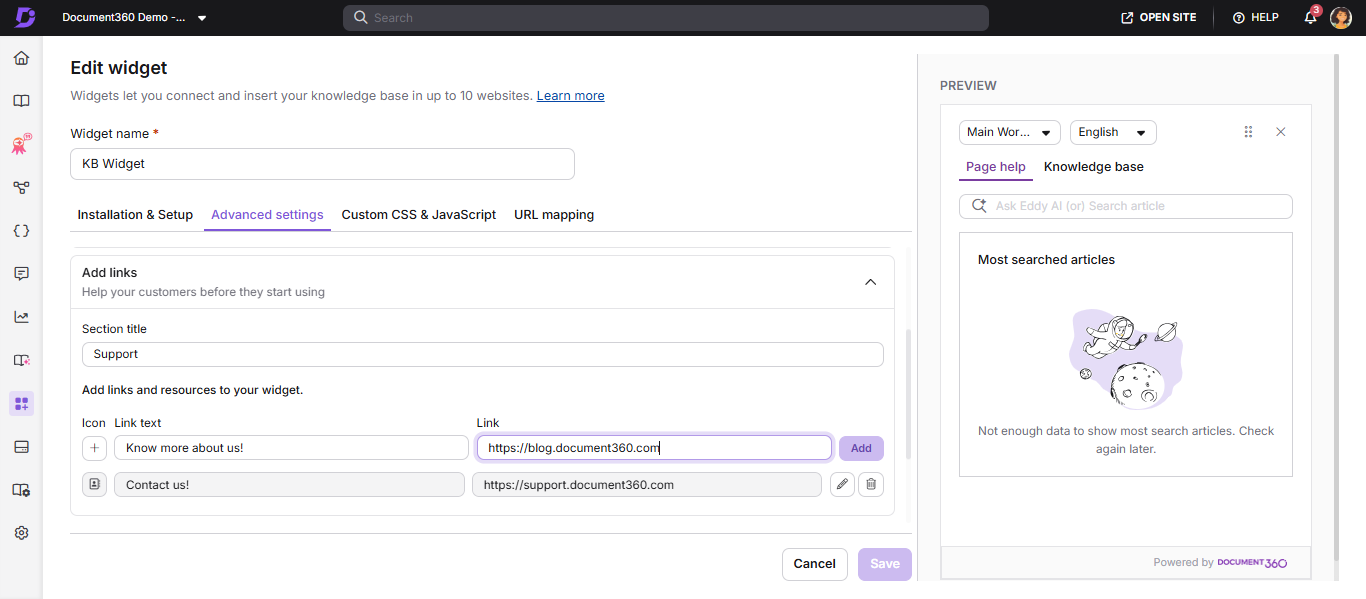
Na aba Configurações Avançadas , expanda o acordeão Adicionar links .
-
No campo de título da Seção , insira o título desse grupo de links (por exemplo, "Recursos", "Suporte").
-
Para cada link, configure:
- Ícone — Escolha entre o conjunto de ícones disponível
- Texto do link — A etiqueta exibida no widget
- Link de destino — A URL ou
mailto:endereço
Exemplo:
- Ícone:
- Texto do link: Entre em contato conosco
- Link:
mailto:support@document360.com
Você pode usar mailto: no campo de link. Por exemplo: mailto:<youremail@somedomain.com>
- Clique em Adicionar. Repita para mais links.
- Para editar um link existente, clique no ícone Editar (). Clique em () para salvar ou () para descartar.
- Para remover um link, clique no ícone Excluir () ao lado.
- Clique em Salvar para aplicar todas as alterações.
Melhores práticas
- Mantenha o texto do link curto e orientado para ação: "Contate o suporte", "Guia de download", "Envie um chamado".
- Use ícones que sugiram visualmente a ação do link — um envelope para e-mail, um ícone de arquivo para downloads.
- Limite o número de links personalizados a 3–5 para manter o widget desorganizado.
FAQ
Posso adicionar links personalizados no widget da base de conhecimento?
Sim. Navegue até o widget de Conexões > Base de Conhecimento > Edite > Configurações Avançadas > Adicione links e adicione o título da seção e os links. Todos os links personalizados abrem em uma nova aba do navegador.