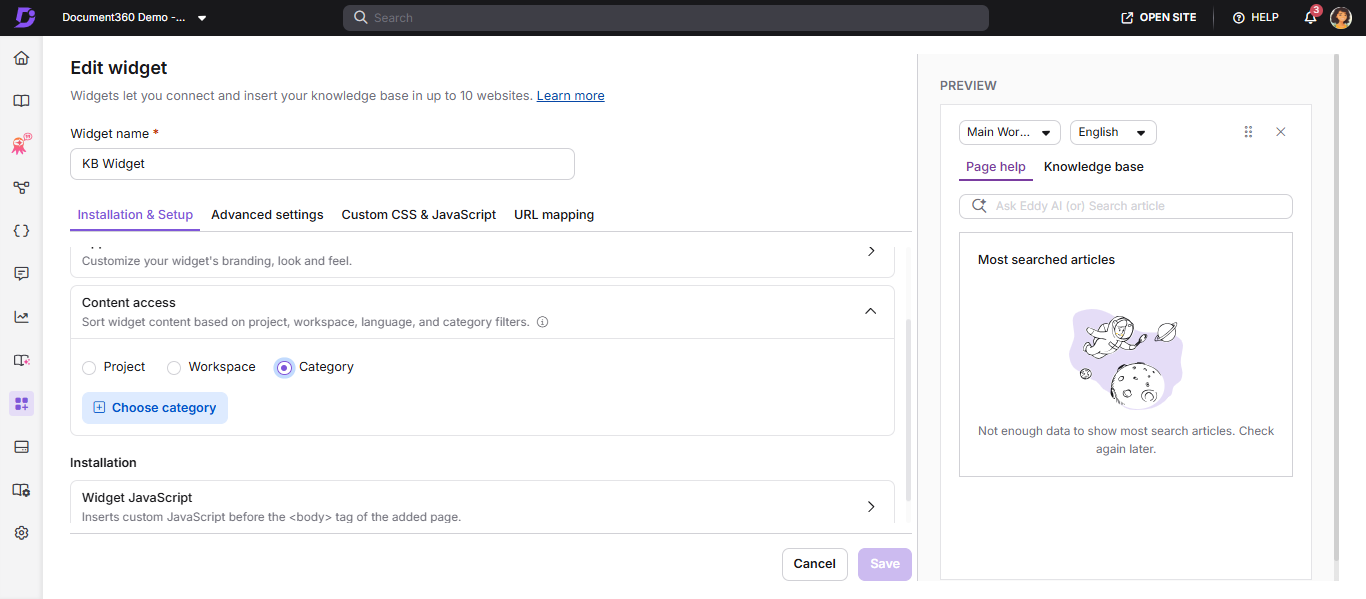
O acesso ao conteúdo controla quais espaços de trabalho, idiomas e categorias aparecem dentro do widget da Base de Conhecimento. Você pode configurar isso mesmo quando o JWT está ativado, dando flexibilidade para restringir o que os usuários finais veem sem exigir alterações de acesso em nível individual. Quando um leitor faz login, o sistema valida as permissões do grupo de leitores contra os filtros de acesso ao conteúdo em nível de widget, sendo mostrada apenas a interseção de ambos.
Os controles de acesso ao conteúdo se aplicam apenas ao nível do projeto, espaço de trabalho, idioma ou categoria. Eles não oferecem restrição ao nível de um leitor individual. Se você precisa mostrar conteúdo diferente para leitores individuais, é necessário autenticar o JWT com grupos de leitores. Veja Configurar JWT para o widget da base de conhecimento e os grupos de leitores JWT.
Quando configurar o acesso ao conteúdo
- Você quer que o widget mostre apenas conteúdo de um espaço de trabalho específico ou área de produto.
- Sua base de conhecimento tem múltiplos espaços de trabalho e o widget deve aparecer apenas um.
- Você quer restringir a visibilidade a categorias específicas para um widget específico.
- Você está usando JWT com grupos de leitores e quer que o escopo do widget esteja alinhado com as permissões do grupo.
Configurar acesso ao conteúdo
- Navegue até Conexões () > widget da base de conhecimento na barra de navegação à esquerda.
- Passe o mouse sobre o widget desejado e clique no ícone Editar ().
- Na aba Instalação e Configuração , expanda a seção de acesso ao conteúdo .
- Selecione o nível desejado do filtro:
- Projeto — Todos os espaços de trabalho e linguagens
- Espaço de trabalho — Um ou mais espaços de trabalho e linguagens específicos
- Categoria — Uma ou mais categorias específicas
- Escolha os espaços de trabalho, idiomas e categorias desejados para exibir no widget.
- Clique em Concluído, depois clique em Salvar para aplicar as alterações.
Validando permissões de conteúdo de grupos de leitores
Quando um leitor faz login, o sistema valida se as permissões do grupo de leitores correspondem aos filtros de acesso ao conteúdo do widget. Apenas as permissões que se cruzam entre as configurações em nível de widget e as configurações do grupo de leitores são consideradas para validação. Isso garante que os usuários vejam apenas os artigos para os quais são autorizados.
A mesma validação é aplicada quando os leitores clicam em links internos dentro do widget. O widget verifica os filtros de acesso ao conteúdo configurados, o escopo do espaço de trabalho e as permissões do grupo de leitores antes de carregar o conteúdo de destino. Se o conteúdo vinculado estiver fora do escopo permitido, o widget exibe um estado de acesso restrito em vez de renderizar o artigo.
Mudanças feitas no acesso ao conteúdo impactarão diretamente o mapeamento da URL. Se você modificar as configurações de filtro do widget, o mapeamento de URL existente pode ser removido, levando a links quebrados.
Você só pode configurar mapeamentos de URL usando artigos incluídos no conteúdo atual do widget de Filtro.
Exemplo 1: Você definiu o conteúdo do widget de filtro no nível do Projeto e configurou um mapeamento de URL que inclui uma lista de artigos da Categoria A no Workspace V1. Se você atualizar as configurações do filtro para mostrar apenas as Categorias B e C no mesmo espaço de trabalho, o mapeamento de URL anterior se torna inválido — porque os artigos originalmente mapeados da Categoria A não estão mais disponíveis no widget.
Exemplo 2: Se o widget for filtrado para exibir conteúdo apenas do Workspace V1, você não pode criar um mapeamento de URL para um artigo localizado no Workspace V2.
Sempre revise e atualize os mapeamentos de URL após alterar as configurações de acesso ao conteúdo.
Melhores práticas
- Use acesso em nível de categoria apenas quando precisar de conteúdo de widgets com escopo restrito. A desvantagem é que você deve manter manualmente a lista de categorias conforme novas categorias são adicionadas.
- Após alterar o acesso ao conteúdo, teste o widget navegando até cada URL mapeada para confirmar que os artigos esperados ainda aparecem.
FAQ
Por que algumas categorias estão ausentes no widget da base de conhecimento?
Isso pode ocorrer se o acesso em nível de categoria não tiver sido devidamente configurado para o widget. Para garantir que suas categorias sejam visíveis:
Verifique se o leitor tem permissão para visualizar as categorias específicas no widget da base de conhecimento.
Verifique se o acesso em nível de categoria está configurado. Se estiver, adicione manualmente a categoria desejada na seção de acesso ao conteúdo.
Para adicionar a categoria faltante ao widget:
Navegue para Conexões () > Widget da Base de Conhecimento.
Passe o mouse sobre o widget desejado e clique no ícone Editar ().
Na aba Instalação e Configuração , expanda o acordeão de acesso ao Conteúdo .
Selecione Categoria e escolha a categoria desejada para aparecer no widget.
Clique em Salvar para aplicar as alterações.
Por que um link de artigo abre dentro do widget em vez de uma nova aba?
O widget da base de conhecimento determina o comportamento dos links com base no tipo de espaço de trabalho de destino e na elegibilidade de acesso.
A configuração Abrir em uma nova aba configurada no editor não é suportada no widget. Links internos dentro do mesmo domínio sempre abrem dentro do widget, independentemente da configuração selecionada.
Artigos em espaços de trabalho padrão abrem dentro do widget.
Artigos em outros espaços de trabalho padrão também se abrem dentro do widget quando são incluídos na configuração de acesso ao conteúdo do widget.
Os links da documentação da API sempre abrem em uma nova aba do navegador.
Links de domínio externo sempre abrem em uma nova aba do navegador.
Se o conteúdo de destino for restrito, o widget exibe um estado de acesso restrito.
Se o destino não puder ser resolvido, o widget exibe um estado de reserva.
Por que um link interno de artigo mostra acesso restrito dentro do widget?
Isso acontece quando o artigo vinculado está fora do escopo de acesso ao conteúdo configurado do widget ou quando o leitor não tem permissão através do grupo de leitores designado.
Verifique que:
O espaço de trabalho de destino está incluído na configuração do widget.
A categoria vinculada está dentro do escopo do filtro permitido.
O leitor tem acesso através do grupo de leitores designado.
Se o conteúdo de destino estiver fora do escopo permitido, o widget exibe intencionalmente um estado de acesso restrito.
É possível restringir o conteúdo de widgets para leitores individuais sem usar o JWT?
Não. Filtros de acesso ao conteúdo (Projeto, Espaço de Trabalho ou Categoria) restringem o que o widget exibe no geral, e grupos de leitores restringem o que um leitor logado pode ver, mas nenhum deles oferece restrição no nível de um único leitor específico. A restrição de conteúdo em nível de leitor no widget exige autenticação JWT com grupos de leitores JWT. Sem JWT, o nível mais restrito de controle disponível é categoria.
Também observe, para referência: a autenticação JWT para o Site da Base de Conhecimento e a autenticação JWT para o Widget da Base de Conhecimento são configuradas de forma independente. Ativar ou desativar o JWT para um não afeta automaticamente o outro.