Seu widget de Base de Conhecimento costuma ser o primeiro ponto de contato que um usuário tem com seu conteúdo de suporte. Um widget que combine com a identidade visual do seu produto parece nativo e confiável — um que não corresponde pode parecer uma ideia de terceiros. Este artigo cobre todas as configurações visuais disponíveis para o widget e explica quando e por que você usaria cada uma.
Referência de configurações de estilo
| Ambientação | O que ele controla |
|---|---|
| Cor do widget | O tema e a cor de fundo do ícone |
| Ícone de widget | O gráfico do botão que abre o widget |
| Posição do widget | Lado esquerdo ou direito da tela, com controle de espaçamento |
| Mensagem de boas-vindas | Um pequeno prompt mostrado acima do ícone antes do usuário clicar |
| Ocultar widget | Suprima o ícone flutuante (usado ao acionar via um botão personalizado) |
| Ocultar os artigos mais pesquisados | Remove os artigos em alta exibidos quando o widget abre |
Acessar configurações de estilo de widget
- Na barra de navegação da esquerda, vá em Conexões () > widget da base de conhecimento.
- Passe o mouse sobre o widget desejado e clique no ícone Editar ().
- Na aba Instalação e Configuração , expanda a seção Aparência .
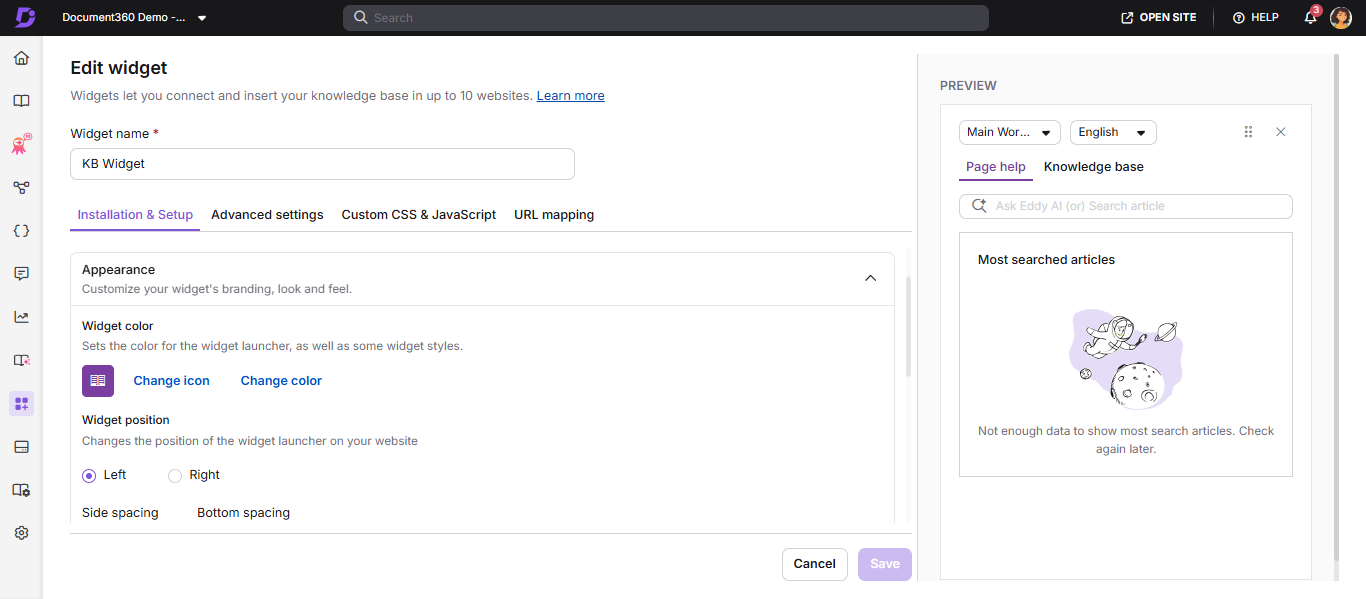
As alterações são salvas automaticamente conforme você passa entre abas. Clique em Salvar para aplicar explicitamente antes de sair da página.
Quando configurar o estilo do widget
- Durante a configuração inicial, alinhe o widget com as cores e o ícone da marca do seu produto.
- Ao reposicionar para evitar sobreposição com um widget de chat ao vivo ou banner de cookies.
- Ao usar um botão de gatilho personalizado e querer esconder o ícone flutuante padrão.
- Ao adicionar uma mensagem de boas-vindas para novos usuários.
Antes de começar
Você deve ter um cargo de Proprietário do Projeto ou Administrador .
Cor do widget
Por que isso importa: Combinar a cor de destaque do seu widget com a cor principal da marca do seu produto faz com que ele pareça uma parte projetada da sua interface, e não uma ferramenta incorporada. Isso é especialmente importante para produtos SaaS, onde a consistência da marca afeta a qualidade percebida.
Como configurá-lo:
- Clique em mudar cor. A paleta de cores se abre.
- Selecione uma cor no seletor ou insira diretamente um valor hexadecimal, RGB ou HSL.
- Clique em Salvar.
Resultado: O ícone do widget e sua barra de cabeçalho atualizam imediatamente na prévia e no seu site ao vivo após o carregamento da próxima página.
Exemplo: Se seu produto usa
#0057FFcomo azul principal, digitar esse valor hexadecimal fará com que o ícone do widget combine perfeitamente com sua barra de navegação e os botões CTA.
Ícone de widget
Por que isso importa: O ícone padrão é uma bolha de ajuda genérica. Substituí-lo pelo seu logo ou por um ícone personalizado sinaliza aos usuários que esse widget pertence ao seu produto, e não a uma ferramenta de terceiros — aumentando as taxas de cliques.
Como configurá-lo:
- Clique no ícone de Mudar.
- Escolha na aba Conjunto de ícones para escolher um ícone pré-construído, ou clique em Inserir imagem para usar uma imagem personalizada:
- Do URL: Cole o link da imagem e clique em Inserir.
- Do dispositivo: Clique em Carregar uma imagem e selecione seu arquivo.
- Clique em Salvar.
- Para reverter, clique em Padrão.
Dica: Use uma imagem quadrada com fundo transparente (PNG, recomendado 64×64px ou maior) para obter o resultado mais limpo em todos os tamanhos de tela.
Posição do widget
Por que isso importa: A posição padrão no canto inferior direito funciona para a maioria dos sites, mas alguns layouts têm barras de navegação fixas, banners de cookies ou widgets de chat nesse canto. O reposicionamento evita sobreposição e garante que o widget esteja sempre visível e acessível.
Como configurá-lo:
- Selecione Esquerda ou Direita para escolher em qual lado da tela o widget aparece.
- Insira os valores em espaçamento lateral (distância horizontal da borda) e espaçamento inferior (distância vertical em relação à base) em pixels.
- Clique em Salvar.
Exemplo: Se seu widget de chat ao vivo estiver no canto inferior direito com uma margem de 20px, posicione seu widget da Base de Conhecimento à esquerda, no mesmo espaçamento inferior, para que ambos fiquem acessíveis sem sobreposição.
Mensagem de boas-vindas
Por que isso importa: A maioria dos usuários não percebe um ícone flutuante a menos que algo chame sua atenção. Uma mensagem de boas-vindas aparece como uma bolha de chat acima do ícone e serve como um empurrão suave — especialmente útil durante os fluxos de integração ou após o lançamento de um novo recurso.
Como configurá-lo:
- Digite sua mensagem no campo de Mensagem de boas-vindas (máximo 50 caracteres).
- Clique em Salvar.
Exemplos de mensagens de boas-vindas eficazes:
- "Precisa de ajuda? Comece aqui."
- "Novo nesse recurso? Temos guias."
- "Procure em nossa base de conhecimento."
Quando pular: Se seu widget está embutido em uma interface altamente focada em tarefas (como um fluxo de checkout), uma mensagem de boas-vindas pode parecer intrusiva. Deixe em branco nesses contextos.
Ocultar widget
Por que isso importa: Se você está ativando o widget por meio de um botão personalizado (por exemplo, um link de "Ajuda" na sua barra de navegação), não quer que o ícone flutuante padrão também apareça — isso cria dois pontos de entrada e uma bagunça visual. Esconder o ícone do widget permite que você controle exatamente onde e como o widget é lançado.
Como configurá-lo:
- Ative a opção de ocultar widget .
- Clique em Salvar.
Se você mapeou o widget para um botão personalizado, mas o ícone flutuante ainda está aparecendo, verifique se esse botão está ativado.
Ocultar os artigos mais pesquisados
Por que isso importa: A seção "mais pesquisados" mostra os artigos em alta quando o widget é aberto. Isso é útil para bases de conhecimento de uso geral. No entanto, se seu widget for direcionado para uma área específica de produto ou fluxo de trabalho, mostrar artigos populares não relacionados pode confundir os usuários.
Como configurá-lo:
- Ative a opção Ocultar artigos mais pesquisados .
- Clique em Salvar.
Ativar essa opção também desativa o mapeamento de listas baseado em URLs para o widget. Se você depende do mapeamento de URL para listas de categorias de superfície em páginas específicas, mantenha essa configuração desativada.
Melhores práticas
- Combine a cor do widget com a cor principal do CTA do seu produto para uma sensação nativa.
- Se outro widget (por exemplo, chat ao vivo) ocupar o canto inferior direito, mova o widget da base de conhecimento para a esquerda com espaçamento inferior correspondente.
- Use um ícone personalizado com fundo PNG transparente para resultados consistentes com a marca.
- Deixe a mensagem de boas-vindas em branco nas páginas de alta intenção (checkout, envie formulários) onde distrações prejudicam a conversão.