Um widget de base de conhecimento é um elemento interativo flutuante que você pode incorporar ao seu site ou produto para dar aos usuários acesso instantâneo à sua base de conhecimento do Document360 sem sair da página. Criar um widget de Knowledge Database no Document360 envolve adicionar o widget, nomeá-lo, ativar o Eddy AI se necessário, estilizá-lo e copiar o trecho JavaScript para instalá-lo no seu site. Todos esses passos são realizados a partir de Conexões () > widget da base de conhecimento na barra de navegação esquerda do portal da base de conhecimento.
Quando criar um widget
- Você precisa de um widget separado para um público, área de produto ou ambiente diferente.
- Você quer um widget de teste para experimentar com segurança as mudanças de configuração antes de afetar seu widget ativo.
Antes de começar
- Você deve ter uma função de Proprietário do Projeto ou Administrador do portal.
- Para usar o Eddy AI no widget, ative-o primeiro nas Configurações > nas configurações de IA > nas configurações do Eddy AI antes de criar o widget.
Crie um widget de base de conhecimento
-
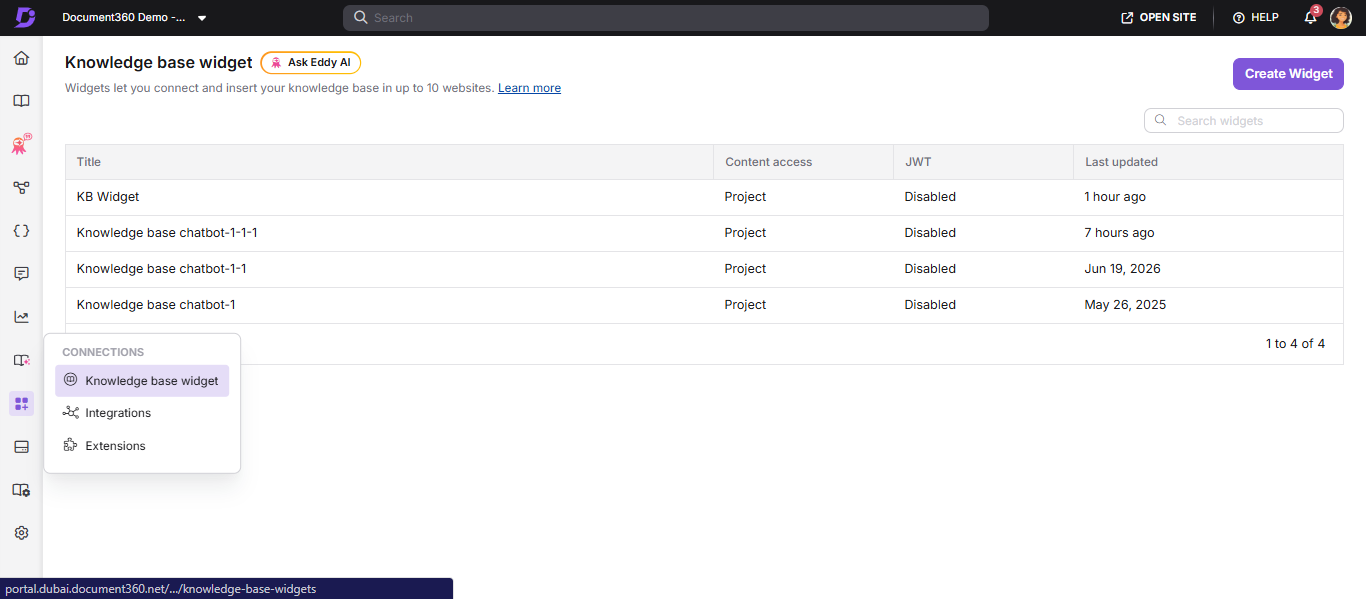
Na barra de navegação da esquerda, navegue até Conexões () > widget da base de conhecimento.
-
No canto superior direito da página, clique em Criar widget.
-
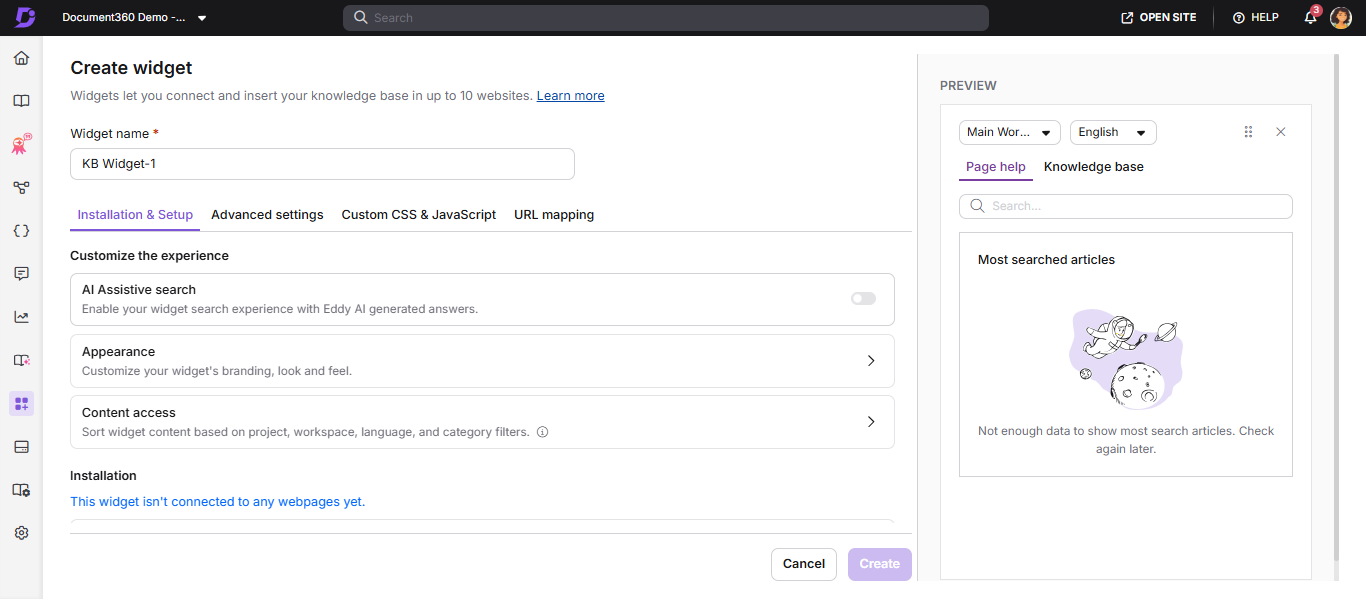
No campo Nome do Widget , insira um nome apropriado para o widget.
-
Se quiser o Eddy AI neste widget, ative a opção de busca assistida por IA na aba Instalação e Configuração . Uma vez ativado, o campo de busca aparece na prévia à direita.
-
Na aba Instalação e Configuração , localize a seção Aparência e expanda-a para configurar a aparência do widget:
- Clique no ícone Alterar para substituir o ícone do widget por uma imagem ou selecione um dos ícones disponíveis.
- Clique em Alterar cor para atualizar a cor de fundo do widget.
- Selecione Esquerda ou Direita para posicionar o ícone do widget em cada lado do seu site.
- Insira os valores dos pixels no espaçamento lateral e no espaço inferior para ajustar a posição dos widgets.
- Insira uma mensagem de boas-vindas para exibir aos usuários quando abrirem o widget (até 50 caracteres).
- Ative o Ocultar widget se quiser suprimir o ícone flutuante (por exemplo, ao usar um botão personalizado).
- Ative Ocultar os artigos mais pesquisados se quiser esconder a seção de artigos em alta.
-
Clique em Criar na parte inferior. Uma mensagem de confirmação aparece no canto superior direito da página.
Após criar o widget
Depois que o widget é criado, ele aparece na lista de widgets. Passe o mouse sobre o widget para acessar as seguintes opções:
| Opção | Descrição |
|---|---|
| Copiar script () | Copia o código JavaScript do widget para instalação |
| Editar () | Atualize o nome ou configuração do widget |
| Clone () | Crie uma duplicata do widget com um novo nome |
| Excluir () | Remover permanentemente o widget |
Você não pode mudar o tipo de widget (Widget ou Chatbot) usando a opção Editar .
Artigos nesta seção
Siga estes guias para completar a configuração e configuração do seu widget:
Aqui está a lista formatada como uma tabela:
| Artigo | O que ela cobre |
|---|---|
| Widget de Conectar Base de Conhecimento Saiba mais → |
Widget JS e domínios conectados. |
| Configure o JWT para o widget da base de conhecimento Saiba mais → |
Acesso seguro a bases de conhecimento privadas. |
| Editar, Clonar e Excluir widget Saiba mais → |
Gerencie seus widgets. |
| Estilização e branding do widget da base de conhecimento Saiba mais → |
Combine com sua marca. |
| Acesso ao conteúdo no widget da base de conhecimento Saiba mais → |
Filtre por projeto, espaço de trabalho ou categoria. |
| Adicionar links personalizados Saiba mais → |
Adicione links de suporte e recursos. |
| Usando múltiplos widgets dentro de um projeto Saiba mais → |
Gerencie widgets de teste e produção. |
| Segurança de widgets Saiba mais → |
Restrição de domínio. |
| Restrição de domínio para o widget da base de conhecimento Saiba mais → |
Configuração de domínio confiável. |
| Adicione um defletor de bilhete Saiba mais → |
Integre um formulário de apoio. |
| Personalização usando CSS & JavaScript personalizados Saiba mais → |
Personalização avançada. |
| Mapeamento de URL Saiba mais → |
Artigo consciente do contexto emergindo. |