Verwenden Sie JWT (JSON Web Token), um Leser von Ihrer eigenen Anwendung an Ihrer privaten Wissensdatenbank anzumelden. Ein JWT ist ein signiertes Token, das die Identität des Lesers trägt: Leser melden sich in Ihrer Anwendung an, und Document360 vertraut diesem Anmelden zu, sodass Sie keinen Identitätsanbieter (IdP) oder Leserkonten in Document360 benötigen.
Dieser Artikel hilft Ihnen zu entscheiden, ob JWT für Sie geeignet ist, zeigt Ihnen die Einrichtungsreihenfolge und erklärt den Anmeldeablauf, den Ihre Entwickler erstellen werden.
Entscheide, ob JWT das Richtige für dich ist
Verwenden Sie JWT, wenn:
- Du hast keinen IdP, oder du bevorzugst es, die Anmeldung in deiner eigenen Anwendung zu verwalten.
- Sie möchten die Anmeldung und Leserbereitstellung von Ihrer Anwendung aus steuern.
Verwenden Sie stattdessen SAML oder OpenID Connect , wenn:
- Ihre Organisation verwendet bereits einen IdP, wie Okta, Microsoft Entra ID oder Google Workspace, und Sie möchten, dass Leser sich darüber anmelden.
- Nutzer müssen sich im Knowledge Base-Portal anmelden. JWT meldet sich nur auf der Knowledge Base-Seite an.
- Man muss SSO-Reader automatisch registrieren, die Leser selbst registrieren lassen oder die Anmeldeseite von Document360 überspringen. JWT unterstützt das nicht.
JWT einrichten
Bevor du anfängst
- Du brauchst die Rolle Eigentümer oder Administrator in deinem Document360-Projekt.
- Du brauchst einen Entwickler, der die Anmeldelogik zum Backend deiner Anwendung hinzufügen kann.
Befolgen Sie diese Schritte in der richtigen Reihenfolge:
- Konfigurieren Sie JWT in Document360: Erstellen Sie Ihre JWT-Konfiguration und erhalten Sie Ihre Client-ID und Ihr Client Secret.
- Implementiere JWT in deiner Anwendung: Füge die Backend-Redirect-Logik mit Codebeispielen in C#, Node.js und Java hinzu.
- Teste deine JWT-Konfiguration: Überprüfe dein Setup mit cURL oder Postman, bevor du live gehst.
- (Optional) Login-Einstellungen ändern: Aktivieren Sie Direct JWT Login , um Leser direkt auf Ihre Anmeldeseite zu senden.
Wie die JWT-Anmeldung funktioniert
Dieser Abschnitt richtet sich an den Entwickler, der JWT implementiert. Document360 verwendet einen ähnlichen Ablauf wie PKCE (Proof Key for Code Exchange), eine sichere OAuth-Methode: Ihr Backend tauscht die Identität des Lesers gegen einen einmaligen Code, und Document360 tauscht diesen Code gegen ein Token aus.
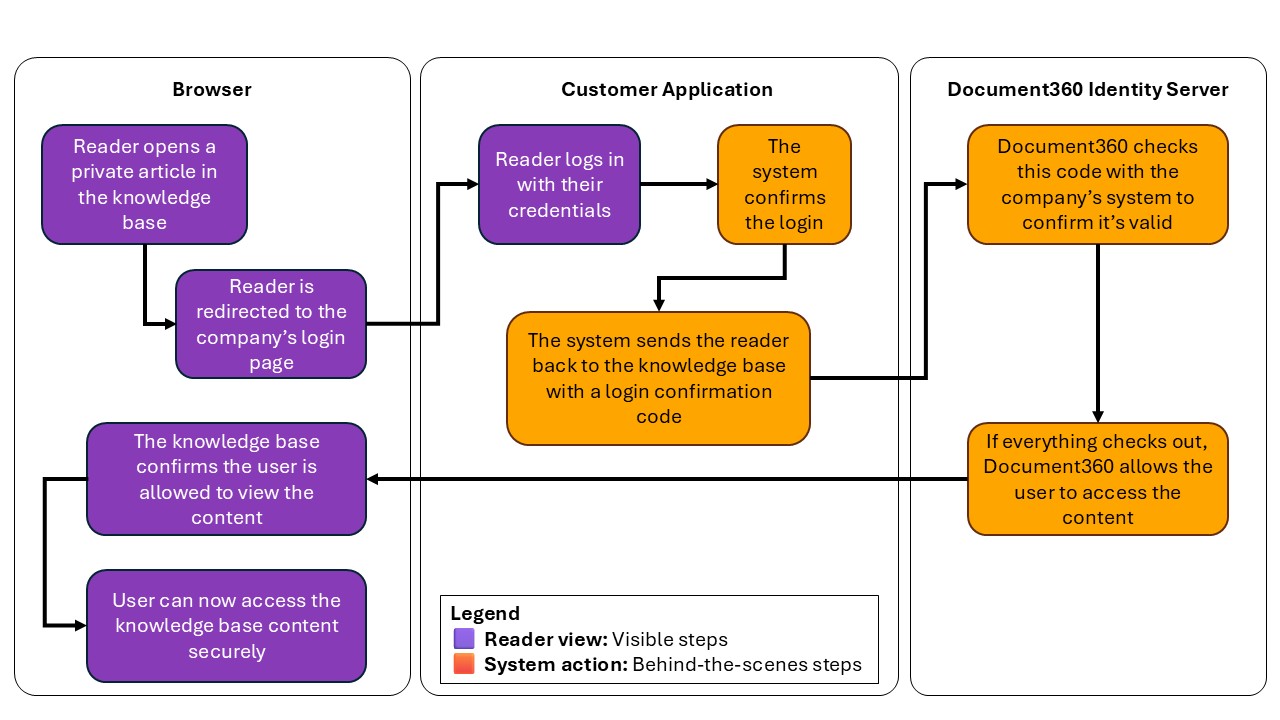
Schlüsselbegriffe
| Begriff | Was es ist |
|---|---|
| Anmelde-URL | Die Anmeldeseite in Ihrer Bewerbung. Document360 schickt die Leser hierher, um sich anzumelden. |
| Code-Generierungs-URL | Der Document360-Identitätsserver ruft Ihr Backend mit Ihrer Client-ID und Ihrem Client Secret auf, um einen einmaligen Autorisierungscode zu erhalten. |
| Rückruf-URL | Die Document360-URL, zu der Ihre Anwendung den Reader mit dem Code schickt. Document360 generiert sie für Sie. |
Anmeldefluss
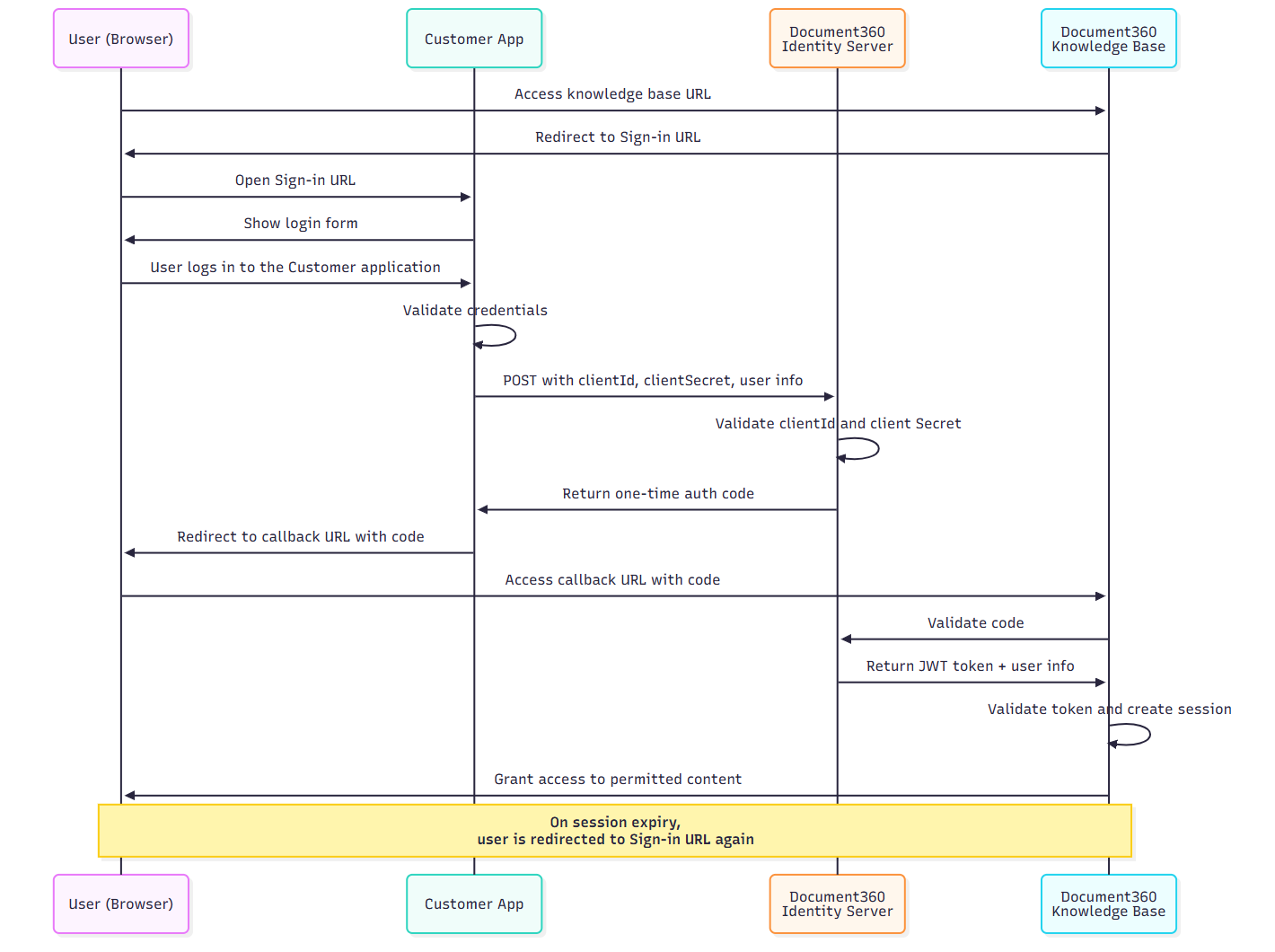
- Der Reader öffnet Ihre private Wissensdatenbank-Website. Document360 sieht, dass JWT aktiviert ist, und leitet den Reader zu Ihrer Anmelde-URL.
- Der Leser meldet sich bei deiner Bewerbung an, falls er das noch nicht getan hat. Deine Bewerbung überprüft deren Qualifikationen.
- Ihr Backend fordert einen einmaligen Autorisierungscode an. Es sendet eine
POSTAnfrage an die Codegenerierungs-URL, die mit HTTP Basic Auth autorisiert ist, und verwendet Ihre Client-ID und Ihr Client Secret:
Authorization: Basic Base64Encode(clientId:clientSecret)
With this JSON payload:
    {
      "username": "firstname lastname",
      "firstName": "firstname",
      "lastName": "lastname",
      "emailId": "reader email",
      "readerGroupIds": ["reader-group-id"],
      "tokenValidity": 15
    }
| Field | Description |
|---|---|
| `username` | The reader's full name. |
| `firstName` | The reader's first name. |
| `lastName` | The reader's last name. |
| `emailId` | The reader's email address. |
| `readerGroupIds` | (Optional) The reader groups that control which content the reader can see. Get the IDs from the **Reader groups** overview page in the Document360 portal. |
| `tokenValidity` | How long the reader's session lasts, in minutes. See [Token validity and sessions](#token-validity-and-sessions). |
- Document360 liefert einen Autorisierungscode. Der Document360-Identitätsserver überprüft deine Client-ID und das Client Secret, und wenn diese gültig sind, sendet er einen Einweg-Code an dein Backend.
- Deine Anwendung schickt den Leser zurück zu Document360. Dein Backend fügt den Code zur Callback-URL hinzu und leitet den Leser um, zum Beispiel
https://yourproject.document360.io/jwt/authorize?code=xyz. Der Code funktioniert nur einmal. - Document360 tauscht den Code gegen ein Token aus. Die Wissensdatenbank sendet den Code über einen sicheren Backchannel an den Identitätsserver und erhält ein JWT mit den Daten des Lesers.
- Document360 startet die Sitzung des Lesers. Es überprüft das Token, liest die Details und Lesergruppen des Lesers vor und gewährt ihnen Zugang zu den Kategorien, Sprachen und Versionen, die diese Gruppen erlauben.
Token-Gültigkeit und Sitzungen
- Stellen Sie die Sitzungsdauer mit
tokenValidityauf 5 bis 1.440 Minuten ein. Werte unter 5 werden zu 5, und Werte über 1.440 zu 1.440. - Wenn das Token abläuft, schickt Document360 den Leser zurück zu Ihrer Anmelde-URL. Wenn sie noch bei Ihrer Anwendung angemeldet sind, wird ein neuer Code generiert und ihre Sitzung wird ohne weitere Anmeldung fortgesetzt.
- Das Abmelden von Ihrer Anwendung beendet nicht die Document360-Sitzung des Lesers. Die Sitzung bleibt aktiv, bis das Token abläuft. Zum Beispiel behält der Leser mit einer Gültigkeit von 1.440 Minuten bis zu einem Tag nach dem Abmelden den Zugriff.
Mach mehr mit JWT
- JWT-Konfigurationen verwalten: Schalten Sie Konfigurationen ein oder aus, löschen Sie sie, rotieren Sie Token und verwalten Sie Domain-Routing, Login-Seiten-Status und Audit-Protokolle.
- Kontrolliere den Inhaltszugriff mit Lesergruppen: Weise Leser über JWT Lesergruppen zu.
- Konfigurieren Sie JWT für das Knowledge Base-Widget: Melden Sie die Leser in Ihr eingebettetes Widget an.
- Sichern Sie den KI-Chatbot mit JWT: Melden Sie sich die Leser beim KI-Chatbot an.
FAQ
Kann ich JWT mit SAML oder OpenID Connect gleichzeitig verwenden?
Ja. JWT kann zusammen mit SAML- oder OpenID Connect-Konfigurationen im selben Projekt aktiv sein. Jede wird separat verwaltet, und Änderungen an der einen betreffen die andere nicht.
Kann ich mehr als eine JWT-Konfiguration in einem Projekt haben?
Ja. Man kann bis zu fünf JWT-Konfigurationen gleichzeitig in einem Projekt aktiv haben.
Was soll ich tun, wenn ich meine geheimen Token verliere?
Geheime Token erscheinen nur einmal, wenn Sie die Konfiguration erstellen. Um eine neue zu erhalten, bearbeiten Sie die Konfiguration und wählen Sie neben dem Token Generieren . Der alte Token funktioniert sofort, aktualisieren Sie Ihre Anwendung sofort mit dem neuen Token, um fehlgeschlagene Anmeldungen zu vermeiden.