Variablen in Document360 werden von der Seite Variablen unter Inhaltswerkzeugen erstellt und verwaltet. Von dieser Seite aus können Sie neue Variablen erstellen, deren Inhalte bearbeiten, prüfen, wo sie in Ihrer Wissensdatenbank verwendet werden, und sie einzeln oder in großen Mengen löschen.
Die Variablen-Seite
- Navigiere in der linken Navigationsleiste zu Inhaltswerkzeugen () ().
- Wählen Sie Inhaltsressourcen > Variablen im linken Navigationsfenster aus.
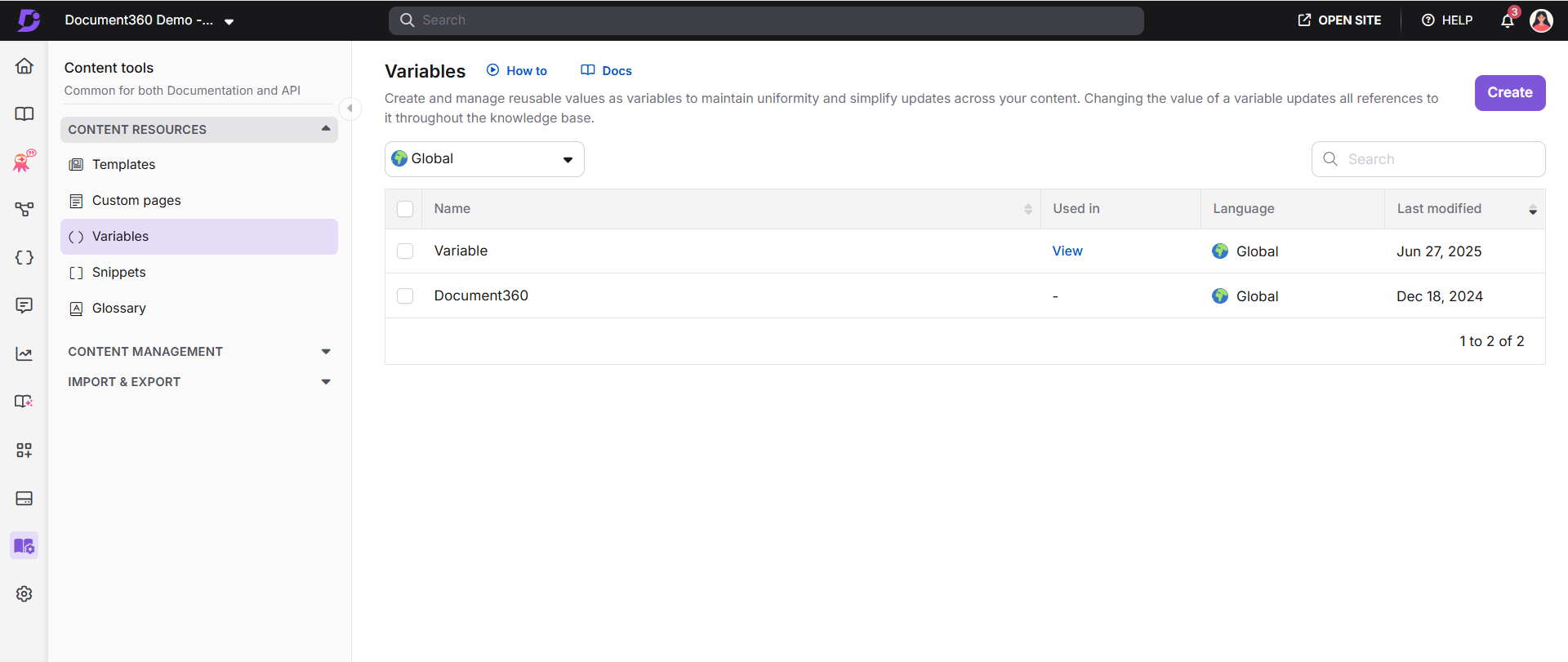
| Element | Beschreibung |
|---|---|
| Erstellen Sie | Erstellt eine neue Variable. |
| Sprachen | Filtert die Variablenliste nach Global oder einer bestimmten Sprache. |
| Suchvariable | Sucht nach einer Variablen anhand des Namens. |
| Variable auswählen | Kontrollkästchen, um eine oder mehrere Variablen für das Massenlöschen auszuwählen. Klicken Sie auf einen Variablennamen, um deren Inhalt anzusehen. |
| Verwendung in | Zeigt einen Bindestrich, wenn die Variable nicht verwendet wird. Wenn verwendet, klicken Sie auf Ansicht, um die Artikel und Kategorieseiten zu sehen, auf denen es erscheint. |
| Sprache | Zeigt die jeder Variable zugewiesene Sprache. |
| Zuletzt modifiziert | Zeigt das Datum und die Uhrzeit an, an der die Variable zuletzt aktualisiert wurde. |
| Übersetzung | Klicken Sie auf das Globus-Symbol, um den Übersetzungsfortschritt zu überprüfen. Ein Green Check bedeutet, dass die Variable in diese Sprache übersetzt wurde. Ein X bedeutet, dass es nicht so ist. |
| Bearbeitung | Öffnet die Variable zum Bearbeiten. Klicken Sie auf Aktualisieren , um Änderungen zu speichern. |
| Löschen | Löscht die Variable. Für Massenlöschung wähle die Kontrollkästchen aus und klicke oben auf Löschen . |
Erstellen Sie eine Variable
- Auf der Seite Variablen klicken Sie oben rechts auf Erstellen .
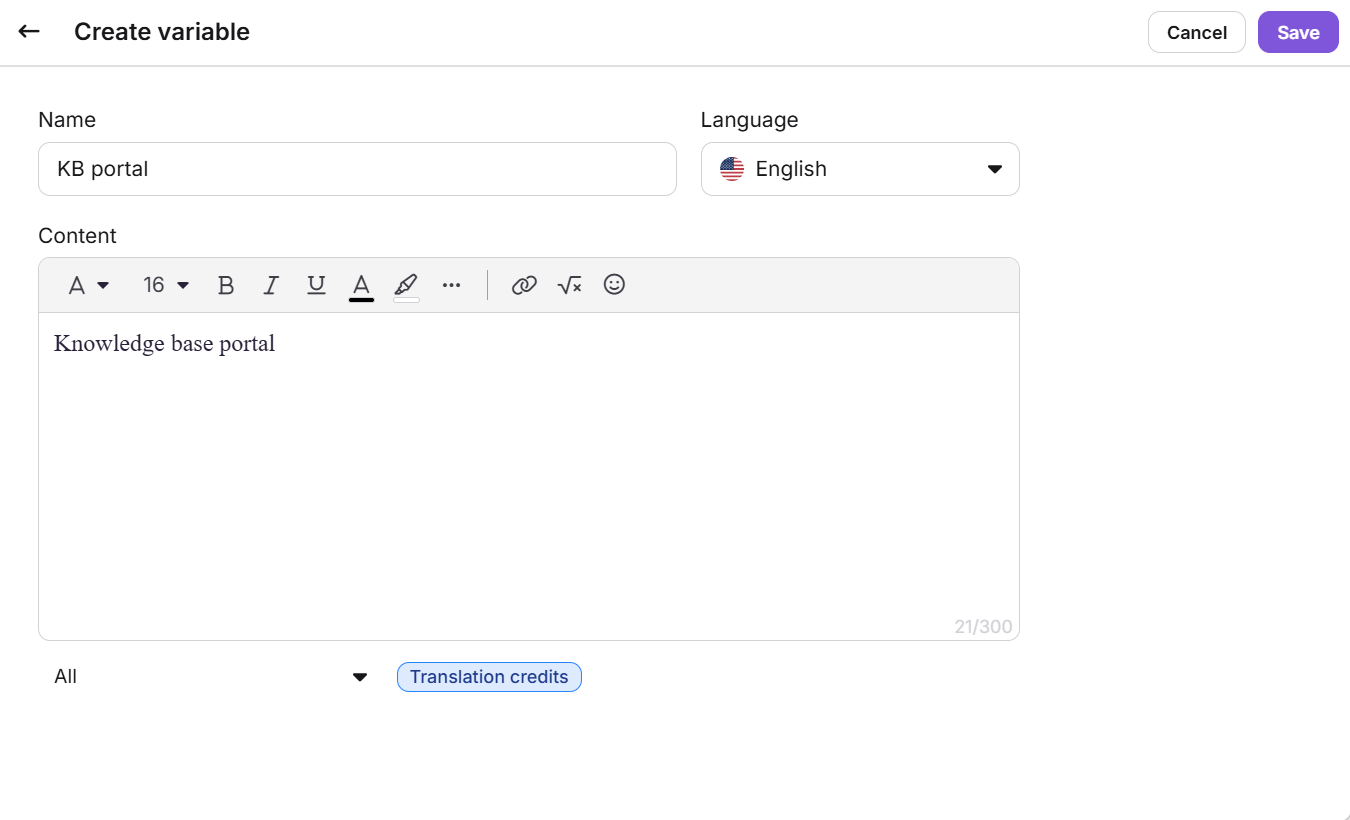
- Geben Sie einen Namen für die Variable ein.
Variablennamen können Buchstaben, Zahlen, Bindestriche und Unterstriche enthalten. Der Name darf 50 Zeichen nicht überschreiten.
- Beachten Sie den Merge-Code-Wert. Dies ist das Tag, das verwendet wird, um die Variable im Editor einzufügen. Zum Beispiel, wenn der Variablenname ist
Disclaimer, ist{{variable.Disclaimer}}der Merge-Code . - Im Dropdown-Menü Sprache wählen Sie einen Sprachbereich aus:
- Global (Standard): Die Variable gilt für alle Sprachen.
- Eine bestimmte Sprache: Die Variable gilt nur für diese Sprache.
- Im Content-Feld geben Sie die variable Content ein.
Variabler Inhalt ist auf 300 Zeichen einschließlich Leerzeichen begrenzt. Für längere Texte oder Medien verwenden Sie Snippets →
- Klicken Sie auf Speichern.
Formatierungsoptionen
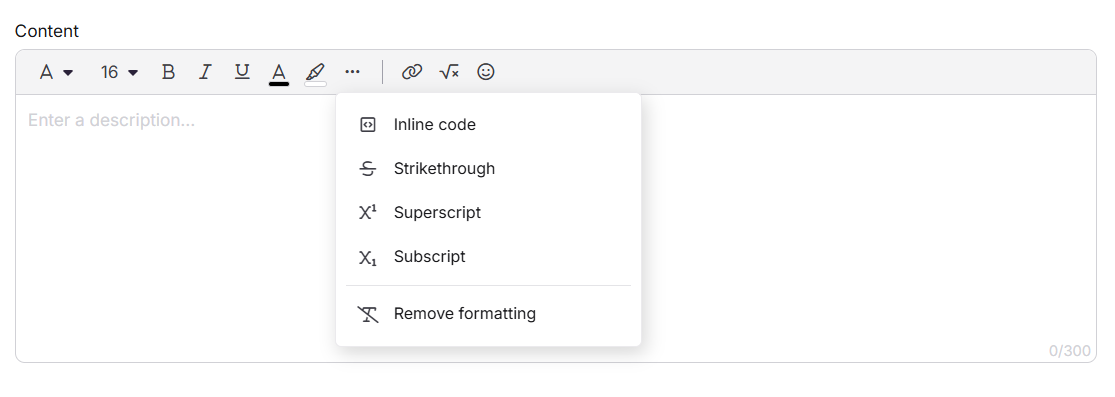
Du kannst variable Inhalte mit der Symbolleiste stylen.
| Option | Beschreibung |
|---|---|
| Schriftartfamilie | Ändern Sie die Schriftfamilie des Textes. |
| Schriftgröße | Passen Sie die Textgröße zwischen 8 und 48 an. |
| Kühn | Betonen Sie wichtige Wörter oder Phrasen. |
| Kursiv | Text markieren oder Begriffe markieren. |
| Unterstreichung | Füge eine Zeile unter den Text zur Betonung hinzu. |
| Textfarbe | Ändere die Textfarbe mit einem Farbwähler oder HEX-Code. |
| Hintergrundfarbe | Ändere die Hintergrundfarbe hinter dem Text. |
| Link einfügen | Füge einen Hyperlink zu einem internen Artikel oder einer externen URL hinzu. |
| LaTeX | Fügen Sie LaTeX-Ausdrücke für mathematische Inhalte hinzu. |
| Emoji | Füge Emojis in den Inhalt ein. |
| Mehr | Zugreifen Sie zusätzliche Optionen: Inline-Code, Durchstreichen, Hochstellung, Index und Formatierung entfernen. |
Sie können auch das / Schrägstrichmenü im Variableneditor nutzen, um auf Formatierungswerkzeuge wie Überschrift 3 und Überschrift 4 zuzugreifen und Elemente wie Link, LaTeX und Emoji einzufügen.
Variable bearbeiten
- Auf der Seite Variablen fahren Sie mit der Maus über die Variable und klicken Sie auf das Symbol Bearbeiten (). Der variable Inhalt wird zum Bearbeiten geöffnet. Der Name und der Merge-Codewert können nach der Erstellung nicht mehr geändert werden.
- Bearbeiten Sie den Inhalt nach Bedarf und klicken Sie auf Aktualisieren.
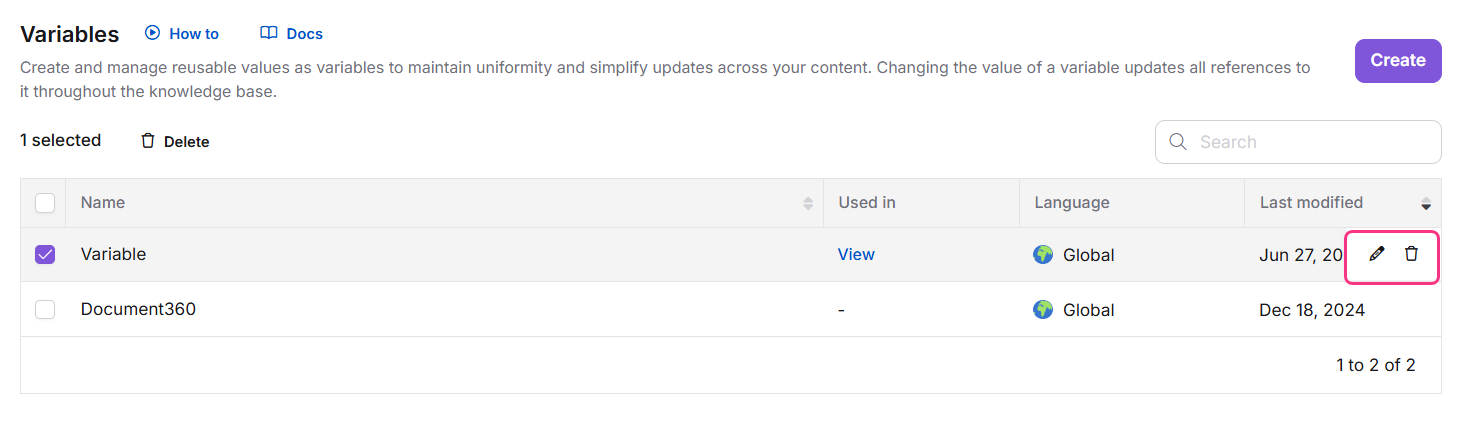
Das Bearbeiten des Inhalts einer Variablen aktualisiert sie in jedem Artikel und jeder Kategorieseite, auf der die Variable verwendet wird.
Bearbeite einen Link innerhalb einer Variablen
Wenn deine Variable einen Hyperlink enthält, klicke auf den Link, um das Blasenmenü zu öffnen.
| Option | Beschreibung |
|---|---|
| Link öffnen | Öffnet den Link in einem neuen Tab, damit du ihn überprüfen kannst. |
| Bearbeitung | Bearbeiten Sie die URL, den Linktext oder die Einstellung "im neuen Tab öffnen". |
| Links abschalten | Entfernt den Hyperlink und die URL bleibt als Klartext. |
| Verstanden | Kopiert die Link-URL. |
Artikel- und Kategorieseitenabhängigkeiten anzeigen
Bevor Sie eine Variable bearbeiten oder löschen, können Sie genau prüfen, welche Artikel und Kategorieseiten sie verwenden.
- Auf der Seite Variablen finden Sie die Variable in der Spalte "Verwendet in ".
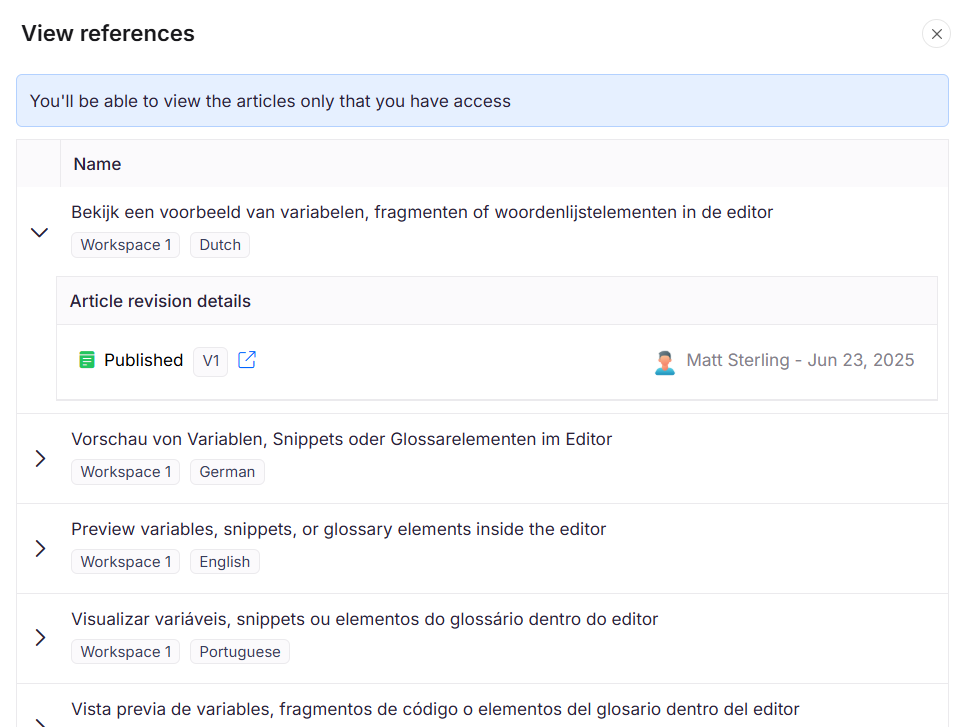
- Klicken Sie auf Ansicht. Das Referenzanzeigen-Panel öffnet sich.
- Klicken Sie auf den Artikelnamen, um den Eintrag zu erweitern. Für jede Referenz sehen Sie die Artikelversion, den Projektarbeitsbereich und die Sprache, den Namen des Benutzers, der die Variable eingefügt hat, den Artikelstatus (Entwurf oder Veröffentlicht) sowie Datum und Uhrzeit der Variable.
Eine Variable löschen
- Auf der Seite Variablen fahren Sie mit der Maus über die Variable und klicken Sie auf das Löschen ()-Symbol.
- Klicke im Bestätigungsdialog auf Ja .
Um mehrere Variablen gleichzeitig zu löschen, markiere die Kontrollkästchen neben den Variablen, die du löschen möchtest, und klicke oben in der Liste auf Löschen .
Wenn du eine Variable löschst, wird sie aus allen Artikeln entfernt, in denen sie referenziert wird. Der Artikel selbst wird weder geändert noch erneut veröffentlicht. Auf der Knowledge Base-Seite passt sich der umgebende Inhalt automatisch an und es bleibt kein leerer Speicher mehr übrig. Im Portal wird die Variable durch den Platzhaltertext "Laden..." ersetzt. Ersetze sie durch eine andere Variable oder lösche den Platzhalter manuell.
Einschränkungen
| Gegenstand | Detail |
|---|---|
| Variable Namenslänge | Maximal 50 Zeichen. |
| Variable Namenszeichen | Nur Buchstaben, Zahlen, Bindestriche und Unterstriche. |
| Inhaltslänge | Maximal 300 Zeichen inklusive Leerzeichen. |
| Name und Merge-Code | Kann nach der Erstellung der Variable nicht mehr geändert werden. |
| Globale Variablen | Kann nicht übersetzt werden. |
Best Practices
- Benennen Sie Variablen beschreibend. Verwenden Sie Namen, die den Merge-Code selbsterklärend machen, zum Beispiel
Support_Emailstattvar1. Das hilft den Autoren, die richtige Variable einzufügen, ohne vorher deren Inhalt überprüfen zu müssen. - Verwenden Sie standardmäßig den globalen Scope. Setze die Sprache auf Global, es sei denn, der Inhalt der Variablen unterscheidet sich tatsächlich je nach Sprache. Sprachspezifische Variablen erfordern eine separate Verwaltung für jede Sprache.
- Überprüfe die Abhängigkeiten, bevor du überarbeitest. Verwenden Sie View-Referenzen, um die volle Wirkung zu verstehen, bevor Sie eine Variable ändern, die in Ihrer Wissensdatenbank weit verbreitet ist.
- Verwenden Sie Snippets für alles, was länger als eine Phrase ist. Wenn der Inhalt, den du wiederverwenden möchtest, Formatierung, mehrere Sätze oder strukturierte Elemente enthält, ist ein Snippet das richtige Werkzeug und keine Variable.