Les dossiers système sont des dossiers intégrés qui sont fournis par défaut avec chaque projet Document360. Ils prennent en charge les fonctionnalités de base de la plateforme et ont certaines restrictions qui les distinguent des dossiers classiques que vous créez.
Qu’est-ce que les dossiers système
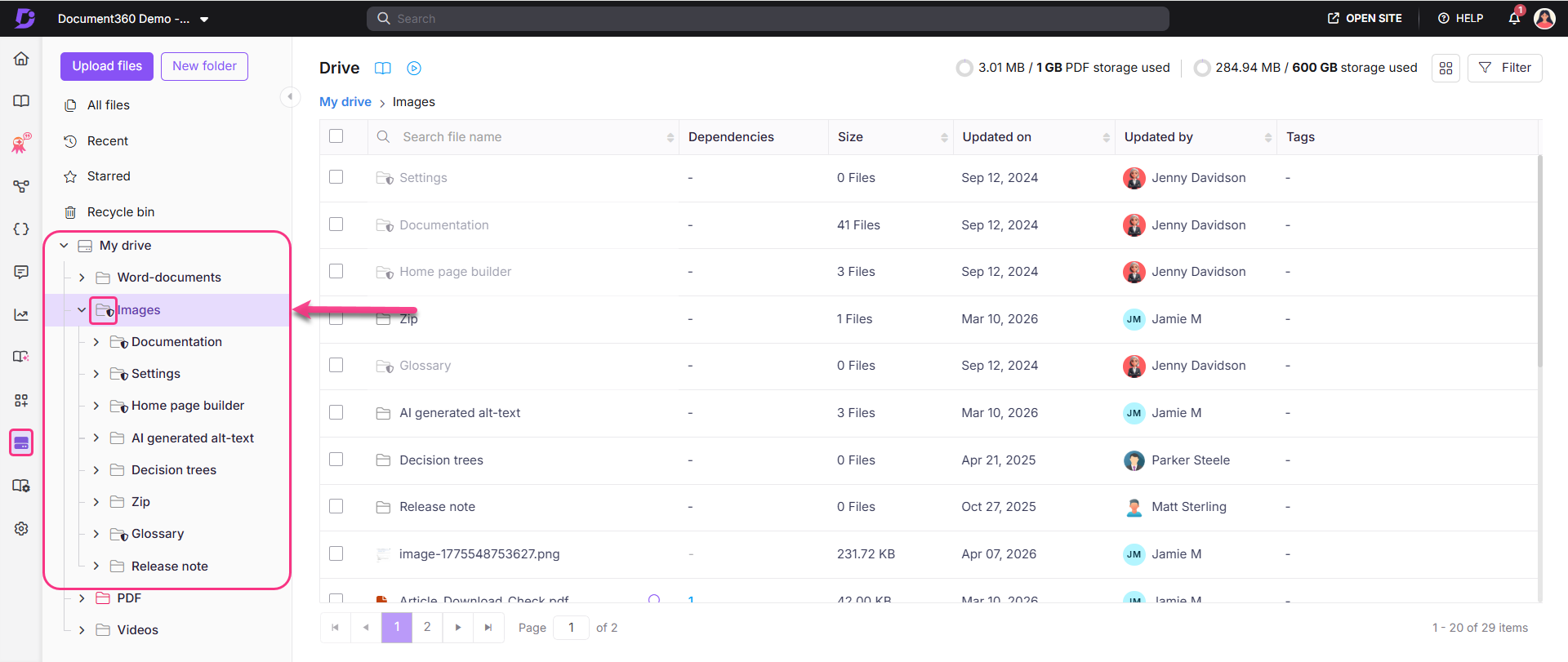
Les dossiers système sont identifiés par l’icône bouclier () à côté de leur nom dans le panneau de navigation Drive. Contrairement aux dossiers classiques, ils ne peuvent pas être supprimés, déplacés, réordonnés ou renommés, mais vous pouvez travailler librement à l’intérieur d’eux.
Le seul dossier système dans Drive est Images, qui contient les sous-dossiers intégrés suivants :
| Sous-dossier | Objectif |
|---|---|
| Documentation | Stocke les images utilisées dans les articles de la base de connaissances |
| Décors | Stocke les images utilisées dans les paramètres du projet |
| Créateur de page d’accueil | Stocke les images utilisées pour la personnalisation de la page d’accueil |
| Glossaire | Stocke les images utilisées dans les entrées du glossaire |
Ces sous-dossiers sont également des dossiers système et comportent les mêmes restrictions que le dossier parent Images.
Avant que tu commences
- Les dossiers système ne peuvent pas être supprimés, déplacés, réordonnés ou renommés.
- Les fichiers dans les dossiers système se comportent comme n’importe quel autre fichier dans Drive — ils peuvent être ajoutés, déplacés, copiés, remplacés, téléchargés ou supprimés.
Ce que vous pouvez faire à l’intérieur des dossiers système
Bien que les dossiers système eux-mêmes soient restreints, vous pouvez effectuer les actions suivantes à leur sein :
| Action | Description |
|---|---|
| Ajouter un fichier | Téléversez les fichiers directement dans le dossier système |
| Ajouter un dossier | Créez des sous-dossiers à l’intérieur du dossier système pour mieux organiser vos fichiers |
| Changer de couleur | Appliquez une couleur au dossier pour une organisation visuelle dans le panneau de navigation |
| Définir comme dossier par défaut | Faites de ce dossier la destination par défaut pour les nouveaux téléchargements |
Définir un dossier par défaut signifie que tous les nouveaux téléchargements de fichiers atterrissent automatiquement dans ce dossier à moins qu’une destination différente ne soit sélectionnée au moment de l’upload.
Meilleures pratiques
- Ne supprimez pas les fichiers des dossiers système sauf si nécessaire — Les fichiers dans des sous-dossiers comme le générateur de page d’accueil, Paramètres et Glossaire sont liés à des zones spécifiques de votre base de connaissances. Les supprimer peut supprimer les visuels de ces zones sans avertissement.
- Utilisez des sous-dossiers pour rester organisé — Si vous téléchargez un grand nombre de fichiers dans le sous-dossier Documentation, créez des sous-dossiers supplémentaires pour regrouper les fichiers par sujet, version ou type de contenu.
- Définissez par défaut le dossier le plus utilisé — Si votre équipe téléverse la plupart des fichiers dans un sous-dossier spécifique, le définir par défaut réduit le nombre d’étapes nécessaires au moment de l’upload.
- Utilisez les couleurs des dossiers pour une identification rapide — Appliquer des couleurs distinctes aux sous-dossiers système fréquemment utilisés les facilite leur repérage dans le panneau de navigation, surtout dans les grandes bibliothèques de Drive.