Les dossiers dans Document360 vous aident à organiser les articles et le contenu au sein de votre base de connaissances. Vous pouvez créer une hiérarchie de dossiers, définir des paramètres par défaut, appliquer des couleurs et des tags, et gérer les dossiers en bloc depuis le Drive. Cet article donne un aperçu de la gestion des dossiers et des liens vers des guides détaillés pour chaque action.
Dans cette section
| Article | Description |
|---|---|
| Dossiers système | Découvrez les dossiers par défaut que Document360 crée automatiquement et leurs limitations. |
| Ajouter un dossier | Créez un nouveau dossier dans votre Drive pour organiser les articles. |
| Définir un dossier par défaut | Définissez un dossier comme destination par défaut pour les nouveaux articles. |
| Déplacez un dossier | Relocalise un dossier en utilisant le glisser-déposer ou le menu Options Plus. |
| Renommer un dossier | Changez le nom d’affichage d’un dossier. Notez que le slug du dossier ne change pas lorsque vous renommez. |
| Changer la couleur du dossier | Appliquez une couleur à un dossier pour le distinguer visuellement dans le lecteur. |
| Étoile un dossier | Marquez les dossiers comme étoilés pour un accès rapide depuis le Drive. |
| Supprimer les dossiers | Supprimez ou supprimez définitivement les dossiers, puis restaurez-les depuis la corbeille. |
Actions des dossiers en bloc
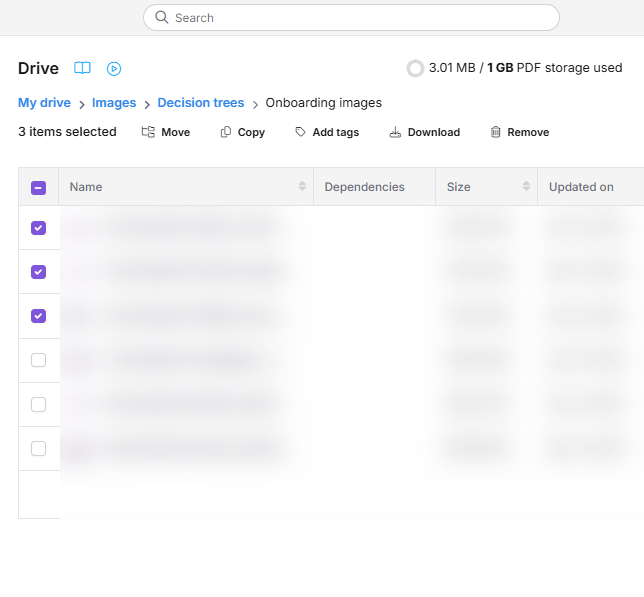
Vous pouvez effectuer des actions sur plusieurs dossiers en même temps. C’est utile lorsque vous souhaitez déplacer, copier, taguer, télécharger ou supprimer un grand nombre de dossiers en même temps.
Pour effectuer une action en bloc sur des dossiers,
- Cliquez sur l’icône Drive () dans la barre de navigation de gauche.
- Sélectionnez un ou plusieurs dossiers à l’aide des cases à cocher en vue liste ou en vue grille.
- Cliquez sur l’action que vous souhaitez appliquer depuis la barre d’outils qui apparaît en haut.
Les actions en vrac suivantes sont disponibles :
| Action | Description |
|---|---|
| Bouge | Relocalisez les dossiers sélectionnés dans un autre dossier de votre Disque. |
| Bien reçu | Créez une copie des dossiers sélectionnés et de leur contenu. |
| Ajouter des balises | Appliquez une ou plusieurs balises aux dossiers sélectionnés pour faciliter la catégorisation et le filtrage. |
| Télécharger | Téléchargez les dossiers sélectionnés dans votre stockage local. |
| Retirer | Supprimez les dossiers sélectionnés et déplacez-les dans la corbeille de recyclage. |
Les dossiers supprimés peuvent être restaurés de la corbeille avant d’être supprimés définitivement. Consultez la section Supprimer les dossiers pour plus d’informations.
Indice de miettes de plisage
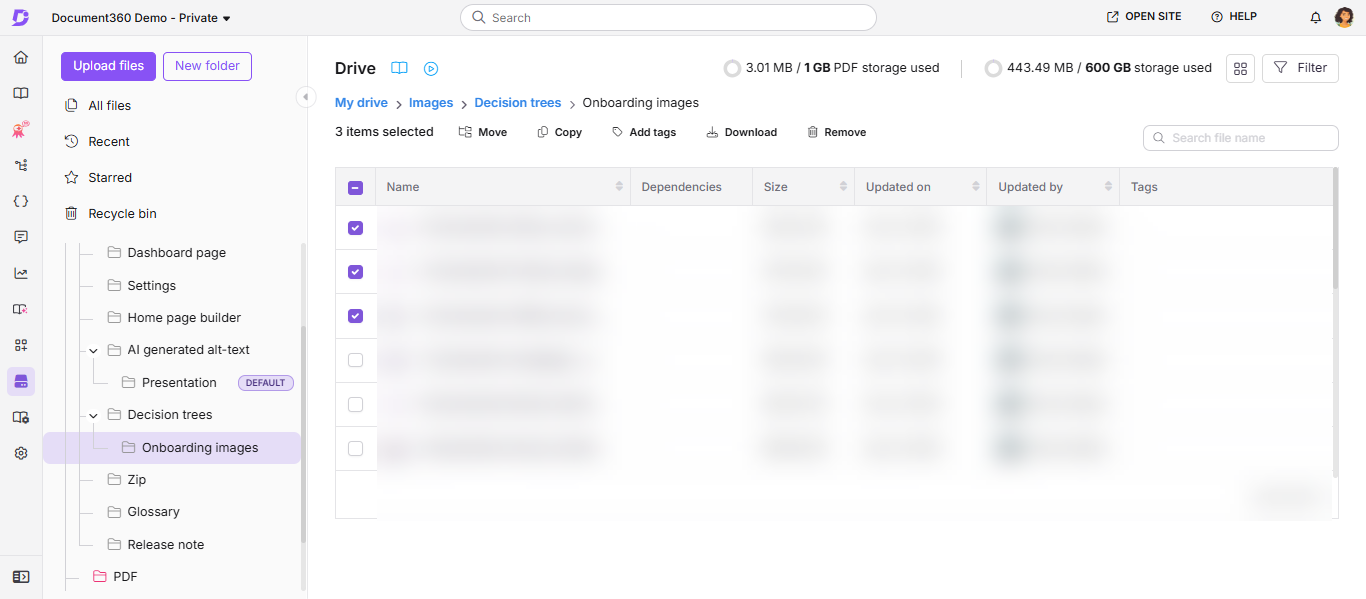
La piste de breadcrumb en haut du panneau Drive montre le chemin complet du répertoire racine vers le dossier que vous regardez actuellement. Utilisez-le pour suivre votre position dans une hiérarchie de dossiers imbriqués et naviguer rapidement entre les niveaux.
- Cliquez sur n’importe quel nom de dossier dans le breadcrumb pour accéder directement à ce dossier.
- Le dernier élément de la chapelette représente votre dossier actuel et n’est pas cliquable.