Le disque dans Document360 vous permet d’organiser vos ressources de base de connaissances — images, fichiers et pièces jointes — en dossiers et sous-dosiers. Créer une hiérarchie bien structurée des dossiers facilite la localisation des fichiers, le maintien de la cohérence dans votre base de connaissances et évite les liens d’images ou de fichiers cassés dans les articles.
Avant que tu commences
- Pour ajouter des sous-dossiers, il faut au moins deux dossiers racines déjà créés dans Drive, ou un dossier racine qui est étendu.
- Supprimer un dossier au niveau racine supprime également tous ses sous-dossiers et fichiers — cela peut casser les liens d’images et de fichiers dans tout article faisant référence à ces fichiers.
Comment ajouter un nouveau dossier
Il y a deux façons de procéder :
Utiliser l’option « Nouveau dossier » pour ajouter un dossier
-
Naviguez jusqu’à Conduire () dans la barre de navigation de gauche du portail de la base de connaissances.
Les dossiers et sous-dossiers existants sont affichés en vue arborescente dans le volet de navigation de gauche. -
Cliquez sur l’option Nouveau dossier en haut à gauche.
Une boîte de dialogue « Nouveau dossier » apparaît. -
Saisissez le nom du dossier.
-
L’emplacement du dossier est réglé par défaut au niveau racine . Utilisez le menu déroulant Emplacement du dossier pour sélectionner un autre emplacement si besoin.
-
Cliquez sur Créer.
.png)
Utiliser l’option '+' pour ajouter un dossier
-
Naviguez jusqu’à Conduire () dans la barre de navigation de gauche du portail de la base de connaissances.
Les dossiers et sous-dossiers existants sont affichés en vue arborescente dans le volet de navigation de gauche. -
Dans le panneau de navigation de gauche, survolez l’espace entre les dossiers jusqu’à ce que l’icône du volant d’inertie (+) apparaisse.
-
Cliquez sur l’icône + .
Une fenêtre contextuelle de nouveau dossier apparaît. -
Saisissez le nom du dossier souhaité.
-
L’emplacement par défaut est au niveau de la racine. Pour ajouter un dossier racine depuis n’importe où dans Drive, utilisez le menu déroulant de l’emplacement du dossier et cliquez sur Réinitialiser.
-
Cliquez sur Créer.
.png)
Comment ajouter un sous-dossier
Il y a deux façons de procéder :
Utiliser l’option « Plus » pour ajouter un sous-dossier
-
Naviguez jusqu’à Conduire () dans la barre de navigation de gauche du portail de la base de connaissances.
-
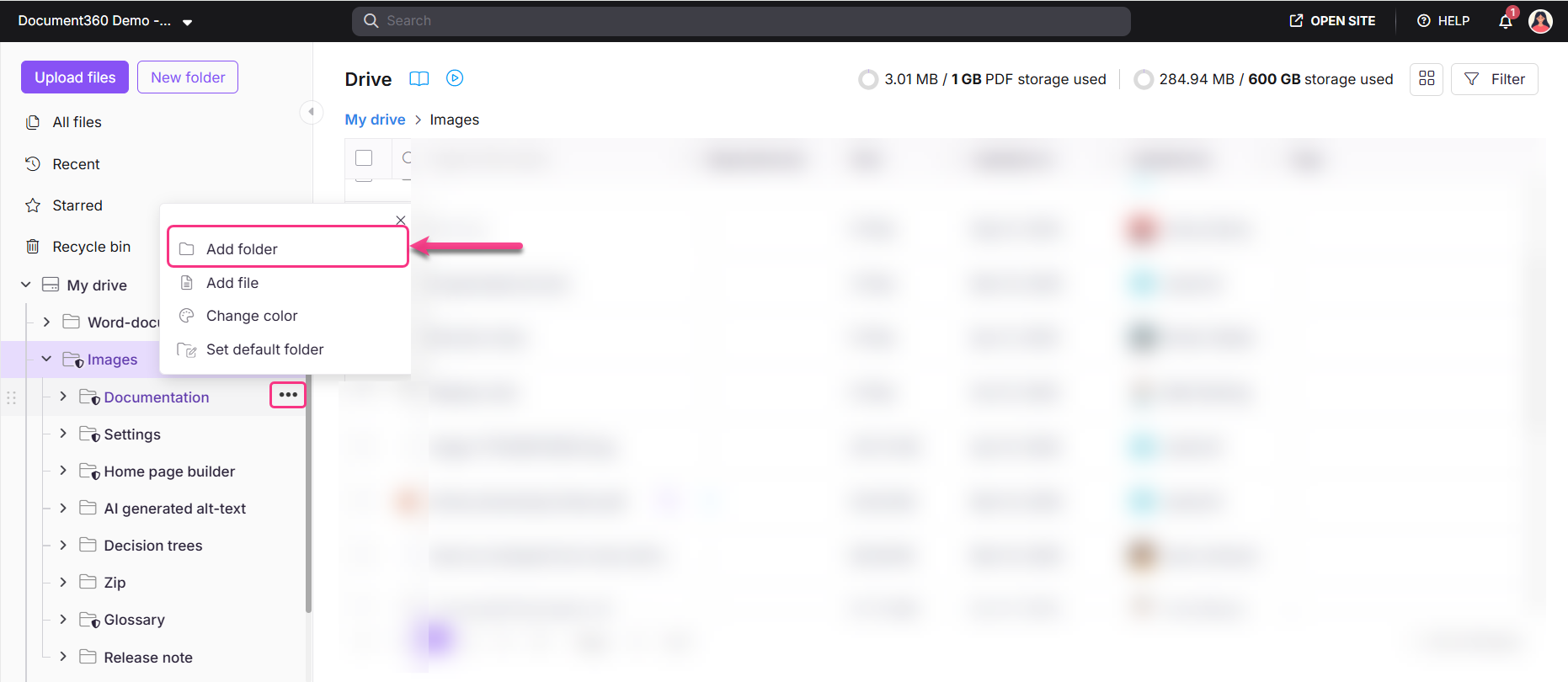
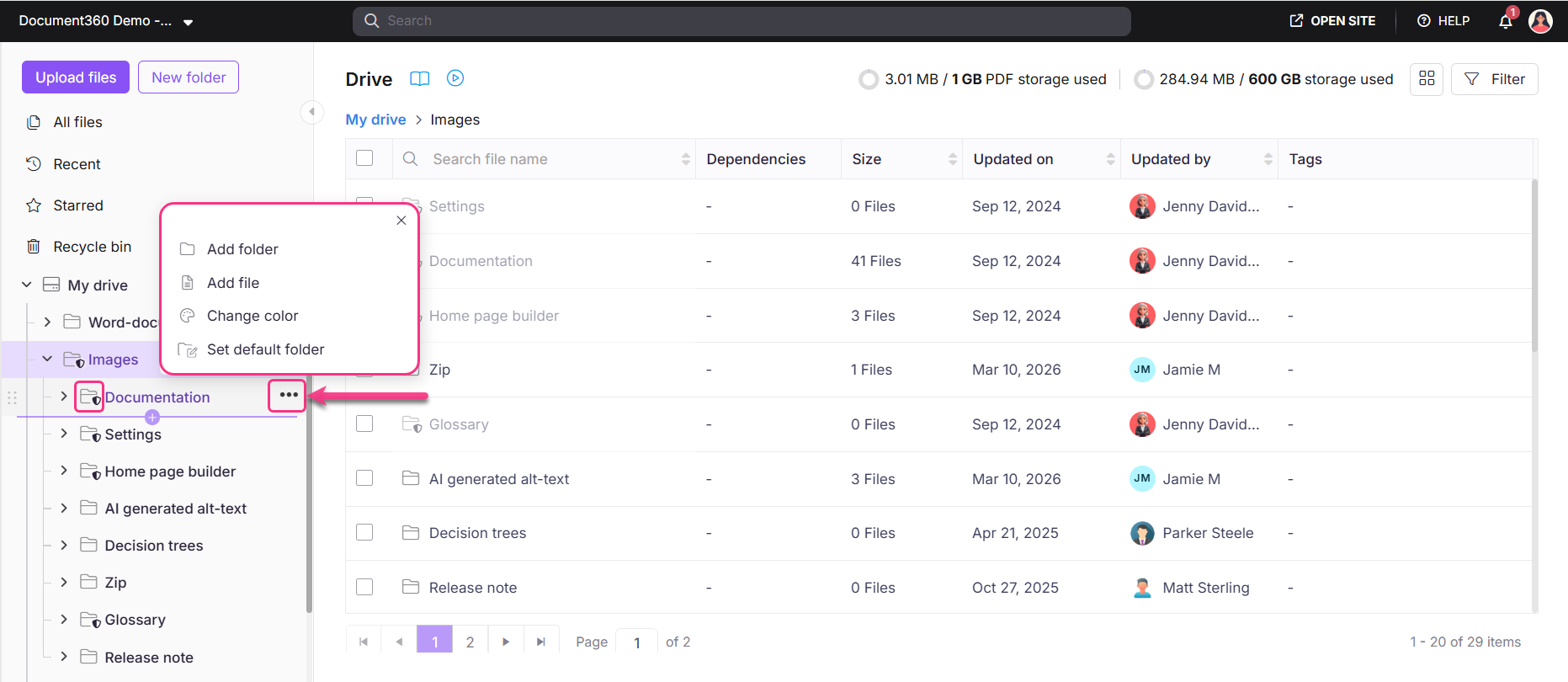
Cliquez sur l’icône More () à côté du dossier où vous souhaitez ajouter un sous-dossier, puis sélectionnez Ajouter dossier.
La boîte de dialogue Nouveau dossier apparaît. -
Saisissez le nom du dossier.
-
L’emplacement du dossier est par défaut celui que vous avez sélectionné. Utilisez le menu déroulant de la localisation pour changer si besoin.
-
Cliquez sur Créer.
Utiliser l’option '+' pour ajouter un sous-dossier
-
Naviguez jusqu’à Conduire () dans la barre de navigation de gauche du portail de la base de connaissances.
-
Dans le panneau de navigation de gauche, survolez l’espace entre les dossiers jusqu’à ce que l’icône + apparaisse.
-
Cliquez sur l’icône + .
Une boîte de dialogue « Nouveau dossier » apparaît. -
Saisissez le nom du dossier souhaité. L’emplacement par défaut est le dossier où vous avez cliqué sur +. Utilisez le menu déroulant de localisation pour ajouter le sous-dossier n’importe où dans Drive.
-
Cliquez sur Créer.
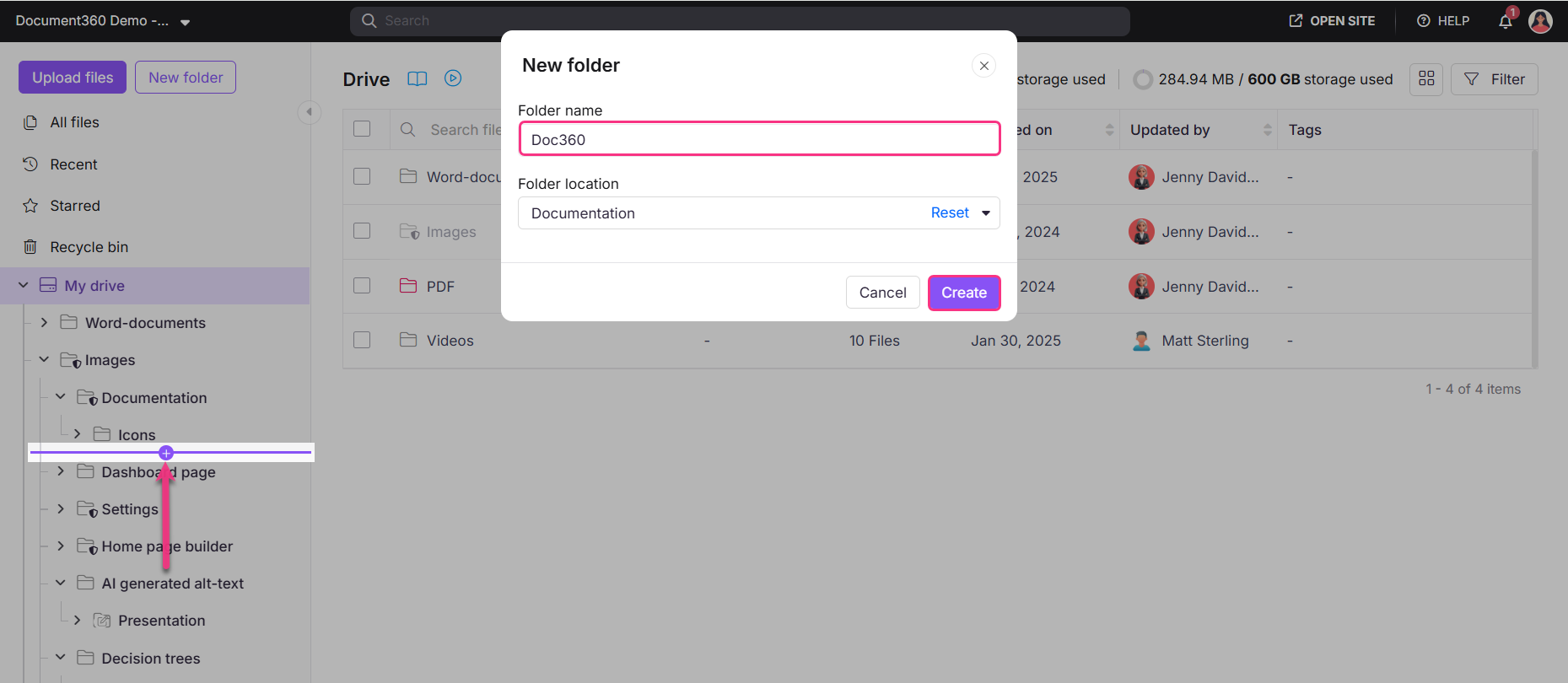
Assurez-vous que le dossier au niveau racine est étendu (la flèche à gauche pointe vers le bas) avant d’ajouter un sous-dossier. Si le dossier est replié, le nouveau dossier sera créé au même niveau au lieu d’être imbriqué à l’intérieur.
Supprimer un dossier racine supprime définitivement tous ses sous-dossiers et fichiers. Cela peut entraîner des images et des liens de fichiers cassés dans tout article faisant référence à ces fichiers.
Meilleures pratiques
- Refléter la structure de ta base de connaissances. Garde les dossiers Drive alignés avec les catégories et sous-catégories de ta base de connaissances afin que les assets soient intuitifs à trouver pour n’importe quel membre de ton équipe.
- Nommez les dossiers de façon constante. Utilisez une convention de dénomination claire et descriptive (par exemple,
release-notes-assetsouonboarding-images) pour éviter toute ambiguïté. - Vérifiez avant de supprimer. Avant de supprimer un dossier au niveau racine, vérifiez si certains articles renvoient à des fichiers à son intérieur pour éviter des liens cassés.
FAQ
Puis-je ajouter un sous-dossier sans d’abord créer un dossier au niveau racine ?
Non. Il faut au moins un dossier au niveau racine dans Drive avant de pouvoir ajouter un sous-dossier. Créez d’abord un dossier au niveau racine en utilisant soit l’option Nouveau dossier , soit l’icône + , puis ajoutez des sous-dossiers à l’intérieur.
Pourquoi l’option « Ajouter un dossier » est-elle grisée pour certains dossiers ?
Certains dossiers dans Drive sont des dossiers système. Des actions telles que l’ajout d’un dossier, l’ajout d’un fichier, le renommage, le changement de couleur, la définition d’un dossier par défaut ou la suppression sont restreintes pour les dossiers System. Ces restrictions ne peuvent pas être modifiées.
Que se passe-t-il avec les articles si je supprime un dossier ?
Supprimer un dossier racine supprime également tous ses sous-dossiers et fichiers. Tout article qui fait référence à ces fichiers aura des images ou des liens de fichiers cassés. Vérifiez toujours les dépendances des articles avant de supprimer un dossier.
Puis-je déplacer un sous-dossier vers un autre dossier de niveau racine ?
Vous pouvez sélectionner un autre emplacement en utilisant le menu déroulant Emplacement du dossier lors de la création d’un dossier. Pour déplacer un sous-dossier existant, utilisez les options de menu Plus () disponibles dans Drive.