Converter um usuário para uma conta SSO muda o método de autenticação do login nativo do Document360 para o provedor de Single Log-On (SSO) da sua organização. Após a conversão, o usuário faz login pela configuração do SSO em vez de uma senha gerenciada pelo Document360. Isso é útil quando sua organização adota ou impõe um gerenciamento centralizado de identidade e você precisa que os usuários existentes do portal se autentiquem pelo mesmo provedor SSO que o restante da equipe.
Por que converter um usuário em uma conta SSO
Use isso quando:
- Sua organização configurou o SSO e quer que todos os usuários do portal se autentiquem por meio de um único provedor de identidade.
- Um usuário foi originalmente criado com um login nativo do Document360, mas agora deve ser gerenciado pela configuração do seu SSO.
- Você está migrando sua equipe das contas nativas do Document360 para SSO como parte de uma implementação mais ampla de gerenciamento de identidade.
AVISO
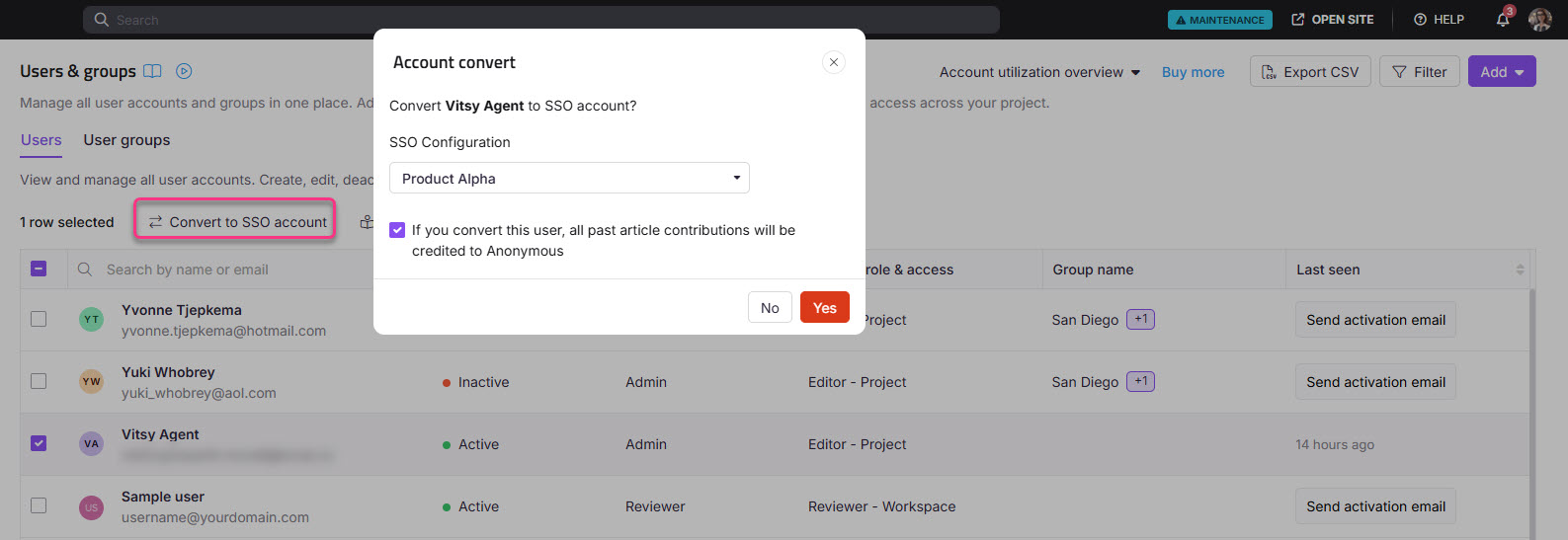
Se você converter um usuário em uma conta SSO, todas as contribuições anteriores de artigos serão creditadas ao Anonymous. Atualmente, não há uma opção embutida para preservar autoria histórica, reatribuir autores em massa ou buscar uma lista consolidada de colaboradores antes ou após a migração do SSO. Se você precisar de dados dos colaboradores antes da migração, use a opção Exportar CSV na página de Usuários para baixar uma lista de usuários atuais antes da conversão.
Antes de começar
- Você deve ter as funções de Proprietário ou Administrador do projeto.
- Pelo menos uma configuração de SSO já deve estar configurada no seu projeto Document360.
- Exporte a lista de usuários como CSV da página de Usuários antes de converter se precisar preservar registros de atribuição de colaboradores. Uma vez convertidas, contribuições passadas são atribuídas ao Anonymous e isso não pode ser desfeito.
Como converter um usuário em uma conta SSO
-
Navegue até Configurações () > Usuários e segurança na barra de navegação da esquerda do portal da base de conhecimento.
-
No painel de navegação à esquerda, navegue até Usuários e grupos > Usuários.
-
Selecione um ou mais usuários do Document360 (não SSO) e clique em Converter para conta SSO.
-
No menu suspenso Selecionar SSO , escolha uma configuração de SSO.
-
Clique em Prosseguir.
As contas SSO são identificadas por um crachá SSO exibido ao lado do nome.
Limitações
| Limite | Detalhes |
|---|---|
| Usuários elegíveis | Apenas usuários que não são SSO podem ser convertidos. Usuários que já estão no SSO não podem ser convertidos novamente. |
| Atribuição de autoria | Todas as contribuições anteriores feitas pelo usuário convertido são creditadas ao Anonymous após a conversão. Isso não pode ser revertido ou realocado em massa. |
| Dados históricos dos contribuintes | Não há opção embutida para preservar ou recuperar uma lista consolidada de colaboradores após a conversão. Exporte a lista de usuários como CSV antes de converter se precisar desses dados. |
| Configuração SSO | Pelo menos uma configuração SSO deve existir no projeto antes que a conversão seja possível. |
Melhores práticas
- Exporte a lista de usuários antes de converter. Use a opção Exportar CSV na página de Usuários para baixar um registro dos usuários atuais e suas contribuições antes de realizar qualquer conversão de SSO. Essa é a única forma de preservar os dados dos colaboradores, pois não há uma opção embutida para recuperar ou reatribuir autoria após a conversão.
- Converta em lotes ao migrar uma equipe grande. Converta um pequeno grupo primeiro para confirmar se a configuração do SSO está funcionando corretamente antes de converter todos os usuários restantes.
- Comunique a mudança aos usuários afetados. Após a conversão, os usuários devem fazer login pelo provedor SSO. Certifique-se de que eles saibam que o método de login mudou antes da conversão, para que não fiquem bloqueados inesperadamente.