Converter um usuário em leitor faz com que sua conta passe de portal para acesso somente leitura no site da base de conhecimento publicada. Após a conversão, a pessoa não pode mais acessar o portal da base de conhecimento para criar, editar ou gerenciar conteúdo. Em vez disso, eles se tornam leitores — podem acessar o site de conhecimento publicado com base no nível de acesso ao conteúdo que você atribui. Todas as contribuições que o usuário fez enquanto estava no papel de usuário são mantidas.
Por que converter um usuário em leitor
Use isso quando um membro da equipe não precisar mais criar ou gerenciar conteúdo, mas deve manter acesso à base de conhecimento publicada — por exemplo, quando alguém muda de uma equipe de conteúdo para outro departamento, ou quando o trabalho de autoria de um contratado estiver concluído, mas ainda precisar consultar a documentação.
Converter é preferível a excluir porque preserva o histórico de contribuições do usuário e dá acesso contínuo ao site da base de conhecimento sem permissões do portal.
Antes de começar
- Você deve ter as funções de Proprietário ou Administrador do projeto.
- Apenas usuários não SSO (Document360 padrão) podem ser convertidos usando o método principal. Se você selecionar um usuário SSO, ele será convertido em um Leitor SSO.
- Garanta que o acesso do leitor do seu projeto esteja configurado como Privado ou Misto. Contas de leitor só são aplicáveis nesses modos de acesso.
Como converter um usuário em leitor
Você pode converter um usuário em leitor usando um de dois métodos.
Da lista de usuários
- Navegue até Configurações () > Usuários e segurança na barra de navegação esquerda do portal da base de conhecimento.
- No painel de navegação esquerdo, navegue até Usuários e grupos.
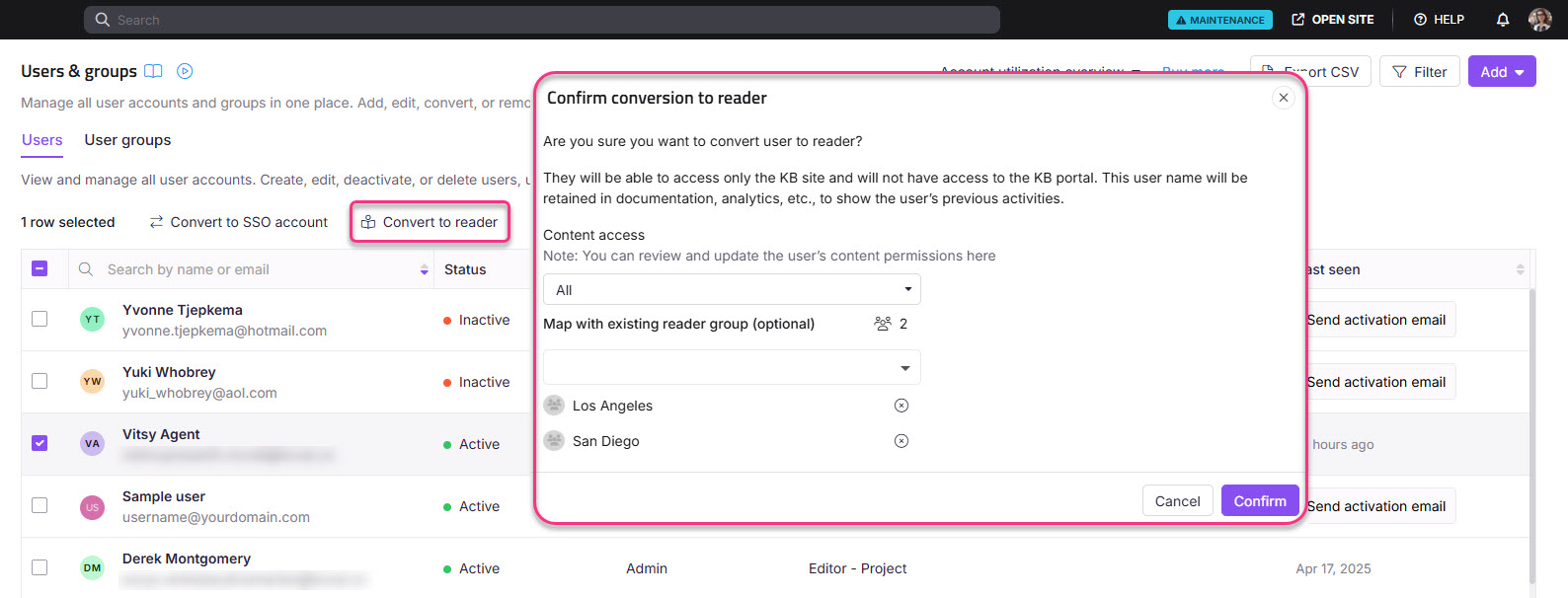
- Selecione um ou mais usuários do Document360 (não SSO) e clique em Converter para leitor.
Via diálogo Desativar
- Navegue até Configurações () > Usuários e segurança na barra de navegação da esquerda do portal da base de conhecimento.
- No painel de navegação esquerdo, navegue até Usuários e grupos.
- Selecione o usuário desejado, clique em Desativar e selecione Converter para leitor na caixa de diálogo.
NOTA
Se você selecionar um usuário SSO ao converter usuários em leitores, o usuário será convertido para um Leitor SSO.
- Atribua as permissões de acesso ao conteúdo desejadas a partir do menu suspenso de acesso ao conteúdo .
- Como etapa opcional, mapeie o usuário para quaisquer grupos de leitores existentes a partir do Mapa com o menu suspenso dos grupos de leitores existentes .
- Clique em Confirmar para converter o usuário em um leitor.
NOTA
Quando um usuário é convertido em leitor, todas as contribuições feitas enquanto estiveram na função de usuário serão mantidas.
Limitações
| Limite | Detalhes |
|---|---|
| Papéis duplos | Um usuário não pode assumir simultaneamente um papel de leitor e um de usuário. |
| Usuários do SSO | Converter um usuário SSO resulta em um Leitor SSO, não em uma conta de leitor padrão. |
| Reversibilidade | A conversão pode ser revertida convertendo o leitor de volta para o usuário. Todas as contribuições anteriores são mantidas. |
| Modo de acesso ao leitor | Contas de leitores só são aplicáveis quando o acesso de leitor do projeto está configurado como Privado ou Misto. |
Melhores práticas
- Atribua o acesso ao conteúdo mais restritivo que atenda às necessidades da pessoa no momento da conversão. Você sempre pode editar o acesso de leitor deles depois. Veja Editar um leitor.
- Mapeie o leitor convertido para um grupo de leitores existente, se já existir um com as permissões corretas — isso é mais rápido do que configurar o acesso individual e garante consistência com outros leitores do mesmo grupo.
- Se você não tiver certeza se a pessoa precisará de acesso ao portal novamente no futuro, considere desativar a conta em vez de convertê-la. Reativar um usuário desativado restaura seu papel original no portal sem exigir uma nova conversão.
FAQ
É possível atribuir um usuário que já está atribuído a uma conta de leitor?
No Document360, um usuário não pode manter simultaneamente um papel de leitor e um de usuário. No entanto, você pode converter entre esses papéis de forma eficiente.
Converter um usuário em leitor
Navegue até Configurações () > Usuários e segurança na barra de navegação da esquerda do portal da base de conhecimento.
No painel de navegação esquerdo, navegue até Usuários e grupos.
Selecione o usuário desejado e clique em Converter para leitor.
Escolha o acesso ao Conteúdo apropriado e clique em Confirmar para concluir o processo.
Converter um leitor em usuário
Navegue até Configurações () > Usuários e segurança na barra de navegação esquerda do portal da base de conhecimento.
No painel de navegação à esquerda, navegue até Usuários e grupos > Usuários.
No painel de navegação à esquerda, navegue até Leitores & grupos.
Selecione o leitor desejado e clique em Converter para o usuário.
Escolha o papel apropriado no projeto, o papel de conteúdo e o acesso ao conteúdo.
Clique em Confirmar.