The Tasks page is the dedicated view for managing all your assigned documentation tasks in Document360. It lists every task assigned to you across all timeframes, covering three task types: Workflow, Feedback, and Review reminders. Unlike the Tasks card on the Overview page, which shows only the current week, the Tasks page gives you the complete picture with full filtering, search, and bulk action capabilities.
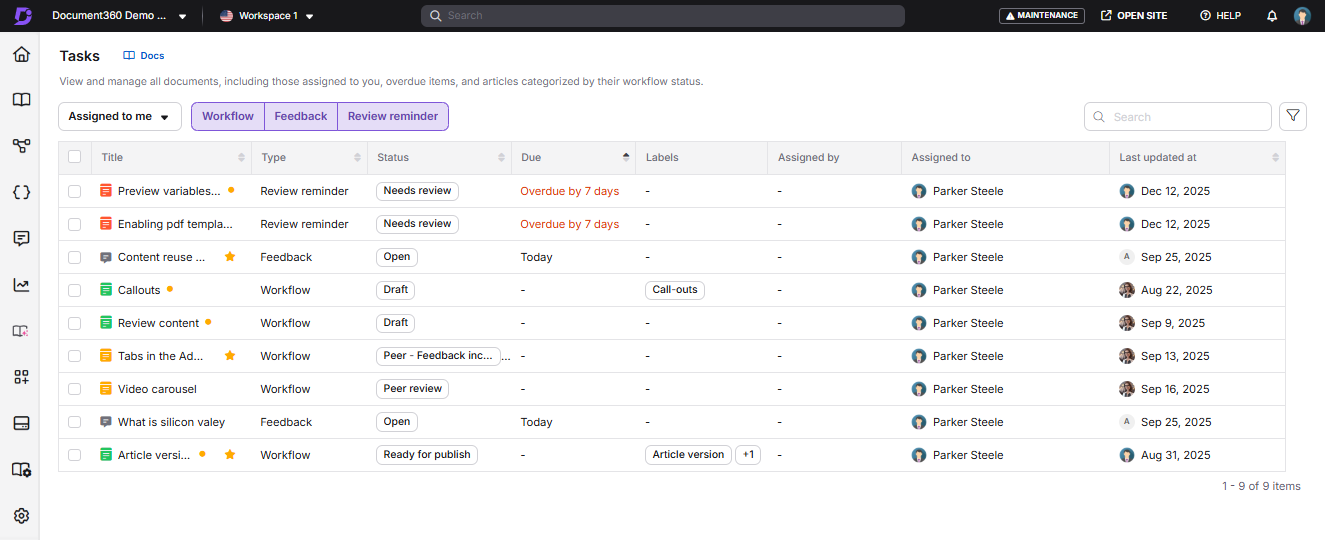
If you previously used the Workflow assignment page (sometimes referred to as the Workflows page), that page has been removed. Its functionality is now part of the Tasks card on the Overview page.
When to use the Tasks page
Use the Tasks page when you need to:
- Review all tasks assigned to you regardless of due date, not just this week's tasks.
- Apply advanced filters to find tasks by assignee, label, status, or a custom date range.
- Perform bulk actions such as updating the workflow status of multiple articles at once.
- Track tasks as an admin, including tasks assigned to other users or user groups.
For a quick daily check on this week's priority tasks, the Tasks card on the Overview page is a faster starting point.
Accessing the Tasks page
You can reach the Tasks page from two places in Document360.
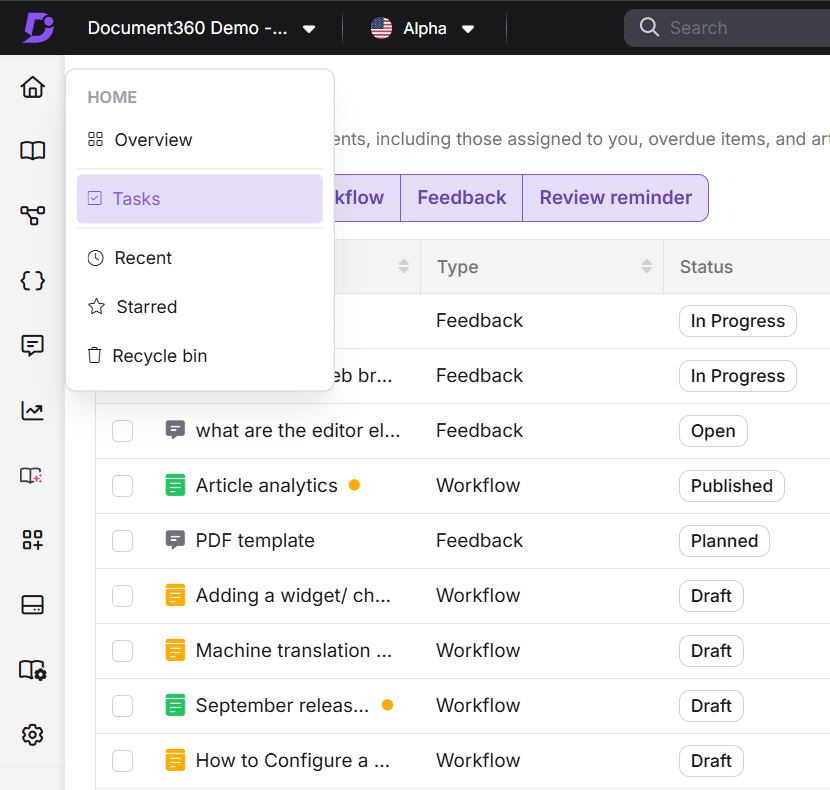
From the left navigation bar
Hover over the Home () icon and click Tasks.
From the Overview page
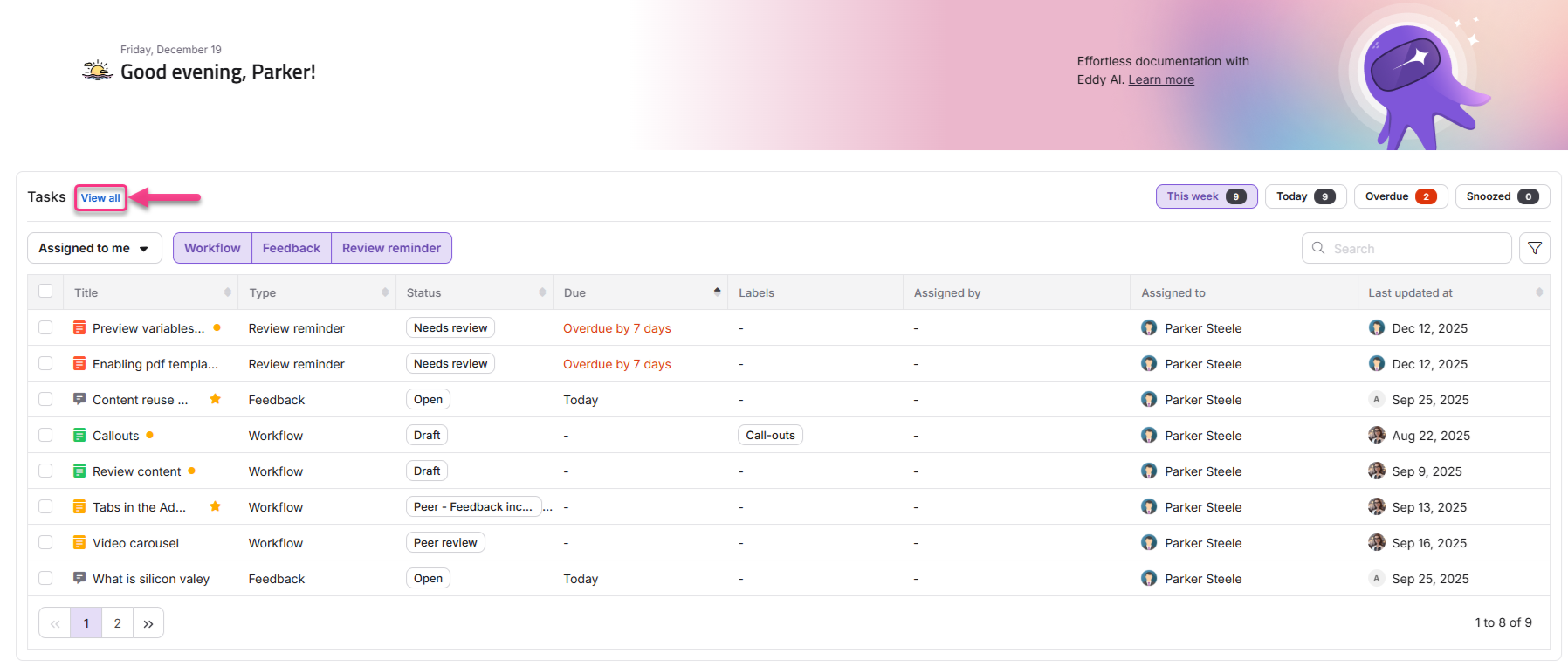
- Hover over the Home () icon and click Overview.
- In the Tasks card, click View all.
Understanding task types
The Tasks page displays three task types. Each type reflects a different source of work assigned to you.
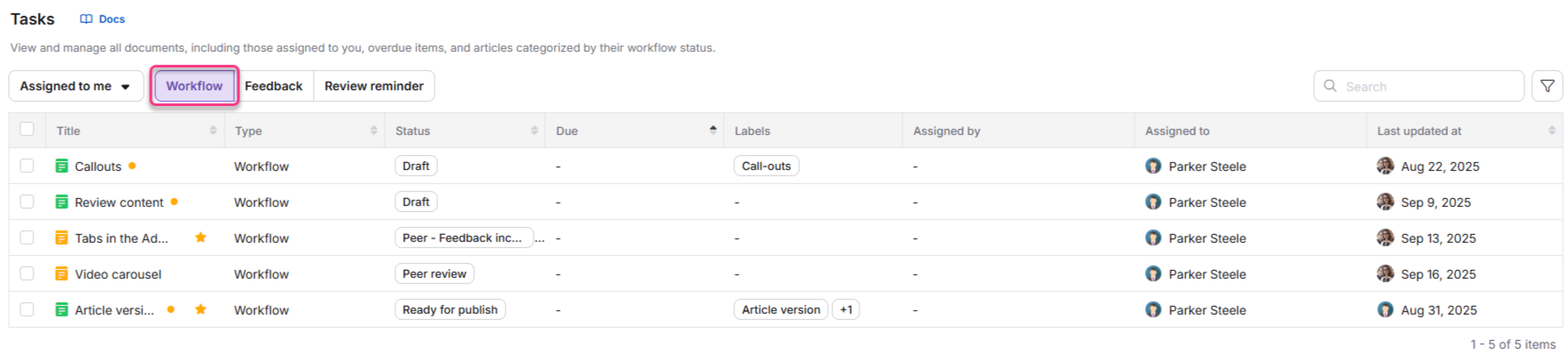
Workflow tasks
Articles in which you are assigned any workflow status.
Feedback tasks
Reader feedback and No search result feedback for articles, and Answered or Unanswered query feedback for Eddy AI, all assigned to you from the Feedback manager.

Review reminders
Articles marked as Needs review for which you are a contributor.

Tasks without a due date are listed under Today by default. A hyphen is shown in the due date column and a tooltip indicates that no due date has been set.
Each task displays key details including the article title, task type, current status, due date, assigned users, labels, and last update information.
Task table
The Tasks page displays the following columns by default:
| Column | What it shows |
|---|---|
| Title | The article associated with the task. |
| Type | The task type: workflow, feedback, or review reminder. |
| Status | The current status of the task. |
| Due | The date by which the task is expected to be completed. |
| Labels | Labels associated with the article linked to the task. |
| Assigned by | The user who assigned the task. |
| Assigned to | The user(s) and user group(s) responsible for the task. |
| Last updated at | The date, time, and user of the most recent update. For workflows, this reflects the last article update. For feedback, it shows the last update to that feedback item. For review reminders, it indicates the last article update. |
When you view the Snoozed section, two additional columns appear:
| Column | What it shows |
|---|---|
| Snoozed at | The date and time when the task was snoozed. |
| Snoozed until | The date and time when the task becomes active again. |
Managing your tasks
You can act on tasks directly from the list using hover actions, the More options menu, or checkbox selection for bulk actions.
Hover actions
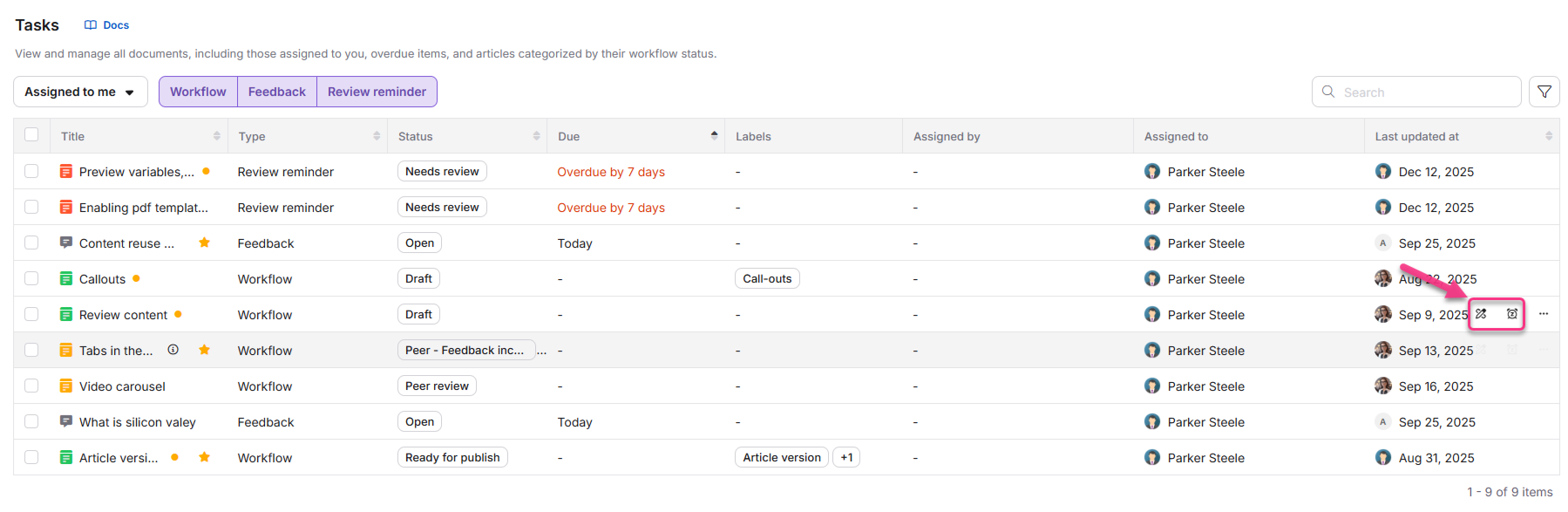
When you hover over a task, two actions appear:
- Snooze (available for all task types): Postpone the task to Tomorrow (9 AM), Next week (Monday, 9 AM), or a custom date and time.
- One task-specific action:
- Workflow tasks: Update workflow status
- Feedback tasks: Manage feedback
- Review reminder tasks: Mark as reviewed
More options menu
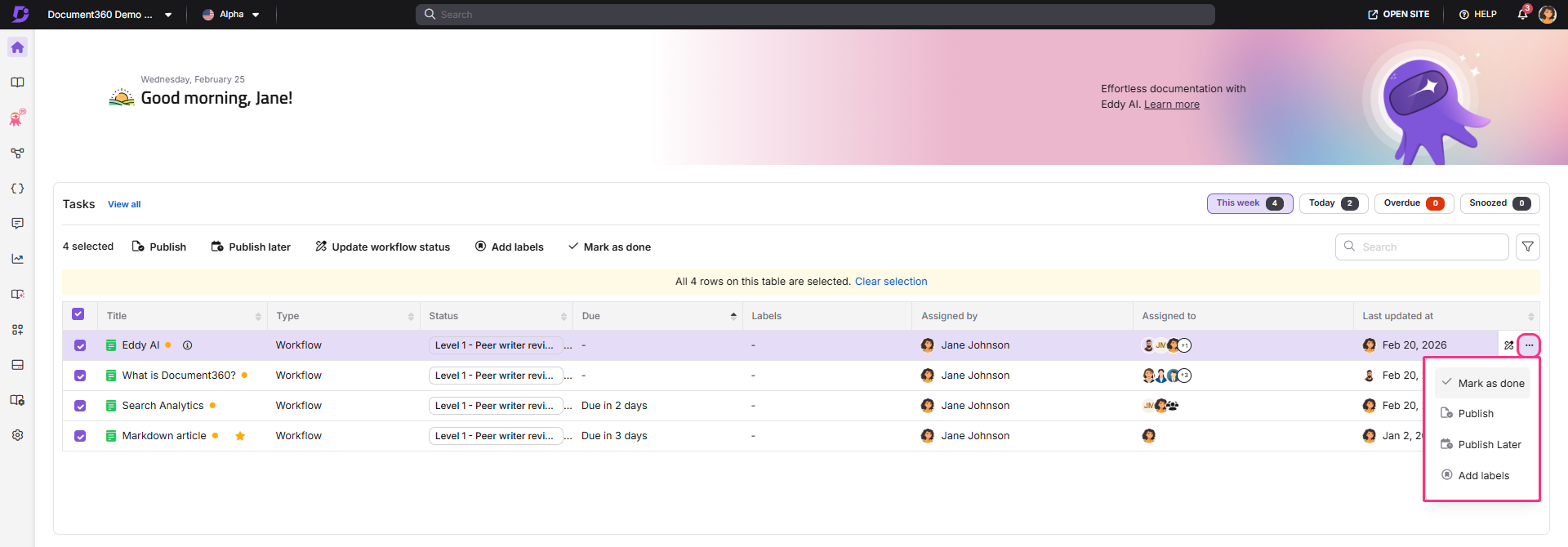
Click the More options icon to access additional actions per task type:
- Workflow tasks: Mark as done, Publish, Publish later, Add labels
- Review reminders: Publish, Publish later, Add labels
Selection actions
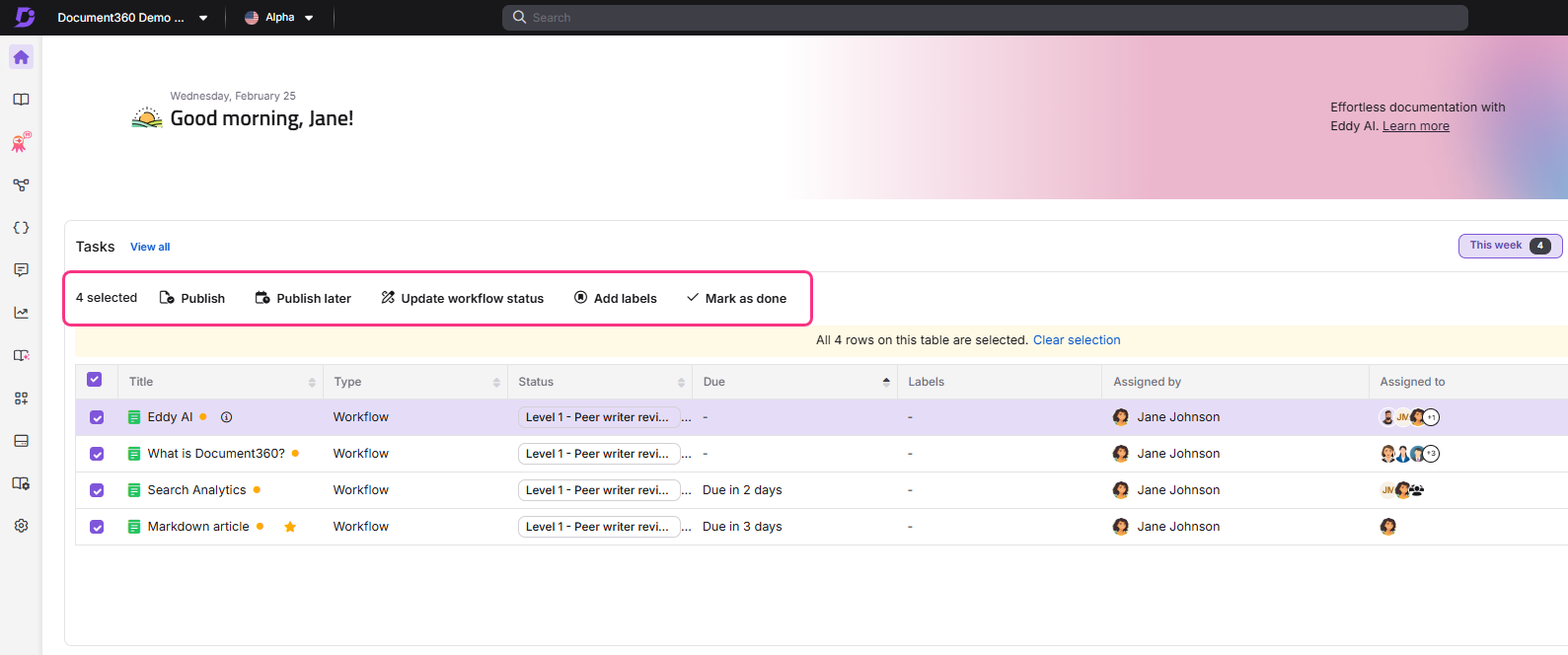
Select the checkbox next to an article name to access:
- Workflow tasks: Publish, Publish later, Update workflow status, Snooze, Add labels, Mark as done
- Feedback tasks: Snooze, Manage feedback
- Review reminders: Publish, Publish later, Snooze, Add labels, Mark as reviewed
- If an article is marked as Needs review and is already Published, the task appears in the list but the Publish and Publish later actions are not shown.
- When you select multiple tasks, only the actions common to all selected task types appear in the toolbar.
Filtering and searching tasks
You can narrow the task list using task type tabs, column filters, the assignee filter, and the search bar.
Filter by task type
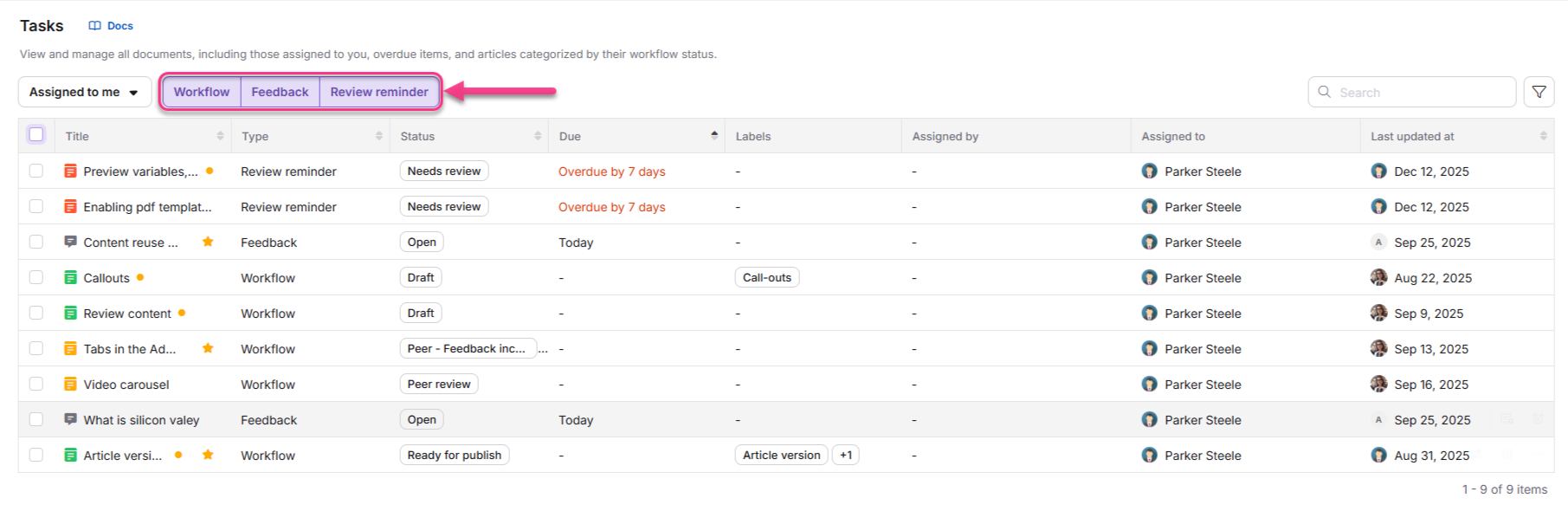
Click one or more tabs at the top of the list to filter by Workflow, Feedback, or Review reminder. You can select multiple task types at the same time.
Filter by column
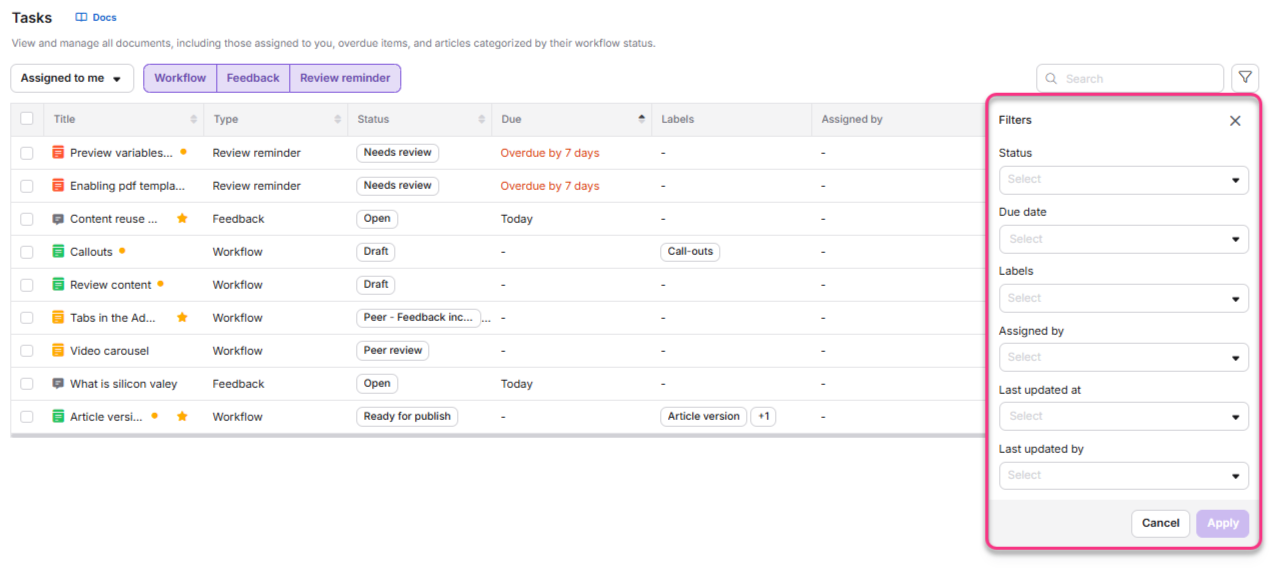
Click the Filter icon to open the filter panel and apply the following filters:
Status
Filter tasks by their current status. The dropdown groups statuses by task type:
- Workflow tasks: statuses defined in the Workflow Designer (e.g., Draft, In review)
- Feedback tasks: Open, Planned, In Progress
- Review reminder tasks: Needs review
Due date (timeline)
Filter by when tasks are due:
- This week: Tasks due during the current calendar week (Sunday to Saturday)
- Today: Tasks due today, including tasks with no due date
- Overdue: Tasks with a past due date
- Custom date: Choose a specific due date
Tasks assigned to you without a due date automatically appear under Today. They remain on today's list and are not marked as overdue.
Labels
Use the Labels dropdown to filter tasks linked to articles with specific labels. You can select one or more labels.
Assigned by
Use the Assigned by dropdown to view tasks created by a specific user. This is useful when tracking tasks from a particular team member or source.
Last updated at
Use the Last updated at dropdown to filter tasks based on recent activity, helping you spot tasks updated recently or tasks that have not been touched for a while.
Last updated by
Use the Last updated by dropdown to filter tasks based on who made the most recent update.
Filter by assignee
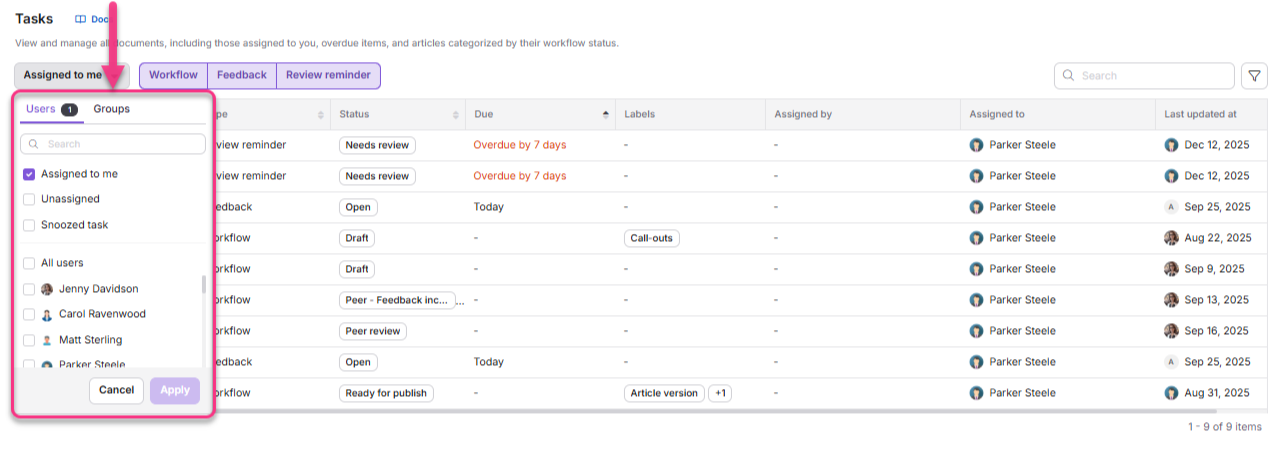
Use the Assigned to me dropdown to filter tasks by who they are assigned to:
- Assigned to me: Displays only tasks assigned to you.
- Unassigned: Displays tasks with no assignee.
- Snoozed task: Displays tasks you have snoozed.
- All users: Displays tasks assigned to all users. (Admins only)
- Specific users: Select one or more users from the list. (Admins only)
- Groups: Switch to the Groups tab to filter by team groups. (Admins only)
Admins can view and manage tasks assigned to any user or group and can filter unassigned tasks. However, they cannot snooze tasks assigned to others or view tasks snoozed by others. Regular users can only view and manage tasks assigned to themselves.
Search bar
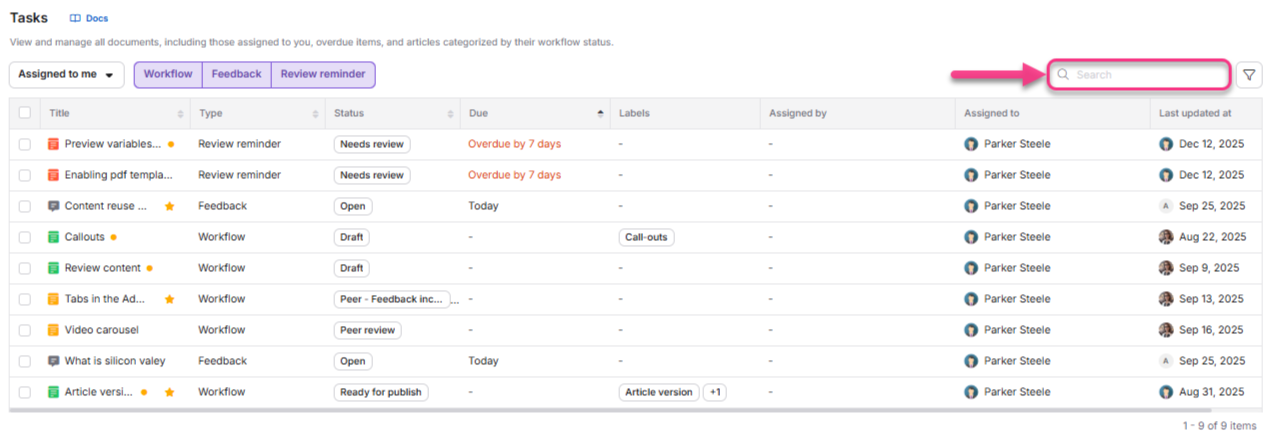
Use the search bar to find tasks by article name. The search runs in real time and matches both partial and complete titles.
Best practices
- Resolve overdue tasks before starting new work. Use the Overdue timeline filter at the start of each sprint to clear stale assignments before they block a release.
- Use the Assignee filter as an admin to check workload distribution across the team before assigning new tasks. Filtering by All users shows you who is under- or over-assigned.
- Snooze tasks you cannot address immediately rather than leaving them in the active list. Choose a realistic future date so the task resurfaces when you are ready to act on it.
- Combine task type and status filters to focus your view. For example, filter by Workflow + In review to see only articles currently waiting for your review sign-off.
- Use bulk Update workflow status when moving a batch of articles to the next stage together, such as at the end of a content sprint.
- Search by article name when you receive a notification about a specific article and want to locate its task quickly without scrolling.
FAQ
What is the difference between the Tasks page and the Tasks card on the Overview page?
The Tasks page lists all tasks assigned to you across all timeframes and provides full filtering, search, and bulk action capabilities. The Tasks card on the Overview page shows only tasks due during the current calendar week (Today, This week, Overdue, and Snoozed). Use the Tasks card for a quick daily check-in and the Tasks page for deeper task management.
Why does a task without a due date appear under Today?
Tasks without a due date are grouped under Today by default to ensure they remain visible and actionable. A hyphen is displayed in the Due column and a tooltip confirms that no due date has been set. These tasks will not be marked as overdue even if they remain on the Today list for multiple days.
Can I see tasks assigned to other team members?
Yes, but only if you are an Admin. Admins can use the Assigned to me dropdown and select All users, Specific users, or Groups to view tasks across the team. Regular users can only see their own assigned tasks. Admins cannot snooze tasks assigned to others or view tasks that others have snoozed.
Why are the Publish and Publish later actions missing for some tasks?
If an article is already in Published status and is also marked as Needs review, the Publish and Publish later actions are hidden for that task. The article is already live, so no re-publishing action is needed. You can still perform other actions such as Mark as reviewed.