X-Frame protection lets you control whether your knowledge base can be embedded in <frame>, <iframe>, <embed>, or <object> tags on external domains. Enabling this setting adds a security layer that blocks unauthorized sites from embedding your knowledge base, protecting your users from clickjacking and UI redressing attacks. This setting adds X-Frame-Options: SAMEORIGIN to your knowledge base pages. This prevents external websites from embedding your knowledge base and does not let you specify trusted domains.
If you want to allow specific domains to embed your knowledge base, use the Frame ancestors directive under Content Security Policy instead.
When to use X-Frame protection
Enable X-Frame protection if any of the following apply to your knowledge base:
- Your knowledge base contains sensitive documentation, or you want to protect readers from clickjacking attempts by ensuring content only appears on your own domain.
- Compliance or security policies in your organization require iframe embedding restrictions.
Before you begin
- You must have admin-level access to the knowledge base portal to modify security settings.
- If you use iframe-based embedding on your own domains (for example, embedding your knowledge base inside a support portal), be aware that enabling X-Frame protection will block those embeds as well. Review all existing iframe integrations before enabling this setting.
- If your articles contain third-party iframe embeds (for example, interactive demos or widgets from external tools), enabling X-Frame protection will block those embeds from loading on your knowledge base site. Disable this setting if you rely on third-party iframe content within your articles.
How to enable X-Frame protection
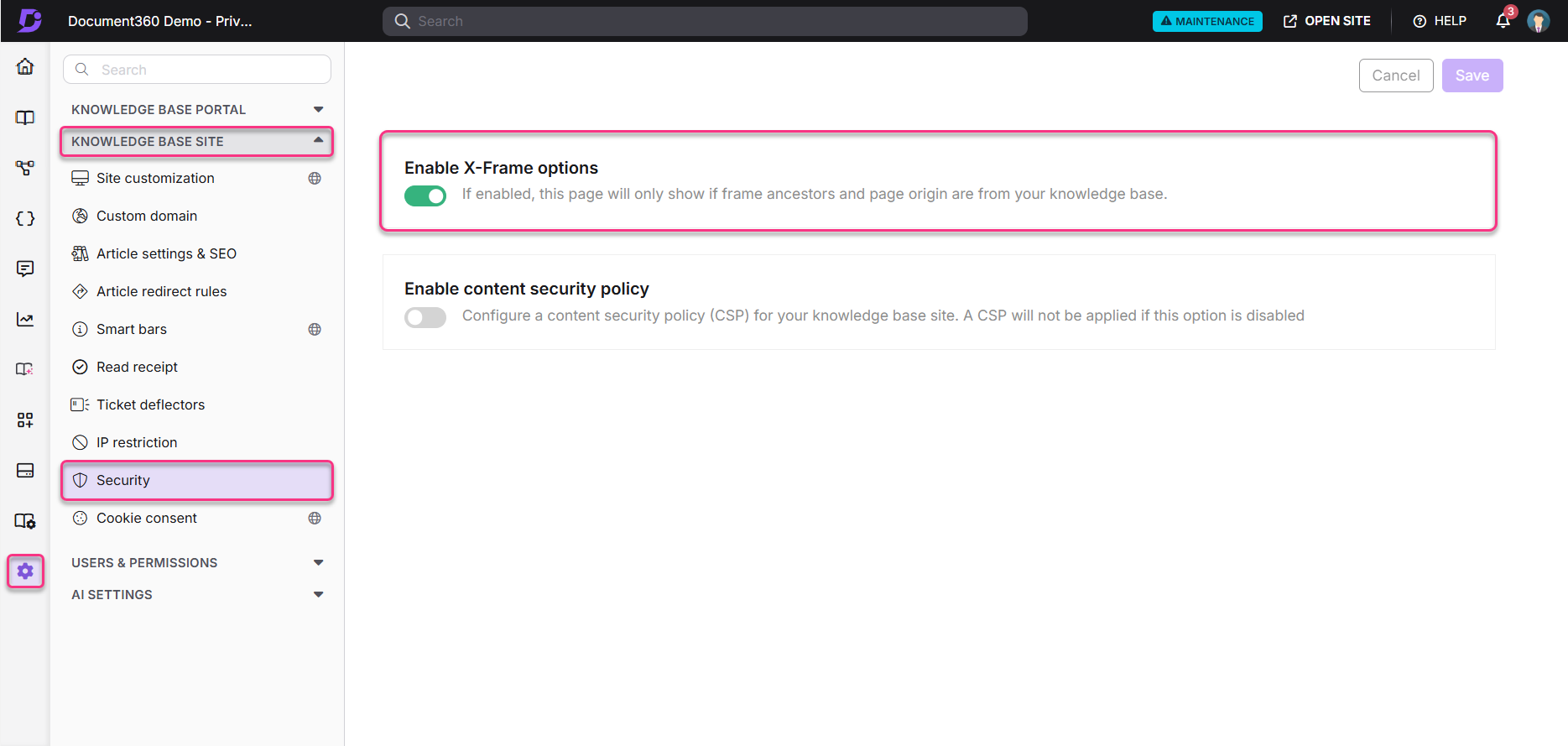
- Hover on Settings () in the left navigation bar of the knowledge base portal.
- In the sub-menu, select Knowledge base site and navigate to Security.
- Locate the toggle labeled Enable X-Frame protection and switch it on.
The setting takes effect immediately. Any external domain that attempts to embed your knowledge base using <frame>, <iframe>, <embed>, or <object> tags will be blocked.
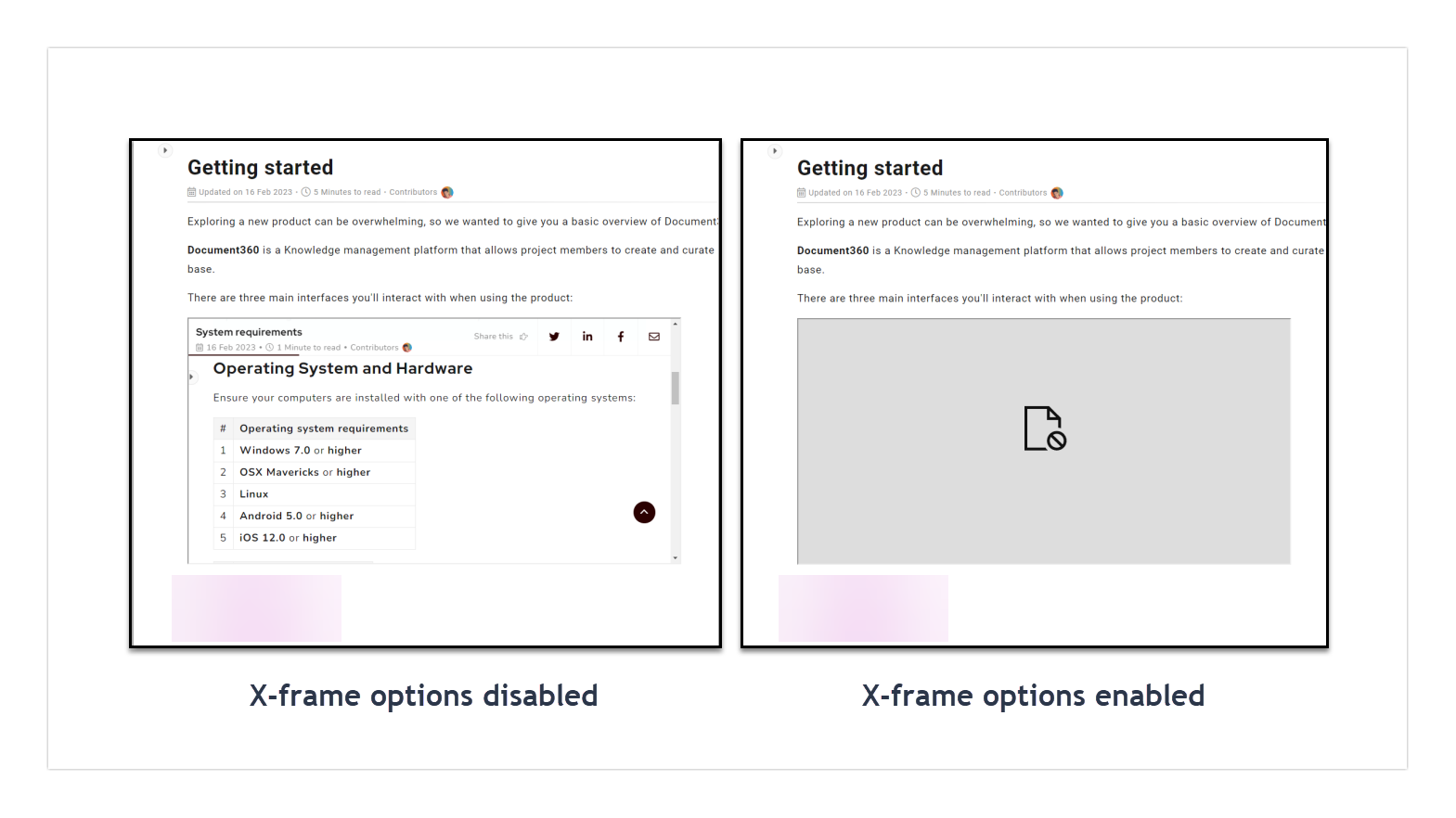
Example: If your knowledge base domain is help.example.com and you want to stop a site like support.test.com from embedding your content in an iframe, turn on the Enable X-Frame protection toggle.
Best practices
- Combine with Content Security Policy (CSP). X-Frame protection work best alongside a configured CSP for defense-in-depth against injection and embedding attacks.
- Test after enabling. Use your browser's developer tools (Network tab → inspect response headers for
X-Frame-Options) or a tool like securityheaders.com to confirm the header is being applied correctly.
FAQ
What is an iframe?
An iframe (inline frame) is an HTML element that embeds another HTML document within the current page. Because iframes can load external content inside a trusted page, they are a common vector for clickjacking attacks. X-Frame protection help mitigate this risk by blocking unauthorized embedding.
How can I test if X-Frame protection is working?
You can verify the setting is active in two ways:
- Open your browser's developer tools, go to the Network tab, and inspect the response headers for your knowledge base page. Look for the
X-Frame-Optionsheader. - Use a third-party header checker such as securityheaders.com to scan your knowledge base URL and confirm the header is present.
What are the risks of not enabling X-Frame protection?
Without X-Frame protection, any external site can embed your knowledge base in an invisible iframe. Attackers can overlay deceptive elements on top of your interface to trick users into revealing passwords, clicking malicious links, or taking other unintended actions — a technique called clickjacking. This can lead to data breaches and loss of user trust.
What is clickjacking?
Clickjacking (also called UI redressing or UI masking) is an attack where a malicious actor places a transparent or disguised layer over a legitimate web page. Users believe they are interacting with the real page, but their clicks are captured by the attacker's hidden elements. Consequences can include malware downloads, unauthorized purchases, or inadvertent disclosure of sensitive information. X-Frame protection help prevent this by blocking your content from being embedded on unauthorized sites.
What is a malicious website?
A malicious website is a site designed to cause harm to visitors or their devices. These sites may trick visitors into downloading malware, stealing personal information, or engaging in fraudulent activities. Using X-Frame protection helps prevent your content from being embedded on such sites, enhancing your security measures against these risks.