The Knowledge base site is the reader-facing side of your Document360 project. It is the published website where your readers, customers, or team members go to find and read your documentation.
Everything you create and configure in the Knowledge base portal such as articles, categories, branding, navigation, site settings, is what shapes the experience on the Knowledge base site.
The Knowledge base site is accessible to your readers directly through your knowledge base URL. Depending on how your project is configured, it can be:
- Public - accessible to anyone without login
- Private - accessible only to logged-in readers
- Mixed - some content is public, some requires login
Readers can search for content, browse categories, read articles, follow topics they care about, provide feedback, and interact with Eddy AI, all without ever needing access to the portal.
Key features
The Knowledge base site includes a range of features designed to improve content accessibility, personalization, and reader engagement.
| Feature | Description |
|---|---|
| Favorites | Logged-in readers can save articles, decision trees, API endpoints, and page categories as favorites using the star () icon. All saved items are accessible from the Favorites section in the left panel or from their profile. |
| Customizable right panel | Admins can reorder the right panel modules like Files, Tags, Related articles, and In this article, using drag-and-drop, and move Related articles between the right panel and the article footer. |
| Sticky header on scroll | Key header icons such as Theme, Profile, Language selector, Search, Follow, and Favorites stay visible while scrolling through long articles. |
| Download articles and categories as PDF | Logged-in readers can bulk download selected articles and categories as PDF files from the knowledge base site in private projects, making offline access easier. |
| Published version history | Readers can view a structured version history for articles and page categories directly on the knowledge base site. The version log shows the version number, published date, publisher, and version summary for selected published version, accessible via the More options ( ) menu on the article. Visibility is controlled at the project level and can be overridden per article. |
| PDF download from Notifications | Exported PDFs are available for direct download from the Notifications section. No email dependency required. PDFs are available for 30 days from the date of generation. |
| Share private links to articles | Generate shareable, private links to allow external users such as reviewers, collaborators, or stakeholders to view articles without needing access to your knowledge base. |
| Follow articles and categories | Readers can subscribe to updates for specific articles or categories and receive email notifications about changes. Available for both public and private projects. |
| Enhanced read receipts | Set up dynamic rules for read acknowledgments based on workspace, category, or user role. Perform bulk operations and manage compliance efficiently. |
| Localized workspace display names | Customize your workspace name per language for multilingual knowledge base sites, providing a native experience for users based on their language selection. |
| Conversational Eddy AI and chatbot support | Eddy AI retains conversation context, enabling users to ask follow-up questions and get more accurate responses in multiple languages. Also available in the Eddy AI chatbot. |
| Enhanced analytics for Eddy AI | Gain deeper insights into user interactions with Eddy AI. Filter conversations by topic, feedback, or response status. |
| Conditional content blocks | Control visibility of content based on country, IP, date, device type, or reader group, personalizing content without duplicating articles. |
| Listen to articles | Readers can listen to article content using the Listen (read out loud) feature, improving accessibility and enabling multitasking. |
| Global search enhancement | Search across all workspaces, including API workspaces. Switch between global and individual workspace views with intelligent filters and unified results. |
| Site customization | Admins can customize the appearance and layout of the knowledge base site - including themes, colors, typography, navigation, and home page content from Site customization. |
Knowledge base site layout
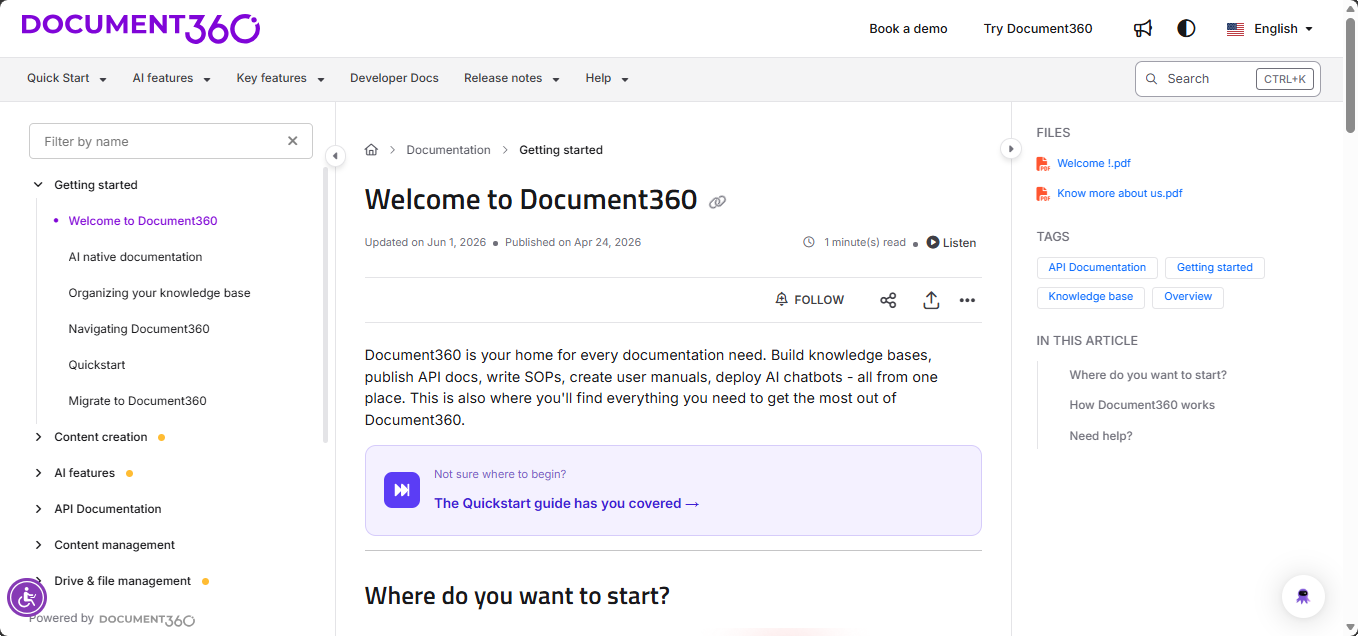
The Knowledge base site is organized into distinct sections. The image below shows the layout of a documentation page.
Header
The header runs across the top of every page on the Knowledge base site and is always visible.

The header includes the following elements:
| Element | What it does |
|---|---|
| Logo | Displays your organization's logo. Clicking it navigates to the knowledge base home page. |
| Workspace | Use the dropdown to navigate between workspaces like 1.0 or 2.0. Click the API documentation workspace to go to the API documentation home page. |
| Primary navigation | Links configured by your admin to help readers navigate to different pages from the home page or knowledge base site like features, pricing, etc. |
| Notifications () | Displays recently published articles and notifications for exported PDFs ready for download. A badge shows the unread count. |
| Acknowledgment required () | Displays articles that require a read acknowledgment from the reader. |
| Theme() | Switch between System theme, Light, and Dark themes. Light theme is set as default. |
| Language | Select the language to read articles in, from the available list. |
| Secondary navigation | Additional navigation links configured by your admin, typically grouped or nested like quick start, release notes, etc. |
If only one language is configured for a workspace, the language dropdown will not appear on the Knowledge base site.
Left navigation pane
The left navigation pane displays the structure of your knowledge base, allowing readers to browse categories and articles. The search bar at the top of the pane lets readers search for articles using keywords or Eddy AI — use the shortcut Ctrl + K (Command + K on Mac). For more information, see the Search article.
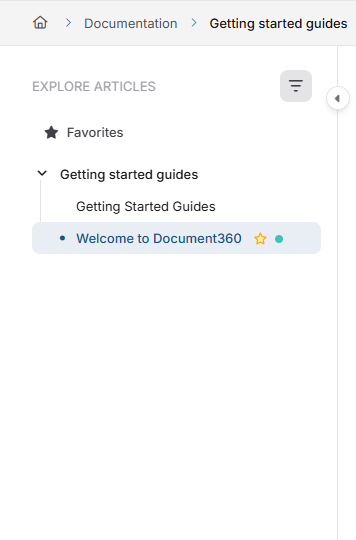
| Element | What it does |
|---|---|
| Explore articles | Click to filter the navigation tree by category or article name. |
| Hide navigation | Click the arrow placed on the line to collapse the left pane for a wider view of the article. |
| Tree view | Displays categories and articles in a hierarchical tree structure. Expand or collapse based on convenience |
| Favorites | When enabled, logged-in users can mark articles, decision trees, and endpoints as favorites. Favorited items appear in a dedicated Favorites section. |
| Status badge | A small color badge on each article indicates its status such as New, Updated, or Custom badge. |
| More option | For private and mixed projects, hover over an article to access Add to favorites option. |
Organize your left navigation pane by turning root-level categories into fixed group labels with Category grouping. Navigate to Settings () > Knowledge base site > Article settings > Category manager, and toggle on the Category grouping toggle.
Category grouping is supported only for Folder and Index categories. If you have a Page category at the root level, move it or convert it to a supported category type before enabling this option.
Once enabled, root-level Folder and Index categories appear as fixed group headings, with their subcategories and articles always visible.
Article section
The article section is where the content of the selected article is displayed.
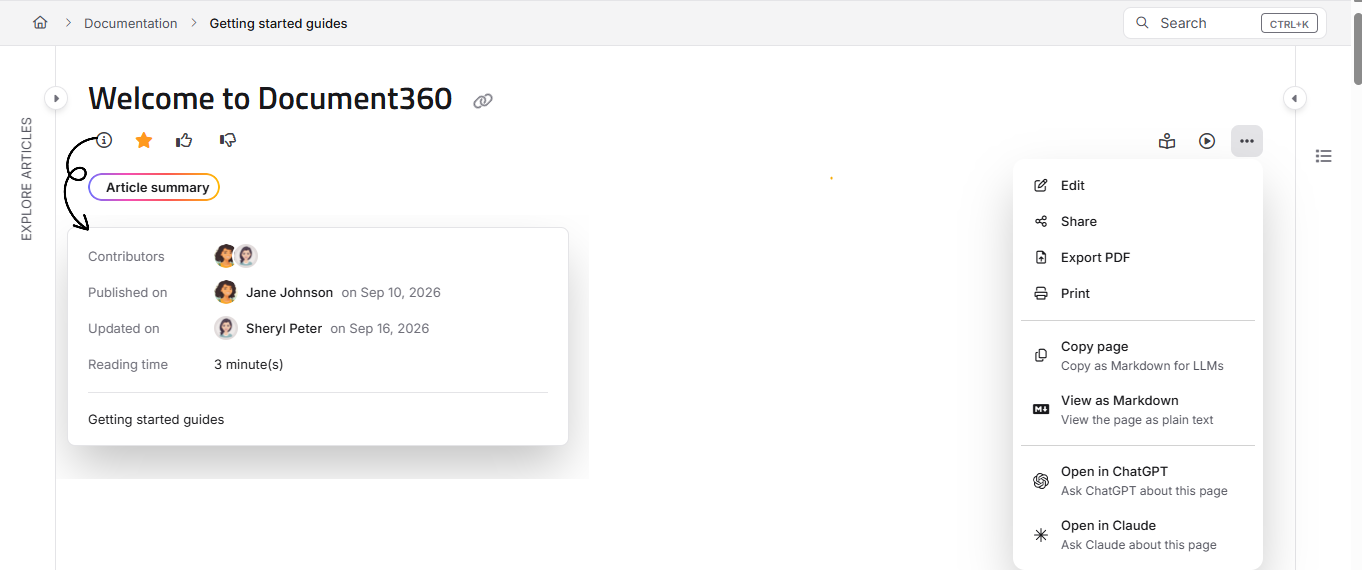
The article section includes the following elements:
| Element | What it does |
|---|---|
| Breadcrumbs | Shows the navigation path back to the parent category and subcategory. |
| Article title | Displays the title of the article. |
| Copy link | Copies the article's URL to the clipboard. |
| Status badge | Displays the article's status like New, Updated, or custom badge. |
| Article date | Shows the published or last updated date. |
| Read time | Displays an estimated reading time based on word count. |
| Contributors | Lists the team members who worked on the article. Clicking a contributor's avatar opens their contributor page showing all articles they have worked on. |
| Follow | Allows readers to subscribe to article updates. Available for reader accounts. |
| Favorites () | Adds or removes the article from the reader's favorites. Available for logged-in users in private projects. |
| Focus mode ( ) | Collapses the left navigation tree and the right pane temporarily, giving readers a distraction-free reading view. Clicking either pane's edge opens it again as an overlay without leaving Focus mode. |
| Share | Share the article via Twitter, LinkedIn, Facebook, or Email. |
| Export PDF | Downloads the article or category as a PDF when enabled by the admin. |
| More options () | Access additional options including Version history, Print, and AI-powered actions for copying and opening articles in AI assistants. Version history is visible only when the published version log is enabled for the article. |
| Article summary | View an AI-generated summary of the article, powered by Eddy AI. |
On new projects:
- Article date, Read time, and Contributors are consolidated into an info () icon.
- You'll always find Edit article, Share and Export PDF inside More options, no matter your screen size.
On existing projects:
- Article date, Read time, and Contributors are shown individually in the article section.
- Share and Export PDF appear as separate icons and only move into More options on smaller screens.
AI actions in the More options () menu
The More options menu includes four AI-powered quick actions that let readers copy or open articles in external AI assistants. Availability depends on your project type:
| Action | Description |
|---|---|
| Copy page | Copies the article content as Markdown to your clipboard. |
| View as Markdown | Opens the article as plain text in a new tab. |
| Open in ChatGPT | Opens the article in ChatGPT so you can ask questions about it. |
| Open in Claude | Opens the article in Claude so you can ask questions about it. |
- Copy page and View as Markdown are available in public projects, mixed projects, and private projects. In private projects, these options are visible only to logged-in readers.
- Open in ChatGPT and Open in Claude are available in public projects and public content in mixed projects only. They are not shown in private projects or private content in mixed projects.
Image viewer
When you click an image on the Knowledge base site, it opens in an image viewer.
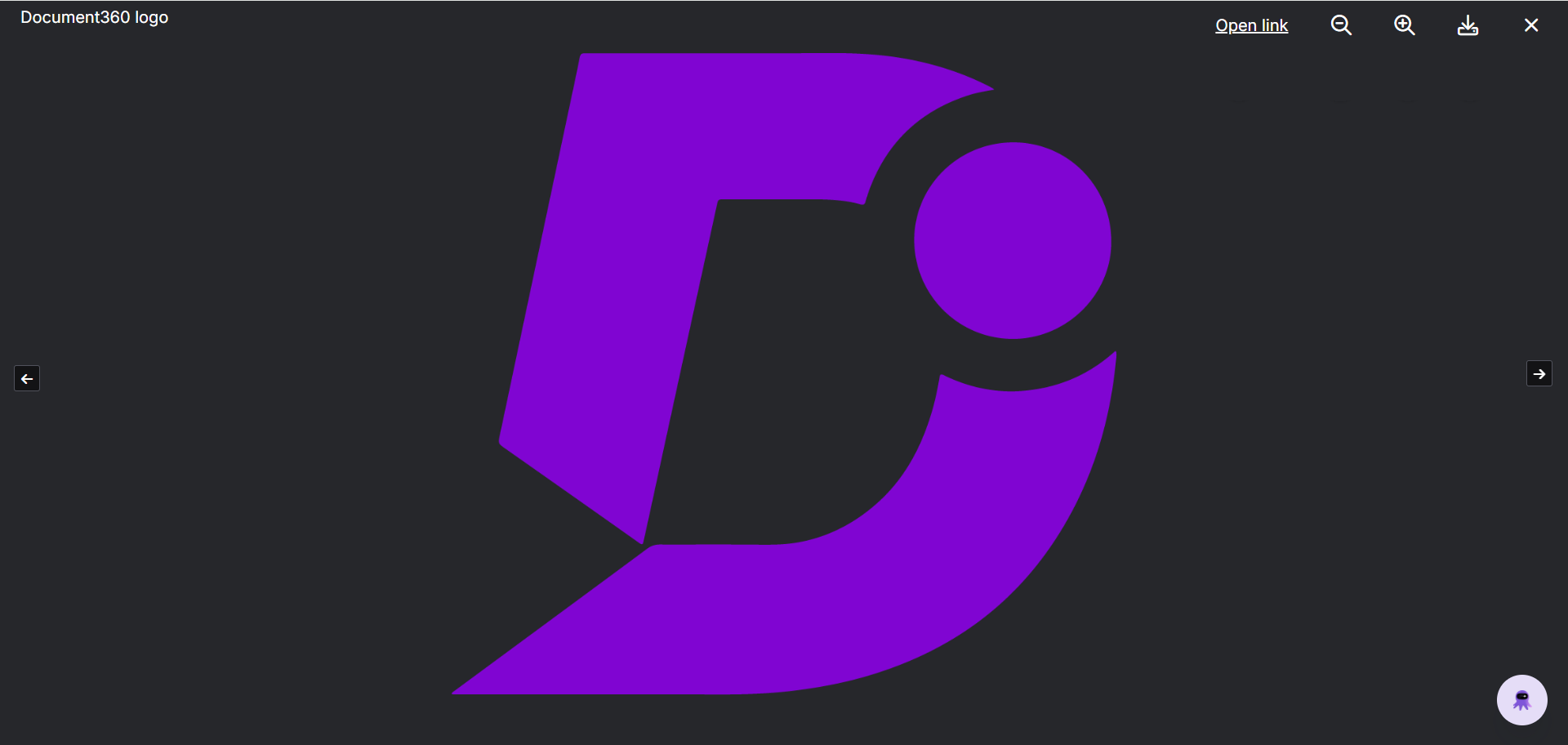
| Control | What it does |
|---|---|
| Title text | Displays the image caption, if one is provided. |
| Open link | Opens the image URL in a new tab, if available. |
| Zoom out ( ) | Minimizes the image. |
| Zoom in ( ) | Enlarges the image. |
| Download ( ) | Downloads the image to local storage. |
| Close (X) | Closes the image viewer. |
| Next ( ) | Moves to the next image in the article. |
| Previous ( ) | Moves to the previous image. |
You can also hold and drag the image to reposition it on screen. Clicking anywhere outside the image closes the viewer.
Right pane
The right pane displays supplementary information alongside the article. By default, sections appear in this order: Files > Tags > Related articles > In this article.
Admins can customize this order using drag-and-drop by navigating to Settings () > Knowledge base site > Article settings > Article right section > Reorder sections.
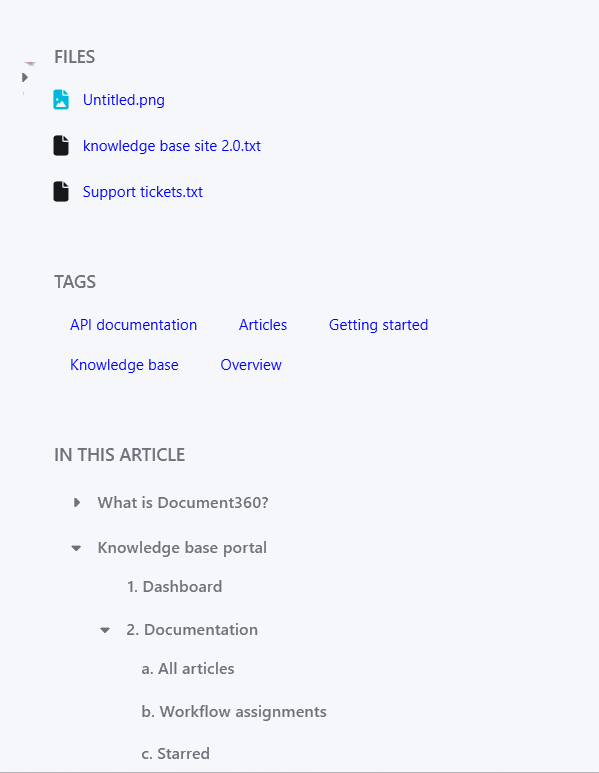
| Section | What it shows |
|---|---|
| Hide pane | Collapses the right pane for a wider article view. |
| Files | Attachments associated with the article. |
| Tags | Tags applied to the article. Clicking a tag opens a page listing all articles associated with that tag. |
| In this article | A list of headings within the article (previously called "Table of Contents"). Automatically expands when the article loads. Has a dedicated scroll for long heading lists. |
| Related articles | Articles related to the current one. Admins can move this section to the article footer if preferred. |
Module behavior:
- All modules support expand and collapse.
- Modules with more items than the initial visible height show a Show more control.
- On tablet and mobile, the right pane collapses into a drawer.
- The last module in the right pane stays sticky on scroll.
Article footer
The article footer appears at the bottom of every article.
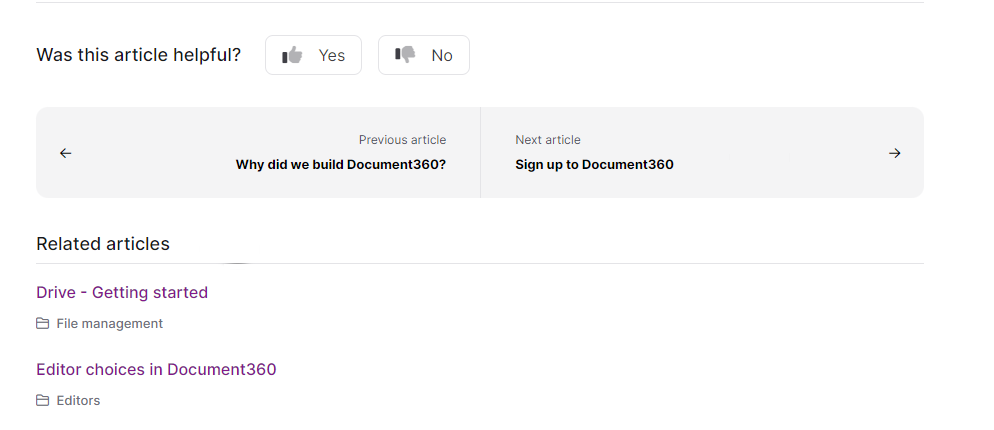
| Element | What it does |
|---|---|
| Feedback | Readers can click Yes or No to rate whether the article was helpful, and optionally leave a comment. Depending on configuration, this feedback form may appear in the article header instead of the footer. |
| Previous and Next article | Navigation links to move between articles in the same category. |
| Related articles | Articles related to the current one. By default this section appears in the footer. Admins can move it to the right pane by enabling the Show related articles toggle under Settings () > Knowledge base site > Article settings > Article right section. |
Other pages on the Knowledge base site
Beyond the main documentation pages, the Knowledge base site includes a few additional pages that readers may come across.
Glossary page - If your project uses glossary terms, readers can access a dedicated Glossary page that lists all defined terms in alphabetical order. This page is available at https://yourdomain/docs/glossary-overview. Admins can add a link to the glossary from the header, footer, or secondary navigation. For more information, see the article on glossary page.
Contributor page - Clicking a contributor's avatar on any article opens their contributor page, which lists all the articles that person has worked on within the project. For more information on managing contributors, check out the article on contributors.
Tags page - Clicking a tag on an article opens a dedicated Tags page listing all articles and category pages associated with that tag. Tags each have their own unique URL, which also helps with SEO discoverability. For more information, go through Article tags.