Document360 gives readers two ways to download articles and categories as PDFs directly from the knowledge base site. They can export content on demand using the Export PDF button, or download a pre-compiled PDF that was generated from the portal and made available through the notification system. Both methods are controlled by settings you configure in the portal.
PDF download from the knowledge base site is available exclusively for private projects and logged-in users of mixed projects.
Enable PDF download in the portal
Before readers can download PDFs from your knowledge base site, you need to enable the download button in your settings.
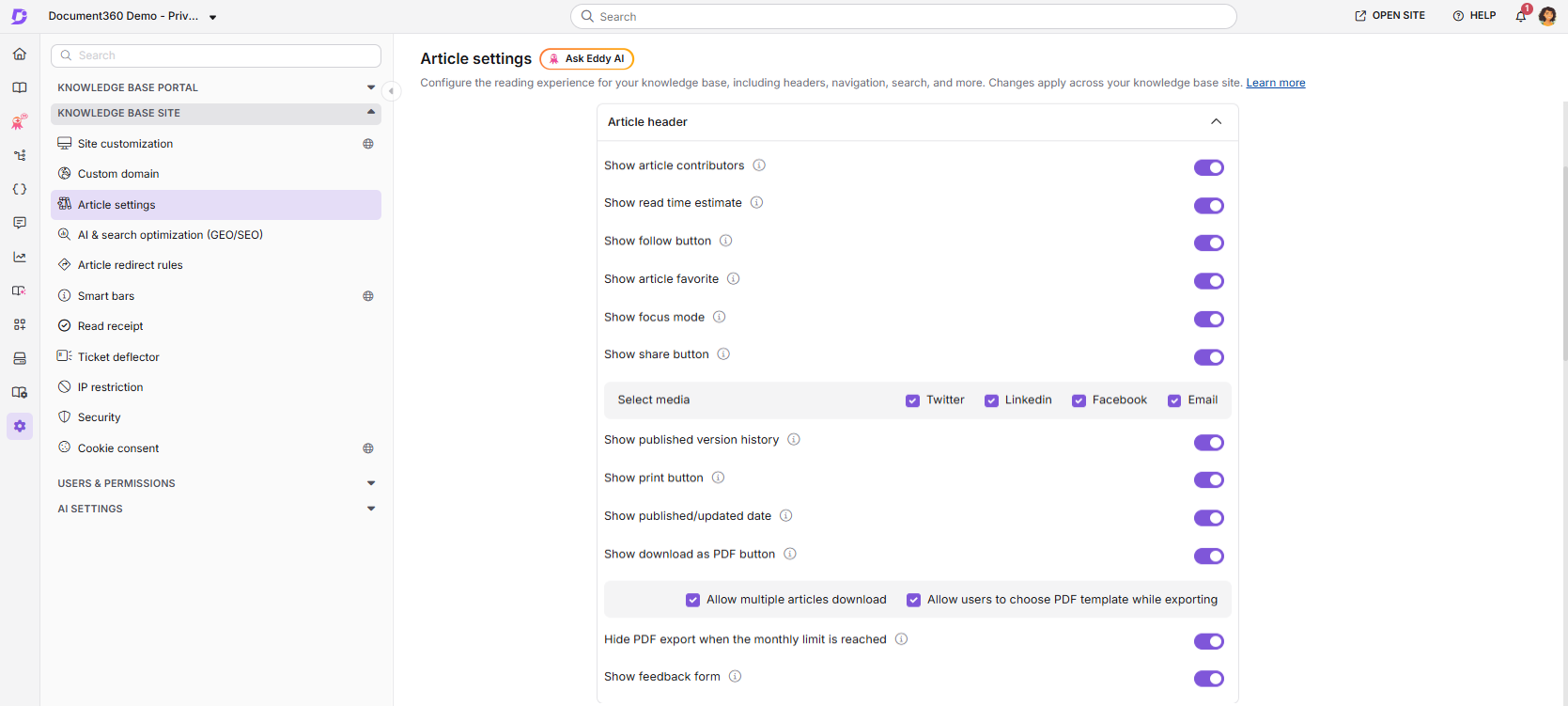
- Navigate to Settings () > Knowledge base site in the left navigation bar.
- Select Article settings in the left navigation pane.
- Scroll to the Article header section accordion.
- Turn on the Show download as PDF button toggle. This option is enabled by default.
- Select additional options as needed:
| Option | Description |
|---|---|
| Allow multiple articles download | Lets readers select and export multiple articles or an entire category as a single PDF. |
| Allow users to choose PDF template while exporting | Lets readers choose a PDF template when exporting. Readers see only the templates that are shown on the knowledge base site. If not selected, the default template is used. |
| Hide PDF export when the monthly limit is reached | Controls whether the Export PDF icon disappears entirely or stays visible but disabled for readers once your monthly PDF export credits are used up. |
PDF exports from the knowledge base site draw from the same monthly credit allowance as bulk exports created from Content tools > Export articles, at one credit per exported page. For more information, read Export articles as PDF.
To create or manage PDF templates, navigate to Content tools () > Export articles and select the PDF templates tab. Learn more about PDF templates. To choose which templates readers can select, read Show or hide a template on the knowledge base site.
Reader-initiated export from the knowledge base site
Once the PDF download button is enabled, readers can export categories and articles directly from the knowledge base site.
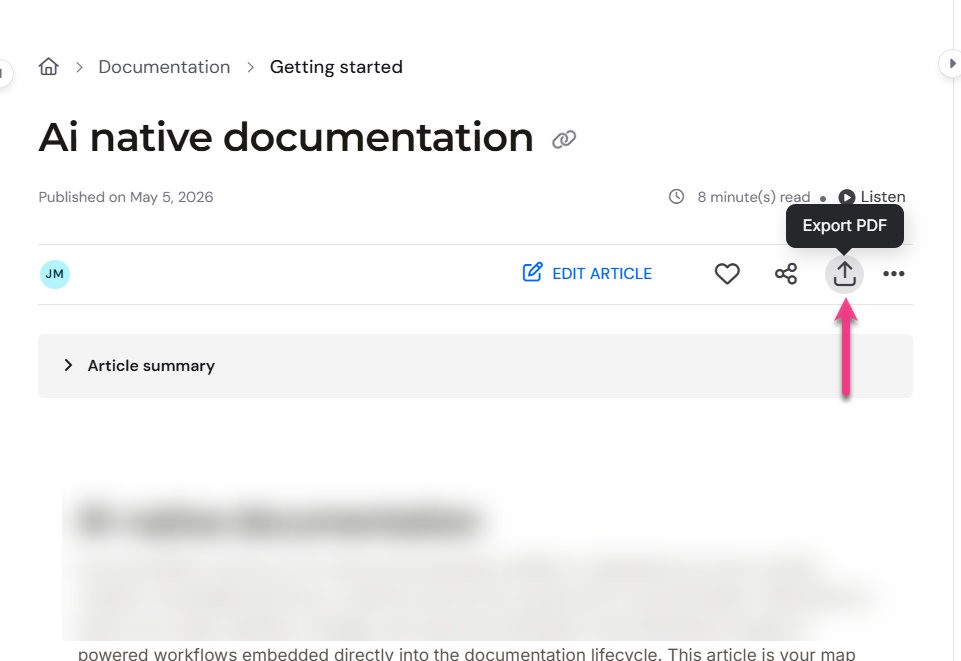
- Navigate to the category or article on the knowledge base site and click the Export PDF icon.
- In the Export articles panel, select the subcategories and articles to include.
- If template selection is enabled, choose a PDF template from the PDF templates dropdown. The dropdown lists only the templates that are shown on the knowledge base site. If no template is selected, the default template is used.
- Click Next, enter a file name, and click Export PDF.
The system generates the PDF server-side. Once the PDF is ready, the notification flow described below is triggered.
- Customisations applied to the knowledge base site are not reflected in the downloaded PDF. In mixed knowledge bases, logged-in readers can export both public and private articles individually or in bulk. Non-logged-in readers can only export individual articles.
- If Version history is enabled in the selected PDF template, the exported PDF includes a version history table for articles and page categories where Show Published Version History is enabled.
The table lists up to 10 published versions per item, sorted from newest to oldest, and includes the version number, publish date, publisher, and version summary. Version history is not included in exports of folders or index categories.
Export a page category
A page category can have its own content, along with child articles and categories. When you select the page category checkbox in the Export articles panel, all content under the category is selected, including the page category itself.
To export only the page category's own content:
- Hover over the page category.
- Click Select this article.
- Only the page category is selected. Its child articles and categories are not included.
For example, if Getting started is a page category with two child articles, selecting its checkbox includes all three items. Clicking Select this article includes only the Getting started page.
To remove only the page category from the export:
- Hover over the page category.
- Click Deselect this article.
The child articles and categories remain selected.
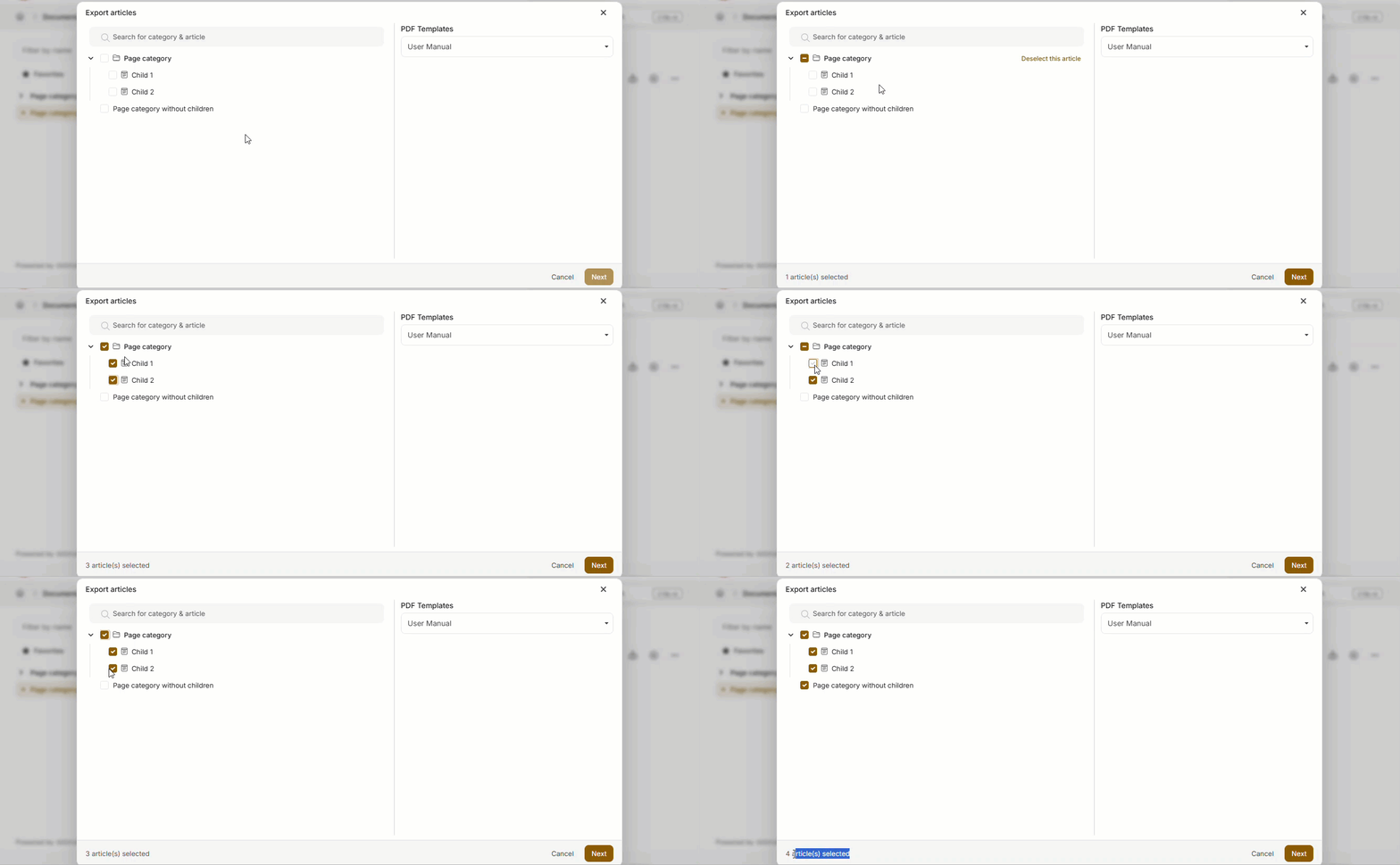
- The Select this article and Deselect this article options appear only when the page category has child articles or categories. If it has no children, use the checkbox to select or clear it.
- The total number of selected items is shown at the bottom of the Export articles panel as article(s) selected. This count also includes any page category that is selected.
Understand the checkbox states:
| Checkbox state | What it means |
|---|---|
| Checked | Everything in the category is selected, including a page category's own content |
| Dash in the box | Only some of the content is selected |
| Empty | No content in the category is selected |
Download the exported PDF
Once the export is complete, how the PDF is delivered depends on how many articles were selected.
Single article: The PDF downloads instantly.
Multiple articles: The PDF is generated server-side. You can download it from the Notification () section, or from the download link sent simultaneously to the reader's registered email address.
To download a multi-article PDF from the notification centre:
- Click the Notification () icon on the knowledge base site.
- Locate your export. Each notification shows the workspace and language the PDF was exported from, the date it was exported, and how long the download link remains valid.
- Click PDF to download the file directly in your browser.
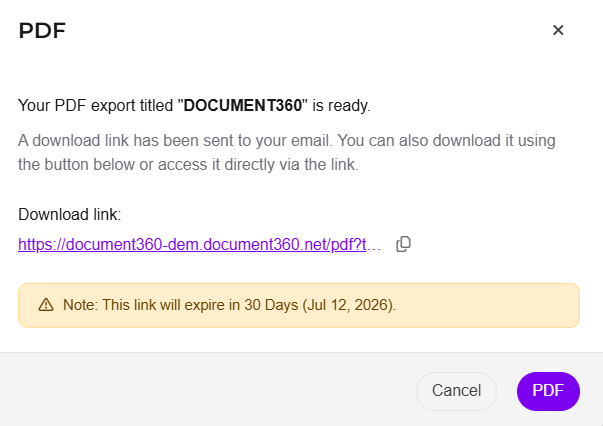
Exported PDFs are available for 30 days via secure, time-limited download links. In private and mixed projects, PDFs in the Notifications section are visible only to the user who generated them and other authorized users. The notification and email delivery apply only when multiple articles are exported. Single article exports download instantly without a notification.
Portal-compiled PDFs on the knowledge base site
PDFs compiled in the portal via Content tools () > Export articles follow the same notification flow. When a portal export is complete, authorised readers can download it from the notification centre on the knowledge base site, or via the email link sent at the same time.
This is useful when you want to control exactly which content is exported and how it is styled, rather than relying on reader-initiated exports, and then surface the final file to your audience.
To compile a PDF from the portal, see Export articles as PDF →
Considerations
| Item | Detail |
|---|---|
| Availability | Private projects and logged-in users of mixed projects only. |
| PDF export credits | Each exported page consumes one credit from your monthly allowance, shared across all users. See PDF export credits. |
| Download link validity | 30 days from the date of export. |
| Single article export | Downloads instantly. |
| Multi-article export | Delivered via notification center and email simultaneously. |
| Knowledge base site customisations | Not reflected in downloaded PDFs. |
| Notification visibility | Visible only to the user who generated the export and other authorized users. |
Best practices
- Enable template selection for advanced readers. If your knowledge base serves technical teams who need specific layouts, enable the Allow users to choose PDF template option so they can pick the most appropriate format.
- Show readers only the templates they need. Turn off Show on knowledge base site for internal or in-progress templates so the dropdown on the knowledge base site lists only finished ones.
- Pre-compile PDFs for large or complex exports. For documentation packages that require a specific structure, compile the PDF in the portal and let readers download it through the notification system, rather than relying on reader-initiated exports.
- Inform readers about the 30-day expiry. If you share knowledge base access with external stakeholders, remind them to download exported PDFs within 30 days before the link expires.
- Monitor credit usage. If your team frequently downloads large PDFs, keep an eye on your monthly PDF export credit balance on the Export articles page to avoid disruptions for readers during peak periods.
- Export a page category on its own when you only need its overview. Use Select this article on the page category row to include its content without every child article.
- Customize the button labels in your reader's language or brand voice. To change the Select this article and Deselect this article labels, go to Settings > Knowledge base portal > Workspace & localization > Localization variables, and edit the text in the Export PDF accordion. For more information, see Localization variables.
FAQ
What is the difference between a reader-initiated export and a portal-compiled PDF?
A reader-initiated export lets readers select and export content themselves directly from the knowledge base site. A portal-compiled PDF is created by an admin or editor in the portal with full control over which articles are included and which template is used. Both are delivered through the same notification flow once the export is complete.
Can non-logged-in readers download PDFs?
In mixed knowledge bases, non-logged-in readers can only export individual articles. Logged-in readers can export both public and private articles individually or in bulk. PDF download is not available for fully public knowledge bases.
How long does a PDF download link remain valid?
Download links expire after 30 days and are removed automatically from the notification centre. Readers should download their exported PDFs within this window.
What happens when the monthly PDF export credit allowance is used up?
It depends on the Hide PDF export when the monthly limit is reached toggle in Knowledge base site > Article settings. If enabled, the Export PDF icon is hidden from readers once credits run out. If disabled, the icon stays visible but becomes unavailable to readers until credits reset or more are added.
Will knowledge base site customisations appear in downloaded PDFs?
No. Customisations applied to the knowledge base site are not reflected in downloaded PDFs. The PDF appearance is controlled entirely by the PDF template selected at export time.
Why can't readers see one of my PDF templates when exporting from the knowledge base site?
The template is hidden from the knowledge base site. Turn on Show on knowledge base site for that template on the PDF templates page. Also make sure Allow users to choose PDF template while exporting is enabled in Knowledge base site > Article settings.
How do I export a page category without its child articles?
In the Export articles panel on the knowledge base site, clear any selection under the page category, hover over the page category row, and click Select this article. Only the page category's own content is added to the export, and its child categories and articles stay unselected.
What do Select this article and Deselect this article do on a page category in the Export articles panel?
On a page category row that has child categories or articles, the Select this article button adds or removes only the page category's own content, without changing its child categories and articles. The button reads Deselect this article once the page category's own content is selected. It appears when you hover over the row or move to it using the keyboard.