Once you have a PDF template set up, you can create a new export by selecting the content you want, choosing a template, and configuring the file name and optional password protection. Exports are managed from the Export articles page under Content tools.
Before you begin
- Only published articles, step-by-step guides, and category pages can be exported. Hidden articles and categories are not available for selection.
- Each export consumes PDF export credits from your monthly allowance, based on the number of pages in the generated PDF. See PDF export credits below.
- Requesting additional PDF export credits requires the Owner role. Creating exports and viewing credit consumption is available to any user with Export as PDF permission.
- You need at least one PDF template configured before exporting. See PDF templates for setup instructions.
PDF export credits
Every PDF export from the Export articles page draws from your project's monthly PDF export credit allowance. Each page in the generated PDF consumes one credit, regardless of how many articles, categories, or images are included in the export.
A live usage widget on the Export articles page shows how many credits you've used and how many remain for the current month, with a visual indicator as you approach your limit. This widget is visible to anyone with access to the Export articles page.
Only users with the Owner role can request additional credits from this page. If you don't see this option and need more credits, contact your account Owner.
This allowance is shared with PDF downloads that readers generate from the knowledge base site. For more information, read Downloading category and article in KB site.
Cloning an export does not consume credits. It only duplicates the export's settings so you can save or adjust it for later. Credits are consumed when you run the export, using Export or Regenerate.
If your credit balance is at zero, starting a new export or using Regenerate is blocked until your allowance resets the following month or additional credits are added.
If an export is already running and its page count exceeds your remaining balance, the export still completes in full. It is not stopped partway through. The credits beyond your remaining balance are deducted from your next month's credit recharge.
Reader-facing PDF downloads from the knowledge base site are controlled separately. See the Hide PDF export when the monthly limit is reached toggle in Configuring article header.
Access the Export articles page
- Navigate to Content tools () in the left navigation bar.
- Select Import & export > Export articles in the left navigation pane.
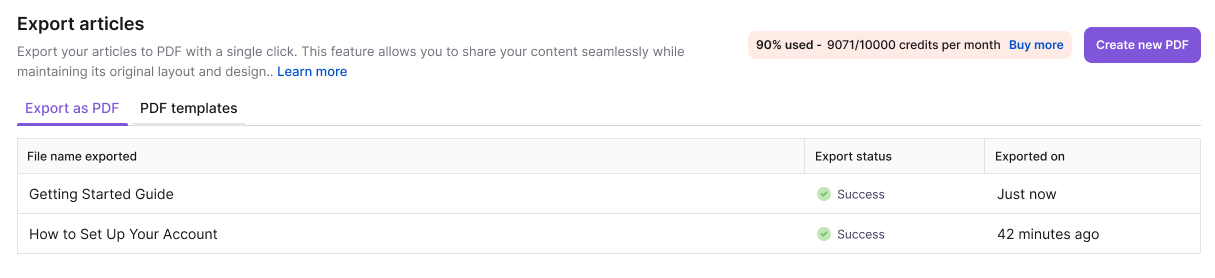
Create a new PDF export
- On the Export articles page, click Create new PDF in the top-right corner. The Start export page opens.
- Fill in the export details:
| Field | Description |
|---|---|
| Name | Enter a name for the exported PDF file. |
| Password | Optional. Add a password to restrict access to the PDF. |
| Select PDF template | Choose a PDF template to apply design settings, cover page, watermark, layout, and fonts. This list includes all your templates, even those hidden from the knowledge base site. |
| Workspace | Select the workspace to export from. |
| Language | Select the language version of the content to export. |
- Review the template preview on the right side of the page. Navigate between the Cover, Terms, ToC, Content, and Version history previews to verify the design before exporting.
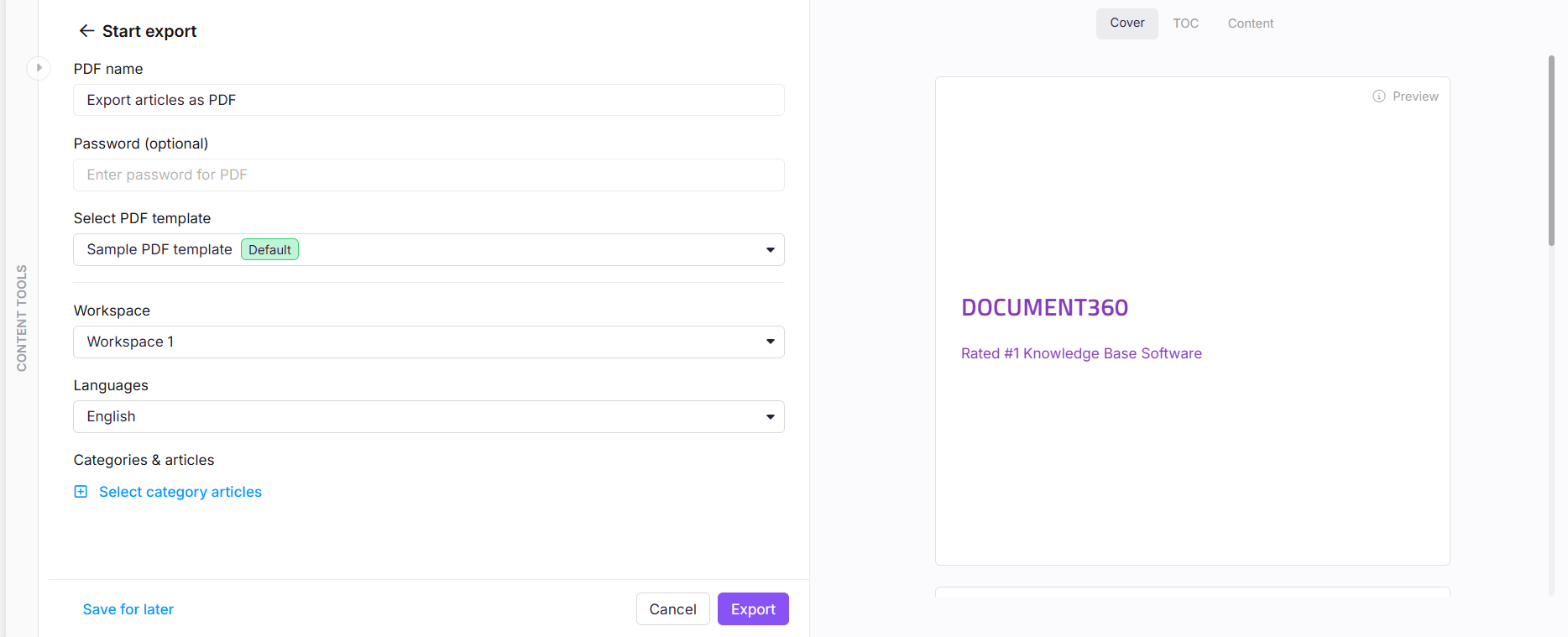
- In the Categories & articles section, click Select category articles.
- In the Add categories & articles dialog, select the categories, subcategories, and articles you want to include.
- Click Done to confirm your selection.
- Click Export to initiate the export. The Export Status updates to Success once the export is complete.
- Internal article and heading links within the selected articles remain functional in the exported PDF. Links that point to articles not included in the export open the corresponding page on the knowledge base site. You can export articles from one or more categories in a single export.
- If Version history is enabled in the selected PDF template, the exported PDF includes a version history table for articles and page categories where Show Published Version History is enabled. To know more about version history, read Designing a PDF template
The table lists up to 10 published versions per item, sorted from newest to oldest, and includes the version number, publish date, publisher, and version summary. Version history is not included in exports of folders or index categories.
Manage exported PDFs
After an export is created, hover over it to access the following actions:
| Action | Description |
|---|---|
| Download | Save the generated PDF to your device. |
| Regenerate | Re-run the export with the latest published content. Consumes credits the same way as a new export and is blocked if your credit balance is at zero. |
| Clone | Create a duplicate of the export with all the same attributes. Credits are only consumed when you run the cloned export, not when you create it. |
| Edit | Update the export attributes such as name, template, workspace, or content selection. |
| Export details | View the file name, version, language, and the categories and articles included in the export. |
| Delete | Permanently remove the export. This action cannot be reversed. |
Export a draft article as PDF
You can export a single draft article as a PDF directly from the Advanced WYSIWYG editor to share it with members outside your project team.
- Open the article in the Advanced WYSIWYG editor.
- Click the More () icon and select Export PDF.
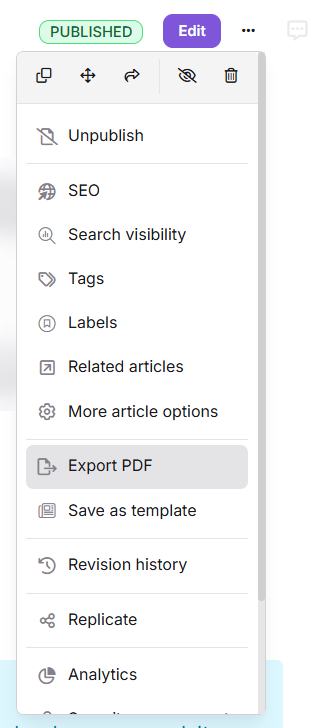
- Download the PDF and share it as needed.
When you export an article as a PDF, the file is static. Any updates made to the article after exporting will not appear in the PDF. If you want external members to always see the most recent version of an article, use Share articles via private link instead.
Limitations
| Item | Detail |
|---|---|
| PDF export credits | Each exported page consumes one credit from your monthly PDF export credit allowance. Shared with PDF downloads generated by readers from the knowledge base site. See PDF export credits. |
| Exportable content | Published articles, step-by-step guides, and category pages only. |
| Hidden content | Hidden articles and categories are excluded from export. |
| SVG images | SVG images may not render in exported PDFs due to a limitation of the PDF conversion plugin. Convert SVGs to PNG or JPG before uploading as a workaround. |
| Version history | Included only for article and page category exports. Not available for folder category exports. Maximum 10 entries per item. |
Wide tables in exported PDFs
If a table has too many columns or long cell content to fit within the PDF page width, the export process may split the excess columns into a separate block beneath the main table, rather than shrinking the table to fit on one line. Each split-off value still corresponds to its original row, based on order, but it will no longer appear side-by-side with the rest of that row's data.
Workarounds:
- Keep tables to 3 columns or fewer where possible
- Shorten cell content, especially in the rightmost column
- For very wide tables (5+ columns), consider restructuring as smaller tables or a definition-list format
- Preview the PDF export before publishing articles with wide tables, since this behavior depends on content length and may not be visible in the web/portal view
Best practices
- Name exports descriptively. Use a naming convention that includes the workspace, language, and date, for example
UserGuide_EN_Oct2025. This makes it easy to identify the right file when managing multiple exports. - Regenerate rather than re-export. If content has changed since your last export, use Regenerate instead of creating a new export. It re-runs the same settings against the latest published content without duplicating the export entry.
- Test with a small selection first. Before exporting a large batch of categories, run a small test export to verify the template design renders correctly on your actual content.
- Use password protection for sensitive content. If the PDF contains internal or confidential information, add a password at the export step to restrict access.
- Check your credit balance before large batch exports. The usage widget on the Export articles page shows your remaining monthly credits. Check it before exporting a large batch of categories, especially in the final days of your monthly cycle when your allowance is more likely to be low. If you're not an Owner and need more than remains, request additional credits from your account Owner before starting the export, since starting a new export is blocked once your balance reaches zero.
FAQ
Can I export draft articles as PDFs?
You can export a single draft article as a PDF from the Advanced WYSIWYG editor using the More menu. However, the bulk Export to PDF feature only supports published articles. The exported PDF is static and will not reflect future changes to the article.
What is the difference between Clone and Regenerate?
Clone creates a duplicate of the export entry with all the same attributes, useful when you want to create a variation of an existing export. Regenerate re-runs the same export with the latest published content, updating the existing file rather than creating a new one.
Do links in the exported PDF still work?
Yes. Internal article and heading links remain functional in the exported PDF. If the linked article is included in the export, the link navigates within the PDF. If it is not included, the link opens the corresponding article on the knowledge base site.
What happens when my PDF export credits run out?
If your credit balance is at zero, creating a new export or using Regenerate is blocked until your allowance resets the following month or additional credits are added. If you're not an Owner, contact your account Owner to request additional credits.
What happens if an export needs more pages than my remaining credit balance?
The export finishes normally instead of stopping mid-generation. Any credits used beyond what you had remaining are carried over and deducted from your next month's credit recharge.
Does cloning an export use my PDF export credits?
No. Cloning duplicates the export's settings without running it, so no credits are used until you export or regenerate that clone.
How are PDF export credits calculated?
The number of credits used equals the number of pages in the final PDF, no matter how many articles, categories, or images went into generating it. The size of the source content doesn't factor in.
Why are SVG images not visible in my exported PDFs?
SVG images may not appear in exported PDFs due to a limitation of the PDF conversion plugin. Convert the SVG to PNG or JPG and re-upload it before exporting.