Document360 v12.1.1 is now live, bringing focused improvements across AI capabilities, content management, and portal experience. This release introduces the AI chatbot as a standalone module, adds PDF import support, and refines portal navigation for faster access to content. You’ll also see better decision tree discoverability making knowledge easier to create, manage, and consume.
Features/Enhancements
Introducing the new Eddy AI chatbot module
Category: AI chatbot | Feature
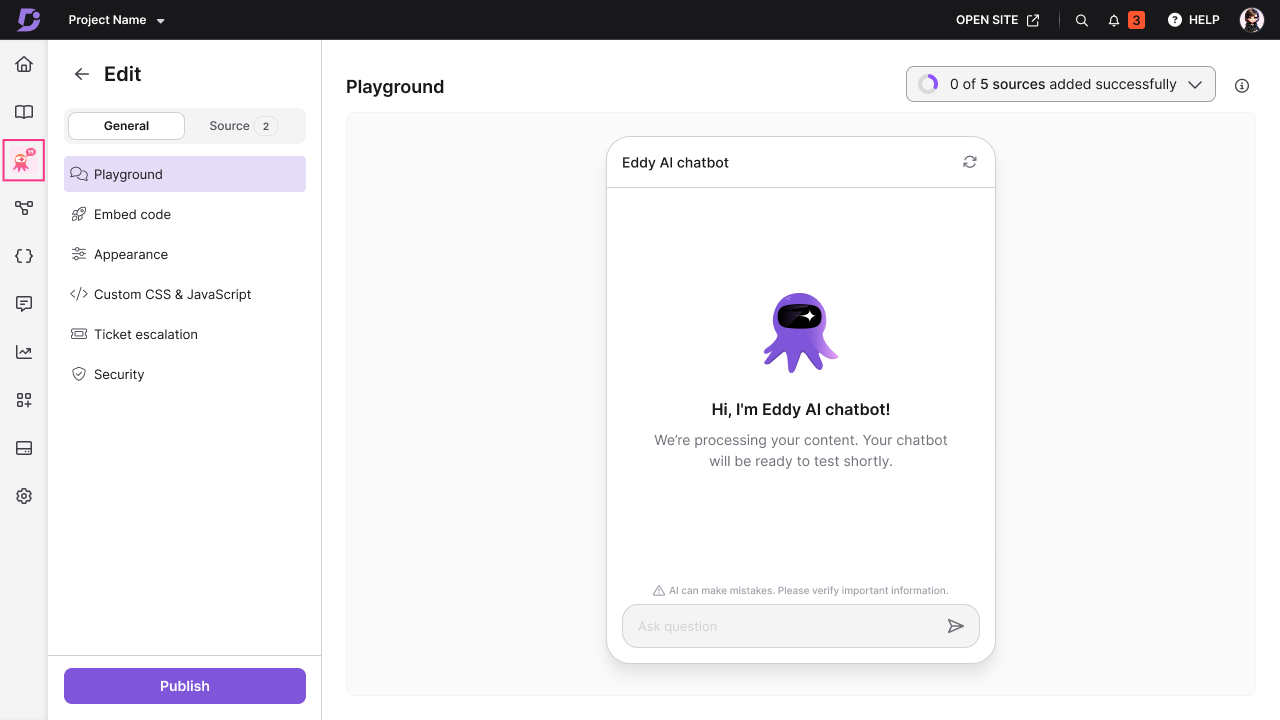
Eddy AI chatbot ( ) is now available as a standalone module in the left navigation bar. This new space lets you create and manage chatbots independently, giving you more flexibility and control over configuration.
You can now build chatbots that draw information from multiple sources, including your knowledge base, website pages, FAQs, text entries, and files (PDF, DOC, DOCX, or MD), as well as ticketing platforms such as Zendesk and Freshdesk. Each chatbot can be customized with a unique name, icon, background color, and greeting message to match your brand and tone.
A built-in playground allows you to test and refine the chatbot’s behavior before publishing it to your website, ensuring a smooth experience for your readers from the moment it goes live. Users can now also raise support tickets directly through the chatbot when additional help is needed.
Previously, chatbot functionality was available only as part of the Knowledge Base widget. With this update, chatbots are managed independently, giving you a dedicated space to create, configure, and test them.
For more information, read the article on Eddy AI chatbot.
Redesigned portal navigation and menu accessibility
Category: Knowledge Base Portal | Feature
The portal's left navigation bar and menu have been redesigned to make it easier for you to find tools and work more efficiently. Related features are now grouped together, and menu items have been moved to more logical locations to better match their functionality. The key changes include,
Content tools (
 ) has been moved to the left navigation bar for quicker access.
A new group called Connections (
 ), now houses Knowledge base widget, Integrations and Extensions in the left navigation bar.
Workflow Designer and Migrate Content are now available under the KB portal section in Settings (
 ).
).IP Restriction and Security have moved to the KB site section in Settings (
).Custom Pages are now grouped under Content resources in Content tools (
).Hovering over icons in the left navigation bar now displays available options without needing to click through each.
Updated menu and group names:
Previous name
Updated name
Localization & Workspace
Workspace & Localization
Users & Security
Users & Permissions
Team accounts & groups
Users & Groups
Site Access
Reader Access
SAML / OpenID
SSO Configuration
AI Features
AI Settings
Content Reuse
Content Resources
Documentation
Content Management
Import articles from PDF
Category: Knowledge base portal | Feature
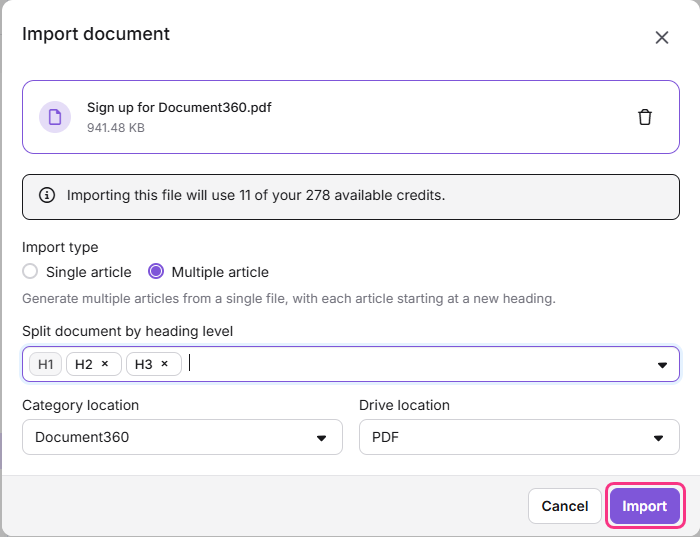
You can now import articles directly from PDF files, just like you can with Word documents. This feature makes it much easier to bring existing content into Document360 without the need to copy and paste. The structure and formatting of the PDF is preserved, including headings, lists, tables, and images.
During import, you can choose to create a single article or split the PDF into multiple articles based on heading levels. When splitting into multiple articles, Document360 automatically organizes the imported content based on the document’s heading structure. You can also choose the default Drive location where images from the PDF will be saved.
For more information, read the article on Importing articles from PDF.
Improved decision tree visibility in KB search
Category: Search | Enhancement
Decision Trees now appear more prominently in Knowledge Base search results when they are highly relevant to a user’s search query. Search ranking is based on relevance across key fields such as titles, tags, slugs, breadcrumbs, and descriptions, ensuring the most helpful result surfaces first, regardless of content type.
When a Decision Tree matches a search term as closely as, or more closely than, an article or API documentation, it will now appear higher in the results. This makes it easier for readers to discover guided troubleshooting flows and step-by-step decision paths at the right moment.
For more information, read the article on Viewing decision trees in the knowledge base site.
Other updates
The Knowledge base widget now loads more reliably even when embedded inside multiple nested iframes, such as in Microsoft Teams and SharePoint Framework (SPFx) web parts.
Table creation now supports a no-border option.
NOTE
Minor security updates, bug fixes, and performance improvements have also been implemented across the Knowledge base portal and Knowledge base site.