The article header is the section at the top of every article on your knowledge base site. It sits above the article content and displays contextual information and reader tools - such as who contributed to the article, how long it takes to read, and options to share, print, or download the article as a PDF.
All article header settings are configured globally from Article settings and apply to every article in your knowledge base. You cannot configure these settings for individual articles, categories, workspaces, or languages.
When to configure the article header
- When setting up a new knowledge base - enable the elements that match your reader experience goals before publishing. Each element is off by default in some configurations, so review them as part of initial setup.
- When readers need social proof - enabling Show contributors shows readers who wrote and reviewed an article, building trust in the content's accuracy.
- When your articles are long or technical - enabling Show read time estimate helps readers plan their time before starting a long article.
- When you want readers to stay informed - enabling Show Follow button lets readers subscribe to article updates and receive email notifications when the article is changed.
- When you need readers to share content - enabling Show share options gives readers a one-click way to share articles on LinkedIn, X (Twitter), Facebook, or via email.
- When you want to minimize distractions while reading - enabling Show focus mode lets readers collapse the navigation and side panels into a distraction-free reading view.
- When you want reader feedback to be more visible - enabling Show feedback form displays the "Was this article helpful?" prompt in the header instead of the footer, so readers can respond without scrolling to the end of the article.
How to configure the article header
- Navigate to Settings () > Knowledge base site in the left navigation bar of the Knowledge base portal.
- In the left navigation pane, navigate to Article settings.
- Expand the Article header section accordion.
- Turn on the toggles for the elements you want to display.
- Click Save.
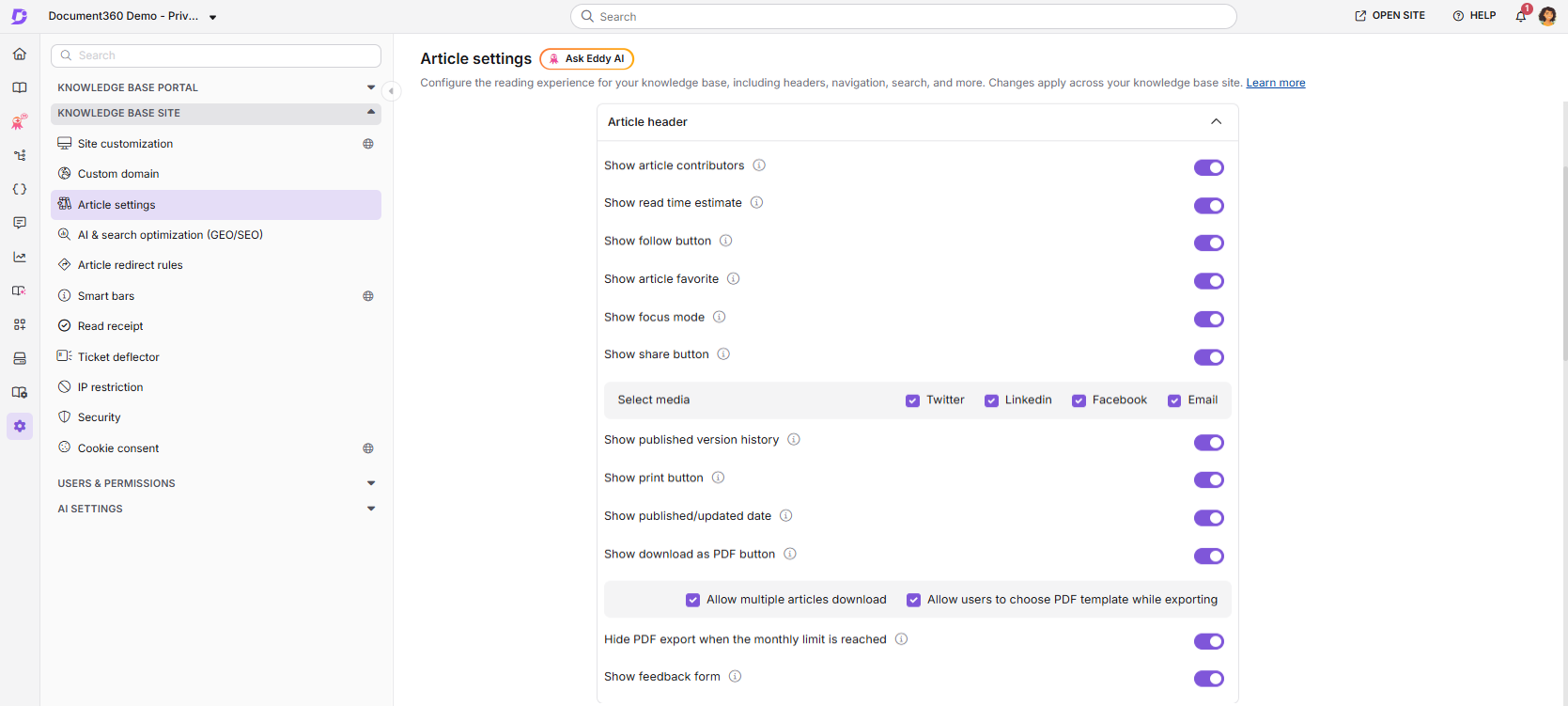
After enabling these options, view an article as a reader on the knowledge base site to confirm that each element displays as expected.
Article header elements
The following elements can be enabled or disabled from the Article header accordion:
| # | Element | What it does |
|---|---|---|
| 1 | Show article contributors | Displays a list of team members who contributed to the article. Readers can click a contributor's name to see all articles they have contributed to within the project |
| 2 | Show read time estimate | Displays an estimated reading time at a rate of 1 minute per 200 words |
| 3 | Show Follow button | Displays a Follow () button, allowing readers to subscribe to article updates. See Follow articles and categories |
| 4 | Show article favorite | Displays a star icon on articles, decision trees, API endpoints, and page categories, allowing logged-in readers to add or remove items from their favorites. Available only for private users (users, readers, and SSO users). Previously favorited items are restored when re-enabled |
| 5 | Show focus mode | Displays a Focus mode ( ) icon in the article header. When a reader clicks it, the left navigation and right panel (table of contents/attachments) collapse into overlays, giving a distraction-free reading view. |
| 6 | Show share button | Displays a Share () icon. When clicked, shows sharing options for X (Twitter), LinkedIn, Facebook, and Email — each can be turned on or off individually |
| 7 | Show published version history | The published version log displays a table of version history entries on the Knowledge base site, including the version number, publish date, publisher, and version summary for up to 10 selected published versions. |
| 8 | Show print button | Allows readers to click the More () icon to access a print option, which opens a print preview panel |
| 9 | Show published/updated date | Displays the article's publication date and last updated date |
| 10 | Show download as PDF button | Displays an Export PDF icon in the article header. Includes two sub-options: Allow multiple articles download (lets readers export multiple articles at once - single exports go to local storage, multiple exports are delivered by email and available in the Notifications section for 30 days) and Allow users to choose PDF template while exporting (lets readers pick a PDF template from those shown on the knowledge base site; if unchecked, the default template is used) |
| 11 | Hide PDF export when the monthly limit is reached | Controls whether the Export PDF icon disappears entirely or stays visible but disabled for readers once your monthly PDF export credits are used up. Available only when Show download as PDF button is enabled. |
| 12 | Show feedback form | Displays the feedback section ("Was this article helpful? with a like and dislike option") in the article header instead of the footer. Enabling this disables the corresponding footer toggle, since feedback can only appear in one location at a time. |
PDF exports from the knowledge base site draw from the same monthly credit allowance as bulk exports created from Content tools > Export articles. If PDF export is not included in your current plan, the Show download as PDF button toggle is unavailable. For more information, read Export articles as PDF.
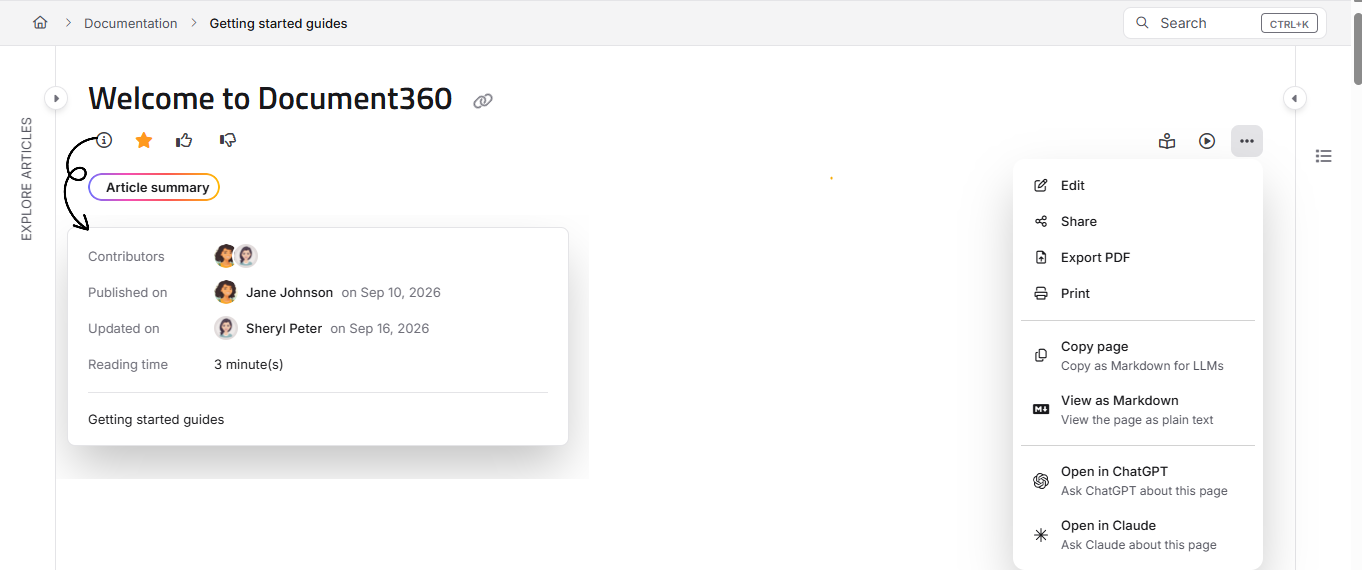
On new projects:
- Share and Export PDF are always accessed from the More (⋯) menu, regardless of screen size.
- Contributors, Published on/Updated on, and Reading time are consolidated into an info () icon, which readers can click to view all three together.
On existing projects, all of the above display individually and directly in the header, and Share/Export PDF only move into the More menu on smaller screens.
How to localize article header text
You can translate or customize the default text labels in the article header — such as "Updated on", "Published on", "Read time", "Contributors", "Follow", and "Share" — using the Localization variables feature.
- Navigate to Settings () in the left navigation bar of the Knowledge base portal.
- In the left navigation pane, navigate to Knowledge base portal > Workspace & localization.
- In the Localization variables tab, expand the Article header accordion.
- Select the desired language and update the text labels you want to customize.
- Click Save.
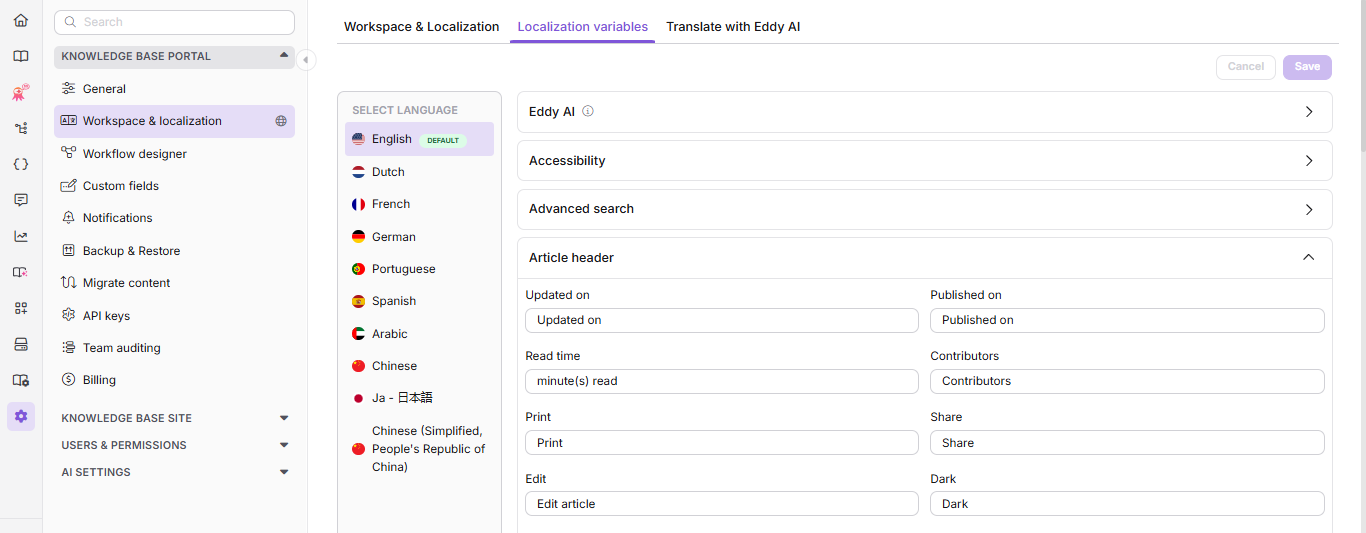
By default, the system localizes variables to the respective language. You only need to update them if you want to use custom text that differs from the default localization.
Best practices
- Enable Show contributors for team-authored knowledge bases - contributor attribution builds reader trust and gives credit to your team, especially on technical or compliance-sensitive articles.
- Enable Show read time for long-form articles - readers appreciate knowing how long an article is before they start. This is especially useful for tutorials, how-to guides, and API references.
- Enable Show follow button if your content is updated frequently - readers who follow articles receive email notifications on changes, reducing the need for readers to manually check for updates.
- Use the Favorite option for private knowledge bases - logged-in readers can bookmark frequently referenced articles, improving their return experience.
- Test header changes after enabling - header settings apply globally but render differently depending on article length and screen size. Always check a long article and a short article to verify the layout looks correct.
FAQ
How do I export a draft article as a PDF?
Navigate to the draft article in the Knowledge base portal. Click the More () icon near the share option. Click Export PDF to download a formatted PDF to your computer.
Can I hide contributor details from the knowledge base site?
Yes. Navigate to {{variable.Settings}} () > {{variable.Knowledge base site}} > Article settings. Expand the Article header section accordion and turn off the Show article contributors toggle.
How do I hide the Print option on the knowledge base site?
Navigate to {{variable.Settings}} () > {{variable.Knowledge base site}} > Article settings. Expand the Article header section accordion and turn off the Show print button toggle.
How do I hide the Export PDF option on the knowledge base site?
Navigate to {{variable.Settings}} () > {{variable.Knowledge base site}} > Article settings. Expand the Article header section accordion and turn off the Show download as PDF button toggle.
What happens to the Export PDF option when my PDF export credits run out?
It depends on the Hide PDF export when the monthly limit is reached toggle. If enabled, the Export PDF icon is hidden from readers once credits run out. If disabled, the icon remains visible but appears greyed out, and a popover is shown to readers until credits reset or more are added.
How do I set my default email application for the Share > Email feature?
When a reader clicks the Share icon and selects Email, it opens in the browser's default email application. To change this on Windows: open Settings > Apps > Default apps, search for Email, and select your preferred email client. Then scroll to Choose defaults by protocol, find MAILTO, and assign it to your email application. On macOS: open the Mail app, go to Mail > Settings (or Preferences) > General, and set your preferred Default email reader.
Why are email links (mailto:) opening a blank page instead of my email client?
This happens when your system does not have a default application configured to handle email links (the MAILTO protocol). This is a system-level setting and not an issue with Document360. Follow the steps in the FAQ above to set your default email application and assign the MAILTO protocol on Windows or macOS.