Localization variables are the text labels that appear across your Knowledge base site - things like button text, search bar placeholders, feedback prompts, and navigation labels. By default, these labels are pre-translated when you add a language to a workspace. You can customize them to use different wording, match your brand's voice, or override the default translation for any language including English.
Any changes you make apply consistently across all articles in your project for the selected language.
Before you begin
The language you want to edit must already be added to a workspace in your project. To add a language, navigate to Settings () > Knowledge base portal > Workspace & Localization.
Edit localization variables
- Navigate to Settings () in the left navigation bar of the Knowledge base portal.
- In the left navigation pane, go to Knowledge base portal > Workspace & localization.
- Select the Localization variables tab.
- In the Select language section, choose the language you want to edit.
- Expand the accordion for the area you want to update.
- Edit the text fields as needed and click Save.
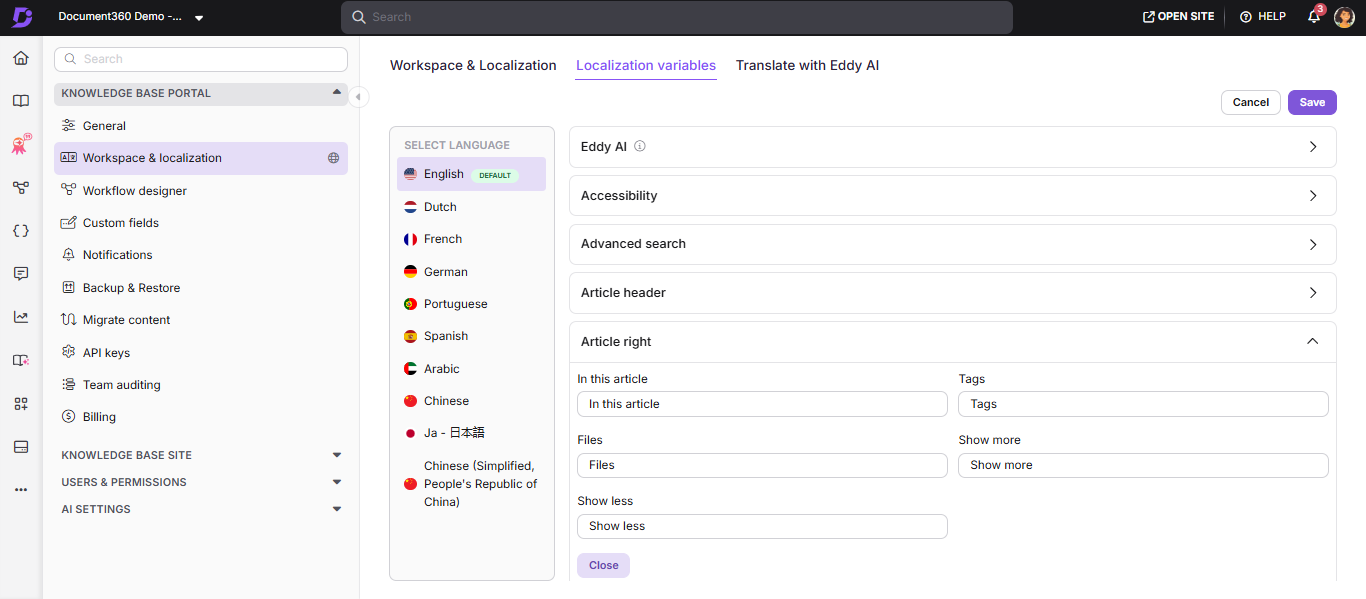
- Changes may take up to 15 minutes to appear on your Knowledge base site due to caching.
- For projects with multiple languages, update the localization variable text manually for each language.
- Changes apply across all workspaces in the project that use the specified language.
What you can customize
Variables are organized into accordions by area of the Knowledge base site. Each accordion contains the text fields relevant to that section - expand one to see what's available and make edits directly inline.
| Accordion | What it covers |
|---|---|
| General | Common labels used across the site such as search bar text, tags, contributor labels, and glossary text. |
| Eddy AI | Text in the AI assistive search panel, article summarizer, and AI-suggested related articles. Also applies to the Knowledge base widget. |
| Accessibility | Labels used by the Listen (read out loud) feature, including player states and error messages. |
| Ticket deflector | All text within the ticket deflector flow including questions, answers, and form validation prompts. |
| Feedback | The article feedback section at the bottom of every article, including the helpfulness prompt, response options, and follow-up messages. |
| Advanced search | Filter labels, search result messages, and placeholder text in the advanced search panel. |
| Article header | Labels at the top of every article including dates, read time, contributor text, and action buttons. |
| Article right | Section titles in the right pane of every article. |
| Article bottom | Navigation labels at the article footer. |
| Category manager | Status badges and follow/unfollow messages in the left navigation pane. |
| Export PDF | Text within the Export PDF flow including download status messages and delivery notifications. |
| Read receipt | All text in the acknowledgment flow including status labels and confirmation messages. |
| Interactive decision trees | Labels on published decision tree pages including dates, contributors, and navigation controls. |
| Widget | Text within the Knowledge base widget including search prompts and navigation text. |
| Article content | Labels used within article content areas including sorting and filtering controls. |
| Favorites | Labels used in the Favorites section of the left navigation pane. |
FAQ
How do I update the variable text in the search bar for a specific language?
Navigate to Settings () > Knowledge base portal > Workspace & localization > Localization variables. Select your language, expand the General accordion, and update the Search field. Click Save.
How do I rename the "In this article" label on the Knowledge base site?
Navigate to Settings () > Knowledge base portal > Workspace & localization > Localization variables. Select your language, expand the Article right accordion, and update the In this article field. Click Save.