The feedback form is what readers see when they rate an article on your Knowledge base site or in the Knowledge base widget. You can change the wording of every label in the form, rename the dislike reasons, and set the order readers see them in, so the form uses your own terminology and tone. All changes are made on one page, per language, with a live preview of the form as readers see it.
When to customize the feedback form
Customize the feedback form when you want to:
- Rename the dislike reasons to match your content, for example "Need more information on this endpoint" for API documentation.
- Show the most relevant dislike reason first.
- Reword prompts, buttons, and messages to match your brand's tone.
- Add a consent note that tells readers how their email address is used, with a link to your privacy policy.
- Translate the form for each language in your knowledge base.
Before you begin
- You need the Project settings permission in your portal role to view and edit this page.
- To customize the form for a language, the language must already be added to a workspace in your project.
What you can customize
The Feedback page is divided into five sections. Each field shows the default Document360 text next to its label, so you can always see the original value.
| Section | What it controls |
|---|---|
| Comment form | The heading, comment box placeholder and label, optional and character limit hints, the Leave a feedback label, and the comment error message. |
| Reasons | The dislike reasons readers can select, and their order. |
| Email capture | The email field label, prompt, and error message, the Notify me about updates and Notify me about change labels, and the consent note. |
| Confirmation | The thank you heading and message, the Submit and Cancel buttons, and the message shown when a reader closes the dislike form without a comment. |
| Rating prompt | The Was this article helpful? question, the Yes and No options, and the messages shown when a reader removes a like or dislike. |
Feedback form labels are no longer edited in Localization variables. The Feedback section on that page now links to the Feedback page. Eddy AI feedback labels are still managed in the Eddy AI section of Localization variables.
Customize the feedback form
- Navigate to Settings () in the left navigation bar of the Knowledge base portal.
- In the left navigation pane, go to Knowledge base site > Feedback form (). The Feedback page appears.
- From the language dropdown at the top, select the language you want to customize. Each language starts with pre-translated default labels, so you only need to change the ones you want to reword.
- Edit the text in any field. The Preview - Article panel updates as you type, so you can check the form before you save. The preview is read-only, and nothing in it is submitted.
- Click Save. If you renamed or reordered a reason, a Confirmation dialog appears. For details, see Rename or reorder feedback reasons.
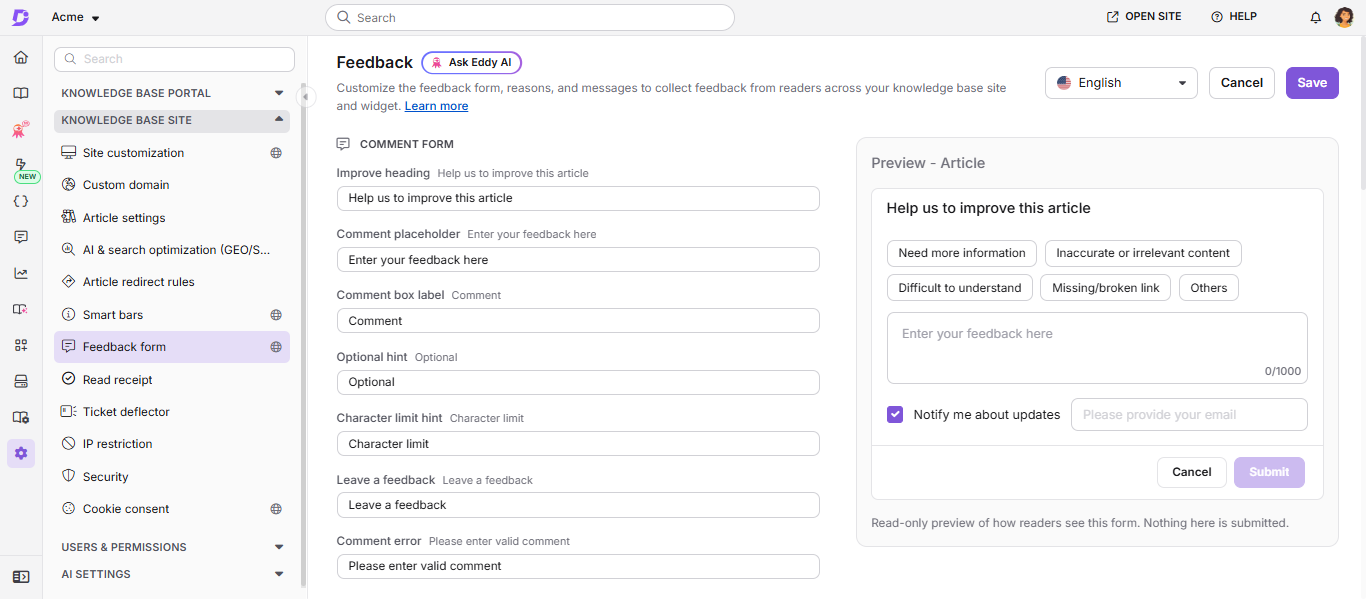
Your changes apply to the selected language only. Readers see the updated labels on the Knowledge base site and in the Knowledge base widget as soon as you save.
If you click Cancel or switch languages with unsaved changes, a prompt asks you to confirm. Click Yes to discard your changes, or No to keep editing.
Rename or reorder feedback reasons
Readers see the dislike reasons when they click No on an article. There are four reasons and Others:
- Need more information
- Inaccurate or irrelevant content
- Difficult to understand
- Missing/broken link
- Others
You can rename all five. You can reorder the first four. Others always appears last, and readers who select it must enter a comment. This applies even if you rename Others.
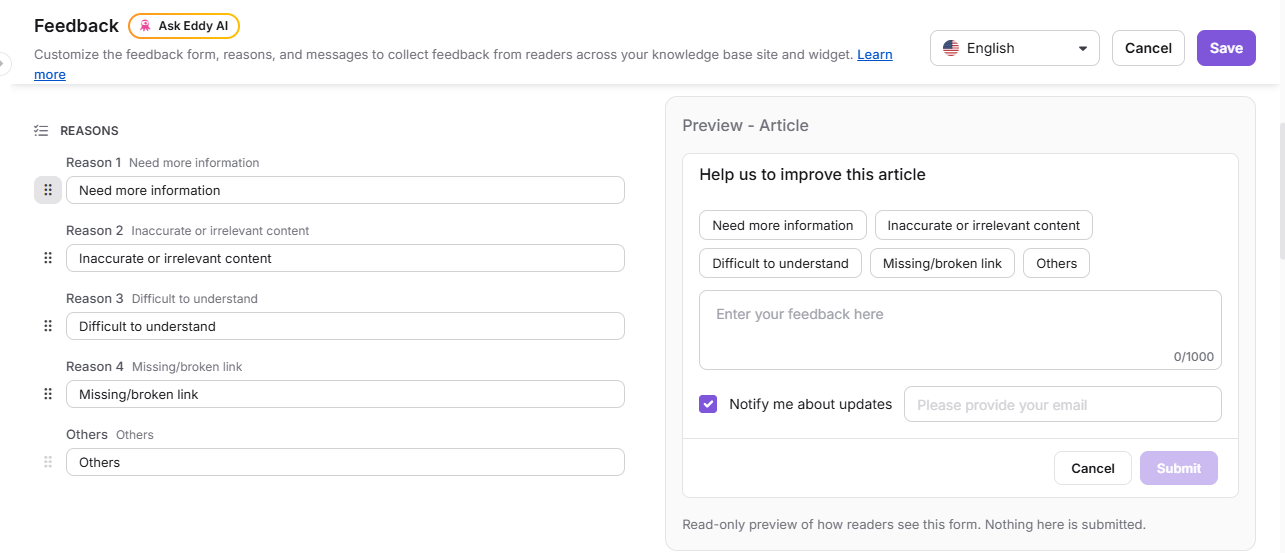
Rename a reason
- In the Reasons section, enter the new name in the reason's field.
- Check the new name in the preview, then click Save.
Reason names are set per language. To rename a reason in another language, select that language and repeat the steps.
Reorder reasons
- In the Reasons section, drag a reason by its handle () to a new position. You can also click the handle and select Move up or Move down.
- Check the new order in the preview, then click Save.
The reason labels (Reason 1, Reason 2, and so on) follow the new positions. The original default name of each reason stays visible next to its label.
Confirm your changes
When you save a rename or a new order, a Confirmation dialog appears before the change is applied.
| If you | The dialog shows | To apply the change |
|---|---|---|
| Rename a reason | A warning and a table listing the Current reason, the Updated reason, and the number of feedback responses already tagged with that reason | Click Proceed. |
| Reorder reasons | A message that the new order applies to all languages | Select Apply the reordered feedback reasons across all languages, then click Proceed. |
| Rename and reorder | The rename warning and table, and the checkbox | Select the checkbox, then click Proceed. |
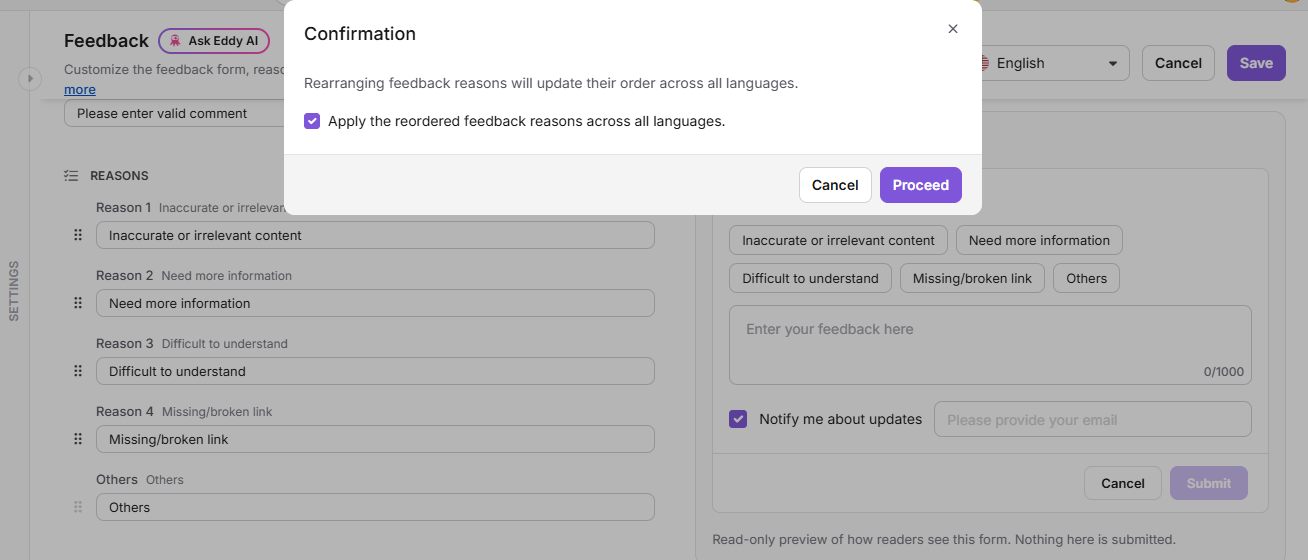
A renamed reason replaces the old name everywhere it appears, including feedback readers submitted before the rename. The new name appears in the feedback form, in the Feedback manager, and in Analytics. Check the feedback count in the dialog before you click Proceed.
Customize the consent note
The consent note appears as a tooltip on the information icon () next to Notify me about updates. Use it to tell readers how their email address is used.
- In the Email capture section, click Customize next to Consent note. The Tooltip text dialog opens.
- Enter your text. You can use bold, italic, underline, and links, for example a link to your privacy policy. The consent note is limited to 250 characters.
- Click Update.
- Click Save.
The default consent note is "This email address will be used for feedback-related communication and analytics."
Readers on public projects enter their email address manually. For private and mixed projects, the email field is prefilled for signed-in readers.
Best practices
- Keep reason names short and specific. Readers scan the options, so a few words work better than a sentence.
- Put the reason your readers select most often first.
- Review the feedback count in the Confirmation dialog before renaming a reason. A large count means the new name will change how existing feedback reads in reports.
- Rename a reason only when its meaning stays the same. Changing "Difficult to understand" to "Code example is incorrect" relabels every past response tagged with that reason.
- Customize each language separately, and check the preview in each language before saving.
- Add a link to your privacy policy in the consent note if you collect reader email addresses in regions with privacy regulations.
FAQ
Where did the Feedback section in Localization variables go?
Feedback form labels are now managed on the Feedback page under Settings > Knowledge base site > Feedback form (). The Feedback section in Localization variables shows a message with a link to this page. Labels you customized before are carried over.
Does renaming a reason change feedback that readers already submitted?
Yes. The new name replaces the old one for all feedback tagged with that reason, including feedback submitted before the rename. The Feedback manager and Analytics show the new name.
Can I set a different reason order for each language?
No. The reason order applies to every language in your project. You can set different reason names for each language.
Can I add more reasons or remove one?
No. You can rename the five reasons and reorder the first four, but you can't add or remove reasons.
How many characters can readers enter in the feedback form?
Readers can enter up to 1,000 characters in the comment box.
Is there a character limit for the labels I customize?
Yes. Each label on the Feedback page has a limit of 50, 100, or 200 characters, depending on the field. When you reach the limit, the field doesn't accept more text. The consent note is limited to 250 characters.
Do these labels apply to Eddy AI feedback?
No. The feedback form on this page applies to article feedback on the knowledge base site and in the Knowledge base widget. To customize the labels readers see when they give feedback on an Eddy AI response, use the Eddy AI section in Localization variables.
Can I see who changed the feedback form?
Yes. Every save on the Feedback page is recorded in Team auditing under the Feedback form updated event. Each entry shows the field that changed, who changed it, when, and in which language. To record these events, turn on Knowledge base site settings in the Audit configuration tab.