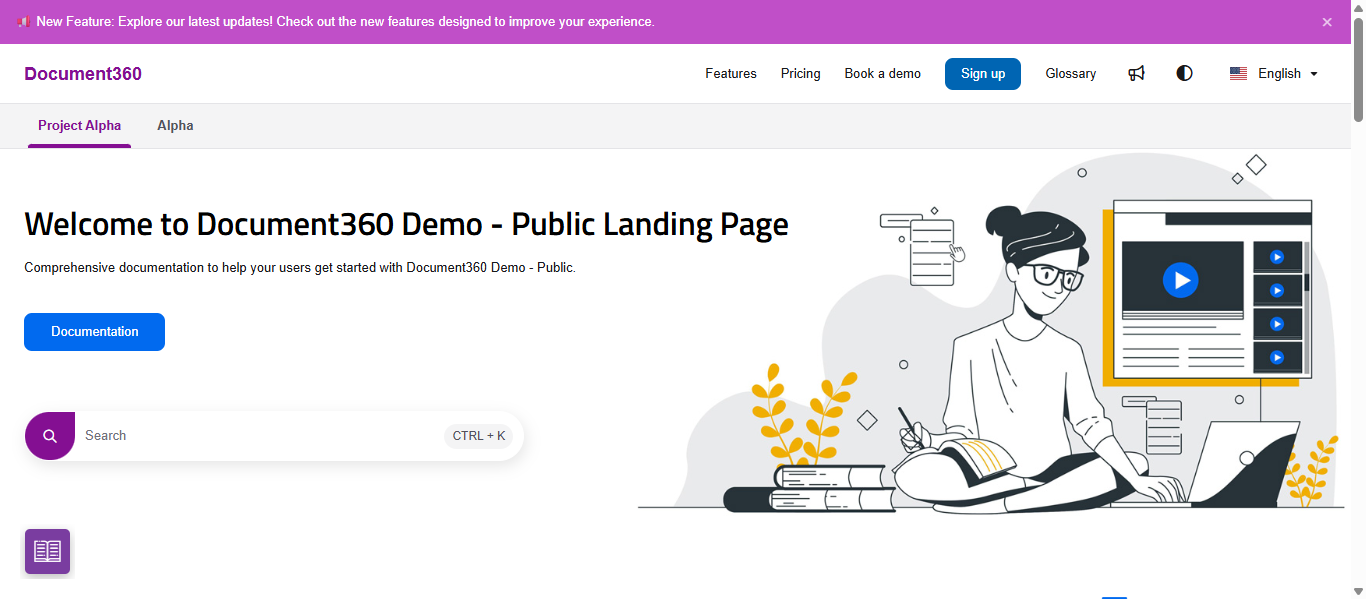
Smart bars in Document360, similar to an announcement bar, banner bar, alert bar, or notification bar — let you display customizable announcement banners across your Knowledge base site. Each bar can carry any message — a feature release, a maintenance window, a localized promotion — and can be targeted by URL, browser, device, IP address, or language so it appears only where it's relevant.
When to use smart bars
Use Smart bars when you need to surface a time-sensitive message without editing article content:
- Announce a product update or new feature to all readers the moment it launches.
- Display a maintenance or downtime notice at the top of every page.
- Show a localized message in a specific language version of your knowledge base.
- Redirect readers to a support form or ticket deflector during high-traffic periods.
Smart bar overview
Navigate to Settings > Knowledge base site > Smart bars to open the overview page.
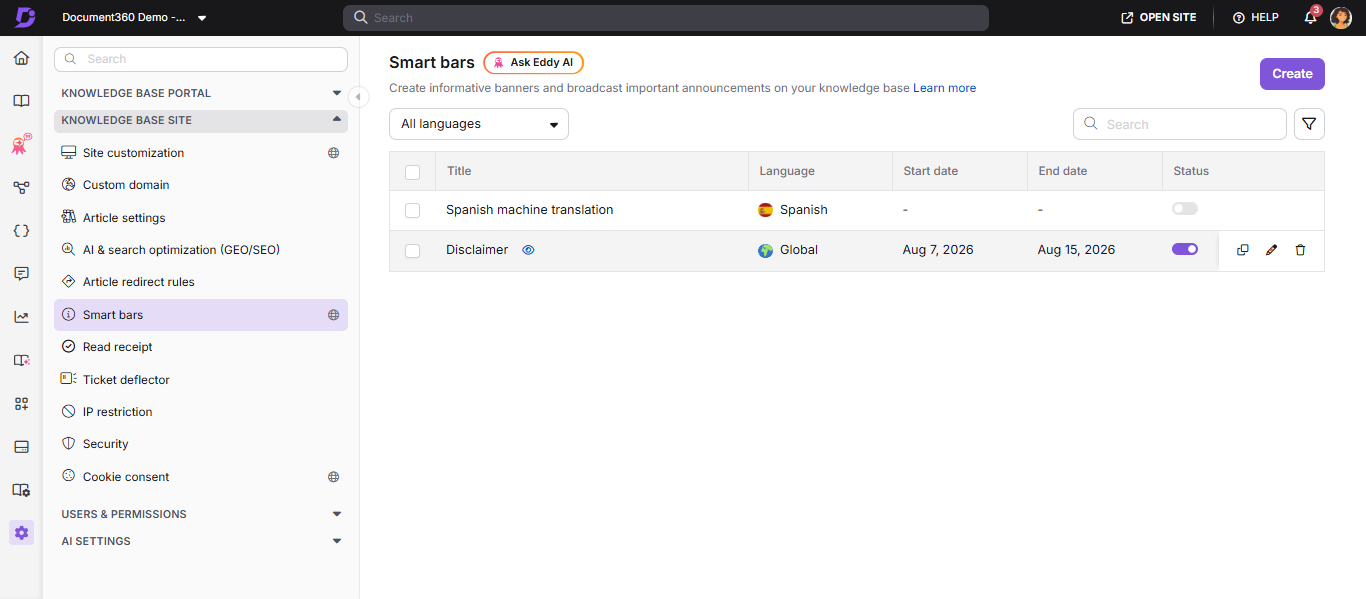
The overview page includes the following elements:
| Element | Description |
|---|---|
| Create | Opens the Create smart bar panel to create a new Smart bar. |
| All languages | A dropdown filter above the list. Select a language to show only the Smart bars configured for it, or leave it on All languages to see every bar. |
| Search | Search the list by bar title. |
| Filter () | Opens additional filters for the list. |
| Title | The bar's internal name. |
| Preview () | An eye icon that appears next to the bar's title when you hover over the row. Click it to preview the bar without opening it for editing. |
| Language | The language the bar targets, or Global if it targets all languages. |
| Start date / End date | The scheduled active window for the bar, if one is set. Shows - if no dates are configured. |
| Status | Toggle that activates or deactivates a Smart bar. A deactivated bar does not appear on the site. |
| Duplicate () | Create a new bar with all of the selected bar's settings copied over, which you can edit before saving. |
| Edit () | Opens the panel for editing. |
| Delete () | Permanently remove the bar. |
How to create a smart bar
- Navigate to Settings () in the left navigation bar of the Knowledge base portal.
- In the left navigation pane, go to Knowledge base site > Smart bars.
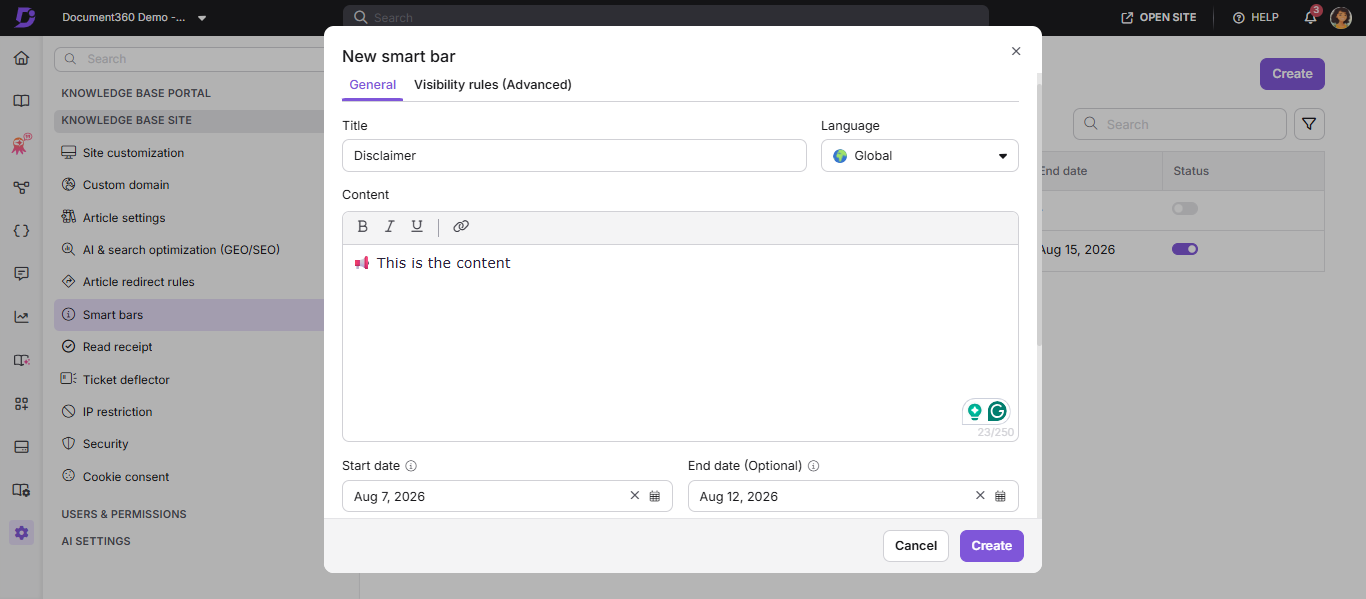
- Click Create. The Create smart bar panel opens, with two tabs: General and Visibility rules (Advanced).
- On the General tab, in the Title field, enter a name for the bar.
The title is internal only and does not appear on the knowledge base site.
- From the Language dropdown, select Global to show the bar across all languages, or select a specific language to target only that version of the knowledge base.
Configuring the content
- In the Content field, enter your message using the inline formatting toolbar (bold, italics, underline, hyperlink). Messages are limited to 250 characters.
- Optionally set a Start date and an End date. Leave End date blank to keep the bar active indefinitely once its start date is reached.
- Use the Allow user to close toggle to control whether readers can dismiss the bar. It's on by default.
Customizing the appearance
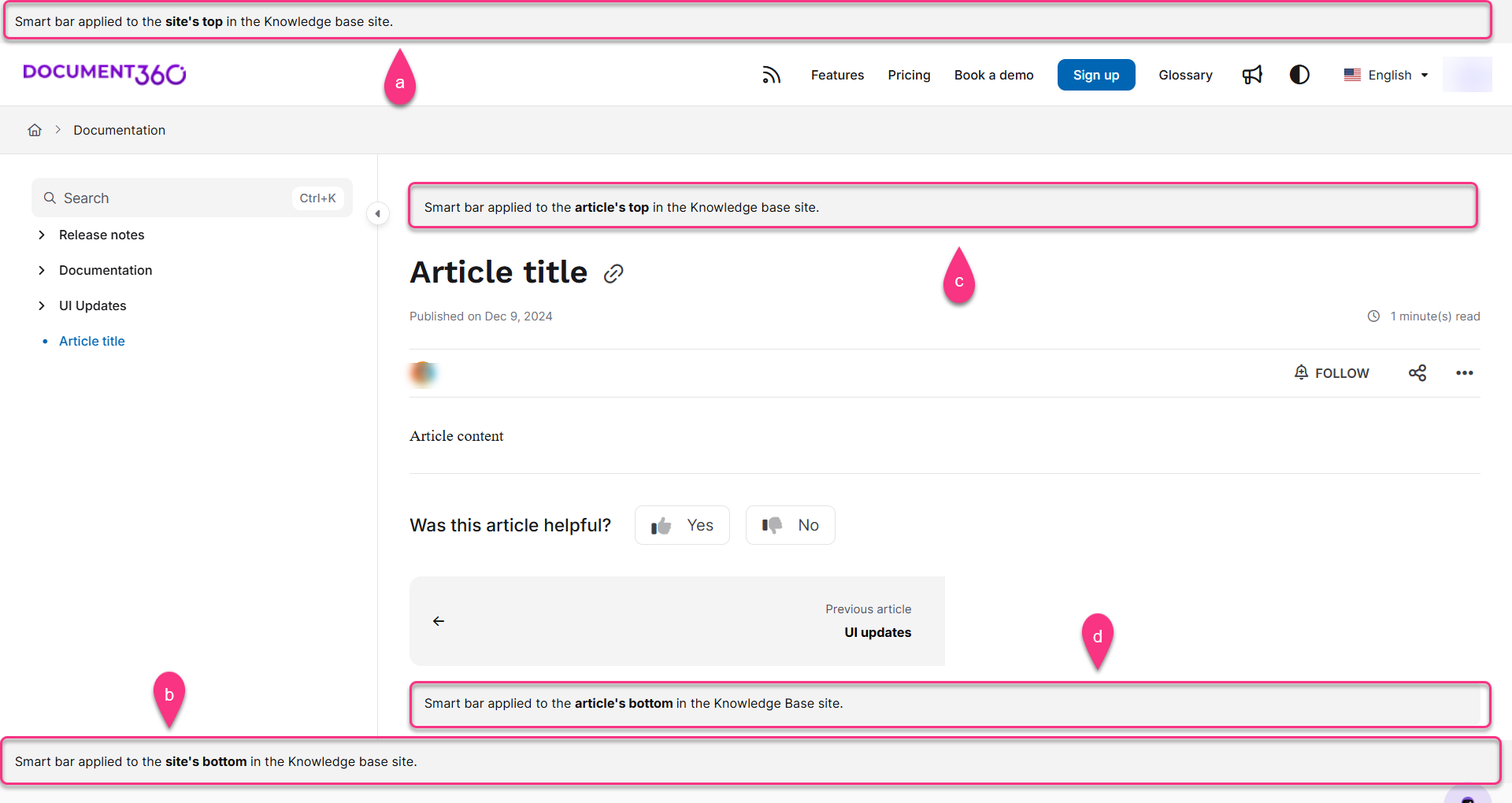
- Under Appearance, in the Position field, select one of four positions:
| Position | Where it appears |
|---|---|
| Site top | Above the site header, on every page. |
| Site bottom | Below the site footer, on every page. |
| Article top | Above the article body, on article pages only. |
| Article bottom | Below the article body, on article pages only. |
- Choose a Text alignment for the message: left, center, or right.
- Choose a Background color from the preset color swatches, or click the custom color swatch to set your own color using the color picker or by entering a Hex value. Use the live preview on the right to see how the bar will look before saving.
Setting visibility rules (optional)
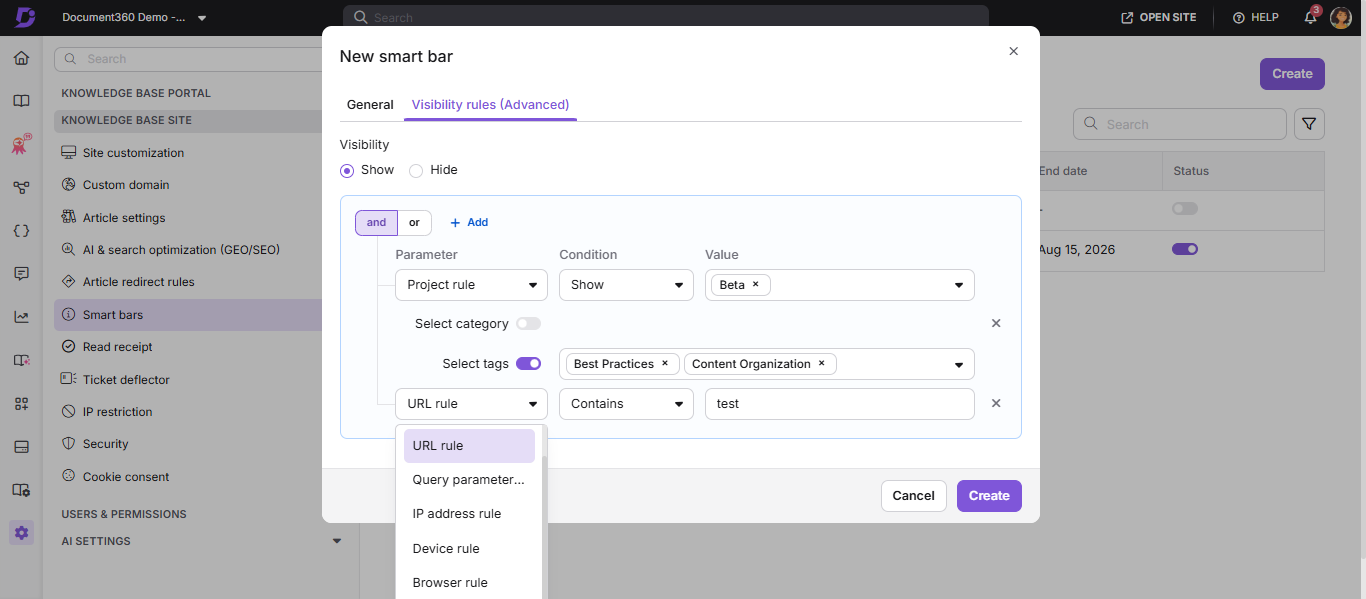
- Click the Visibility rules (Advanced) tab.
- Select Show or Hide to set whether the bar displays or is hidden when the conditions below are met.
- Click Add and choose a Parameter for the rule:
| Parameter | What it controls | Example |
|---|---|---|
| URL rule | Show or hide based on specific URL patterns. | Display a banner only on product pages. |
| Query parameter | Match URL query parameters. | Show a campaign bar when a specific query string is present. |
| IP address rule | Target a specific IP or CIDR range. | Show an internal update bar only to office network IPs. |
| Browser rule | Target by browser type. | Display a compatibility warning for users on older browsers. |
| Device rule | Target desktops, mobiles, or tablets. | Show a mobile app download prompt only on mobile. |
| Project rule | Target by workspace, and optionally by category or tags within it. | Announce a feature to readers in a specific category. |
| Language rule | Target a specific language version of the knowledge base. | Show a localized message for a specific language. |
- When combining multiple rules, select the logic operator:
- AND — all conditions must be true.
- OR — any one condition must be true.
- To remove an individual rule, click the X next to it.
- Click Create. The new Smart bar appears on the overview page and goes live immediately if its status toggle is on.
How to edit a smart bar
- Navigate to Settings > Knowledge base site > Smart bars.
- Hover over the bar you want to modify and click the Edit icon.
- Update the title, content, appearance, or visibility rules as needed.
- Click Update. The changes take effect immediately for active bars.
How to duplicate a smart bar
- Navigate to Settings > Knowledge base site > Smart bars.
- Hover over the bar you want to duplicate and click the Duplicate icon.
- The New smart bar panel opens, pre-filled with the original bar's title (prefixed with "Copy of"), language, content, start/end dates, allow-user-to-close setting, appearance (position, text alignment, background color), and visibility rules.
- Review and edit any fields as needed — nothing is saved yet at this point.
- Click Create to save the duplicate as a new, separate Smart bar, or Cancel to discard it.
Duplicating a bar copies its visibility rules as well — including all configured Parameter, Condition, and Value combinations. Review the Visibility rules (Advanced) tab on the duplicate before creating it, especially if the original bar used a URL or query-parameter rule you don't want reused as-is.
How to delete a smart bar
- Navigate to Settings > Knowledge base site > Smart bars.
- Hover over the bar you want to remove and click the Delete icon.
- In the confirmation prompt, click Yes. The bar is permanently removed.
Best practices
- Keep bar messages short — one sentence is ideal. Readers scan banners; they don't read paragraphs.
- Use a CTA link in the message to direct readers to a relevant article or ticket deflector rather than putting all the detail in the bar.
- Prefer Article top position for content-specific notices and Site top for site-wide alerts so readers see the right level of urgency.
- Deactivate a bar rather than deleting it if the announcement is seasonal and may recur — you can reuse the configuration next time.
- Use visibility rules to limit scope: a maintenance notice only relevant to one product section should target that category's URL, not the entire site.
- Test each bar using the Preview action before activating it in a production knowledge base.
FAQ
Can I run multiple smart bars at the same time?
Yes. You can have several active Smart bars simultaneously. If bars share the same position (such as site top), all active bars at that position appear stacked. Use visibility rules to avoid conflicting or redundant messages.
Does the bar title show up on the knowledge base site?
No. The title is internal and only visible in the Settings panel. Use a title that helps your team identify the bar's purpose, such as "June maintenance window" or "EN - new feature announcement".
Can I show a smart bar in one language only?
Yes. From the Language dropdown, select the specific language instead of Global. The bar will only appear in that language version of the knowledge base site.