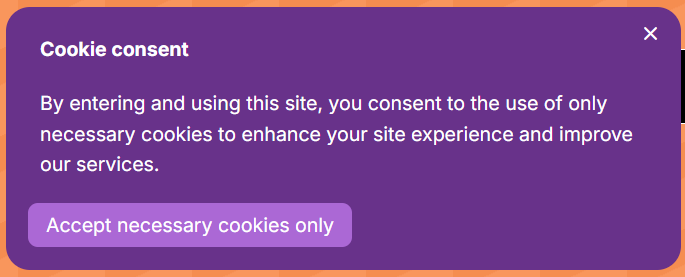
Cookie consent in Document360 lets you display a consent banner or popup to readers before they browse your Knowledge base site. Since the EU's General Data Protection Regulation (GDPR) came into effect, notifying visitors about cookie use has become a legal requirement for most public-facing websites. You can customize the message, design, position, and language of the consent banner directly from the portal.
How to configure cookie consent
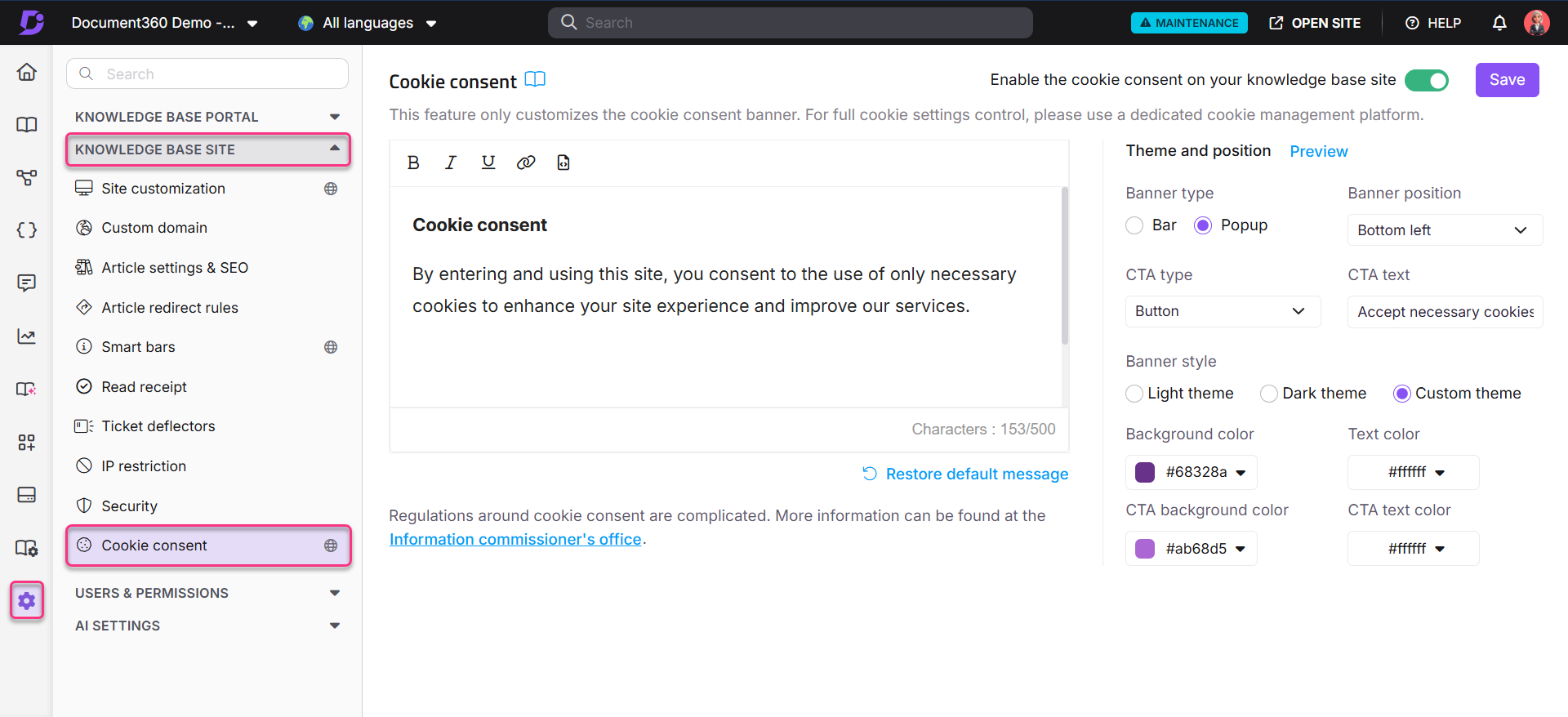
- Navigate to Settings in the left navigation bar of the Knowledge base portal.
- In the left navigation pane, go to Knowledge base site > Cookie consent. The Cookie consent page appears.
- Turn on the Enable the cookie consent on your knowledge base site toggle and click Save. The cookie consent banner becomes immediately visible to readers.
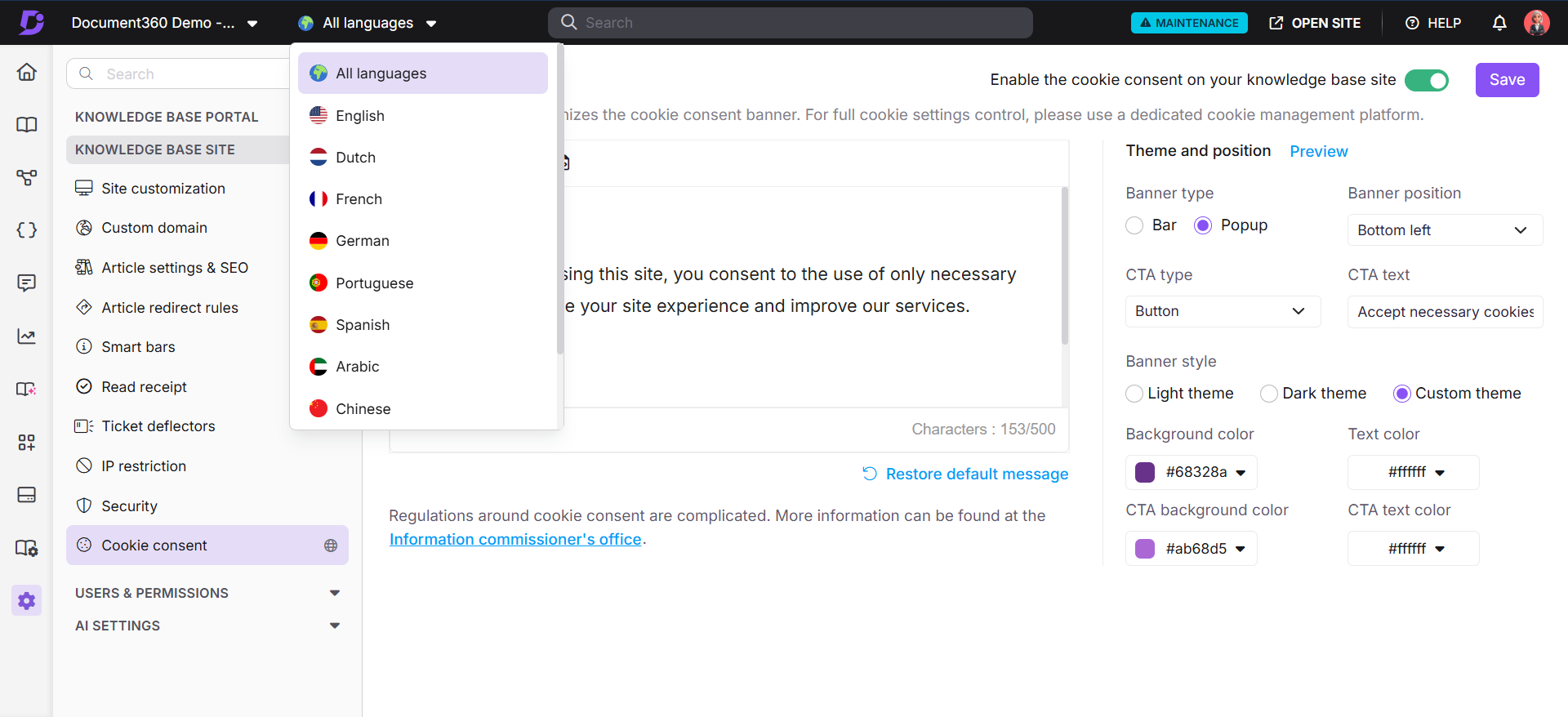
Select language
- From the language selector at the top, choose All languages to display the consent message across every language version of your knowledge base, or select a specific language to show it only in that version.
If no separate cookie consent is configured for a specific language, the All languages version is shown to readers in that language by default.
Content
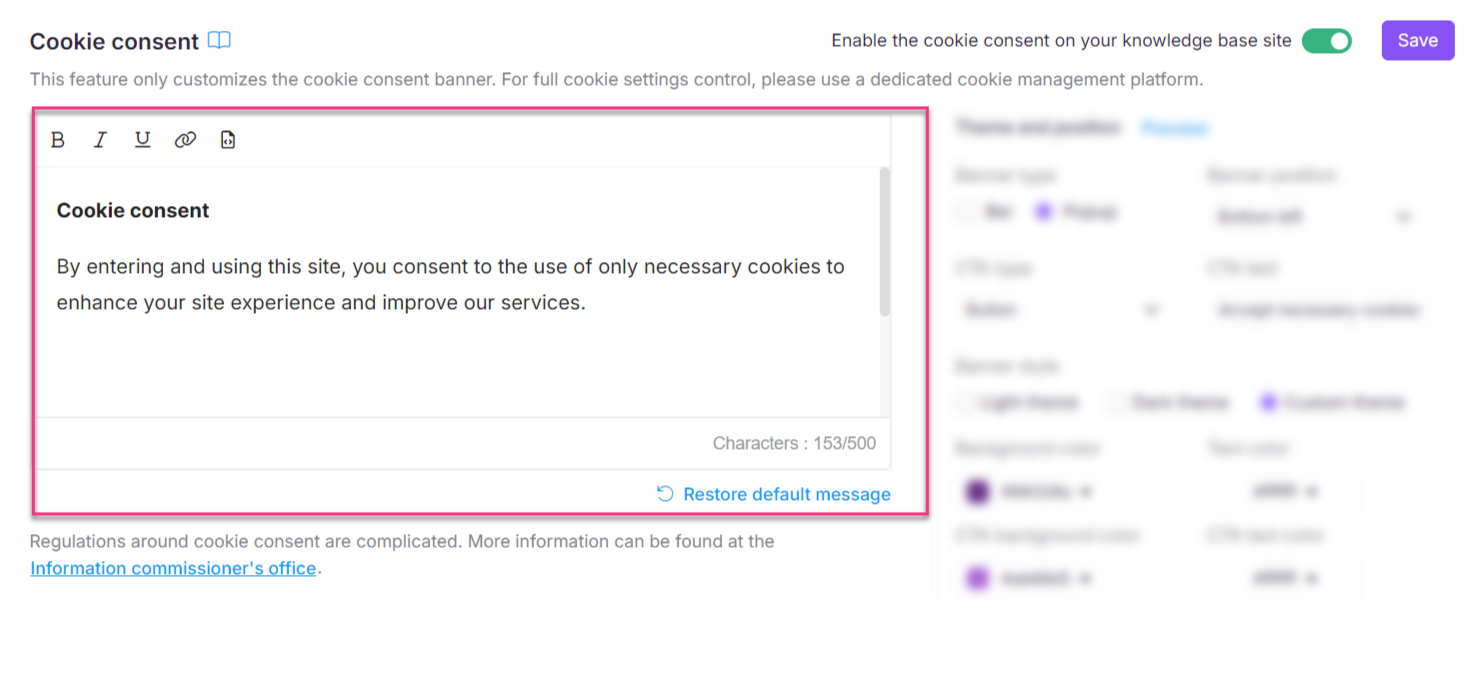
- Enter your cookie consent message in the Content field using the inline formatting toolbar (bold, italics, underline, hyperlink, code view). There is no character limit.
- To revert to Document360's default message, click Restore default message at the bottom of the content field.
Theme and position
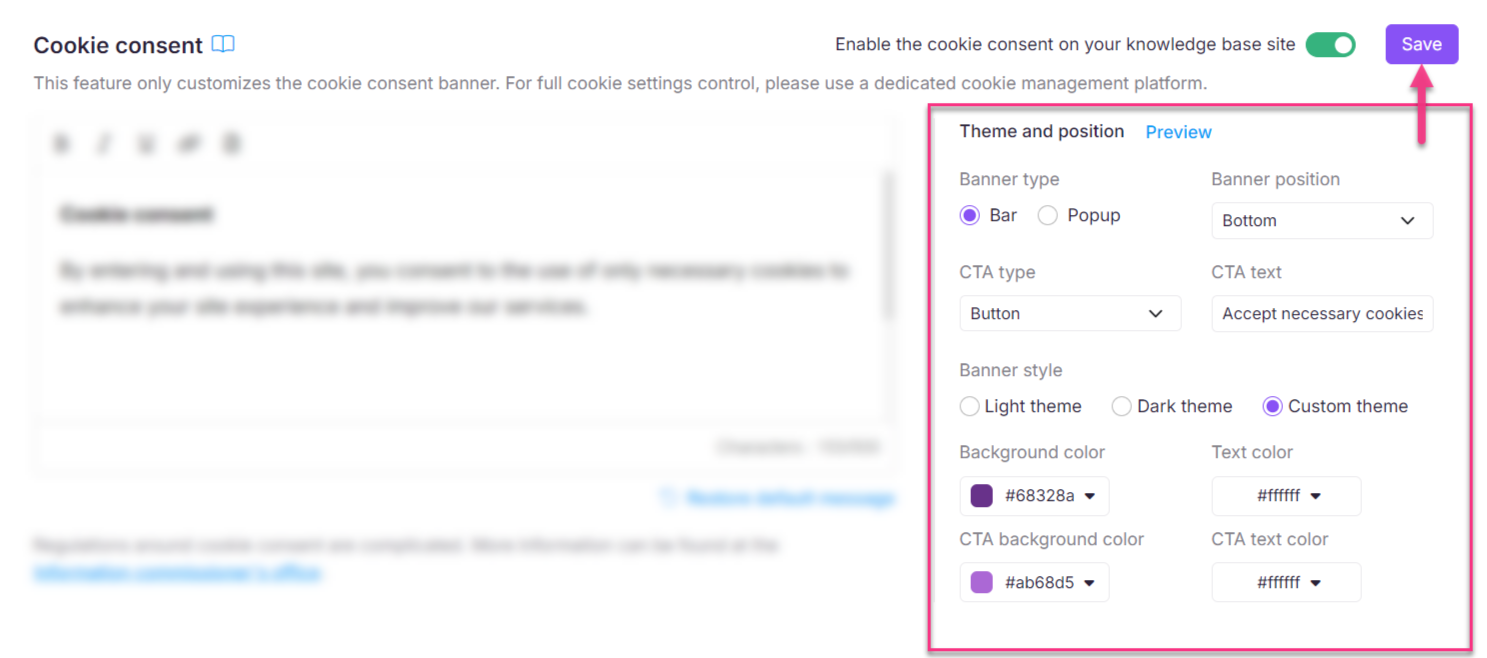
- In the Banner type field, select either Bar or Popup.
- Set the Banner position based on the type selected:
| Banner type | Available positions |
|---|---|
| Bar | Top or Bottom of the page. |
| Popup | Top left, top center, top right, bottom left, bottom center, or bottom right. |
- In the CTA type field, select how the acceptance control appears: Text, Button, or Icon.
- In the CTA text field, enter the label for the acceptance control (for example, "I understand" or "Accept").
- In the Banner style field, select a color theme:
- Light theme — white background, black text.
- Dark theme — black background, white text.
- Custom theme — set background color, text color, CTA background color, and CTA text color using the color picker or by entering Hex, RGB, or HSL values.
- Click Preview to see how the banner will look to readers before saving.
- Confirm the Enable the cookie consent on your knowledge base site toggle is on, then click Save.
If you navigate away without clicking Save, a warning prompt appears. Unsaved changes will be lost if you choose to leave.
Limits
- Region-specific customization (EU vs. non-EU audiences) is not supported. You can only scope consent messages by language, not by geography.
- All cookies set by Document360 are essential to the platform's functionality. There is no option for readers to decline or turn off individual cookies from within the built-in banner.
- Document360 does not have native integrations with third-party cookie management platforms such as OneTrust or Cookiebot.
Best practices
- Write your consent message in plain language — avoid legal jargon that readers will skip. State clearly what cookies you use and why.
- Use a Button CTA rather than text or icon for the acceptance control; buttons have higher click-through rates and make the consent action unambiguous.
- Set distinct consent messages for each project language rather than relying on the All languages fallback, so the message reads naturally for every audience.
- Click Preview before saving whenever you change the theme or position, particularly after switching between bar and popup, to verify the layout on your site.
- If your organization requires granular cookie controls or region-specific compliance, embed a dedicated cookie management platform using the Custom HTML section under Integrations settings.
FAQ
Can readers decline cookies from the built-in banner?
No. The built-in cookie consent banner is a notification-only control. All cookies set by Document360 are essential to platform functionality and cannot be turned off. If you need a consent system that lets readers accept or decline individual cookie categories, embed a third-party cookie management platform using the Custom HTML section under Integrations settings.
Can I show different consent messages for EU and non-EU readers?
Not directly. Document360 supports per-language cookie consent messages but not per-region targeting. As a workaround, use a third-party cookie management platform embedded via the Custom HTML section if region-specific consent flows are required.
Can I use my organization's existing cookie consent system instead?
Yes. If you already have a cookie consent system, you can embed it into your knowledge base by adding the relevant JavaScript to the Custom HTML section under Integrations settings. This lets you display your own consent UI in place of Document360's built-in banner.
What happens if I don't add a language-specific consent message?
Readers in that language will see the All languages consent message. To avoid showing a mismatched or untranslated message, create a dedicated consent message for each language your knowledge base supports.