This guide walks you through publishing your first API reference in Document360, from uploading your spec file to a live, interactive developer portal.
By the end of this article you will have:
- An API reference generated from your OpenAPI specification
- Your endpoints visible and browsable by developers
- The Try It! interactive console ready for live API testing
API documentation is available on all paid plans. Each paid plan includes one API workspace. Additional workspaces can be purchased as add-ons.
Prerequisites
Before starting, make sure you have:
- A Document360 subscription.
- An API specification file in one of these formats: OpenAPI 3.2, OpenAPI 3.1, OpenAPI 3.0, OpenAPI 2.0, or Postman Collection, either as a local file (JSON, YAML, or YML) or hosted at a URL you'll import from.
- Access to the Knowledge base portal with permissions to create content.
If you do not have a spec file yet, you can still follow this guide using the sample Pet Store API file that Document360 provides. You will be prompted to use it during setup.
Navigate to the API documentation workspace
- Log in to Document360 and open your project in the Knowledge base portal.
- In the left navigation bar, click API documentation
{ }. This opens the dedicated API workspace, separate from your standard knowledge base. - In the top navigation bar, click the Create dropdown and select New API. This opens the New API reference window.
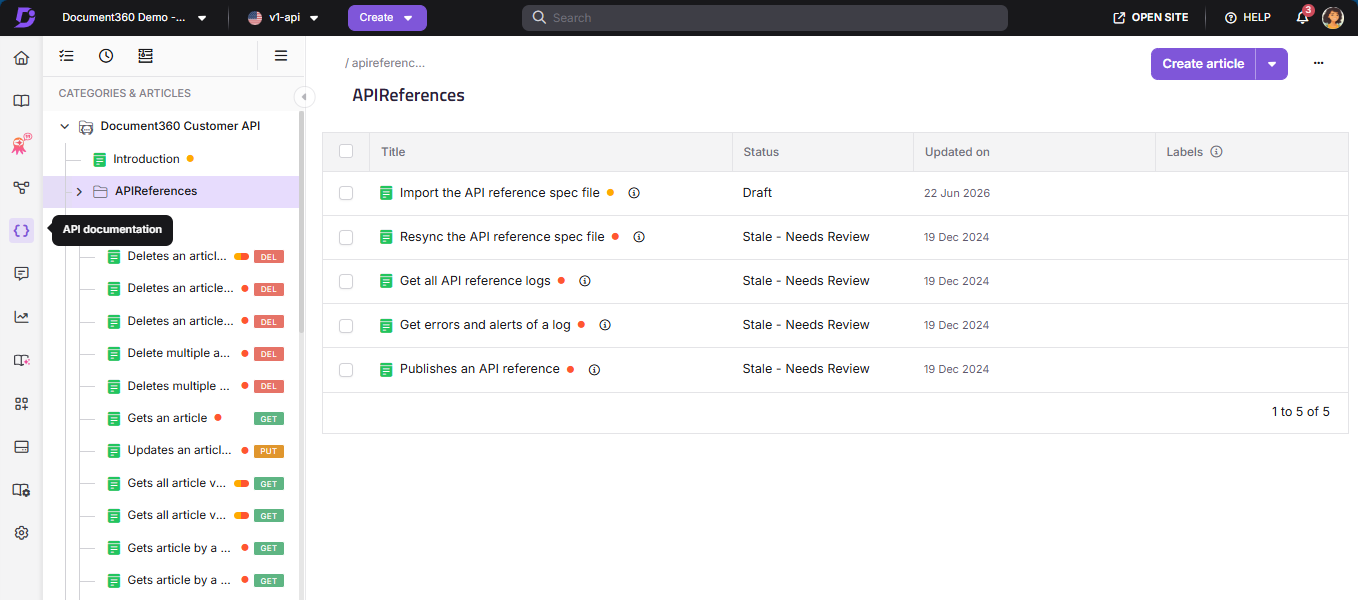
You can create a maximum of 3 API references within each API workspace.
Choose how to import your spec
Document360 supports two ways to import your spec file: file upload and URL import. The CI/CD flow is not a separate import method; it is a way to automate either of these two methods so that your documentation updates automatically whenever your spec changes.
| Method | When to use it | How it works |
|---|---|---|
| File upload | You have the spec file locally as JSON, YAML, or YML. | Upload the file directly. Best for getting started quickly or for infrequent updates. |
| URL import | Your spec is hosted at a stable public or internal URL. | Point Document360 to the URL. You can manually resync from the same URL whenever the spec changes. |
| CI/CD flow | You want documentation to update automatically on every spec change. | Automates file upload or URL import via the d360 CLI in your pipeline. Requires Node.js. |
Upload your specification
Upload a file
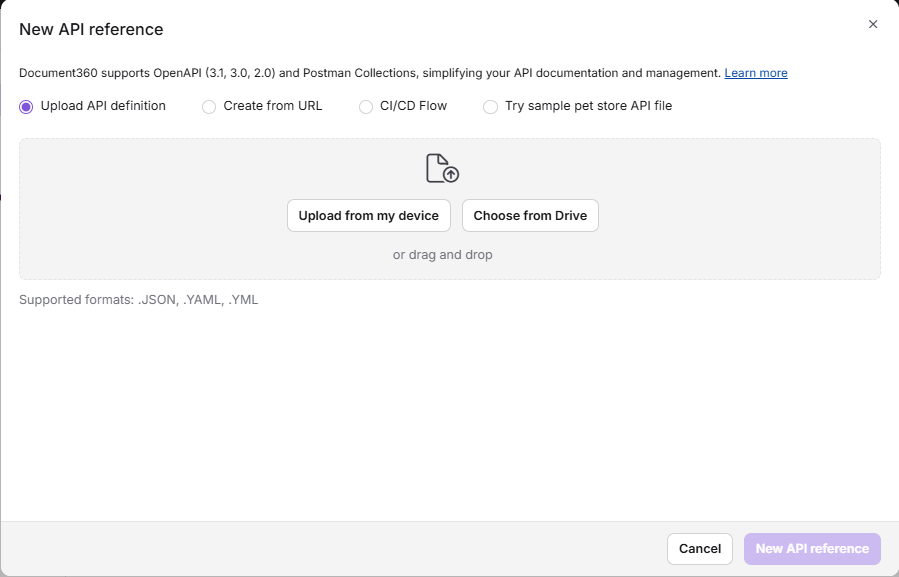
- In the New API reference window, select the Upload API definition option.
- Click Upload from my device or drag and drop your file. Supported formats: JSON, YAML, YML.
- Document360 parses the file and generates the API reference automatically. If warnings are detected, an Alerts and Warnings section appears — expand it to review them. You can view full details later in the Logs section.
- Click New API reference to proceed.
Import from a URL
- In the New API reference window, select the Create from URL option and click Next.
- Enter the URL pointing to your OpenAPI specification file in the URL field.
- Document360 fetches and processes the spec. If warnings are detected, they will be available in the Logs section after import.
- Click Add API reference to proceed.
Use the CI/CD flow
This option requires Node.js to be installed on your system.
- In the New API reference window, select the CI/CD Flow option.
- Copy the full CLI command shown in the window.
- In the copied command, replace the
--pathvalue with the full path to your local spec file or a valid URL pointing to it. For example:
--path=/Users/yourname/projects/api/openapi.yaml
Or a URL:
--path=https://example.com/api/openapi.yaml
- Paste the updated command in your terminal and press Enter. Document360 uploads your spec and generates the API documentation.
The first line of the CLI command (npm install d360 -g) installs the Document360 CLI tool. You only need to run it once. If it is already installed, you can skip that line.
If you regenerate your API key, you must update the --apiKey value in your CLI command before running it again. The old key will no longer be valid.
No spec file? Use the sample Pet Store API
If you do not have a spec file ready, select Try sample Pet Store API file when prompted. Document360 will automatically create a sample API reference in draft mode. You can explore it and then replace it with your own spec later.
Review alerts and warnings
After uploading your spec, Document360 shows you a summary of how many categories and articles were created, along with any alerts or warnings detected in your file.
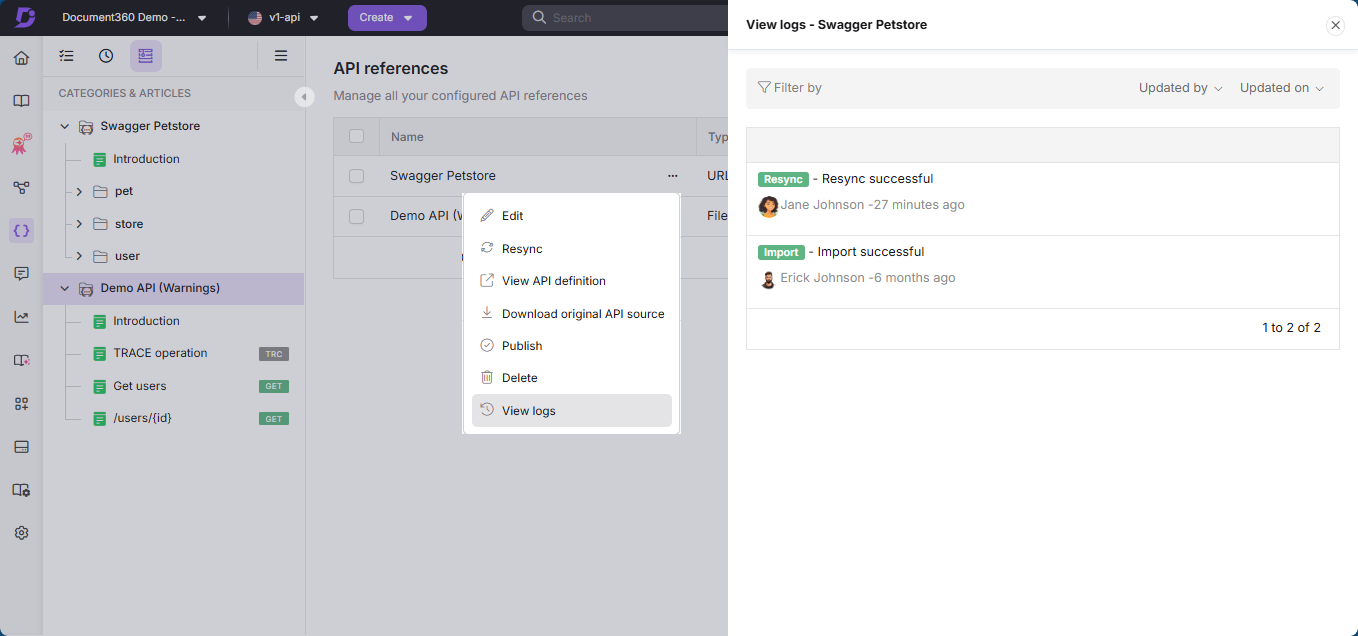
- Alerts and warnings mean the spec was imported but some elements may not display as expected. You can review the full details in the Logs section: go to your API reference, click the More
(⋯)icon, and select Logs. - Errors mean the import failed. The most common cause is an unsupported file format or an invalid URL. Replace the file or correct the URL and try again.
Publish your API reference
After your spec has been processed successfully:
- A confirmation window shows the number of categories and articles created. Click Publish to make the API reference live.
- If you want to review the content before publishing, click Close. Your API reference is saved in draft mode and visible in the Categories & Articles pane.
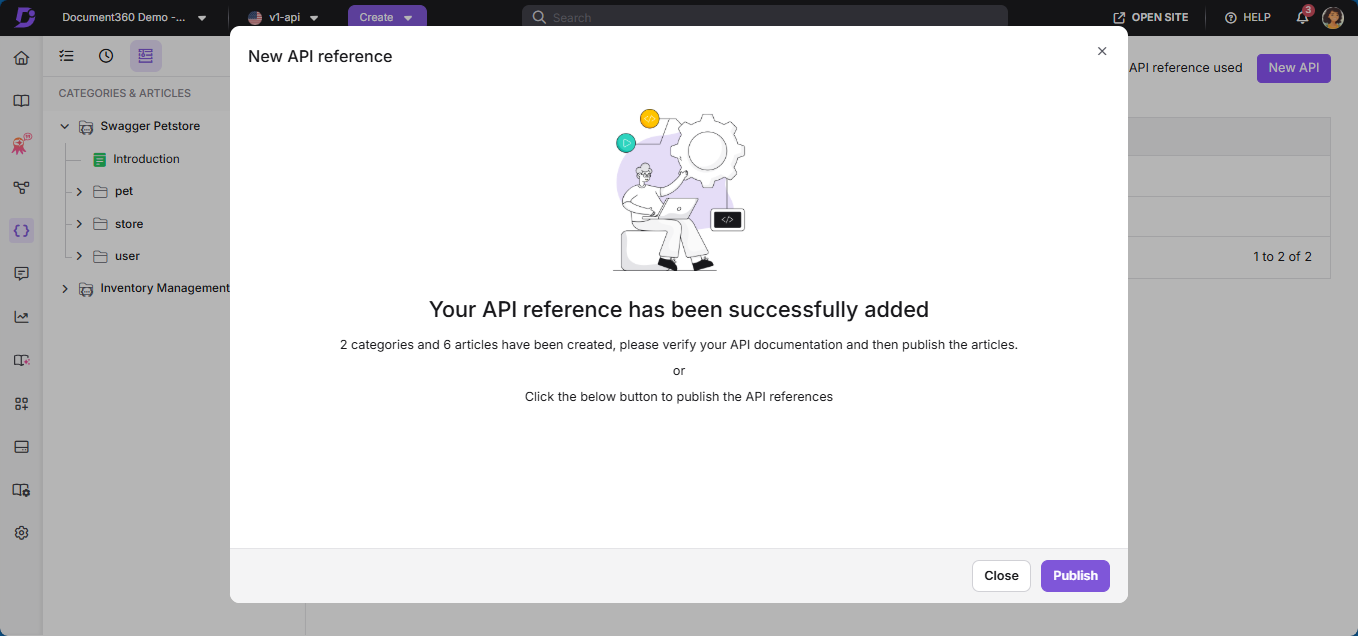
Draft mode is useful if you want to add custom content to individual endpoint articles before making them public. Any custom content you add will be retained when you regenerate or resync your documentation.
Configure authentication for Try It!
The Try It! console lets developers test your API endpoints directly from the documentation. For it to work correctly, the authentication method must be defined in your spec and configured in Document360.
Document360 supports the following authentication methods:
| Method | How it works |
|---|---|
| Basic authentication | Username and password passed in the request header. |
| Bearer token | A token generated after login, passed in the Authorization header. |
| API key | A unique key passed in the request headers. |
| OAuth2 | Supports Authorization Code, PKCE, Client Credentials, and Implicit flows. |
| OpenID Connect | Extends OAuth2 to add user identity verification. |
The Try It! console supports multiple security schemes simultaneously, enabling testing of endpoints that require combined authentication methods.
OAuth2 and OpenID Connect: additional configuration
When using OAuth2 or OpenID Connect, two settings are required:
- Redirect URI — Set this in your OAuth provider to
domain/oauth. For example:https://apidocs.yourdomain.com/oauth. - Silent renewal — Document360 automatically refreshes the authorization token in the background during active Try It! sessions, so users do not need to re-authenticate manually.
If the Try It! button is not visible on your Knowledge base site, check that both the server variable and the server URL are correctly defined in your API specification file. Without these, the Try It! feature will not function.
Set reader access and privacy
Control who can see your published API reference by configuring reader access settings.
| Setting | What it means |
|---|---|
| Private | Only users can view the API reference. Use for internal or partner-only APIs. |
| Public | Anyone can access the API reference without authentication. |
| Mixed | Some sections are public, others are restricted to users. |
To configure reader access, navigate to Settings > Users & Permissions > Reader access in the Knowledge base portal, and locate your API documentation workspace.
Visiting /apidocs before any endpoint articles are published will return a 404 error — there is no content to display yet. This also applies if you have added a navigation link to /apidocs on your Knowledge base site. Publish at least one endpoint article before making your API reference accessible to readers.