The Documentation page is the core reading experience of your knowledge base - it's where readers browse categories, navigate articles, and consume your content. Its layout is determined by your site's overall design, but Document360 lets you fine-tune how the search bar, category navigation, and table of contents behave, so the page works the way your readers expect rather than just the way it ships by default.
The page works out of the box, but there are specific situations where adjusting these settings makes a meaningful difference for readers.
When to configure the Documentation page
You don't need to configure the Documentation page for it to work - it comes with sensible defaults. However, it's worth reviewing when:
- Readers are having trouble finding the search bar - moving it to the left panel places it directly above the category tree, where readers naturally look first.
- Your category tree has long titles - enabling Display titles in 2 lines prevents long titles from being truncated, improving legibility.
- Your articles have deeply nested headings - collapsing TOC headers by default keeps the right-side pane cleaner for readers who only need the top-level structure.
- Your brand colour needs to carry into the navigation - applying a custom background colour to the search bar or category navigation ties the Documentation page more closely to your brand palette.
Access the Documentation page settings
-
Navigate to Settings () > Knowledge base site in the left navigation bar of the Knowledge base portal.
-
In the left navigation pane, navigate to Site customization.
-
Click the Customize site button.
.png)
-
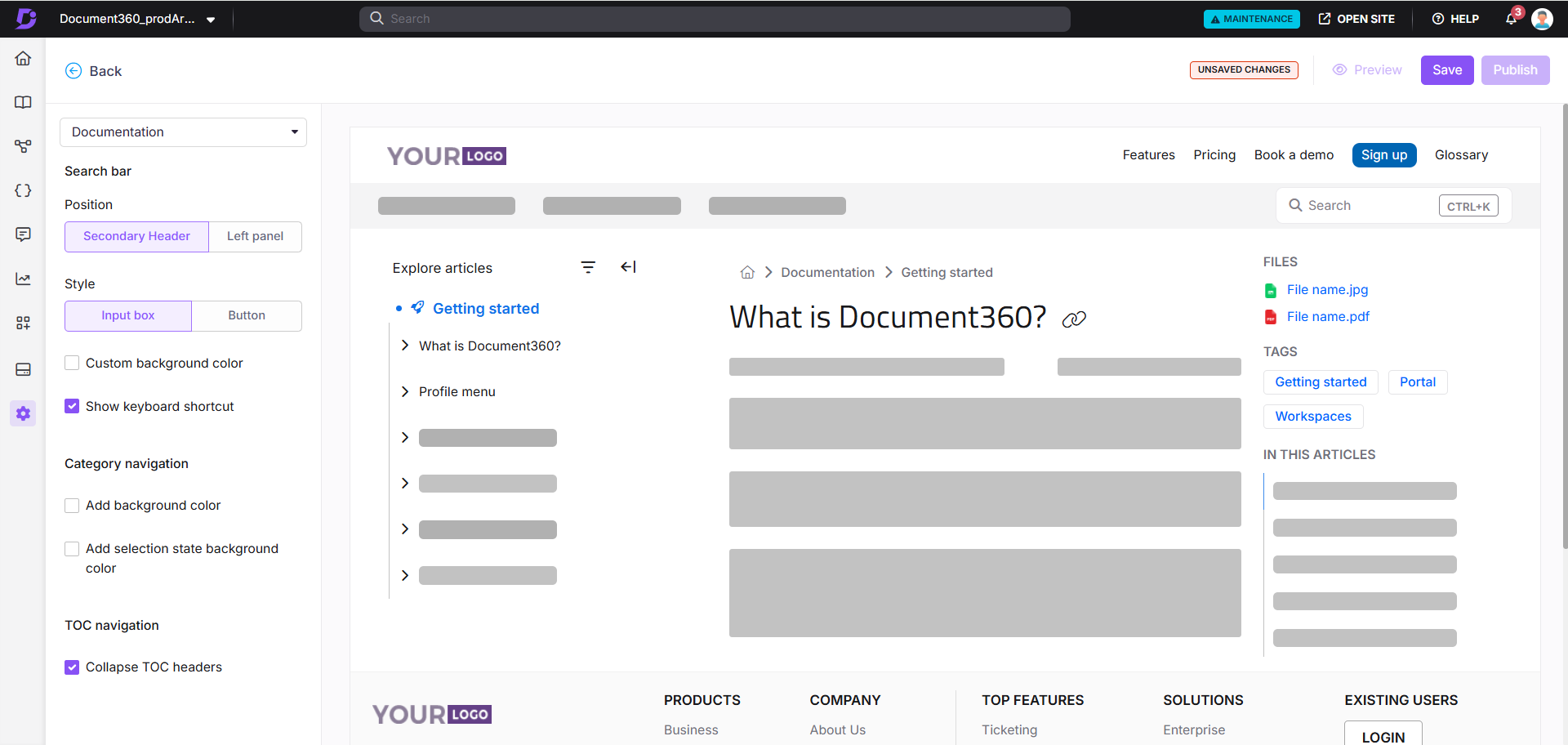
From the left dropdown, select Documentation under Main pages. The Documentation page customization panel appears on the left, with a live preview on the right.
Search bar
Configure how the search bar appears on the Documentation page:
| Setting | Options | Description |
|---|---|---|
| Search bar position | Secondary Header (default) / Left panel | Secondary Header places the search bar on the top right. Left panel places it at the top of the left navigation pane, above the category tree |
| Search bar style | Input box / Button | Input box shows a visible text field; Button shows a compact icon that expands on click |
| Custom background color | Checkbox | Applies a custom colour to the search bar. When selected, the primary colour for both light and dark themes is automatically prefilled |
| Show keyboard shortcut | Checkbox (on by default) | Displays Ctrl + K (Command + K on Mac) in the search bar. Applies to both the left navigation search bar and the main search bar |
Category navigation
Configure the appearance of the left navigation pane:
| Setting | Description |
|---|---|
| Add background color | Applies a background colour to the entire category navigation section. By default, a light grey (#F4F4F5) is used |
| Add selection state background color | Applies a background colour to the currently selected item in the categories and articles pane. By default, a light blue (#E6F0F7) is used |
| Display titles in 2 lines | Wraps long category and article titles into two lines in the left navigation pane. If a title exceeds two lines, an ellipsis (…) is shown. When disabled, long titles are truncated to a single line |
TOC navigation
| Setting | Description |
|---|---|
| Collapse TOC headers | Collapses all table of contents headers by default on the knowledge base site. For example, if H2, H3, and H4 are displayed, H4 is nested under H3 and H3 under H2, both collapsed until the reader expands them |
The Collapse TOC headers setting can also be enabled from Settings () > Knowledge base site > Article settings. Expand the Article right section accordion and enable the Collapse TOC headers toggle.
Save and publish
- Use the Preview toggle on the right to review your changes.
- Click Save to save your changes.
- Click Publish to make changes live.
Best practices
- Use Left panel for search-heavy knowledge bases - if readers rely heavily on search rather than browsing the category tree, placing the search bar in the left panel makes it immediately visible without scrolling the header area.
- Enable Display titles in 2 lines for API or technical docs - endpoint names and technical titles tend to be long; truncating them makes navigation confusing.
- Apply category navigation background colour consistently - if you use a branded colour for the left panel background, ensure it contrasts well with the text colour in both light and dark modes.
- Use Collapse TOC headers for articles with deep heading hierarchies - this keeps the TOC pane manageable for long articles while still letting readers expand sections they need.
FAQ
How do I change the position of the search bar on the knowledge base site?
Navigate to {{variable.Settings}} () > {{variable.Knowledge base site}} > Site customization and click Customize site. From the left dropdown, select Documentation. In the Search bar position section, choose Left panel to place the search bar above the category tree, or Secondary Header to place it on the top right. Click Save and Publish to apply.
If I make changes to the Documentation page, will they automatically update in all languages?
No. Changes made in your default language will not automatically reflect in other languages. You need to manually apply the same changes for each language workspace.