The Table Of Contents (TOC) appears in the right pane of every article on your knowledge base site, under the heading In this article. It is automatically generated from the headings in the article and gives readers a quick overview of what the article covers, with clickable links to jump directly to any section.
The TOC updates automatically as you add or modify headings - you do not need to maintain it manually. It can be shown or hidden at two levels: site-wide for all articles, or per article for individual exceptions.
When to configure the table of contents
- When articles are long or heavily structured - keep the TOC enabled so readers can navigate without scrolling through the entire article.
- When articles are short or have fewer than three headings - hide the TOC for those articles. A TOC with one or two entries adds visual clutter without navigation value.
- When readers need to scan article structure quickly - the TOC gives readers a preview of what an article covers before they start reading, helping them decide if it is relevant.
- When articles have deeply nested headings - enable Collapse TOC headers so H3 and H4 sub-headings are collapsed by default, keeping the right pane clean and scannable.
How the table of contents works
The TOC is generated automatically from heading tags in the article:
- H2 headings appear as top-level items
- H3 and H4 headings appear as nested items under their parent H2
Only headings formatted as H2, H3, and H4 appear in the table of contents. Bold text that is not formatted as a heading will not appear.
The TOC lives in the right pane of the article alongside other sections - Files, Tags, and Related articles. By default, the sections appear in this order: Files > Tags > Related articles > In this article. Admins can reorder these sections by navigating to Settings () > Knowledge base site > Article settings > Article right section > Reorder sections.
On tablet and mobile, the right pane collapses into a drawer. The last module in the right pane stays sticky as readers scroll down the article.
Show or hide the TOC site-wide
Site-wide TOC settings apply to all articles in your knowledge base. Use this to set the default behaviour for your entire project.
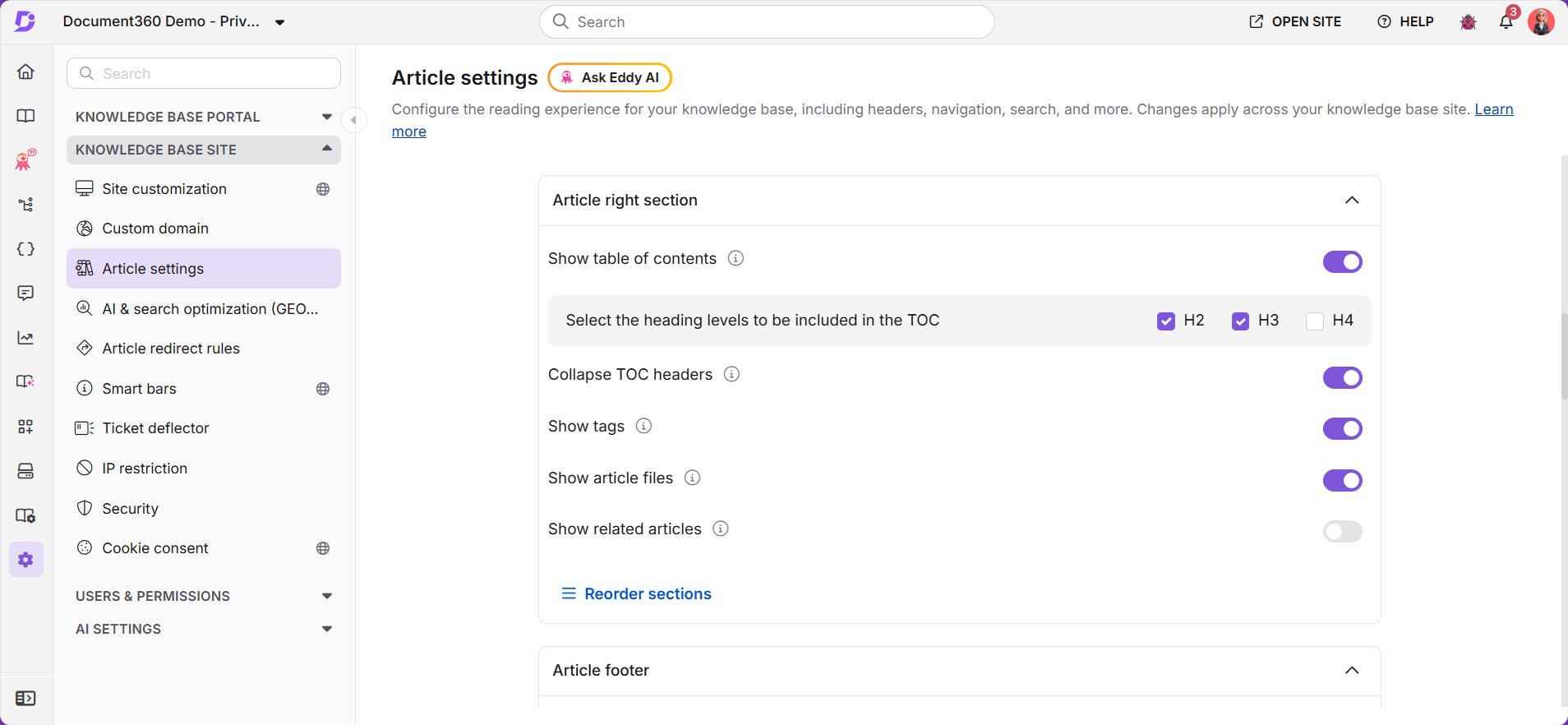
- Navigate to Settings () > Knowledge base site in the left navigation bar of the Knowledge base portal.
- Select Article settings in the left navigation pane.
- Scroll to the Article right section accordion.
- Turn the Show table of contents toggle on or off.
Changes save automatically.
Show or hide the TOC for a single article
You can override the site-wide setting for individual articles. This is useful when most articles benefit from the TOC but specific short articles do not.
- Navigate to the article in the Knowledge base portal.
- Click the More () icon in the article header and select More article options.
- In the Article settings panel, select the Preferences tab.
- Select the Show table of contents checkbox to show it, or clear it to hide it.
- Click Save.
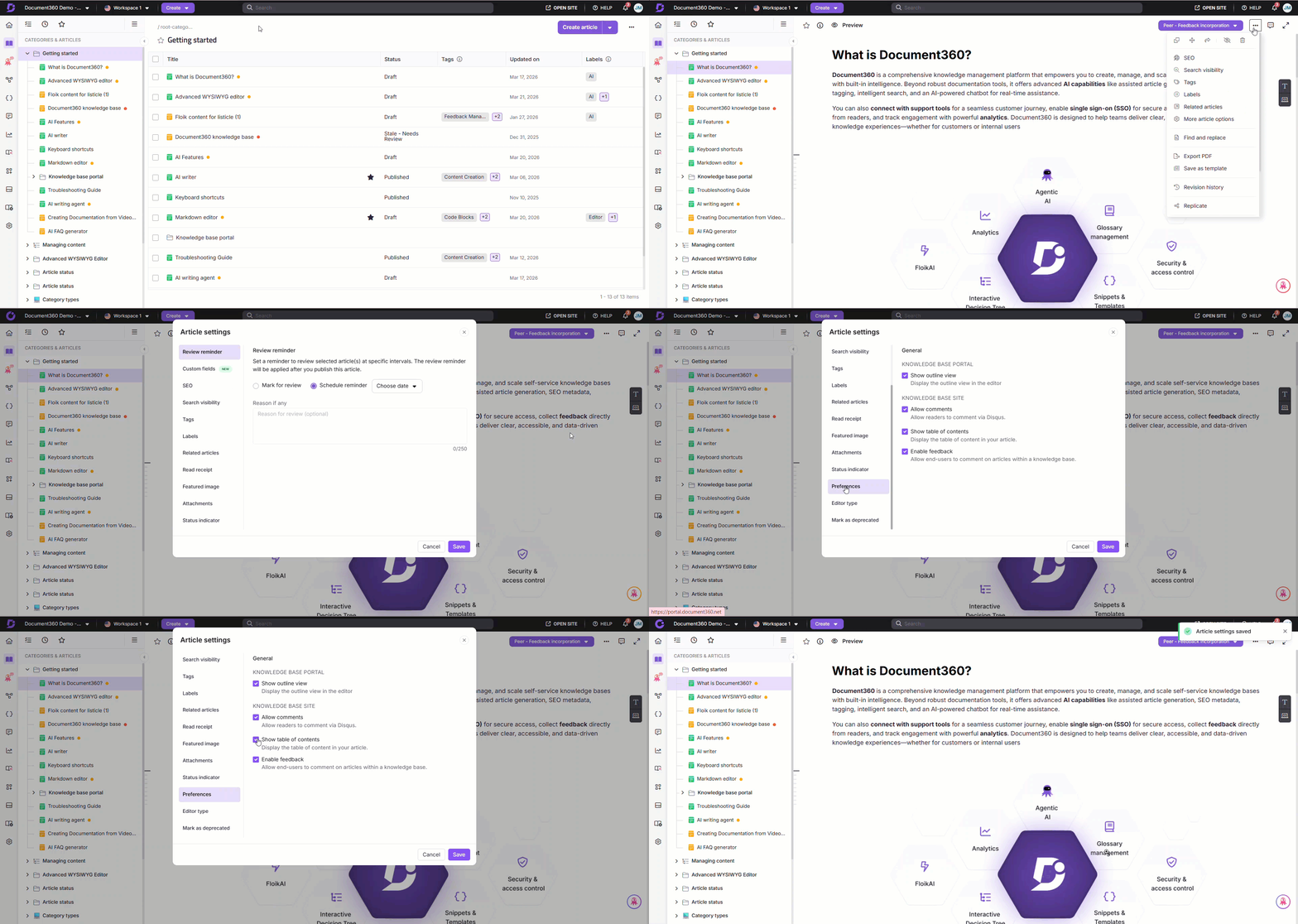
Preference changes take effect immediately on the knowledge base site without needing to republish the article.
Collapse TOC sub-headings by default
You can configure H3 and H4 sub-headings in the TOC to be collapsed by default, keeping H2 headings always visible at the top level. This keeps the right pane cleaner for readers navigating long articles with deeply nested heading structures.
The Collapse TOC headers setting is available in two locations, but they behave differently:
| Location | Behaviour |
|---|---|
| Article settings | Collapses H3 and H4 sub-headings permanently — H2 is always visible and H3/H4 remain collapsed until the reader manually expands them, every time they visit the article |
| Customize site > Documentation | Collapses sub-headings only on a reader's first visit to the article. Once a reader interacts with the TOC, this setting no longer applies to them |
The last change made between the two locations takes effect. If you enable the toggle in one location and disable it in the other, whichever change was made most recently is the one that applies.
From Article settings
- Navigate to Settings () > Knowledge base site > Article settings.
- Expand the Article right section accordion.
- Enable the Collapse TOC headers toggle.
Changes save automatically.
From Customize site
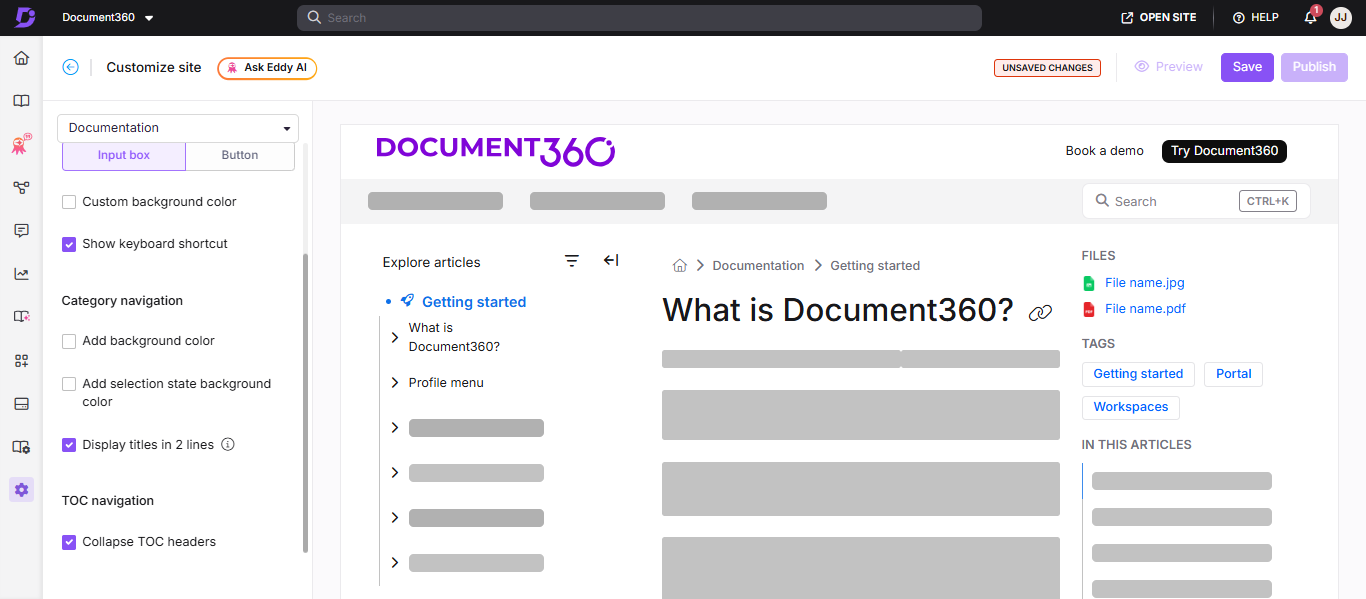
- Navigate to Settings () > Knowledge base site > Site customization.
- Click Customize site.
- From the left dropdown, select Documentation under Main pages.
- Scroll down the left panel and enable Collapse TOC headers in the TOC navigation section.
- Click Save and Publish to apply.
Best practices
- Keep the TOC enabled for articles with three or more headings — a TOC becomes genuinely useful when readers need to navigate between sections. For short articles with fewer than three headings, disable it per article.
- Use H2 for major sections and H3/H4 for sub-topics — a well-structured heading hierarchy produces a more useful TOC. Avoid skipping heading levels (for example, using H4 directly under H2).
- Enable Collapse TOC headers for long technical articles — API references, troubleshooting guides, and configuration articles often have many nested headings. Collapsing H3/H4 by default keeps the right pane manageable.
- Do not use bold text as a substitute for headings — bold text does not appear in the TOC. Use proper heading formatting (H2, H3, H4) for any section you want to be navigable.
- Reorder right pane sections to match reader priority — if readers use the TOC more than attachments or tags, reorder the sections so In this article appears higher in the right pane.
FAQ
Can I show or hide the table of contents for the entire knowledge base at once?
Yes. Navigate to Settings () > Knowledge base site > Article settings and toggle Show table of contents under the Article right section accordion. This applies site-wide to all articles.
Does bold text appear in the table of contents?
No. Only headings formatted as H2, H3, and H4 appear in the table of contents. Bold text that is not formatted as a heading will not appear, regardless of how it is styled.
Do I need to republish an article after changing its TOC preference?
No. Preference changes such as showing or hiding the table of contents take effect immediately on the knowledge base site without needing to republish the article.
Can I change the color of the table of contents?
Yes. You can use Custom CSS to change the link color and active heading color of the TOC. See How to change the color of the table of contents for a step-by-step guide.
Can I reorder the sections in the right pane?
Yes. Navigate to Settings () > Knowledge base site > Article settings > Article right section > Reorder sections. Use drag-and-drop to arrange the sections (Files, Tags, Related articles, In this article) in your preferred order.