The What's new page in Document360 gives readers a quick view of recently published or updated articles in your knowledge base. Accessible from the top navigation of the knowledge base site, it helps readers stay current without having to browse every category. You control whether the feature appears on your site, and readers can filter results by activity type, workspace, language, and time range.
When to use the What's new page
Use this feature when you want readers to discover content changes without relying on external announcements.
- Frequent publishers - If your team publishes or updates articles regularly, the What's new page gives readers a single place to catch up.
- Multi-workspace knowledge bases - Readers can filter by workspace to focus on the content area most relevant to them.
- Multilingual knowledge bases - Readers can switch the language filter to see updates in their preferred language.
Enable or disable the What's new page
The What's new page is enabled by default. To show or hide it on your knowledge base site:
- Navigate to Settings () in the left navigation bar of the Knowledge base portal.
- In the left navigation pane, navigate to Knowledge base site > Article settings.
- Expand the Site header accordion.
- Toggle Enable what's new features on or off.
The What's new () icon appears or disappears on the knowledge base site immediately based on your selection.
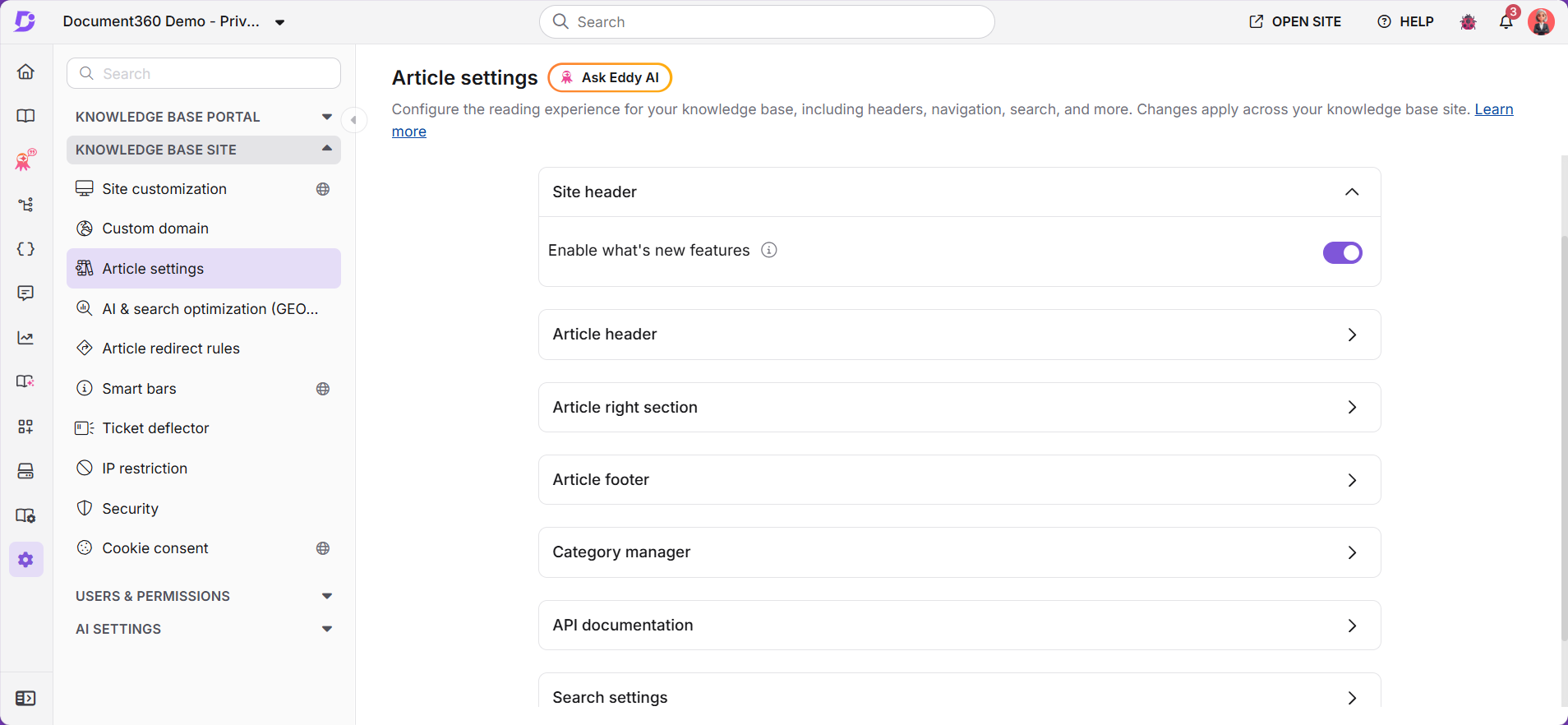
For articles to appear in the What's new page, the Auto set article status option must also be enabled. You can find this setting under Settings () > Knowledge base site > Article settings, in the Category manager section.
Manually adding an article to the What's new page
If Automatically set article status is turned off, you can still surface individual articles in the What's new page by manually setting a status indicator at publish time.
- Open the article in the Knowledge base portal.
- Click the workflow status and select Publish.
- Select Configure article settings.
- Scroll down to Status indicator and select a status - New, Updated or Custom badge.
- Choose the number of days you want the article to show up in What's new page.
- Click Publish.
The article will now appear in the What's new page.
Accessing the What's new page
-
Click the What's new () icon in the top-right navigation of the knowledge base site.
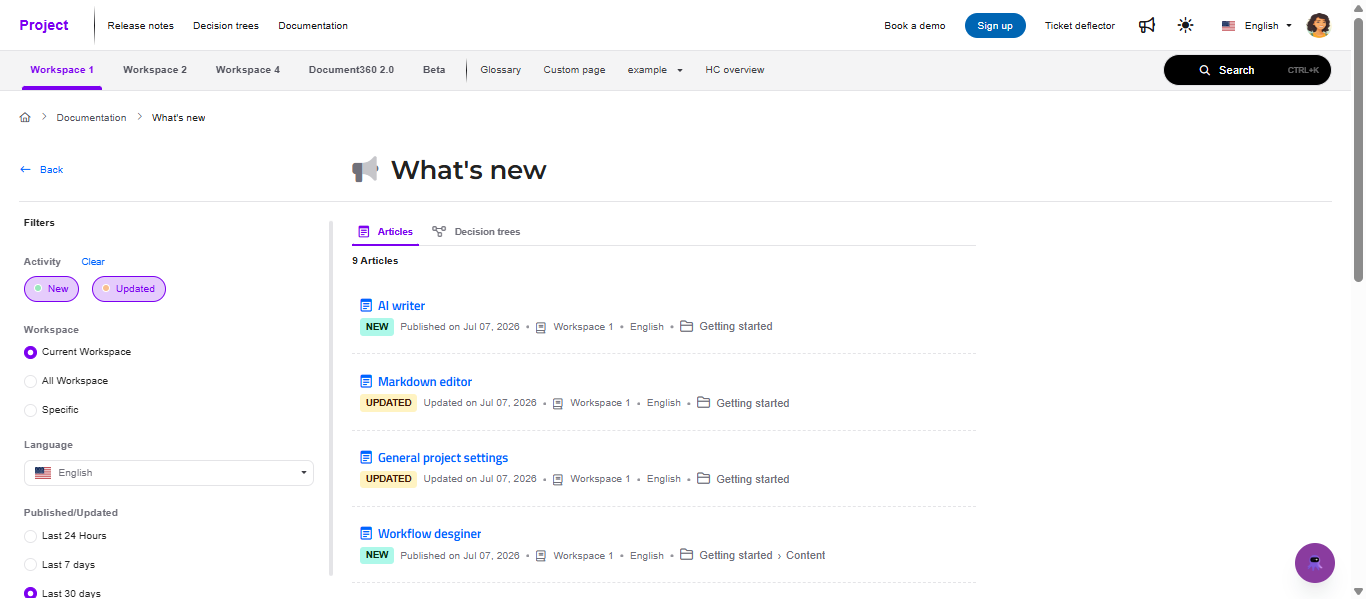
The What's new page opens, displaying a list of recently published or updated articles and decision trees in the selected workspace.
-
Use the filters on the left side of the page to narrow results:
Activity - Filter by content change type:
- New - Displays newly published articles. Selected by default.
- Updated - Displays articles that have been modified and republished.
Workspace - Filter by workspace scope:
- Current workspace - Shows results from the workspace you are currently browsing.
- All workspaces - Shows results across all available workspaces.
- Specific - Select one or more workspaces. Only articles from those workspaces appear.
Language - Select a language from the dropdown to filter results by language.
Published/Updated - Filter by time range: Last 24 hours, Last 7 days, or Last 30 days.
-
To remove an individual filter, click Clear next to it.
-
To remove all active filters at once, click Clear All.
Best practices
- Enable Automatically set article status before turning on the What's new page. Without it, no articles will appear in the list regardless of publish activity.
- Use the Workspace filter to help readers in multi-workspace setups stay focused - encourage them to set it to their most-used workspace.
- Publish updates intentionally - the What's new page surfaces republished articles, so minor edits that don't warrant reader attention should not trigger a republish.
- Pair with the status indicator - the New and Updated tags on articles in your knowledge base site complement the What's new page by surfacing the same changes inline as readers browse.