Custom JavaScript in Document360 lets you add your own JavaScript code to extend the functionality of your knowledge base site beyond what the built-in settings provide. You paste code directly into the portal and it runs on every page of your knowledge base site. This is the right tool when you need to add dynamic behavior, interact with page elements, integrate third-party scripts, or automate interactions that cannot be configured through the standard settings.
When to use custom JavaScript
Use custom JavaScript when you need behavior or functionality that CSS and the built-in settings cannot provide:
- Modify page structure dynamically - reorder, show, or hide elements on the page based on conditions. For example, move the related articles section above the feedback section, or hide the left navigation bar for specific readers.
- Add header interactivity - append social media icons, dynamic feedback links, or custom buttons to the navigation header using JavaScript.
- Integrate third-party tools - embed analytics scripts, chat widgets, feedback tools, or custom tracking that need to run on every page.
- Show only the active category in the left sidebar - filter the category tree so only the currently active category and its sub-categories are visible, reducing navigation clutter for readers.
Before you begin
- You must have a user account with admin-level access to the Knowledge base portal.
- Custom JavaScript applies globally to the entire knowledge base site - it runs on every page and affects all readers.
- Document360 does not validate or lint your JavaScript code.
- Errors will not be flagged automatically and broken scripts can disrupt the site experience. Test your changes carefully before saving.
Document360's knowledge base site uses a Single Page Application (SPA) model. This means only the article content refreshes when a reader navigates - not the full page. Custom JavaScript that relies on page-load or page-refresh events may not work as expected. Use the articleload event instead:
panel.addEventListener('articleload', function() {
  // Your custom JavaScript code here
});
How to add custom JavaScript
- Navigate to Settings () > Knowledge base site in the left navigation bar of the Knowledge base portal.
- In the left navigation pane, navigate to Site customization.
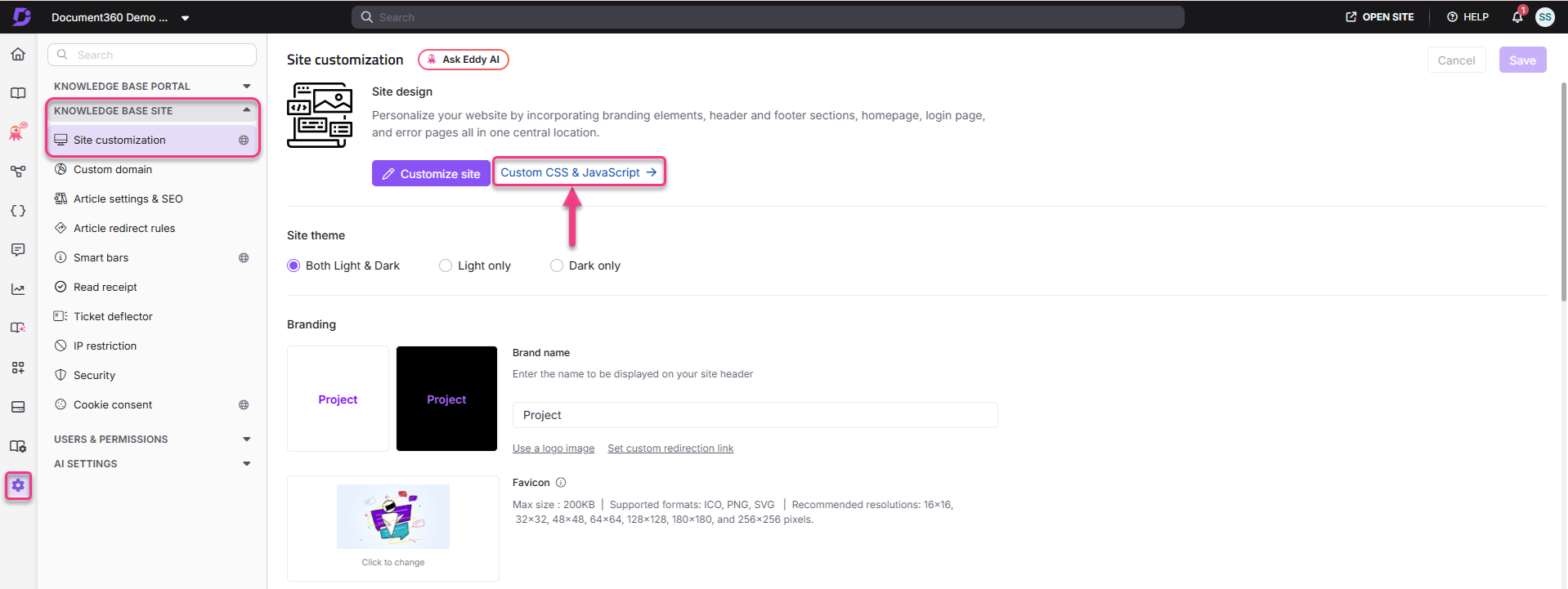
- Click Custom CSS & JavaScript.
- Select the JavaScript tab. The JavaScript code editor appears.
- Paste your JavaScript code in the text area.
- Click Save to apply your changes.
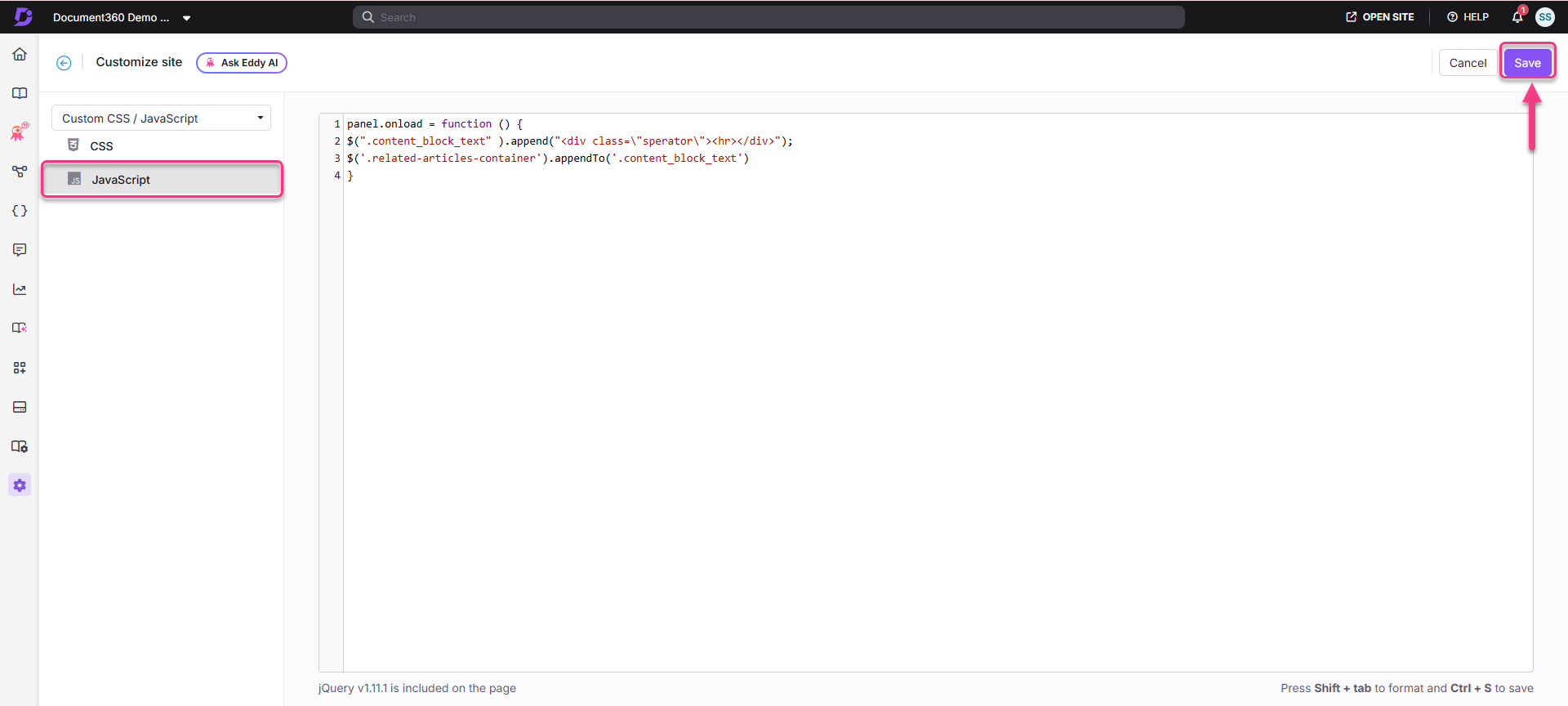
The JavaScript is now active on your knowledge base site. Visit the site to verify the behavior.
Use case examples
The following examples show common customizations you can achieve with custom JavaScript.
Move related articles above the feedback section
panel.onload = function () {
  $(".content_block_text").append("<div class=\"sperator\"><hr></div>");
  $('.related-articles-container').appendTo('.content_block_text')
}
Show only the active category in the left sidebar
/* Left sidebar category start */
let parent_data = null;
function client_tree_data(data) {
  parent_data = data;
  window.clientData = data;
  const slug = window.location.pathname.split('/').filter(Boolean).pop();
  if (slug === "docs") {
    return [data[0]];
  }
  return data.filter(item => markIfContainsSlug(item, slug));
}
function markIfContainsSlug(node, slug) {
  if (node.slug === slug) {
    node.found = true;
    return true;
  }
  return node.children?.some(child => markIfContainsSlug(child, slug)) || false;
}
/* Left sidebar category end */
Translate UI text based on reader language
Some UI text, such as the placeholder in the left navigation "Explore articles" filter, does not have a dedicated localization variable. You can use custom JavaScript to detect the reader's language from the URL and override that text.
Because some UI elements can load or re-render after the initial page load (see the Single Page Application note above), check periodically rather than only once, so the update is reliably applied.
$(document).ready(function () {
  var translatedText = "Filtrera efter namn"; // replace with your translated text
  var targetLangCode = "sv"; // the language code this text applies to
  var lastLang = null;

  function getLangFromUrl() {
    var parts = location.pathname.split("/").filter(Boolean).slice(0, 3);
    for (var i = 0; i < parts.length; i++) {
      if (/^[a-z]{2}(-[a-z]{2,4})?$/i.test(parts[i])) {
        return parts[i].toLowerCase();
      }
    }
    return "";
  }

  setInterval(function () {
    var lang = getLangFromUrl();
    var useTranslation = (lang === targetLangCode);
    if (lang !== lastLang) {
      lastLang = lang;
    }
    $("input.filter-input").each(function () {
      var $el = $(this);
      if (!$el.data("orig")) {
        $el.data("orig", { p: $el.attr("placeholder"), a: $el.attr("aria-label") });
      }
      var orig = $el.data("orig");
      var p = useTranslation ? translatedText : orig.p;
      var a = useTranslation ? translatedText : orig.a;
      if ($el.attr("placeholder") !== p) {
        $el.attr({ placeholder: p, "aria-label": a });
      }
    });
  }, 300);
});
Replace input.filter-input with the selector for the field you want to translate, and repeat the pattern for additional languages.
For more JavaScript use case examples, see the Tips & Tricks articles.
Customize the unavailable translation banner per language
When an article has not been published in the reader’s selected language, the knowledge base site displays a banner such as “This content is currently unavailable in German. You are viewing the default (English) version.” This message is not available as a localization variable and always appears in the default language.
You can use Custom JavaScript to replace this message with language-specific text. The script detects the active language from the reader’s URL path, matches it against a translations object, and replaces the banner text while preserving the icon element.
Example:
(function () {
    const translations = {
        en: 'This content is currently unavailable in English. You are viewing the default (English) version.',
        de: 'Dieser Inhalt ist derzeit auf Deutsch nicht verfügbar. Sie sehen die Standardversion (Englisch).',
        fr: 'Ce contenu est actuellement indisponible en français. Vous consultez la version par défaut (anglais).',
        'pt-br': 'Este conteúdo não está disponível no momento em português (Brasil). Você está visualizando a versão padrão (inglês).',
        es: 'Este contenido no está disponible actualmente en español. Estás viendo la versión predeterminada (inglés).'
    };

    function updateDeprecatedMessage() {
        const pathSegments = window.location.pathname
            .split('/')
            .filter(Boolean)
            .map(slug => slug.toLowerCase());

        const languageSlug = pathSegments.find(slug =>
            Object.prototype.hasOwnProperty.call(translations, slug)
        );

        if (!languageSlug) return;

        const customText = translations[languageSlug];

        document.querySelectorAll('.deprecated-message').forEach(element => {
            const icon = element.querySelector('i');

            const existingText = Array.from(element.childNodes)
                .filter(node => node.nodeType === Node.TEXT_NODE)
                .map(node => node.textContent)
                .join('')
                .trim();

            if (
                element.dataset.customLanguage === languageSlug &&
                existingText === customText
            ) {
                return;
            }

            if (icon) {
                element.replaceChildren(
                    icon,
                    document.createTextNode(' ' + customText)
                );
            } else {
                element.textContent = customText;
            }

            element.dataset.customLanguage = languageSlug;
        });
    }

    updateDeprecatedMessage();

    const observer = new MutationObserver(updateDeprecatedMessage);

    observer.observe(document.body, {
        childList: true,
        subtree: true
    });

    window.addEventListener('popstate', updateDeprecatedMessage);
})();
The translations object maps each language URL slug (en, de, fr, pt-br, es) to your preferred replacement text. Add or remove entries to match the languages in your project, and update the text strings as required.
The .deprecated-message selector targets the banner element. The script uses replaceChildren() to replace the banner text while keeping the existing icon intact, preventing duplicate or residual text from appearing.
Because Document360 uses a Single Page Application (SPA) model, a MutationObserver monitors DOM changes and reapplies the replacement when needed. A popstate listener also handles browser back and forward navigation.
This script applies a single global replacement across all pages. It does not change which language version of an article is displayed. It only changes the text of the banner that appears when an article is unavailable in the reader’s selected language.
Best practices
- *Use practarticleload
event for SPA compatibility** - wrap all JavaScript that interacts with article content insidepanel.addEventListener('articleload', function() { ... })` to ensure it fires reliably on every article navigation, not just the initial page load. - ***Keep scripts focused and minimal - custom JavaScript runs on every page. Bloated or slow scripts increase page load time for all readers. Only include what is necessary.
Test in both light and dark mode - scripts that manipulate DOM elements or styles may behave differently across themes. Always preview both before saving. - Comment your code - add inline comments explaining what each block does, especially if multiple team members manage the JavaScript. Example:
/* Moves related articles above feedback — added June 2026 */ - Remove unused scripts - scripts that are no longer needed should be deleted from the editor. Leftover code increases complexity and can cause unexpected conflicts with future changes.
- Custom JavaScript does not appear in shareable preview links - to verify the final behavior, publish your changes and view the live knowledge base site directly.
FAQ
Why doesn't my custom JavaScript work after a reader navigates to a new article?
Document360 uses a Single Page Application (SPA) model — when a reader navigates between articles, only the article content refreshes, not the full page. JavaScript that relies on page-load or page-refresh events will only run once on the initial load. Wrap your code in panel.addEventListener('articleload', function() { ... }) to ensure it runs every time article content changes.
Why doesn't custom JavaScript appear in the shareable preview link?
Custom JavaScript is intentionally disabled in shareable preview links to ensure consistent performance and security when content is shared externally. To verify your JavaScript changes, publish the article and access it directly from the knowledge base site, or use a sandbox environment.
Can I add different JavaScript for each workspace?
No. Custom JavaScript is configured at the project level and applies across all workspaces within the project. It is not possible to add separate JavaScript for individual workspaces through the Custom CSS & JavaScript settings.