Icons are not rendering correctly on the user site
In some cases, icons on the user site may not render correctly, especially when there are a large number of icons for different navigations. The primary reason for broken icons is an unintended modification of the FontAwesome family provided by Document360. This occurs when changes to other classes or HTML tags on the user site unintentionally alter the icon font settings.
To avoid this issue,
Ensure that changes to the site's styling or class definitions do not impact the FontAwesome classes or font family settings.
When targeting specific elements, double-check that icon-related styles remain intact and are not overwritten.
Steps to resolve:
1. Inspect the broken icon:
Use your browser’s developer tools to inspect the user site.
Click the broken icon using the selector tool to identify the issue.
Check custom CSS:
Navigate to Settings (
) > Knowledge base site > Site customization > Custom CSS & JavaScript in the Knowledge base portal. Review any font rules applied to various classes. In some cases, font changes may unintentionally apply to broader classes, affecting the icons.
Ensure font changes are applied only to the specific classes that require them. This will help preserve the default settings for Font Awesome and prevent any unintended impact on icons.
If the issue persists after following these steps, please contact the Document360 support team for further assistance: Contact Document360 Support
Page is unresponsive while editing an article
Error: The page isn’t working. example.com redirected you too many times. ERR_TOO_MANY_REDIRECTS.
While editing an article, the page may become unresponsive or show redirect-related errors. Some common causes include:
Outdated browser cache interfering with page load
Large article size with too many images, tables, or long-form content
Improper or missing HTML closing tags (especially in Markdown)
Excessive redirects due to incorrect article configuration
Platform-related issues affecting all articles, not just a specific one
Steps to resolve:
Clear the cache, reload the browser, and check if the issue persists. A corrupted or outdated cache can interfere with page functionality.
Use a private/incognito window. This helps rule out cache and cookie-related issues.
Identify the scope of the issue. Check if the issue occurs for all articles or only a specific one.
If All articles are affected:
Generate a HAR file and contact Document360 Support for analysis.
Go to Settings () > Knowledge base portal > General and turn on the Support access toggle so the support team can investigate.
If a specific article is affected:
Large articles may cause performance issues. Consider splitting the content into smaller articles and organizing them under appropriate categories.
Ensure all HTML tags in the article have matching closing tags (e.g.,
<table>,<div>,<p>), especially in Markdown format.
If the issue persists after following these steps, please contact the Document360 support team for further assistance: Contact Document360 Support
Provide the following details:
A screenshot of the issue
The HAR file for analysis
Support access is enabled in your project
Knowledge base site loading without CSS styling
This issue typically occurs when the site is accessed from a network where Document360 domains are blocked or not whitelisted by your company or organization.
Steps to resolve:
Verify if the site works correctly when accessed from a different network. If it does, the issue is likely related to network restrictions.
To resolve this, whitelist the following domains in your network settings to ensure proper access and functionality.
URL | Usage | Is required | Functionality |
|---|---|---|---|
https://<your-sub-domain>.document360.io or your custom domain | Main app | Required | This is the main application where all document readers will interact. |
https://identity.document360.io | Identity Provider | Required | This is an identity provider where authentication takes place with user credentials for private projects. |
https://apihub.document360.io | Backend API | Optional | It can be disallowed if you are not using KB Assistant. |
https://api.document360.io/ | Backend API | Required | This is the main backend where the front end will interact with. Without this backend, the portal will not work as a whole. |
https://cdn.document360.io | CDN Service | Required | Media files and static resources such as JavaScript and CSS, HTML, images, video, PDFs, and other attachments needed for documents will be served by this URL. |
https://jx9o5re9su-dsn.algolia.net | Search | Required | For article search, we use Algolia. It's a mandatory service. Without this, any search functionality within the portal and the KB user website will not work. |
https://algolianet.com | Search | Required | For the same search functionality as above. |
https://algolia.com | Search | Required | For the same search functionality as above. |
https://jx9o5re9su-1.algolianet.com | Search | Required | For the same search functionality as above. |
https://jx9o5re9su-2.algolianet.com | Search | Required | For the same search functionality as above. |
https://jx9o5re9su-3.algolianet.com | Search | Required | For the same search functionality as above. |
https://floik.com/exe/ | Media processing | Required | This URL is used to process and deliver interactive media experiences embedded within your knowledge base content. To ensure full functionality, this URL must be whitelisted. |
*.floik.com | Media processing | Required | This domain is used to process and deliver interactive media experiences embedded within your knowledge base content. To ensure full functionality, this URL must be whitelisted. |
https://cdn.jsdelivr.net | API documentation | Required | For the TryIt feature in API documentation to validate JSON and YAML files. Without this, the interactive API testing experience may not work correctly. |
Profile pictures of users/readers are broken
Profile pictures of users or readers may appear broken on the Knowledge base site. This issue occurs when the image content type is misidentified, preventing it from loading correctly.
Steps to resolve:
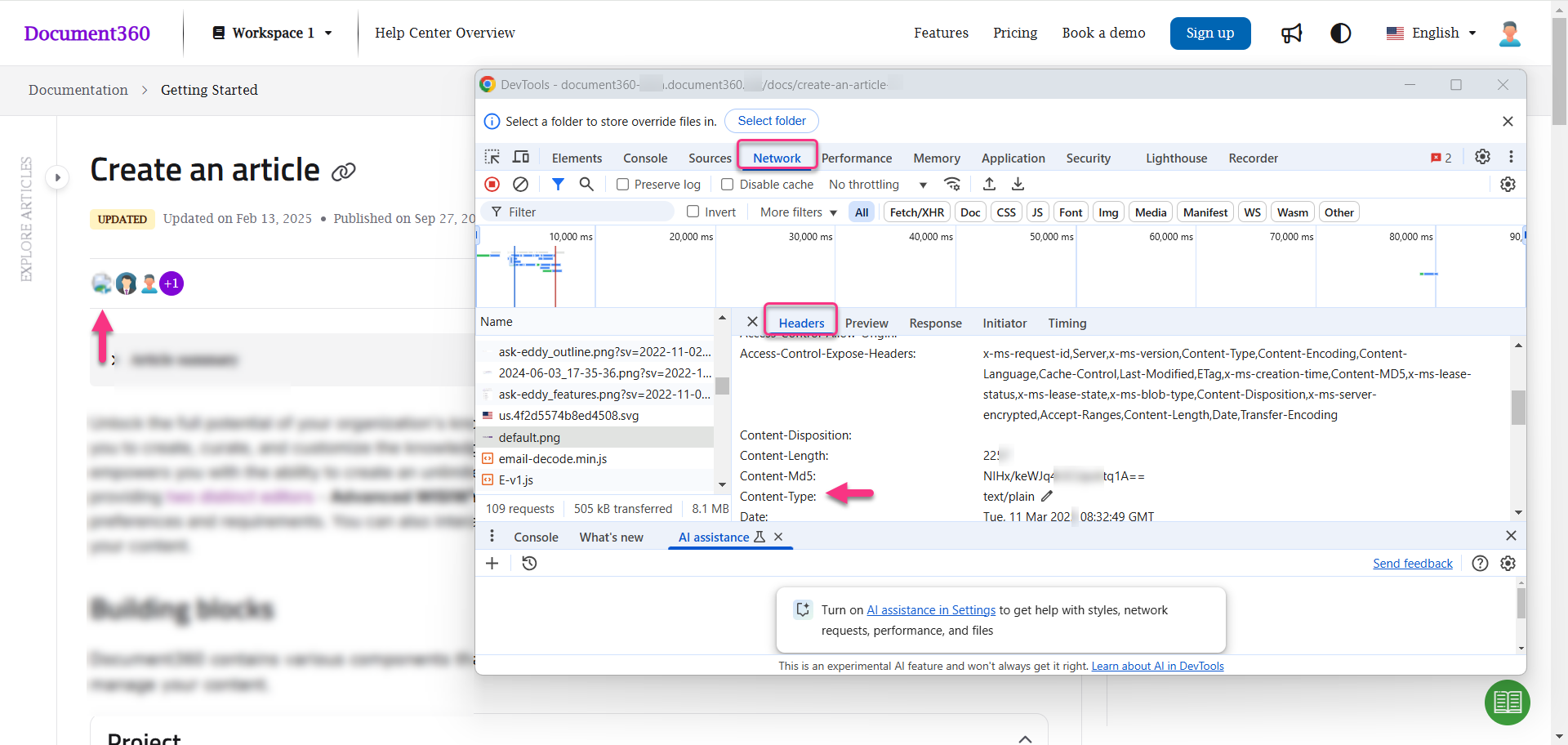
Open any article on the Knowledge base site and check if the contributor’s profile picture appears broken.
Right-click in the browser tab, click Inspect, and go to the Network tab in the Devtools panel.
Locate the request that loads the profile image and check the Content-Type:
If it is "text/plain", the image will not load properly.
If it is "image/jpeg", "application/octet-stream", or another valid format, the image should load fine.
Try reuploading the profile picture:
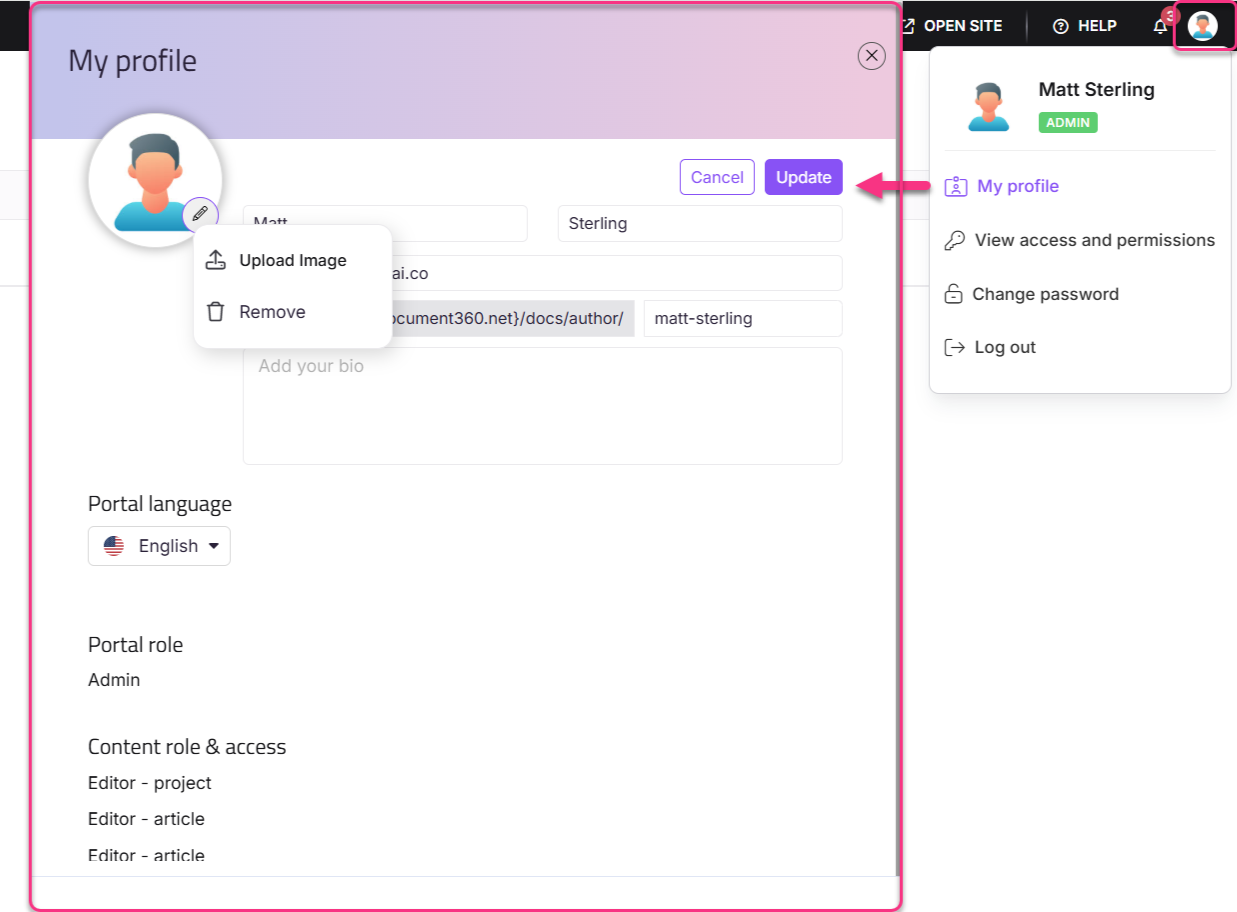
Navigate to your project in the Knowledge base portal.
Click your profile icon in the top-right corner.
Select My profile from the dropdown.
In the My profile panel, click Edit and then click the Edit () icon near the profile picture.
Upload your desired profile image.
If the issue persists, generate a HAR file and contact Document360 Support for further investigation.
Issue in submitting article feedback
Possible causes for this issue are content security policy restrictions, network or firewall issues, browser extensions, caching conflicts, or temporary server issues. These factors may block feedback submission or prevent actions like liking, disliking, or commenting on an article.
Steps to resolve:
Check if you can Like or Dislike the article.
Ensure that you can enter comments in the feedback text area.
Try clicking the Submit button to see if the feedback is recorded.
Determine whether the issue occurs for a single article or all articles.
Inspect for Errors:
Open the browser's developer console (Right-click > Inspect > Console tab).
Look for any Console errors related to the Content Security Policy (CSP).
Capture a screenshot of the error message.
Open the Network tab in the browser’s developer tools.
Reproduce the issue and export the Network log as a HAR file.
If the issue persists after following these steps, please contact the Document360 support team for further assistance: Contact Document360 Support
Provide the following details:
Console error screenshots
HAR file with Network logs
Screen recording of the issue
Adapting custom code for the Single Page Application (SPA) model in Document360
With the transition of the Document360 website to a Single Page Application (SPA) model, any custom JavaScript dependent on page refresh events may no longer function as expected. This is because SPAs refresh only the article content, not the entire page.
Below are the areas where users can inject Custom JavaScript within the Document360 portal:
Custom JavaScript
Navigate to Settings () in the left navigation bar in the Knowledge base portal.
In the left navigation pane, navigate to Knowledge base site > Site customization > Custom CSS & JavaScript.
Custom HTML Integrations
Navigate to Connections () in the left navigation bar and select Integrations.
Select Custom HTML from the dropdown menu in the top-left.
Recommended solution
To ensure compatibility with the SPA model, update your custom JavaScript to use the articleload event. This event triggers when the article content refreshes, ensuring your scripts work seamlessly in the new architecture.
Replace any code that relies on page refresh events with a subscription to the
articleloadevent.Use the following code snippet to adapt your custom scripts:
panel.addEventListener('articleload', function() {
  // Your custom JavaScript code here
});
Test your updated scripts to confirm they function correctly in the SPA environment.
If the issue persists after following these steps, please contact the Document360 support team for further assistance: Contact Document360 Support
Third-party iframe embeds stop working after the page is idle
If embedded content from third-party tools such as interactive demos stops rendering after the page has been idle for a few minutes, this is typically caused by how the browser manages resources in inactive tabs. Modern browsers may suspend or unload iframe content in background tabs, particularly for heavy interactive embeds with multiple steps or chapters. This behavior is managed by the third-party tool's SDK and is not specific to Document360. Steps to resolve:
Reduce the number of heavy iframe embeds on a single article page.
Contact the third-party tool's support team to check if their embed SDK handles browser tab visibility changes.
FAQ
Why are articles not appearing in the What's New page?
If the What's New page is not displaying articles, verify that the Automatically set article status option is enabled. When this setting is disabled, articles may not be assigned the appropriate status required to appear in the What's New section.
The setting captures articles from the date it is enabled onwards. Articles published before enabling this option will not appear in What's New. To include existing articles, navigate to the article, click More (...) > More Article Options, then enable the Status Indicator and mark the article as New or Updated.
You can use the 'Updated' filter to display articles that were recently modified after the setting was enabled.