Document360 v12.6.2 is now live, bringing improvements to how you manage, export, and present your knowledge base content. This release enhances the global Find and Replace with broader search scope across variables, snippets, glossaries, and hyperlinks, introduces flexible section re-ordering in PDF exports, a new Category Grouping option for a cleaner knowledge base site experience, and extends SCIM provisioning with a new userType attribute for direct Reviewer provisioning. Readers can also now copy articles as Markdown, view them as plain text, or open them directly in ChatGPT or Claude from the knowledge base site.
Features and enhancements
Find it, fix it, everywhere - Smarter global find and replace
Category: Find and replace | Enhancement
Imagine you've just rebranded a product name and it appears in hundreds of articles, tucked inside variables, snippets, glossary definitions, and hyperlink URLs, and your only option is to open each article manually and hunt it down yourself. The revamped Global Find & Replace in Document360 changes that entirely. You can now search and replace across all of these in a single operation, retarget hyperlink text or URLs in bulk, and use filters such as workspace and category to target specific areas of your knowledge base, including content, article titles, and hyperlinks.
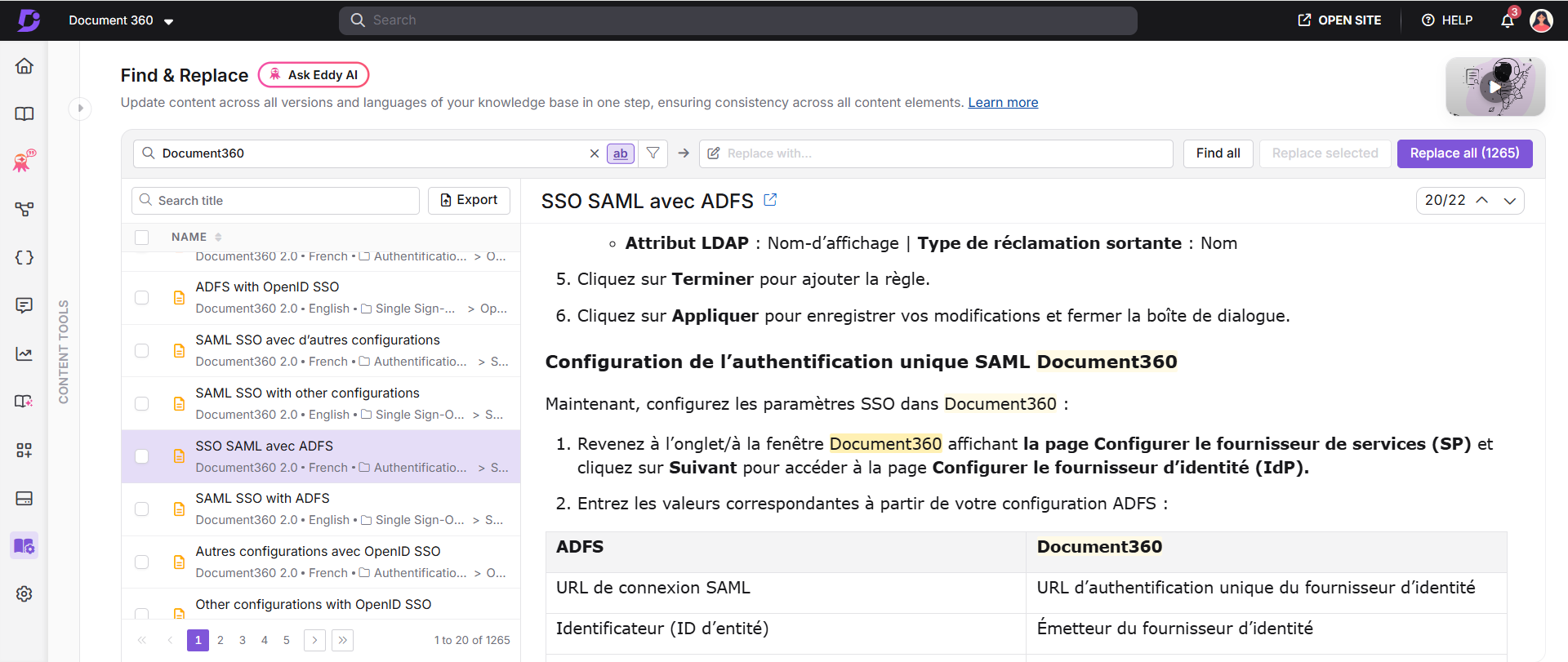
For more information, read the article on Find and replace.
Your PDF, Your Order - Rearrange sections in exported documents
Category: Export PDF | Enhancement
Ever exported an article to PDF and wished the table of contents, terms and conditions, or version history appeared in a different order? Until now, PDF exports followed a fixed layout, whether or not it matched how your readers preferred to consume the document. With the new PDF section reordering feature, you can reorder the Terms & Conditions, Table of Contents, Content, and Version History sections into the order that best suits your document, while the Cover Page and End Page remain locked at the beginning and end to ensure a consistent, professional finish.
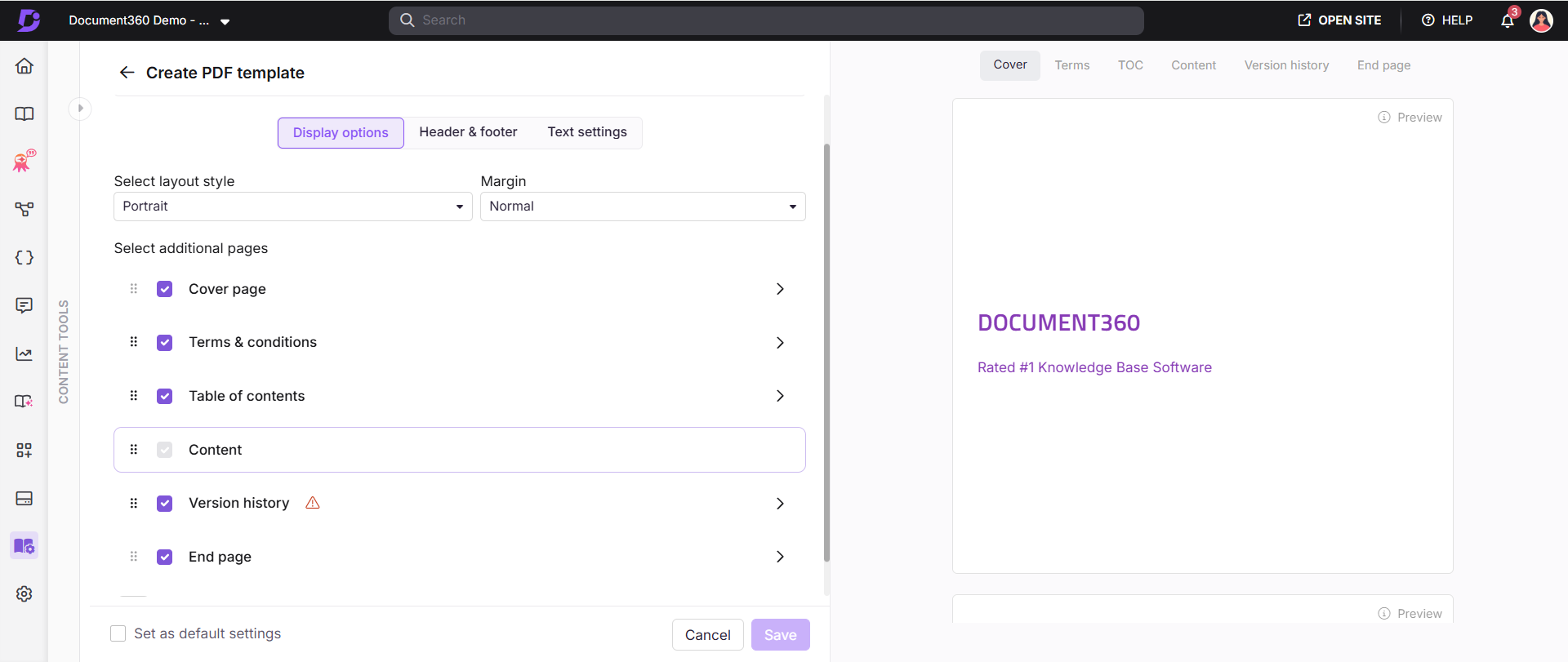
For more information, read the article on Designing a PDF template.
AI actions in the article more options menu
Category: Knowledge base site | Enhancement
Articles on your knowledge base site now include four new actions in the more options menu - Copy page, View as Markdown, Open in ChatGPT, and Open in Claude. Copy page copies the article as Markdown to your clipboard, View as Markdown opens it as plain text in a new tab, and Open in ChatGPT and Open in Claude launch the article directly in the respective AI assistant. This is especially useful when you want to ask follow-up questions about an article or get a quick summary without leaving your workflow.
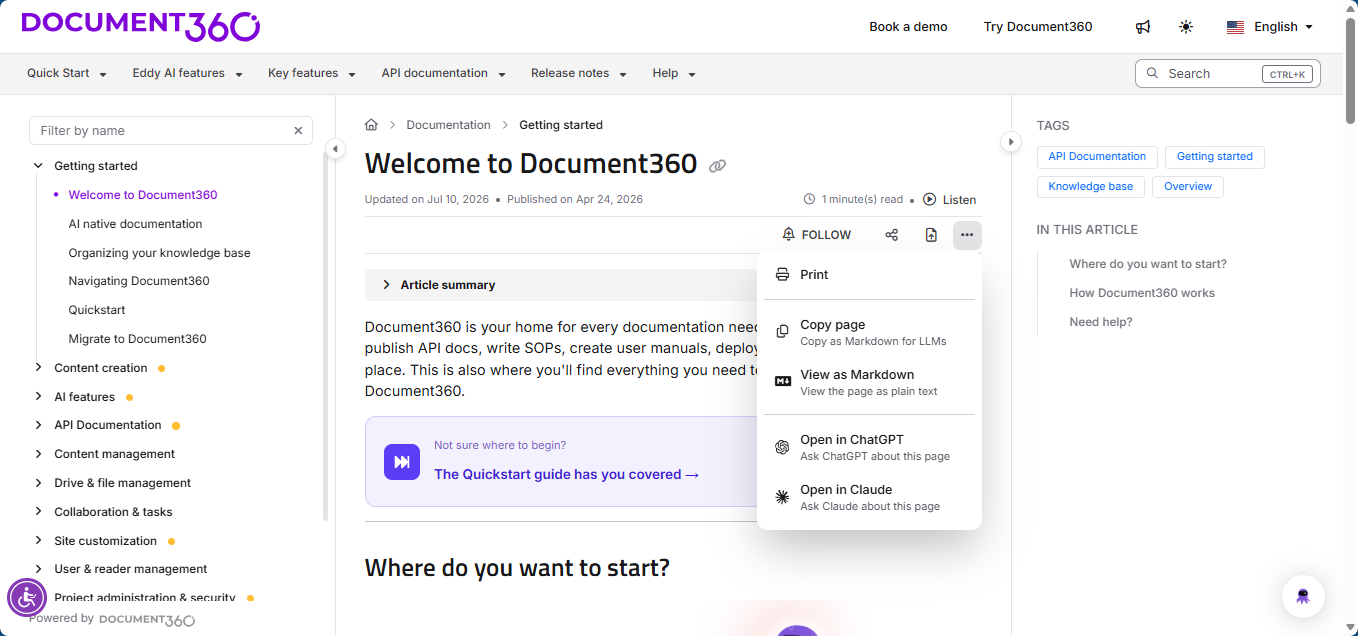
For more information, read the article on Article section.
Organize your Knowledge base with category grouping
Category: Knowledge base site | Enhancement
Now you can label your top-level categories as group headers, giving readers instant visibility into every subcategory and article beneath them, no extra clicks required. With the new Category Grouping setting enabled, these categories stay always-expanded on your knowledge base site, so readers see the full structure at a glance.
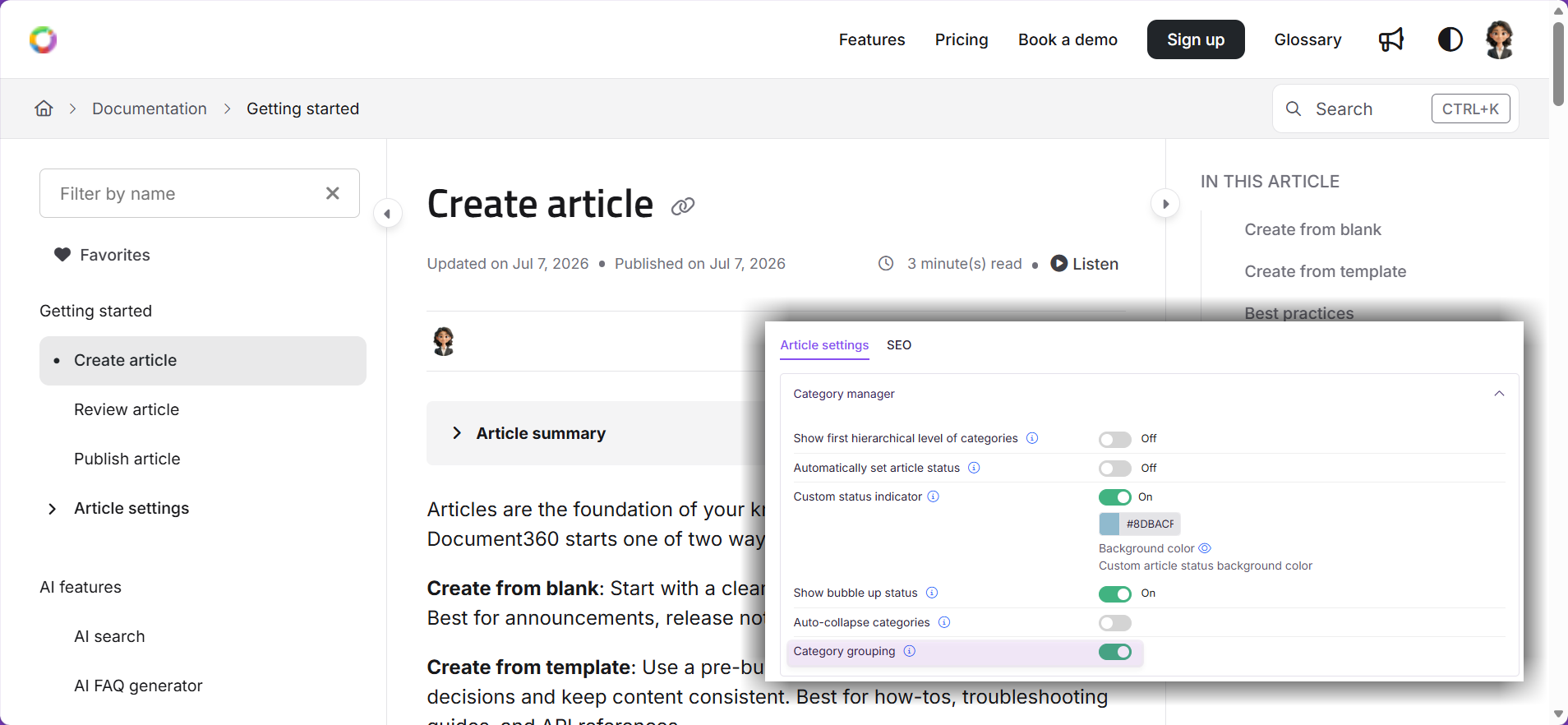
For more information, read the article on Knowledge base site overview.
Other updates
- SCIM provisioning now supports a
userTypeattribute, letting you provision Reviewers directly from your Identity Provider without a manual role change.
Minor security updates, bug fixes, and performance improvements have also been implemented across the Knowledge base portal and Knowledge base site