This section provides step-by-step guidance to address common challenges that you may encounter while managing or accessing your knowledge base site. From website accessibility problems to configuration errors, each solution is tailored to help you quickly identify and resolve potential roadblocks.
Article returns 404 error or redirects unexpectedly
When an article returns a 404 error or redirects unexpectedly, it is typically caused by the article being unpublished, an incorrect or changed article slug, a deleted article, or a misconfigured URL redirect rule.
Steps to resolve:
Check for server issues
A temporary server problem may prevent the page from loading. Try refreshing the page.
Verify the article slug
Review the article slug configured in the editor. Ensure the slug is in all lowercase and check for any typos.
Ensure that the slug matches the URL being accessed from the knowledge base site.
If the article URL was recently changed, set up a redirection rule in the Knowledge base portal to prevent broken links.
Update the slug or URL if a mismatch is identified.
Verify that the article is published
Ensure that the article is published and available in the appropriate knowledge base version.
If the article is in draft status, publish it and try accessing the article again.
Check URL redirect rules
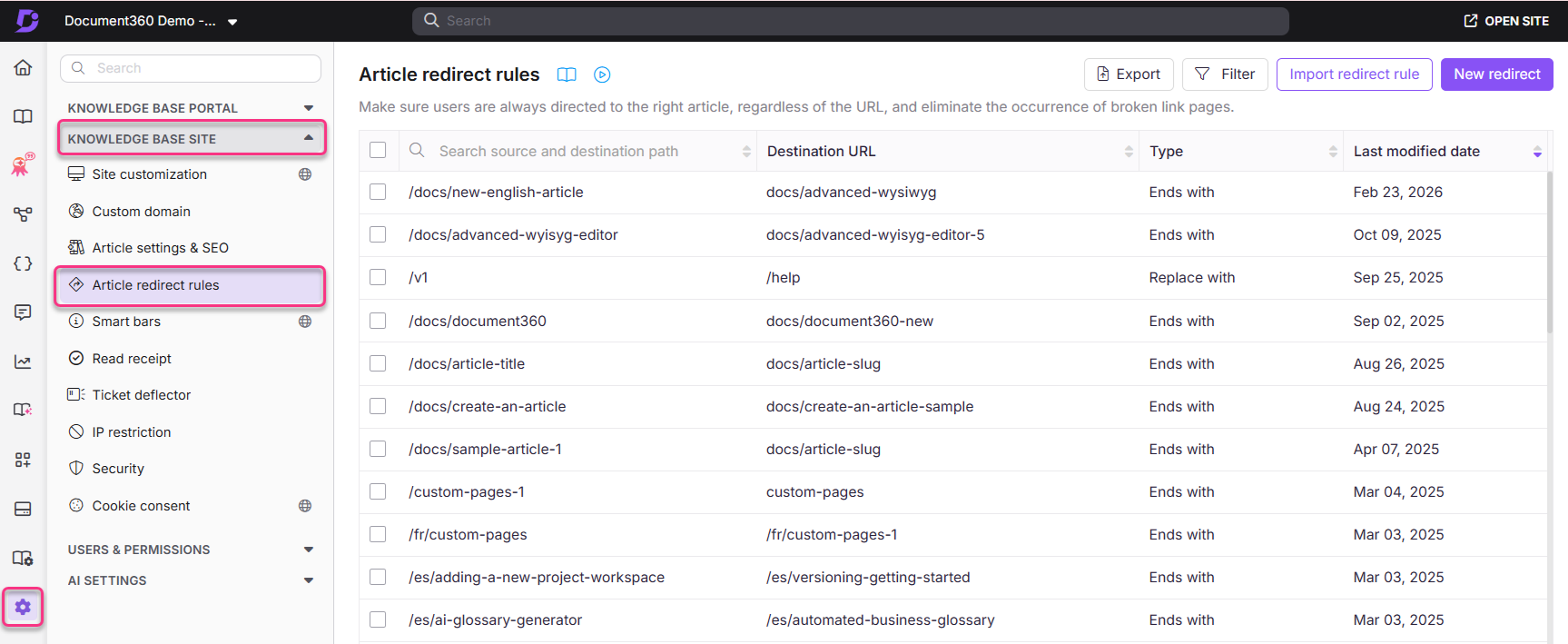
Navigate to Settings () > in the left navigation bar in the Knowledge base portal.
In the left navigation pane, navigate to .
Use the search bar to find the article's slug and check if a redirection rule is applied.
If a redirection rule is applied, review its purpose. If the rule is unnecessary or misconfigured, remove it.
Save the changes and revisit the article to ensure it displays as expected on the Knowledge base site.
Check the subfolder path
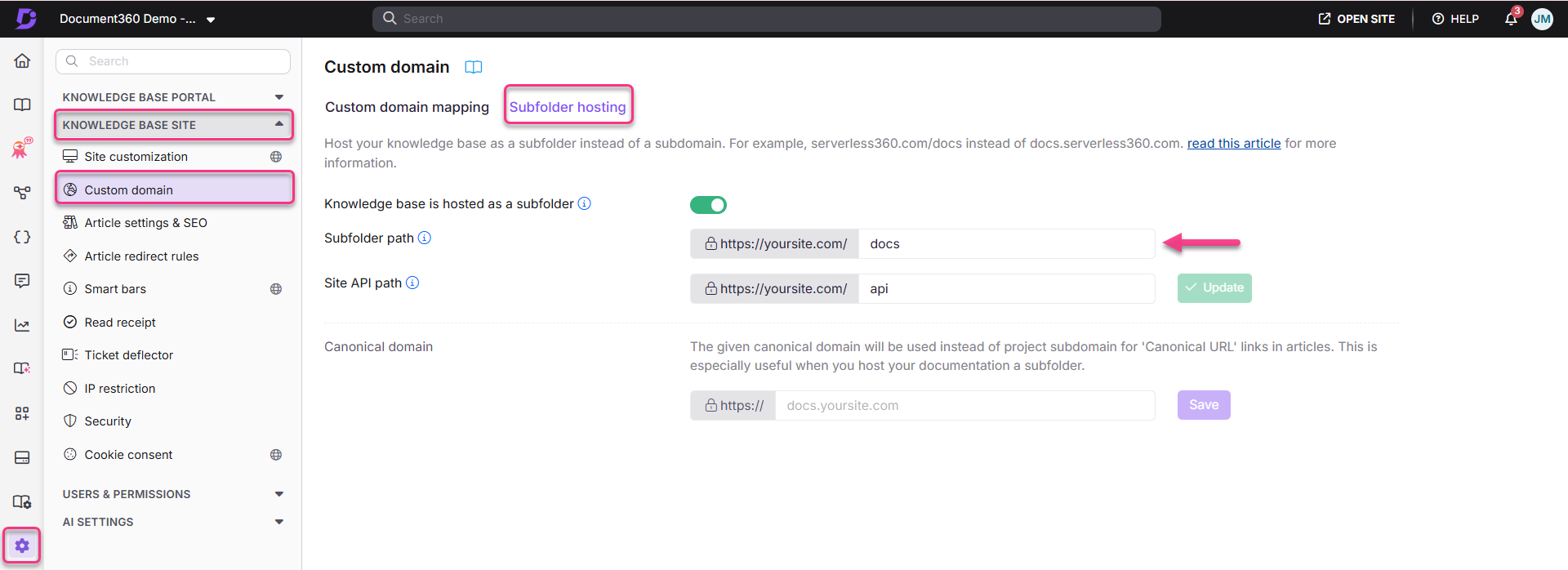
If all articles on the Knowledge base site are returning 404 errors, the subfolder path may have been changed from its default name,
docs. This applies only when the subfolder host is inactive.Change the subfolder path back to
docsand save the changes.For more information, see Hosting Document360 on a sub-directory.
If the issue persists after following these steps, please contact the Document360 support team for further assistance: Contact Document360 Support
Caching after a recent publish, redirect change, or custom domain update
If an article was just published, or a redirect rule or custom domain was just changed, a 404 error may appear temporarily even though the configuration is correct. This happens because public knowledge base content is served through an edge cache that can take a short time to refresh. This is expected behavior and is not a configuration error.
Steps to resolve:
Wait a few minutes and refresh the page. In most cases the 404 error resolves on its own once the cache updates.
If you need to confirm the change took effect immediately, view the article using a URL with an extra query parameter added to the end, for example: article-name?refresh=1. This bypasses the cache and shows the latest version directly.
If the 404 error still appears after 15 to 20 minutes, treat it as a configuration issue rather than a caching delay, and continue with the slug, publish status, and redirect rule checks described above.
For more detail on cache duration and behavior by project type, see Content delivery, caching, and update visibility.
Restored article opens to a 404 error or does not appear under its section
If an article was recently restored from the Recycle bin but still returns a 404 error or does not appear in its expected section, this is usually because the article's parent Category (section) was deleted at the same time and has not yet been restored. An article cannot resolve its path correctly if its parent category no longer exists.
Steps to resolve:
Navigate to the Overview page, hover over the Overview icon, and select Recycle bin (or navigate to Documentation and click the Recycle bin icon).
Locate the deleted parent category and click Restore. This returns the category to its original location in the category tree.
Open the restored article and click Publish to ensure it regains a valid path and becomes accessible again. Restoring the category alone does not guarantee the article is republished if it was in a draft or unpublished state.
Revisit the article on the knowledge base site to confirm it now loads correctly and appears under its section.
If the category cannot be found in the Recycle bin (for example, if more than 30 days have passed), see Recycle bin page and Backup and restore for longer-term recovery options.
Encountering an error while saving an article redirection rule.
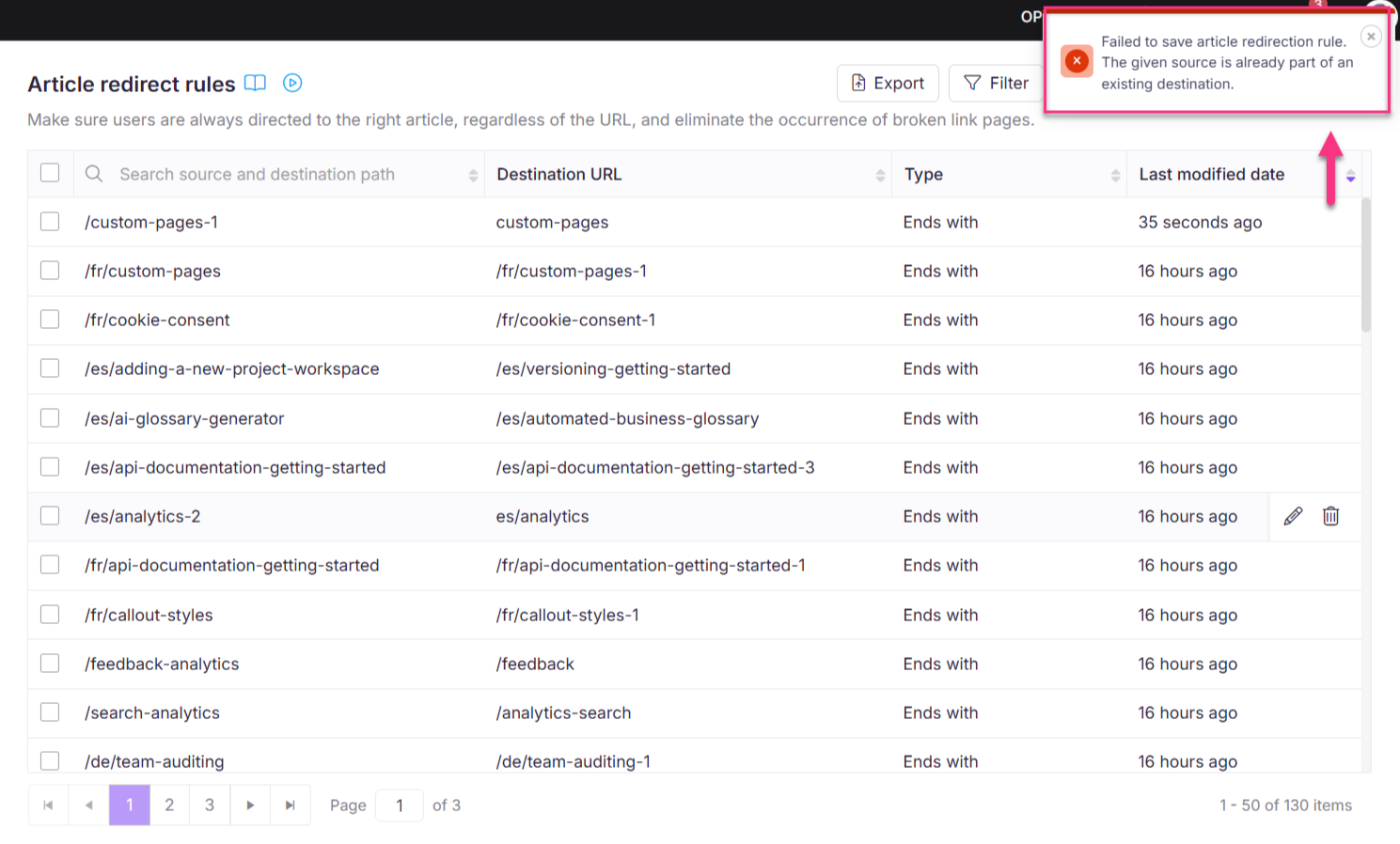
Error: Failed to save article redirection rule. The given source is already part of an existing destination.
This error occurs when a destination slug (the target of an existing redirection rule) is used as the source path for another redirection. Once a destination is set in a redirection rule, it becomes a static target and cannot be reused as a source in a new rule.
Steps to resolve:
Ensure that the destination slug is not used as a source path in any existing or new redirection rules.
Review and update your redirection rules to avoid conflicts.
An existing redirect rule can also cause a live, correctly configured article to return a 404 error for readers, separate from the save-time error described above. This happens when an unnecessary or outdated redirect rule still points from an article's current slug to a different destination.
Steps to resolve:
Navigate to Settings, then Knowledge base site, then Article redirect rules.
Use the search bar to find the affected article's slug and check whether a redirection rule is applied to it.
Review the purpose of the rule. If it is no longer needed or is misconfigured, remove it.
Save the changes and revisit the article to confirm it now displays as expected on the knowledge base site.
Avoiding 404 errors after removing languages in the Knowledge base site
When languages are removed/hidden from the Knowledge base site, readers may encounter 404 errors if they try to access removed-language versions of articles.
Once a language is removed from the project, all articles associated with that language become unavailable. However, users with bookmarked links or direct access to those URLs may still attempt to open them, leading to 404 errors.
Steps to resolve:
To prevent 404 errors and redirect users to the main language version of the article, set up redirection rules for the removed languages:
Navigate to Settings () > in the left navigation bar in the Knowledge base portal.
In the left navigation pane, navigate to .
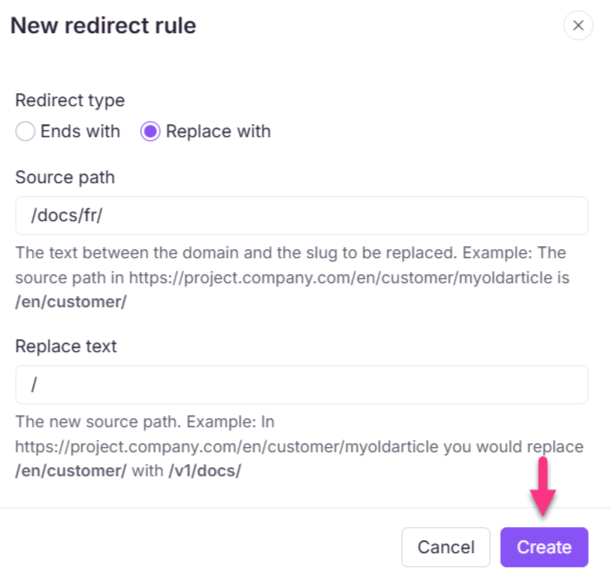
Click New redirect to add a new redirection rule.
The New redirect rule panel will appear.
Choose Replace with in the Redirect type section.
In the Source path, enter
/docs/<language_code>(e.g.,/docs/frfor French,/docs/esfor Spanish,/docs/defor German).In the Replace text, enter
/to redirect all language-specific article links to the main language.Click Create to save the rule.
Repeat the process for each removed language. Once these redirection rules are applied, any attempt to access a removed language article will automatically redirect users to the main language version, preventing 404 errors even if the links are bookmarked.
Website fails to load after entering the URL
If a website is not accessible when you enter a URL, possible causes could be incorrect URL entry, browser cache issues, VPN interference, network problems, server downtime, outdated browsers, or incorrect system date and time settings.
Steps to resolve:
Ensure the website URL is entered correctly.
Reload the page.
Clear browser cache:
Right-click anywhere on the page and select Inspect to open the developer tools menu.
Right-click the browser's reload button and choose Hard reload or Empty cache and Hard reload.
Check if a VPN is active on your device. If it is, turn off the VPN and attempt to access the site again.
Ensure your system's date, time, and time zone are set correctly.
If the issue persists after these steps, consider contacting the support team for further assistance.
Secure connection issues on the knowledge base site
Error:
This site can’t provide a secure connection
Your connection isn’t private
The connection for this site is not secure
Steps to resolve:
Check the CAA Record in DNS:
Verify if a CAA (Certification Authority Authorization) record has been added to the DNS records for your knowledge base site.
If no CAA record is found, inspect the SSL certificate used for the site. For guidance, refer to the steps in the provided video.
Update the CAA Record:
Add the corresponding CAA record to your DNS based on the SSL certificate provider.
For example, if the certificate provider is Let’s Encrypt, add the second CAA record as specified in the instructions. Similarly, ensure the correct CAA record is added for your certificate type.
Reference for CAA Records:
Learn more about CAA records and their importance by reviewing the following article:
CAA Record and Why It Is Needed (SSL-Related).
Contact the DNS Provider:
If the issue persists during custom domain setup, contact your DNS provider to confirm if there are any additional issues.
If the issue persists after following these steps, please contact the Document360 support team for further assistance: Contact Document360 Support
504 gateway timeout while accessing the site
Error: 504 gateway timeout
If a 504 error occurs while accessing the site, one possible reason could be the sub-folder configuration.
Steps to resolve:
Check recent changes in the web server configuration:
Review the location blocks or configuration files in the web server for any recent changes.
If changes are identified, revert them to their previous state.
Verify the sub-folder Configuration:
A change in the sub-folder slug within the Sub-folder Configuration may cause the issue.
Revert any recent changes to the sub-folder configuration to resolve the issue.
For more reference on sub-folder configuration, refer to the article on Hosting Document360 on a sub-directory.
Error while accessing the site
Error:
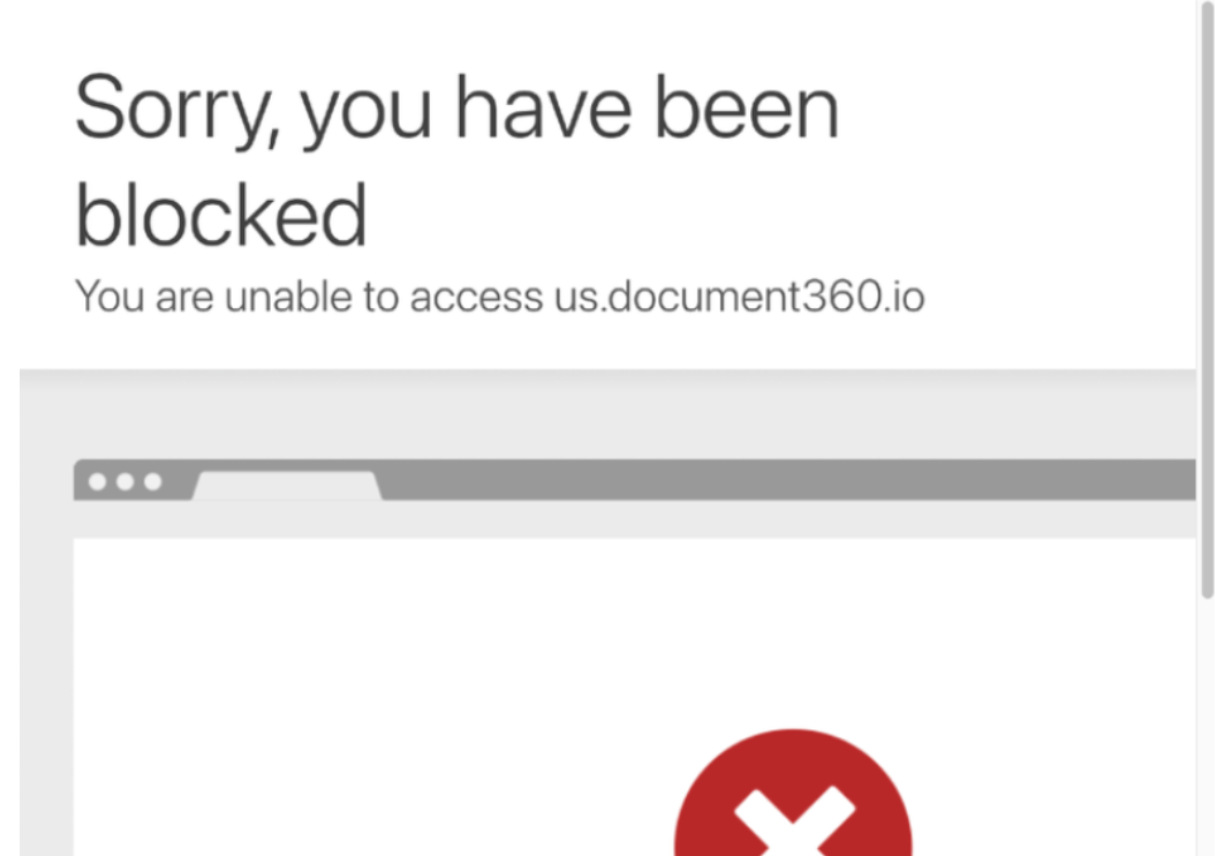
1. Sorry, you have been blocked. You are unable to access us.document360.io
2. The site fails to load properly or displays error code: 6003
The Knowledge base site is not loading or is inaccessible for certain users. Cloudflare might have flagged the IP address or the browser's user agent as suspicious or bot-like. This can result in restricted access to the site.
Or, this issue can occur if the JWT (JSON Web Token) client secret has been regenerated. When the secret is changed but not updated in the application, authentication fails, leading to access issues.

Steps to resolve:
If you experience the first issue, please reach out to us at Document360 Support. Our team will investigate the IP score or browser agent and assist in resolving the problem.
If you experience the second issue,
If the secret was recently regenerated and not updated, regenerate a new client secret.
After regenerating, ensure the new client secret is correctly updated in the JWT application's configuration settings.
Encountering the "/home/error/" message while accessing the site
Error: /home/error/
Possible causes of this error include incorrect site configuration, server-side issues, or unresolved errors in the website's backend. You might encounter this error in the URL section after the domain URL.
Steps to resolve:
Reach out to us at Document360 Support with the following details:
A screen share video demonstrating the issue on the page.
Steps to reproduce the error, if possible.
Follow the steps outlined in this guide to download the HAR file.
Share console errors:
After downloading the HAR file, click on the ‘console’ tab in your browser's developer tools.
Take a screenshot of the console errors displayed and include it in your email.
Workspace switching redirects to unexpected location
When readers switch between workspaces on your knowledge base site, they may land on an unexpected article or experience redirect loops. This usually occurs when article redirect rules conflict with your workspace switching behavior settings.
Common causes
Cross-workspace redirect rules: A redirect rule points from an article in one workspace to a URL in a different workspace, overriding your workspace switching behavior setting.
Redirect rule chains: Multiple redirect rules point to each other in sequence, causing readers to bounce between articles when switching workspaces.
Outdated redirect rules: Rules created during a previous workspace restructure are no longer valid or no longer needed.
Workspace-specific slugs in redirect paths: Redirect rules include workspace identifiers that are no longer accurate after renaming or reorganizing workspaces.
Steps to resolve
Navigate to Settings > Knowledge base site > Article redirect rules.
Search for redirect rules containing workspace names, version numbers, or paths that may be outdated.
For each rule, verify the Source path and Destination URL:
If the destination URL points to a different workspace than the source, consider whether this rule is still necessary.
If the destination URL no longer exists, delete the rule to prevent 404 errors and redirect loops.
Delete conflicting or unnecessary rules by hovering over the rule, clicking Delete, and confirming with Yes.
Test the workspace switcher on your knowledge base site by switching between workspaces and verifying readers land on the correct article.
If issues persist, check your workspace switching behavior setting:
Navigate to Settings > Knowledge base portal > General.
Verify that your chosen setting (Redirect to root article or Redirect to same article) matches your documentation structure and Reader expectations.
Prevention
After creating, renaming, or restructuring workspaces, audit your redirect rules to ensure they don't create conflicts with workspace switching behavior.
Use Team Auditing (Settings > Knowledge base portal > Team auditing) to track who created or modified redirect rules, especially if unexpected redirection occurred after recent changes.