Page isn’t working due to too many redirects
Error: Page isn’t working: page redirected too many times
Possible causes of this error include incorrect JWT Login URL configuration, using the domain URL as the Login URL, causing redirect loops, and outdated settings in the JWT configuration.
Another possible reason is an improper configuration of a custom sub-folder path other than /docs, thus causing a redirect loop due to incomplete sub-folder setup.
Steps to resolve:
Review any recent updates made to the JWT Login URL in the configuration.
Ensure the domain URL is not set as the Login URL. Using the domain URL can cause multiple redirect issues.
Remove the incorrect Login URL from the JWT configuration and replace it with the correct one.
Configure the web server to support the custom sub-folder path. Or, revert the sub-folder path to
/docs.
For detailed instructions on configuring JWT, refer to the JWT article.
Sorry! Project not found during custom domain configuration
Error: Sorry! This project does not exist.
Possible causes of this error include incorrect or missing CNAME record configuration, expired CNAME records in the DNS, or incomplete domain verification in the Document360 portal.
Steps to resolve:
Ensure the CNAME record is added correctly, and click the 'Verify' button on the custom domain page in the Document360 portal. Once verified, the custom domain will be set up and active immediately.
If the CNAME record was updated in the DNS after some time, it may have expired, preventing domain verification and resulting in the error message.
Reconfigure the custom domain, update the CNAME record, and verify the domain in Document360.
For detailed instructions, refer to the custom domain mapping article.
Knowledge base Reader access blocked
Error: Sorry, you have been blocked
This error appears for readers when they try to access the Knowledge base site and are blocked by security filters. The user's IP address or browser might have been seen as suspicious by Cloudflare, possibly because the IP has a history of unusual or harmful activity (known as a bad reputation score).
Steps to resolve:
Check and confirm if the issue affects all reader accounts or just specific users.
Find out if the affected users are using a VPN or accessing the site through a virtual machine. These can sometimes trigger Cloudflare’s security.
Ask the affected users to switch to a different internet connection (e.g., mobile hotspot or another Wi-Fi network) to see if the error persists.
Reach out to support@document360.com with the below details:
HAR file (browser network log)
IP address
Access issue when viewing documentation on the Knowledge base site
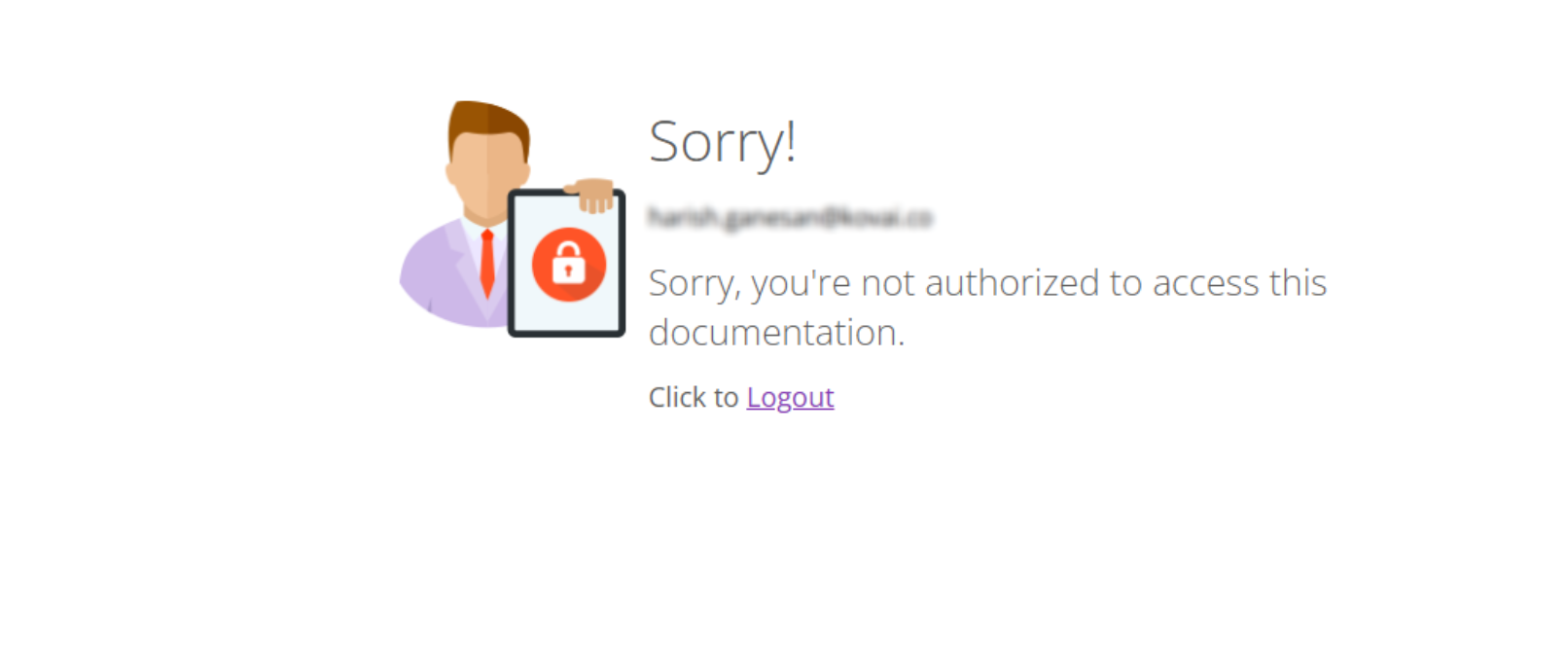
Error: Sorry, you're not authorized to access this documentation
You may face this issue due to one of the following reasons:
Project changed to private: If the project was switched from public to private, readers without login access will be restricted from viewing the content.
Private workspace in a mixed project: If the article belongs to a private workspace within a mixed-access project, access will be denied unless the reader has the required permissions to view the documentation.
Reader group permissions: The reader account may not have the necessary permissions to access the documentation through their assigned reader group.
Category-level security settings: Even if the reader has workspace access, category-level restrictions may prevent them from viewing certain content.
Reader group restrictions: If a reader is part of multiple groups and one of those groups is restricted, access may be denied due to inherited restrictions.
Steps to resolve:
Check if the project or its content access settings were recently changed from public to private.
If the issue occurs for a specific article, verify whether the workspace it belongs to has been set to private.
Review the reader group permissions for the affected reader account to ensure they have access to the relevant workspaces or content.
Ensure the article is not hidden. If hidden, hover over the article or category, click the More () icon, and select the Unhide () icon.
If restricting access for users within the Knowledge base site:
Navigate to Documentation () and hover over the desired category.
Click the More () icon next to the desired category.
Click Security > Knowledge base site and check the following:
Under the Reader tab, ensure the reader’s email is listed.
Under the Reader group tab, verify whether the reader’s group is included. If not, add it and click Close. The reader should now be able to view the article.
If restricting access for users within the Knowledge base portal:
Navigate to Documentation () and hover over the desired category.
Click the More () icon next to the desired category.
Select Security > Knowledge base portal and check:
Under the users tab, confirm that the user is listed.
Under the user groups tab, check if the user’s group is included. If not, add it.
If the issue persists after following these steps, please contact the Document360 support team for further assistance: Contact Document360 Support