If you encounter any issues while logging in to the Knowledge base portal, refer to the following common errors and their solutions:
reCAPTCHA Error: "Having trouble?"
Error: When attempting to log in, users may encounter the error message "Having trouble?" while interacting with the reCAPTCHA verification. This issue can occur due to browser restrictions, VPN interference, or network-related blocks preventing reCAPTCHA from loading correctly.
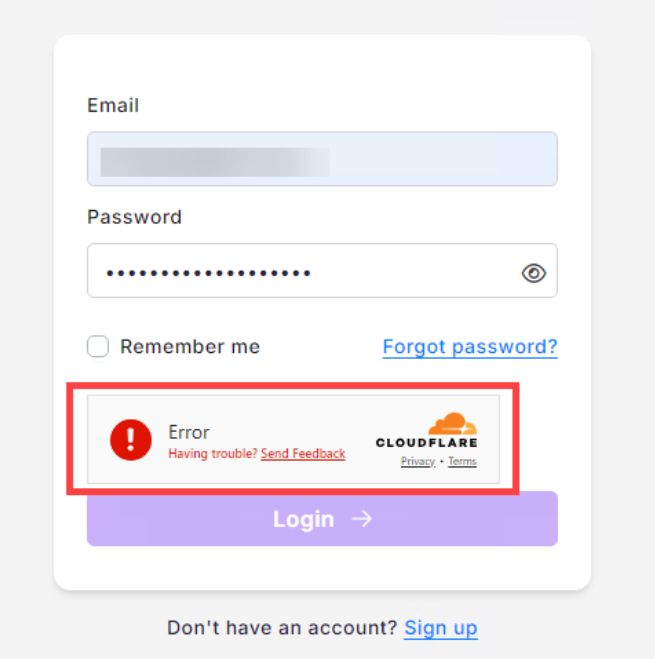
Steps to resolve:
Follow these steps to resolve the issue:
- Try accessing the site in a different browser. If the site loads successfully in another browser, deactivate any browser extensions in the affected browser and try again.
- If you are using a VPN, disconnect it and attempt to log in again.
If the issue persists after following the above steps, follow the below steps:
- Generate a HAR file by following these steps.
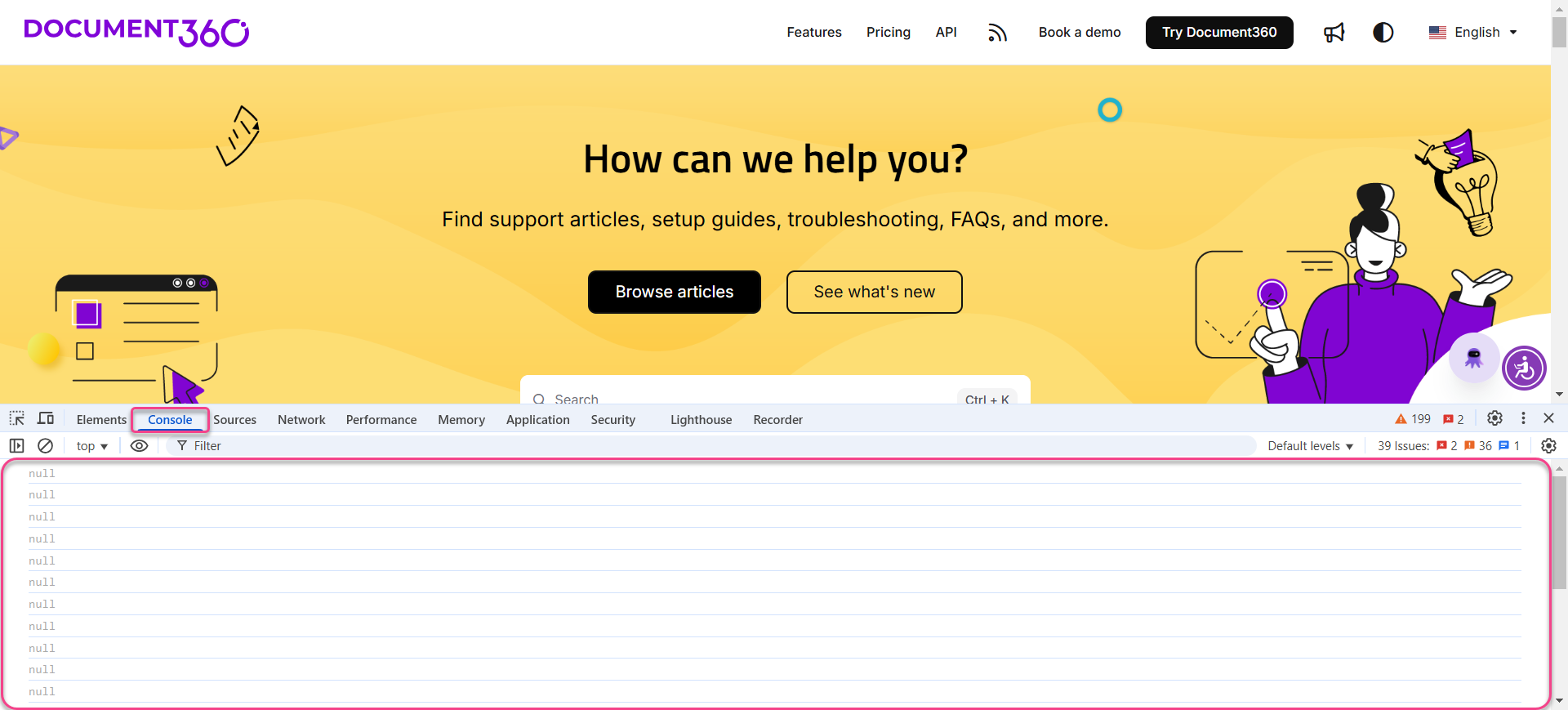
- Take a screenshot of any console errors that appear.
- Contact support@document360.com with the HAR file and screenshots for further investigation.
Access blocked: "Sorry, you have been blocked" / "You are unable to access us.document360.io"
Error: When attempting to access us.document360.io, you may receive an error message stating "Sorry, you have been blocked" or "You are unable to access us.document360.io", along with a Cloudflare Ray ID: 8dbb32d07fb2e4d4. This error indicates that access to the site has been restricted due to network, browser, or security-related issues.
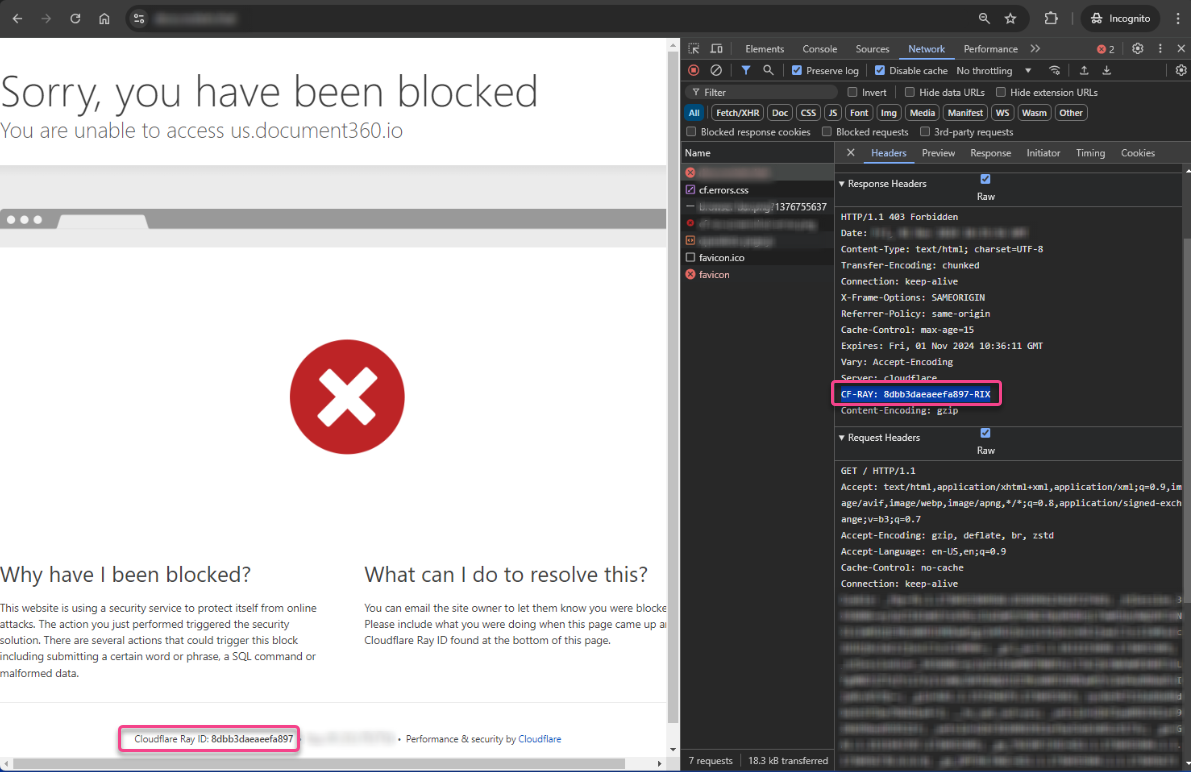
Steps to resolve:
Follow these steps to resolve the issue:
- Check if the site is accessible using a different browser, network, or computer.
- If the site is accessible in another browser, provide the browser name and version of both working and non-working browsers.
- If the site is accessible on a different computer, provide the operating system name and version of both devices.
- If the site is accessible on a different network, provide details about the network setup and the IP address from which the error occurs.
- Generate a HAR file by following these steps.
- Take a screenshot of any console errors that appear.
- Contact support@document360.com with the HAR file, screenshots, and the details collected in Step 1 for further investigation.
Login issue: Knowledge base portal keeps loading
Error: You are unable to log in to the knowledge base portal because the login page keeps loading indefinitely. This issue may occur due to your browser cache, extensions interfering with the login process, or incorrect system time settings.
Steps to resolve:
To resolve this issue,
- Clear your browser cache and cookies. If the issue persists, check whether it affects all users or only specific users. Use the following steps to clear your cache:
- Google Chrome: Menu (3 dots) > Settings > Privacy and security > Clear browsing data
- Mozilla Firefox: Menu (3 lines) > Settings > Privacy & Security > Clear Data
- Microsoft Edge: Menu (3 dots) > Settings > Privacy, search, and services > Choose what to clear
- Safari (Mac): Safari > Preferences > Privacy > Manage Website Data > Remove All
- Safari (iPhone/iPad): Settings > Safari > Clear History and Website Data
- Opera: Menu > Settings > Advanced > Privacy & Security > Clear browsing data
- Try accessing the portal in an incognito or private browser window. Some browser extensions may be blocking the login page or affecting loading times.
- Inspect the page to check for loading time issues:
- Right-click on the page and select Inspect.
- Check the console for error messages and monitor loading times.
- If you see an invalid login persisting for a long time, your system's time settings may be incorrect.
- Make sure your system time zone is set correctly. An incorrect system clock or time zone mismatch can cause login failures. Update your system time zone to match your region.
- If the issue still persists, capture diagnostic data:
- Generate a HAR file by following these steps.
- Share the HAR file with support@document360.com for further troubleshooting.
Login issue: Callback URL is not working
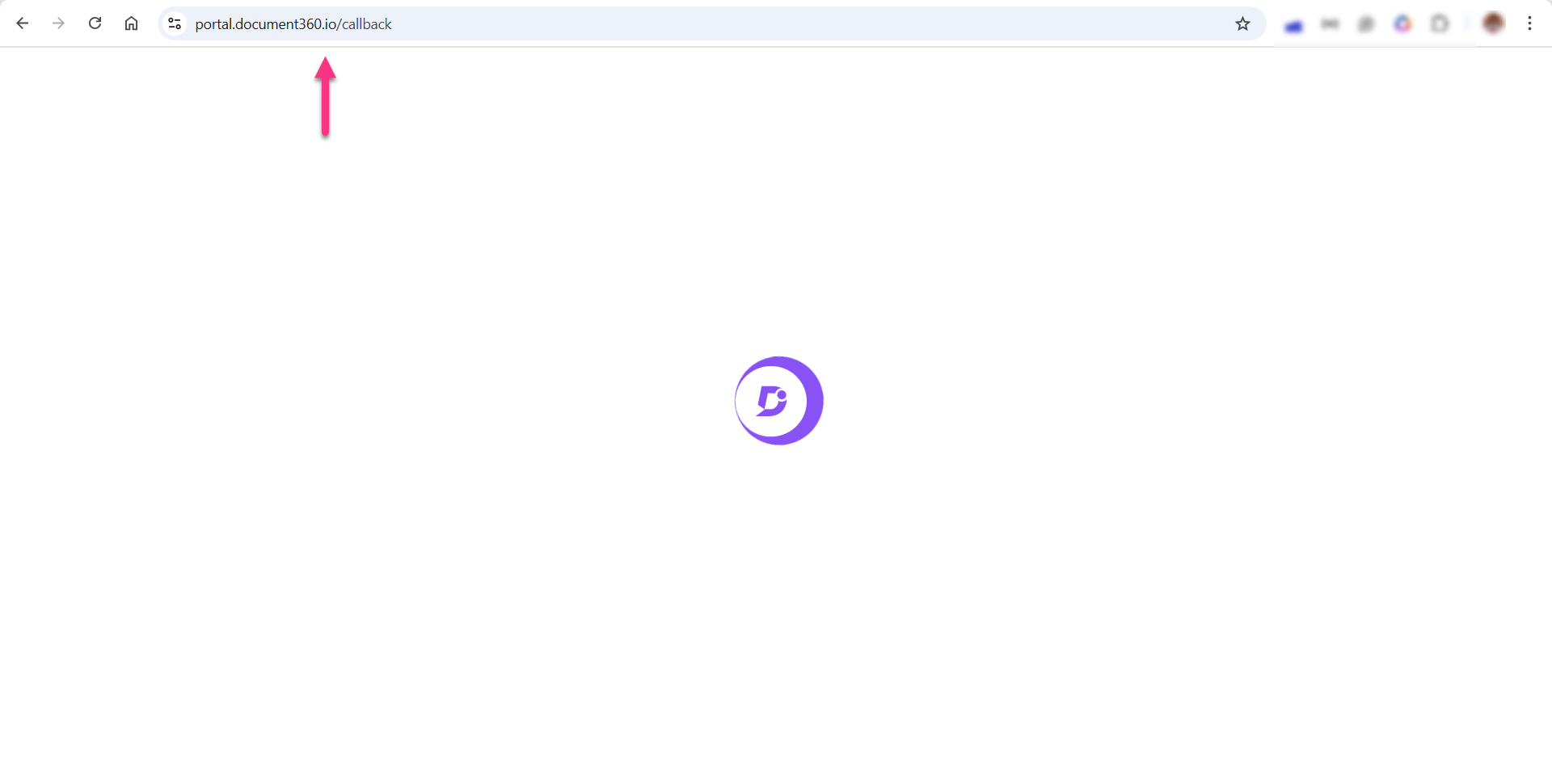
Error: You are unable to log in to your Document360 account because the callback URL (portal.document360.io/callback) is not working. This issue may occur due to an intermittent cache issue or an incorrect system time setting on your device. If your system's internal clock is not synchronized with your time zone or region, it can cause login failures, including issues with the callback URL.
Steps to resolve:
- Clear your browser cache and cookies, then try logging in again.
- Verify your system time settings and ensure they are correctly synchronized with your time zone.
Access issue: "This site cannot be reached" / DNS_PROBE_FINISHED_NXDOMAIN
Error: While accessing the Knowledge base site or portal, the following errors may appear:
.png)
- DNS_PROBE_FINISHED_NXDOMAIN
- "This site cannot be reached"
- "Cannot reach this page"
This issue is commonly related to local DNS, network, or browser-level connectivity problems.
Steps to resolve:
- Verify the URL is correct and clear the browser cache before trying again in an incognito/private window.
- Check internet connectivity and try accessing the site using a different browser or network.
- If the issue persists, contact the internal IT/network administrator to verify any local network, firewall, proxy, or connectivity restrictions.
This issue is generally caused by local network-related configuration problems and is usually resolved after validating the network settings or connectivity from the local environment.
If the issue persists after following these steps, please contact the Document360 support team for further assistance: Contact Document360 Support
FAQ
I haven't received the verification code. How do I continue with the signup process?
If you haven't received the code, click Resend Code on the Email verification page. If you still can't find the email in your inbox, check your spam/junk folder. If you cannot locate the verification code, contact the Document360 support team for further assistance.
What happens if I don't complete the password setup during signup?
If you return to the signup page and enter your details again, the system will recognize your previous session and automatically redirect you to the password creation screen.
My Document360 trial period ended. Can I still access my data?
Once your Document360 trial ends, you can no longer access any content you created within Document360. To regain access to your data, reach out to the sales representative or account executive at Document360 who was involved during your trial phase. They can guide you through upgrading to a subscription plan or retrieving your data.
If you don't hear back from your sales or account executive, contact the support team at support@document360.com, and they will help connect you with the right person.
To learn more about our pricing, visit here.
What happens if Eddy AI cannot generate content from my website?
If Eddy AI is unable to extract sufficient content from your website, the system will use default templates based on your selected use case.
Is my knowledge base visible to the public after I sign up?
No, your project is private by default when you sign up for a trial. This helps protect your documentation while you're evaluating the platform and ensures that only team members you invite can view the content.
If you want to make your project publicly accessible:
Go to the Reader access settings page in the portal.
You'll see that Mixed and Public visibility options are disabled.
Click the Contact Sales link in the info banner to request access.
Once validated, the sales team will send a confirmation email, and the visibility options will be unlocked.
NOTE
This setup keeps your documentation secure until you're ready to share it more broadly.
I was added to a new project but couldn't access it. How can I access the project?
This might happen if your previous trial account was created in a different region (for example, EU), and the new project is hosted in another region (such as the US). Document360 projects are region-specific, and each region has its own portal URL.
To access the project, confirm the region of your current project with your project admin. Then, use the appropriate portal link. For example:
US region: https://portal.us.document360.io
EU region: https://portal.eu.document360.io